







If your SD card suddenly shows errors like “SD card is corrupted” or “You need to format the disk before you can use it”, you’re not alone. Many users panic when they lose photos from a corrupted SD card, especially when those pictures are irreplaceable.
“SD Card is corrupted, can I get my pictures back?”
“How do I recover pictures from a corrupted SD card without making things worse?”
The good news is that you can recover photos in most cases, as long as you take the right steps and avoid risky actions. In this guide, you will learn how to recover pictures from a corrupted SD card step by step, starting with the safest DIY checks and moving on to professional recovery methods.
Why Does an SD Card Become Corrupted?
At this stage, many users feel tempted to try random fixes. Before you try to recover pictures from a corrupted SD card, it helps to understand what caused the corruption. This can prevent further damage and help you choose the right recovery method.
Common Reasons for SD Card Corruption
| Cause | Description |
| File system damage | Improper removal, sudden power loss, or device crashes can break the SD card’s file structure |
| Bad sectors | Aging or low-quality SD cards may develop unreadable areas |
| Virus or malware | Using the card on infected computers can damage stored files |
| Interrupted write process | Removing the card while photos are being saved |
| Physical connection issues | Dirty contacts, faulty card readers, or unstable USB port |
⚠️ Tip: If the SD card is not physically broken, photos are often still recoverable even when the system says it’s corrupted.
Core Solutions: How to Recover Pictures from a Corrupted SD Card (From Easy to Advanced)
Six proven methods are below, ordered from lowest risk to highest complexity. If you’re new to data recovery, start from Method 1 and move down only if needed.
Method 1: Stop Using the SD Card Immediately
Before attempting any recovery, follow these essential steps to maximize your chances of restoring lost pictures:
- Remove the SD card from your camera, phone, or computer immediately to prevent any further changes to the data.
- Do NOT format the SD card. Formatting may erase valuable data, making it harder or even impossible to recover pictures from a corrupted SD card.
- Do NOT copy new files onto the card, as this could overwrite the existing data, reducing the chances of recovering your lost images.
⚠Warning: Any new data written to a corrupted SD card can overwrite deleted photos permanently.
By taking these precautions, you’ll help preserve the SD card’s data integrity, giving you the best opportunity to recover lost photos successfully.
Method 2: Try a Different Card Reader or Computer
Sometimes, the SD card itself isn’t fully damaged, and the issue might be related to the card reader, USB port, or the computer. To troubleshoot, try the following steps:
- Insert the SD card into a different card reader. The current reader may have a hardware fault, preventing proper reading.
- Try another USB port on your computer. A malfunctioning port could be the cause of the issue.
- Test on a different computer (either Windows or Mac). Sometimes, the computer’s operating system or settings might be preventing the card from being recognized.
⚠️ Tip: If the SD card suddenly becomes readable, immediately copy all photos and important files to another drive to prevent potential future data loss.
If the SD card still shows as corrupted after these steps, you can proceed with more advanced recovery methods to attempt file restoration.
Method 3 (Recommended): Recover Pictures Using pandaoffice drecov
This is the most effective and beginner-friendly method to recover pictures from a corrupted SD card without needing any technical commands or advanced software. The process is designed to be simple, ensuring that even those with minimal experience can follow along easily and safely.By using built-in tools on your computer, you can quickly scan and fix minor errors on your SD card without the risk of overwriting data. It’s a secure, non-invasive method that doesn’t require installing any third-party programs, making it ideal for those who are unfamiliar with data recovery processes.
One of the main advantages of this approach is that it’s completely safe. The tool will only attempt to repair the file system, not delete or alter any files, ensuring your precious pictures remain intact. Moreover, you’ll find the easy-to-follow steps require no technical knowledge—simply follow the prompts, and the process will guide you through. Whether you’re a first-time user or someone with little tech experience, this method ensures you recover smoothly with minimal risk and effort. It’s the perfect starting point for anyone looking to recover their lost images from a corrupted SD card, without the hassle of complex recovery programs.
Step-by-Step: How to Recover Pictures from a Corrupted SD Card with pandaoffice drecov
Step 1: Download pandaoffice drecov
Click the official download button and install it on your computer .
Step 2: Insert the Corrupted SD Card
Connect the SD card using a reliable card reader. The software will detect it automatically.
Step 3: Select the SD Card to Scan
Choose the corrupted SD card from the drive list.
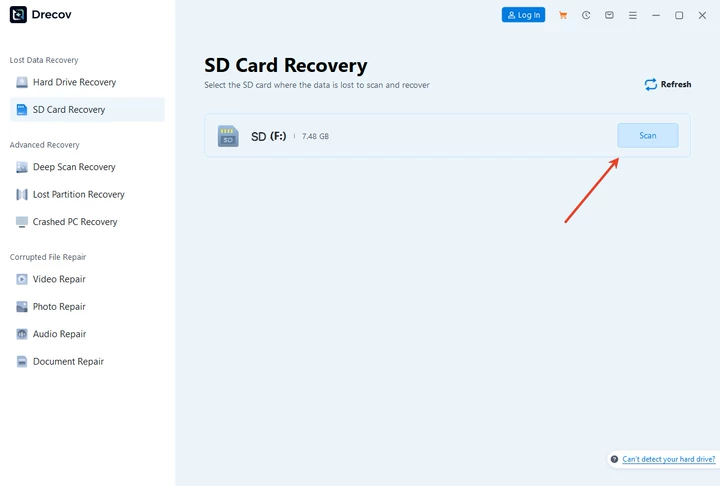
Step 4: Start Scanning
The tool performs a deep scan that locates recoverable pictures, even if the file system is damaged.

Step 5: Preview Recoverable Photos
You can preview images before recovery to confirm quality and integrity.

Step 6: Recover and Save Photos
Select the pictures you need and save them to a different drive (never back to the SD card).

✔️ This method is perfect for anyone looking to recover pictures from a corrupted SD card safely and quickly. Using Windows’ built-in error checking tool, you can easily scan your SD card for minor errors and attempt automatic repairs without risking further data loss. It’s an ideal first step for beginners before turning to advanced recovery software. By following this simple process, you can protect your valuable photos and avoid accidental deletion or overwriting. Whether your SD card shows file system errors, unreadable files, or minor corruption, this approach helps you recover lost pictures efficiently while keeping your data safe.
Method 4: Windows Error Checking (Limited Effect)
1: Insert the SD Card
Insert your SD card into your computer using a card reader or built-in slot. Make sure the device is recognized.
2: Open This PC
Open This PC (or My Computer on older Windows versions) and locate your SD card under the list of drives.
3: Access Properties
Right-click on the SD card icon and select Properties from the menu.
4: Go to Tools
In the Properties window, switch to the Tools tab. Under the “Error checking” section, click the Check button.
5: Scan and Repair
Click Check to start scanning the SD card. Windows will attempt to detect and automatically repair minor errors. Wait for the process to finish.
6: Safely Eject the SD Card
After scanning, safely remove the SD card using the Safely Remove Hardware icon in the taskbar. Then try accessing your files again.
⚠️ Note: This does not guarantee photo recovery and may not work on heavily corrupted cards.
Method 5: Use CMD (Advanced Users Only)
Windows Command Prompt can sometimes repair file system errors by scanning the SD card for logical issues and attempting to fix them automatically. This method uses the built-in CHKDSK command, which checks the file system structure and marks bad sectors if they are found. In certain cases, this can restore access to an SD card that appears corrupted or unreadable in File Explorer.
However, you should use Command Prompt with caution. CHKDSK repairs file systems, but it doesn’t recover photos from an SD card, and it may modify directory structures during the repair process. As a result, some files may become inaccessible or permanently lost if the corruption is severe. For this reason, we strongly recommend recovering photos from the SD card using dedicated SD card recovery software before attempting any CMD-based repair.
This approach is best suited for advanced users dealing with minor corruption. If the SD card continues to show errors after running Command Prompt, professional recovery tools or services are safer options. Below are the steps:
Step 1: Press Win + R, type cmd, run as administrator
Step 2: Enter:
chkdsk X: /f
(Replace X with your SD card letter)
⚠ Warning: This command may cause permanent file loss if used incorrectly. Always try photo recovery software first.
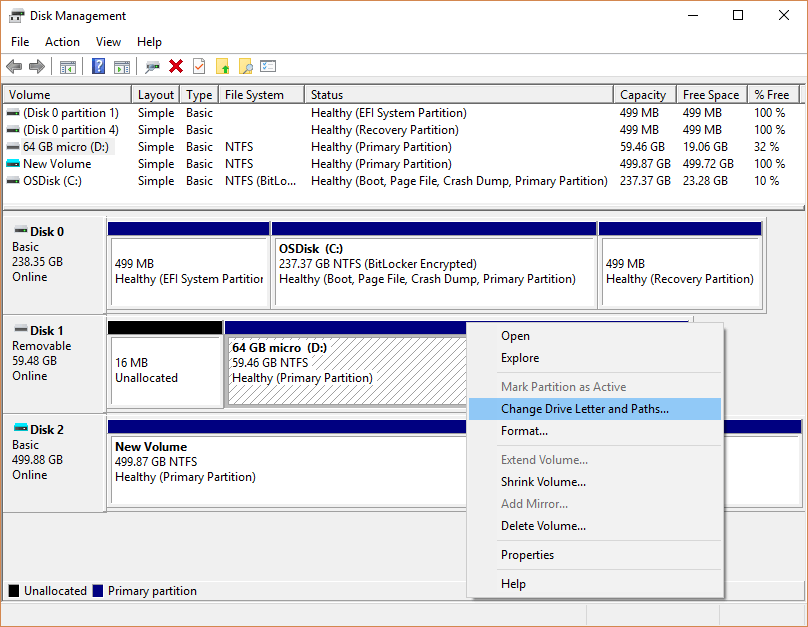
Method 6: Assign New Drive Letter
Step 1: Insert the SD card into a card reader and connect it to your computer.
Step 2: Check whether the SD card shows up with a drive letter. If it doesn’t appear, your system is not reading the card properly.
Step 3: If you see a message like “Please insert the disk into drive E:”, it means the card reader is detected but the SD card cannot be read.
Step 4: Open your system’s disk or storage settings and assign a new drive letter to the SD card to resolve the issue.
Method Selection and Security
Security considerations
In fact, this concern is frequently discussed by everyday users and IT professionals alike. On Microsoft’s official Tech Community, there are ongoing threads where users exchange real-world experiences, troubleshooting steps, and recovery outcomes related to corrupted SD cards. These discussions highlight common pitfalls encountered during recovery attempts. From a data recovery perspective, system-level suggestions are not always risk-free and can, in some cases, increase the likelihood of permanent data loss.
Many users encounter a prompt from Windows to format a corrupted SD card when file system errors are detected. While formatting may restore the card’s usability, you should avoid it until you have completed all recovery attempts. Formatting rewrites file system structures and can overwrite existing photo and video data, significantly reducing recovery success rates and, in severe cases, making recovery impossible.
Choose a safe Method
Choosing a safe and reliable data recovery tool is critical not only for protecting the physical integrity of an SD card, but also for safeguarding personal and professional information stored on it. Many users searching for how to recover files from a corrupted SD card may be tempted to try random free utilities or follow system-level prompts without understanding the potential risks involved. Unverified software can accidentally overwrite existing data, modify file system structures, or even introduce security vulnerabilities that put sensitive information at risk.
A trusted recovery solution minimizes these dangers by operating in a read-only mode, ensuring that the original data on the SD card remains untouched during the scanning and recovery process. Drecov by PandaOffice prioritizes data safety and user privacy by allowing users to preview recoverable files before restoration and preventing unnecessary write operations that could reduce recovery success rates. Its intuitive interface also helps beginners make informed decisions instead of relying on automated system actions such as forced formatting.
By using a secure and reputable recovery tool like Drecov, users significantly improve their chances of successful recovery while maintaining control over both their SD card’s condition and their data security. This careful approach is essential for achieving safe, effective, and reliable SD card recovery results.
Optional: Fix the Corrupted SD Card After Photo Recovery
Drecov by PandaOffice actively prioritizes data safety and user privacy by letting users preview recoverable files before restoration and preventing unnecessary write operations that could reduce recovery success rates. It is important to remember that SD card repair should always come after data recovery, never before. Attempting to fix a corrupted SD card too early may permanently erase recoverable files.
Below are several repair a corrupted SD card methods, arranged from basic to more advanced, depending on the severity of the corruption.
Reinsert and Format the SD Card (Only After Recovery)
Formatting is the most common and effective way to repair logical corruption on an SD card. When you format a card, the operating system rebuilds the file system structure, which often resolves issues such as unreadable files, error messages, or failed write attempts.
After confirming that all important photos have been recovered:
- Insert the SD card into your computer or camera
- Choose the format option prompted by the system
- Select a compatible file system such as FAT32 (for cards up to 32GB) or exFAT (for larger SDXC cards)
Formatting will erase all remaining data on the card, which is why it should only be performed after recovery is complete. While formatting may restore normal functionality, repeated corruption after formatting can indicate underlying hardware issues.
Change the File System (FAT32 or exFAT)
In some cases, SD card errors are caused by file system incompatibility rather than permanent damage. For example, a card formatted as exFAT may not work properly on older cameras or devices that only support FAT32.
Reformatting the SD card with a different file system can improve compatibility and stability:
- FAT32 is widely supported and works well with cameras and legacy devices
- exFAT supports larger file sizes and is recommended for high-capacity SD cards and modern systems
Selecting the correct file system helps reduce the risk of future corruption, especially when you frequently move the SD card between devices like cameras, smartphones, and computers.
Use PandaOffice Repair Tools for SD Card Errors
When standard formatting fails or the SD card continues to show errors, dedicated repair tools can help diagnose and fix logical issues. PandaOffice repair utilities are designed to address common SD card problems such as file system corruption, unreadable sectors, and abnormal card behavior.
These tools work by:
- Scanning the SD card for logical inconsistencies
- Repairing file allocation tables and directory structures
- Restoring stable access without unnecessary write operations
Compared to built-in system tools, specialized repair software provides better control and clearer feedback, reducing the risk of further damage.
When Repair Is Not Recommended
Drecov by PandaOffice takes active steps to prioritize data safety and user privacy by enabling users to preview recoverable files before restoration and avoiding unnecessary write operations that could reduce recovery success rates.
Best Practices After Repair
To prevent future corruption and ensure your SD card remains in good working condition, follow these best practices:
- Always safely eject the SD card: Before removing the SD card from your camera, phone, or computer, make sure to safely eject it through the system’s settings or taskbar. This ensures that any ongoing file operations are completed and that no data is left unprocessed, which could lead to corruption.
- Avoid removing the card while data is being written: Always wait until the SD card’s indicator light turns off or the system confirms that data writing is complete before removing the card. Interrupting this process can damage the file system and lead to data loss.
- Use high-quality card readers: Poor-quality or cheap card readers can cause connection issues or unreliable data transfer. Choose a reputable card reader to ensure stable and efficient reading and writing of data to your SD card.
- Regularly back up important photos: One of the best ways to protect your photos is to create regular backups. Store your pictures on multiple devices or cloud services to reduce the risk of losing valuable memories in the event of SD card corruption.
While repairing an SD card can help extend its lifespan, prevention is always the most reliable strategy for safeguarding your data. By regularly handling your SD card with care, following these tips, and maintaining a backup routine, you will gain peace of mind and ensure that your valuable files are protected over the long term.
⚠️ Formatting will erase data—recover photos first.
⚠️ Important Warnings Before You Proceed
Never format before photo recovery
Do not repeatedly scan with multiple tools
Avoid saving recovered pictures to the same SD cardThese mistakes are the most common reasons users permanently lose photos.
Final Thoughts: Best Way to Recover Pictures from a Corrupted SD Card
If you’re facing a corrupted SD card, and want to recover photos from SD card, the best strategy for recovery is clear and simple:
First, recover pictures using PandaOffice Drecov:
Begin by using PandaOffice Drecov, a powerful and user-friendly data recovery tool. This software is specifically designed to help you recover lost photos from a corrupted SD card. It scans the card for recoverable files, allowing you to preview them before restoration. This step should be your priority, as it helps to secure your precious images before attempting any repairs or formatting. Make sure to follow the prompts carefully to ensure a smooth recovery process.
Then, repair or format the SD card if needed:
After you’ve successfully recovered your photos, you can proceed with repairing or formatting the SD card if necessary. Formatting may restore its functionality, but be sure to do this only after data recovery. If the card has minor corruption or issues, formatting or using repair tools may bring it back to life. However, avoid formatting before recovery, as it could permanently erase your files.
Use professional services only for physical damage:
If your SD card shows signs of physical damage (e.g., broken connectors or water damage), it’s best to consult professional data recovery services. These experts have the tools and experience needed to recover data from severely damaged cards.
By following this clear recovery strategy, you ensure that your pictures are safely retrieved and that your SD card has the best chance of being restored to working condition.
Finally, remember: regular backups are the only true protection against photo loss. Recover once, then back up often





