







Understanding Excel File Recovery from Desktop External Hard Drive
How Excel files are stored on external storage devices
When working with a desktop external hard drive, Excel files such as XLS or XLSX are saved as structured data blocks within the file system. These files are stored in clusters across the drive, meaning they are not always located in one continuous space.
Whether you are using a standard external hard drive for desktop computer or a high-capacity device like the wd 20tb elements desktop external hard drive, the storage mechanism remains similar. The operating system tracks file locations using metadata, allowing quick access under normal conditions.
However, when files are deleted or lost, only the reference in the file table is removed. The actual data may still remain on the drive until overwritten. This is why it is possible to recover Excel from Desktop External Drive using the right tools and methods.
What happens when Excel files are lost or deleted
Excel files can disappear due to several reasons:
- Accidental deletion
- Formatting of the external drive
- File system corruption
- Virus or malware attacks
In most cases, the data still exists physically on the drive, but becomes inaccessible through normal navigation.
Common Causes of Excel File Loss on External Drives
One of the most frequent causes of Excel file loss is human error. Users may accidentally delete files or overwrite important spreadsheets without realizing it. Improper ejection of a desktop external hard drive can also lead to file corruption.
Another common issue is organizing files incorrectly. Moving or renaming directories may result in files appearing “missing” even though they still exist on the drive.
These scenarios often require users to attempt to recover Excel from Desktop External Drive using search or recovery tools.
Hardware failures can also lead to data loss. External drives may develop bad sectors, especially after prolonged use. Even reliable models like the wd 20tb elements desktop external hard drive are not immune to wear and tear.
Other system-related causes include:
- Sudden power outages
- USB connection failures
- Driver incompatibility
- File system errors
These issues can make Excel files inaccessible, even though they are still stored on the drive.
⚠️Warning: If your drive makes unusual noises, disconnect it immediately to prevent further damage.
Best Methods to Recover Excel from Desktop External Drive
Method 1: Check Recycle Bin and Temporary Files
Test Environment
- OS: Windows 11
- Device: External USB drive
- Scenario: Recently deleted Excel file
Before using advanced tools, check basic recovery options.
Steps
- Open the Recycle Bin on your desktop
- Search for the deleted Excel file
- Right-click and select “Restore”
- Check the original folder on the external drive
You can also look for temporary Excel files:
- Open Excel
- Go to File > Info > Manage Workbook
- Check for unsaved versions
This method is quick and effective for recently deleted files.
Method 2: Use File History or Backup Systems
Test Environment
- OS: Windows 10/11
- Feature: File History enabled
- Scenario: File overwritten or deleted
If you have backups enabled, restoring Excel files becomes much easier.
Steps
- Connect your external hard drive for desktop computer
- Navigate to the folder where the file was stored
- Right-click and select “Restore previous versions”
- Choose a version and restore
This method depends on whether backups were previously configured.
Method 3: Search for Hidden or Misplaced Excel Files
Test Environment
- OS: Windows 11
- Scenario: File not deleted but missing
Sometimes files are not lost but simply hidden or misplaced.
Steps
- Open File Explorer
- Search using keywords like:
*.xls*.xlsx
- Enable “Hidden items” in the View menu
- Sort results by date or size
This approach helps locate files that are still present but difficult to find.
Method 4: Recover Excel Files Using PandaOffice Drecov
Test Environment
- OS: Windows 11 / macOS
- Device: External HDD (USB 3.0)
- Scenario: Deleted or formatted Excel files
When basic methods fail, using professional software is the most effective solution to recover Excel from Desktop External Drive.
Steps
- Install PandaOffice Drecov on a separate drive
- Launch the software and select the external drive
- Choose “Document Recovery” or similar mode
- Run a deep scan
- Filter results for Excel file formats
- Preview and recover selected files
- Save them to a different storage location
This method works well even for formatted drives and corrupted file systems.
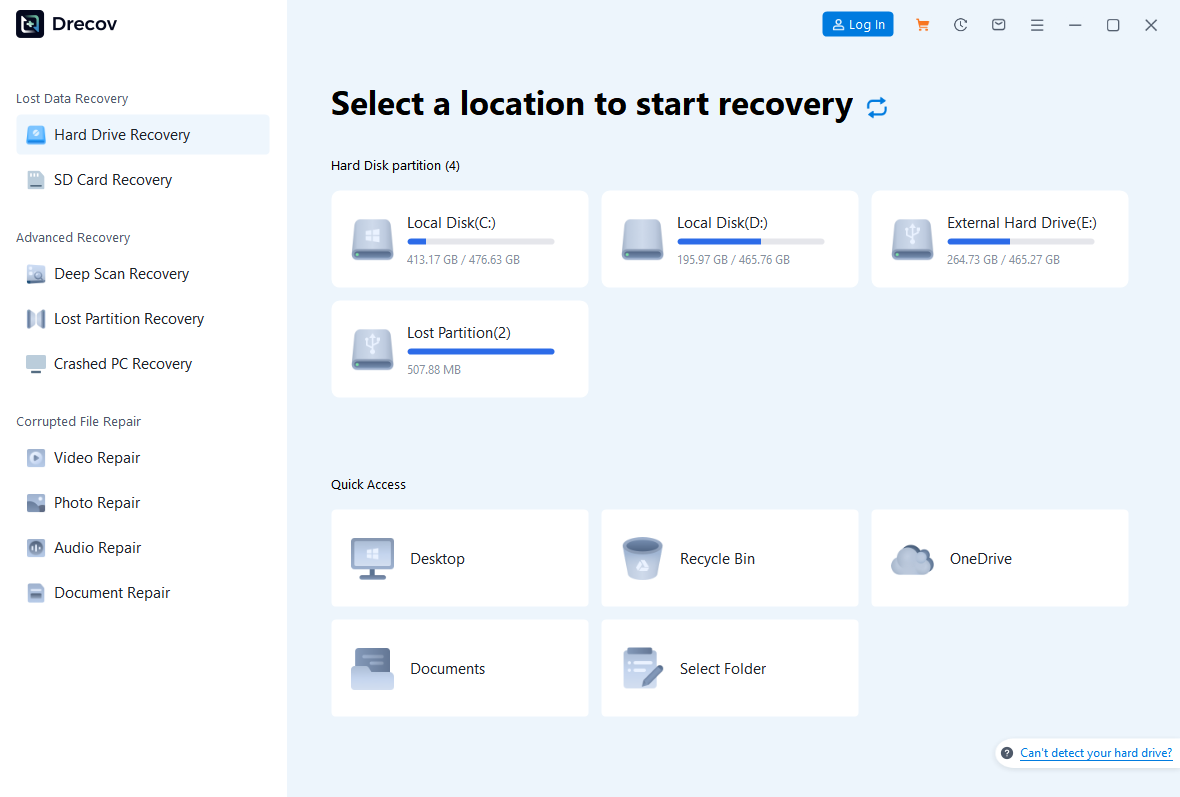


Why Choose PandaOffice Drecov Data Recovery Software?
When it comes to reliable data recovery, PandaOffice Drecov stands out as a powerful, all-in-one solution designed to handle a wide range of data loss scenarios. Whether you’re trying to perform TikTok deleted video recovery, restore files after formatting, or recover important documents, Drecov delivers fast and dependable results.
One of its biggest advantages is versatility. From format data recovery to lost partition recovery, the software can scan deeply and accurately locate files that other tools often miss. Even if your drive has been accidentally formatted or a partition has disappeared, Drecov uses advanced algorithms to reconstruct and retrieve your data with high success rates.
Drecov also supports specialized recovery needs. If you’ve lost important documents, its PDF recovery tool ensures that files retain their original structure and quality. For media users, the audio recovery feature helps restore music, recordings, and other sound files without corruption, making it ideal for both personal and professional use.
Ease of use is another key benefit. The intuitive interface allows beginners to recover files in just a few clicks, while still offering advanced options for more experienced users. Plus, it supports a wide range of storage devices, including HDDs, SSDs, USB drives, and memory cards.
In short, PandaOffice Drecov combines powerful recovery capabilities with user-friendly design, making it a trusted choice for anyone facing data loss.
Method 5: Use Command Prompt to Recover Files
Test Environment
- OS: Windows 10/11
- Tool: Command Prompt
- Scenario: File system errors
Command-line tools can help recover files in certain cases.
Steps
- Open Command Prompt as administrator
- Enter the command: chkdsk X: /f (Replace X with your drive letter)
- Wait for the scan to complete
- Check recovered files in the drive
This method repairs file system errors and may restore access to Excel files.
⚠️Warning: Improper use of command tools may lead to further data issues.
How External Drives Affect Excel Recovery Success
Impact of drive type and storage capacity
The type of drive you use significantly affects recovery outcomes. A large-capacity device like the wd 20tb elements desktop external hard drive can store massive amounts of data, but scanning it may take longer.
Solid-state drives (SSDs) behave differently due to TRIM functionality, which may permanently erase deleted data faster than traditional HDDs.
Best practices for maintaining external drives
To improve recovery success:
- Safely eject the drive before disconnecting
- Avoid sudden power interruptions
- Regularly back up important files
- Scan for malware periodically
Proper maintenance ensures your desktop external hard drive remains reliable and reduces the need for recovery.
Advanced Techniques to Recover Excel from Desktop External Drive
Deep scanning and file signature analysis
When standard recovery methods fail, advanced scanning techniques become essential. Deep scanning works by analyzing raw sectors of a desktop external hard drive instead of relying on file system records. This approach allows recovery even when directory structures are missing.
Excel files have identifiable signatures, such as headers used in XLSX formats. Recovery tools scan for these patterns and reconstruct files piece by piece. This process is particularly useful when the drive has been formatted or severely corrupted.
However, deep scans take longer, especially on large-capacity devices like the wd 20tb elements desktop external hard drive. The larger the storage, the more sectors need to be analyzed.
Handling fragmented or partially damaged files
Fragmentation occurs when file data is stored in multiple locations across the drive. During recovery, software must reassemble these fragments accurately.
If some fragments are missing or overwritten, recovered Excel files may:
- Fail to open
- Display errors
- Contain incomplete data
To improve success rates:
- Use deep scan modes
- Preview files before recovery
- Recover multiple versions if available
⚠️Warning: Avoid interrupting a deep scan, as it may lead to incomplete recovery results.
How to Prevent Excel File Loss on External Drives
Building a reliable backup strategy
Prevention is always better than recovery. Creating a consistent backup routine ensures you won’t need to recover Excel from Desktop External Drive frequently.
A good backup strategy includes:
- Storing files in multiple locations
- Using both local and cloud backups
- Scheduling automatic backups
For example, you can maintain copies on your external hard drive for desktop computer while also syncing important files to cloud storage.
This redundancy ensures that even if one storage medium fails, your data remains accessible.
Safe usage practices for external drives
Proper handling of your desktop external hard drive significantly reduces the risk of data loss.
Best practices include:
- Always eject the drive safely
- Avoid unplugging during file transfers
- Protect the drive from physical damage
- Keep software and drivers updated
⚠️Warning: Disconnecting a drive during data transfer may corrupt Excel files permanently.
What to Do If Your External Hard Drive Fails
Identifying signs of drive failure
Recognizing early warning signs can help you act before data loss becomes severe.
Common indicators include:
- Slow file access
- Frequent disconnections
- Unusual clicking or buzzing sounds
- Files becoming inaccessible
Even high-quality devices like the wd 20tb elements desktop external hard drive can experience these issues over time.
Steps to recover data from a failing drive
Test Environment
- OS: Windows 11
- Device: USB external HDD
- Scenario: Drive not responding properly
Steps
- Stop using the drive immediately
- Try connecting it to another USB port or computer
- Use disk management tools to check drive status
- Run recovery software to scan the drive
- Recover important Excel files first
- Save recovered data to a different device
If the drive is physically damaged, professional recovery services may be required.
Common Mistakes to Avoid During Excel Recovery
Actions that reduce recovery success
Many users unknowingly make mistakes that lower the chances of successful recovery.
These include:
- Saving new files to the same drive
- Installing recovery software on the affected device
- Interrupting recovery scans
- Using unreliable tools
Such actions can overwrite or corrupt existing data, making recovery more difficult.
Best practices for safe recovery
To maximize success when trying to recover Excel from Desktop External Drive, follow these guidelines:
- Use trusted recovery tools
- Scan the drive in read-only mode
- Recover files to a different storage location
- Keep multiple backups of recovered files
⚠️Warning: Overwriting data is the most common reason for failed recovery attempts.
Frequently Asked Questions About Excel Recovery from External Drives
Can I recover Excel files from a formatted external drive?
Yes, it is often possible to recover Excel from Desktop External Drive after formatting. Formatting typically removes file system references but does not immediately erase data.
Recovery software can scan the drive and rebuild Excel files using file signatures. However, success depends on whether new data has overwritten the original files.
Does drive size affect recovery time and success?
Yes, drive size plays a significant role. Larger drives, such as the wd 20tb elements desktop external hard drive, require more time for scanning.
While size does not directly affect recovery success, it increases scan duration and complexity. More data means more files to analyze and reconstruct.
What is the best external hard drive for desktop computer use?
The best external hard drive for desktop computer depends on your needs. Consider factors like:
- Storage capacity
- Speed (USB 3.0 or higher)
- Reliability and brand reputation
High-capacity drives are ideal for backups, while SSDs offer faster performance.
Final Thoughts on Recovering Excel Files from External Drives
Key takeaways for successful Excel recovery
Recovering Excel files from an external drive requires a combination of the right tools, techniques, and timing. Acting quickly after data loss significantly improves success rates.
Basic methods such as checking backups or searching for hidden files should always be attempted first. If these fail, advanced recovery tools can provide deeper scanning capabilities.
Understanding how your desktop external hard drive works also helps prevent future issues.
Creating a long-term data protection plan
A reliable data protection strategy combines prevention and recovery. Regular backups, safe handling practices, and the use of trusted tools ensure your files remain secure.
To avoid future data loss:
- Maintain multiple backups
- Monitor drive health regularly
- Use high-quality storage devices
- Be cautious during file operations
By following these steps, you can reduce the need to recover Excel from Desktop External Drive and ensure your important data remains safe.






