







External hard drives are lifesavers for storing large files, backups, and important data—until they aren’t. Whether you accidentally deleted files, experienced a formatting mishap, or encountered a corrupted drive, data recovery from external hard drive is a top concern for professionals, content creators, and everyday users alike. The good news? Most lost data is recoverable with the right tools and steps. In this comprehensive guide, we’ll walk you through proven methods to retrieve your files, with a focus on PandaOffice Drecov—our trusted data recovery software designed to make external hard drive recovery fast, easy, and secure.
Why Do You Lose Data from External Hard Drives?
Before diving into recovery solutions, it’s critical to understand common causes of data loss on external drives. This knowledge helps you avoid future mistakes and improves recovery chances:
- Accidental Deletion: Hitting “Delete” or “Shift+Delete” by mistake, or emptying the Recycle Bin/Trash without realizing files are stored on the external drive.
- Unintentional Formatting: Accidentally formatting the drive while trying to fix errors or prepare it for use.
- Drive Corruption: File system errors (e.g., NTFS/FAT32 corruption), virus attacks, or abrupt disconnection (yanking the USB cable without ejecting).
- Physical Damage: Dropping the drive, water exposure, or internal component failure (indicated by clicking noises or failure to power on).
- Software Glitches: Compatibility issues with your OS, faulty backup tools, or interrupted file transfers.
For most logical issues (deletion, formatting, corruption), data recovery from external hard drive is straightforward with software like PandaOffice Drecov. Physical damage may require professional services, but we’ll cover that too.
Method 1: Use PandaOffice Drecov
When it comes to data recovery from external hard drive, PandaOffice Drecov stands out as the most reliable and user-friendly solution. Designed for both beginners and experts, it supports all major external drive brands (Seagate, Western Digital, Toshiba, etc.) and file types (documents, photos, videos, audio, and more). Here’s why it’s trusted by 1M+ users worldwide:
- 98% Recovery Success Rate: Deep scan technology retrieves files even after formatting or corruption.
- Local & Secure: No cloud uploads—your data stays on your device, eliminating leakage risks.
- 3-Step Operation: No technical skills needed—start scanning, preview files, and recover in minutes.
- Wide Compatibility: Works with Windows 10/11, macOS, and all external drive interfaces (USB 3.0, Thunderbolt, USB-C).
Step-by-Step Guide to External Hard Drive Recovery with PandaOffice Drecov
1.Download & Install PandaOffice Drecov:Visit the official PandaOffice Drecov website to download the software. Install it on your computer—never install it directly on the affected external drive (this overwrites data).
2.Connect the External Hard Drive & Launch the Software:Plug your external drive into your computer via USB or Thunderbolt. Launch PandaOffice Drecov and select the “Hard Drive Recovery” module from the main menu.
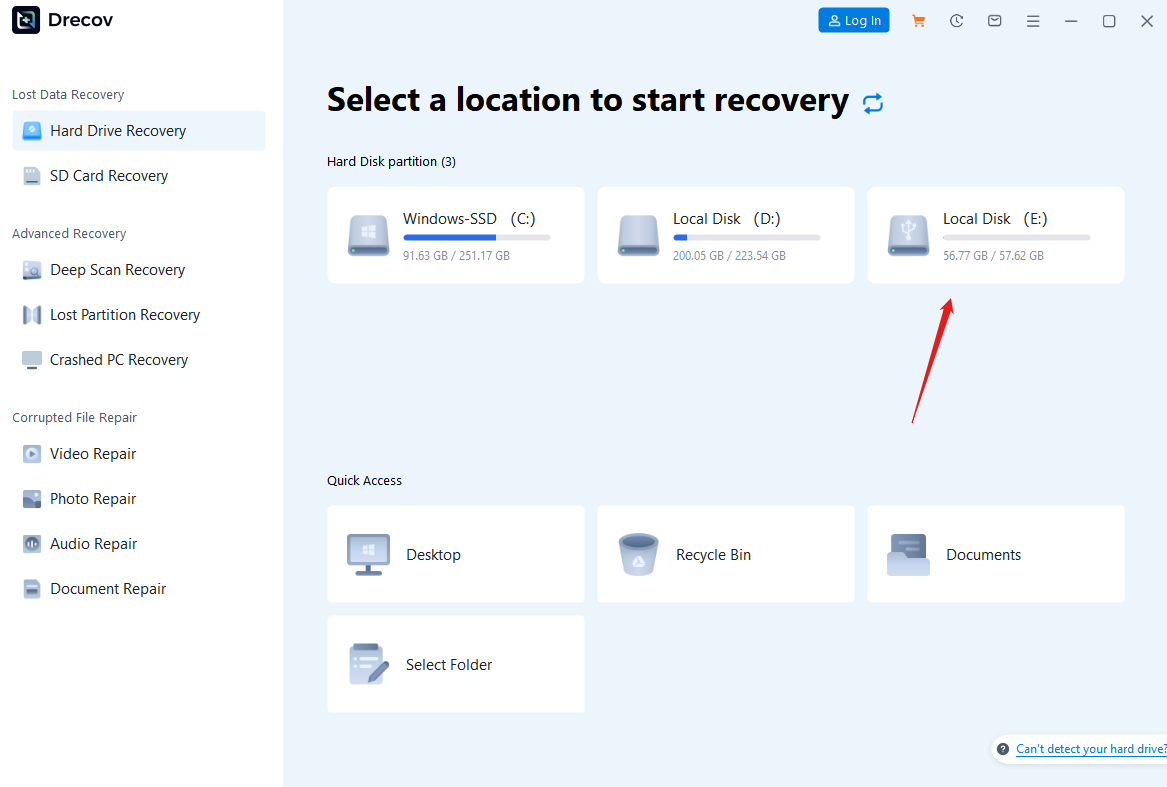
3.Scan the Drive for Lost Files:Choose your external hard drive from the list of detected devices. Click “Start Scan” to initiate a quick scan (ideal for recently deleted files) or “Deep Scan” (for formatted/corrupted drives—takes longer but is more thorough).
Pro Tip: Use the “Filter” feature to narrow results by file type (e.g., “Photos” or “Documents”) and save time.
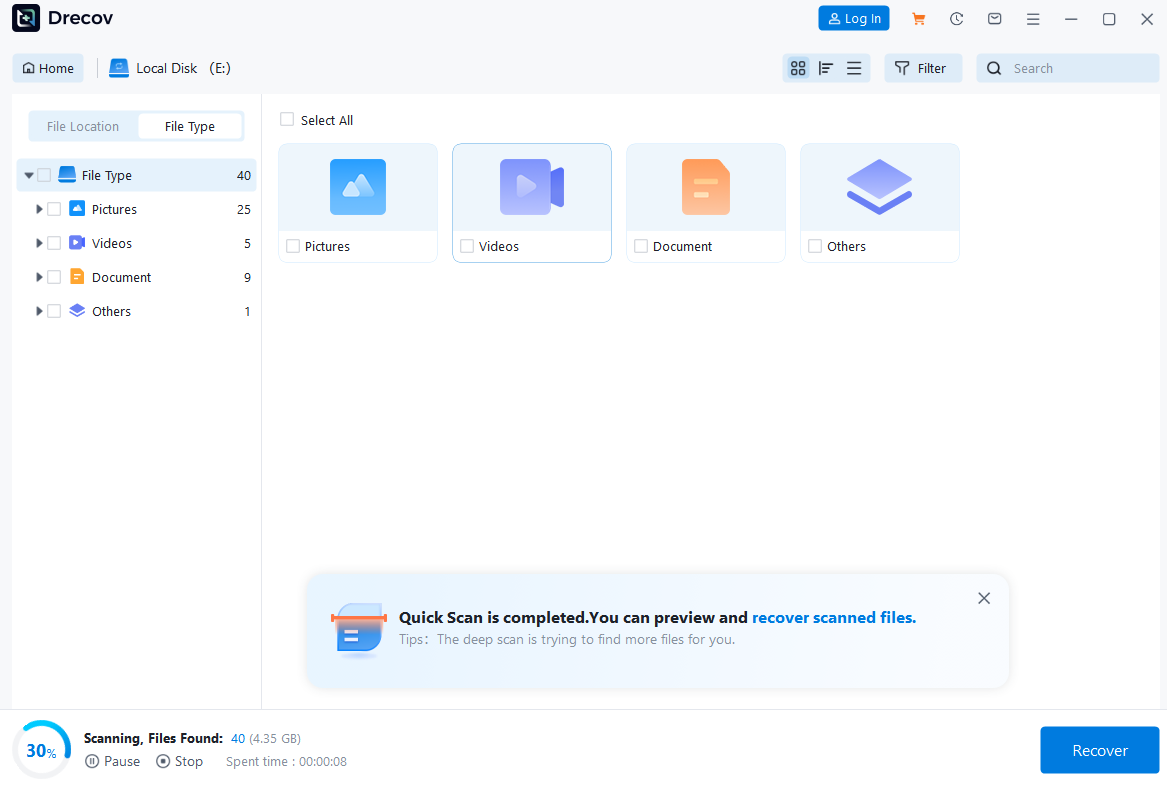
4.Preview & Recover Files:Once the scan completes, preview recoverable files to confirm their integrity (PandaOffice Drecov supports preview for 1000+ formats). Select the files you need, click “Recover,” and save them to a safe location (e.g., your computer’s internal drive or a different external drive).Critical Note: Never save recovered files back to the original external drive—this overwrites remaining lost data.

What Makes PandaOffice Drecov Better Than Alternatives?
- Preview Before Recovery: Avoid wasting time recovering corrupted files—verify content first.
- Batch Recovery: Retrieve hundreds of files at once, including entire folders.
- Free Scan & Preview: Test the software with a free scan to see what’s recoverable before purchasing the full version.
- 24/7 Customer Support: Our team of experts is ready to assist if you hit a snag.
Method 2: System-Built-in Tool Repair (Suitable for: File System Logical Errors)
If your external hard drive encounters file system corruption (e.g., prompts to “Format” or “Unreadable”) due to sudden power outages or improper ejection, try repairing it with Windows/Mac’s built-in tools:
Windows: CHKDSK Command Repair
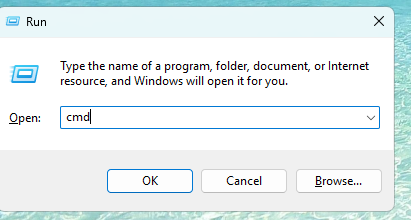
1.Press Win + R, type cmd, and open Command Prompt as administrator.
2.Enter chkdsk X: /f (replace X with your external hard drive’s drive letter), then press Enter. The system will automatically scan and repair disk errors.
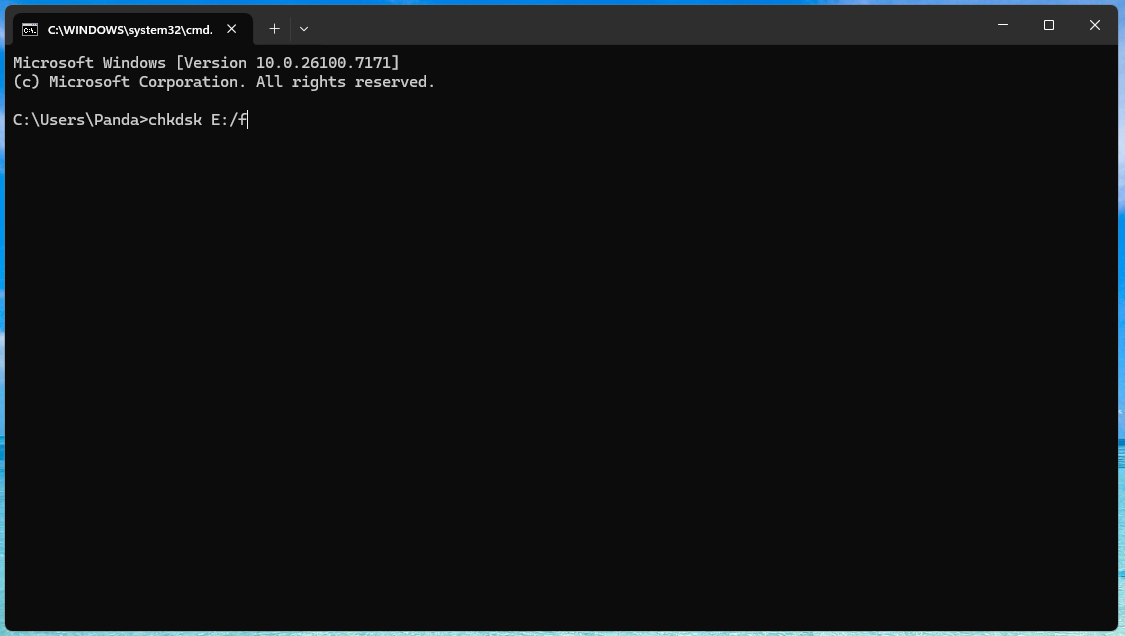
3.After the repair is complete, reopen the external hard drive to check if data is accessible (this only fixes logical errors and cannot recover deleted files).
Mac: Disk Utility First Aid
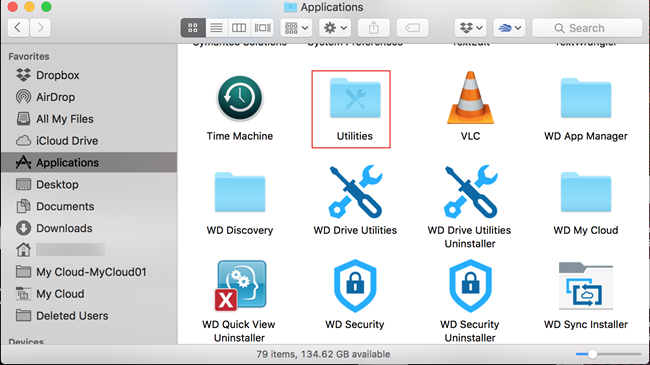
Click the “First Aid” button at the top. The system will scan and repair file system issues, suitable for logical errors of external hard drives on macOS.
Open Applications > Utilities > Disk Utility and select your external hard drive.
Method 3: Backup & Restore (Most Reliable: Preventive Recovery)
If you’ve previously backed up data from your external hard drive (e.g., local backups or cloud storage), restoring directly from the backup is the only 100% reliable way to recover data—it avoids the risks of incomplete recovery from software or hardware tools.
Steps:
- Access your backup source (e.g., local backup folders on your PC/Mac, cloud storage services like Google Drive, Dropbox, iCloud, or external backup drives).
- Filter for the backup version created before the data loss occurred (most backup tools store version history for easy retrieval).
- Select the target files/folders and restore them to your external hard drive or local computer disk.
Key Notes:
Cloud storage services like Google Drive and Dropbox are widely used for cross-device backups, while Time Machine (macOS) and Windows Backup (Windows) excel at local/external drive backup management.
This method relies on pre-existing backups—regularly scheduling automatic backups (e.g., via Windows Backup, macOS Time Machine, or cloud sync tools) is critical for data security.
Method 4: Professional Data Recovery Services (For Physical Damage)
If your external hard drive is physically damaged (e.g., clicking noises, not recognized by your computer, water damage), software tools like PandaOffice Drecov won’t work. In this case, contact a professional data recovery service. Look for providers with:
- A dust-free cleanroom (required for opening drives without further damage).
- “No Data, No Fee” guarantees.
- Experience with external hard drive repairs.
| Service Type | Damage Scenarios | Price Range | Additional Notes |
| Standard Physical Damage | Faulty PCB, minor head issues, power-related damage | $300 – $600 | Most common scenario for external HDD/SSD |
| Severe Physical Damage | Platter scratches, water/submersion damage, motor failure | $600 – $1,200+ | Higher cost due to complex repair processes |
| Rush Service (24–48hr Turnaround) | Urgent data retrieval needs | $150 – $300 extra | Added to base price of standard/severe damage service |
Professional services are costly (typically $300–$1000+), but they’re the only option for irreplaceable data (e.g., family photos, business records).
Pro Tips to Maximize External Hard Drive Recovery Success
- Stop Using the Drive Immediately: Avoid saving new files, transferring data, or formatting the drive—this overwrites lost data and reduces recovery chances.
- Eject Drives Properly: Always use the “Eject” option before disconnecting your external drive to prevent corruption.
- Backup Regularly: Cloud services (OneDrive, Google Drive) to create redundant copies of your data.
- Avoid Cheap Recovery Tools: Free, untrusted software may contain malware or cause further damage to your drive.
Why Choose PandaOffice Drecov for External Hard Drive Recovery?
When it comes to data recovery from external hard drive, PandaOffice Drecov checks all the boxes:
- Reliability: 98% success rate for logical data loss (deletion, formatting, corruption).
- Ease of Use: 3-step process, intuitive interface, and no technical jargon.
- Security: Local recovery ensures your sensitive data never leaves your device.
- Versatility: Supports all external drive types, file formats, and operating systems.
Don’t let data loss on your external hard drive stress you out. With PandaOffice Drecov, data recovery from external hard drive is simple, fast, and affordable. Download the free trial today to scan your drive and see what files you can recover—no credit card required!
Final Thoughts
External hard drives are prone to data loss, but recovery is almost always possible with the right approach. For most users, PandaOffice Drecov is the best solution—it’s fast, secure, and designed specifically for data recovery from external hard drive. Remember to act quickly, avoid overwriting data, and back up regularly to prevent future loss.
If you have questions or need help with your recovery, reach out to our 24/7 support team. We’re here to help you get your data back!







