







A broken hard drive (HDD/SSD) can be a nightmare—losing work files, family photos, or critical backups feels devastating. But data recovery from broken hard drive is often possible, as long as you choose the right approach. This guide focuses on fixing damaged drives and retrieving your precious data.
I. Why Data Survives on Broken Hard Drives: Key Principles
To succeed in this process, you first need to understand why your data might still be intact. Broken drives fall into two main categories, each affecting data differently:
- Logically Broken Hard Drives: This is the most common scenario. Issues like RAW file system, corrupted boot sector, unallocated space, or virus-induced errors damage the drive’s “roadmap” (file indexes) but not the actual data. The data remains stored on platters (HDD) or memory cells (SSD) until overwritten.
- Physically Broken Hard Drives: These involve hardware failures—clicking HDDs, unrecognized SSDs, water damage, or platter scratches. While data may still exist, physical damage requires careful handling to avoid permanent loss during the recovery process.
⚠️ Critical Rule for Data Recovery from Broken Hard Drive: Stop using the damaged drive immediately. Continuing to power it on (especially physically broken HDDs) can worsen damage, and writing new data will overwrite recoverable files.
II. Three Proven Methods for Data Recovery from Broken Hard Drive
Not all broken drives are the same—we’ve tailored these methods to different types of drive damage, ensuring effectiveness for both logical and partial physical issues.
Method 1: Windows Disk Management (For Logically Broken Drives)
This built-in Windows tool fixes logical issues that make drives “broken” (e.g., RAW file system, unallocated space)—a foundational step for retrieving data. It prepares the drive for data retrieval without third-party software.
- Connect your hard drive to your Windows PC (if external) and ensure it’s detected.
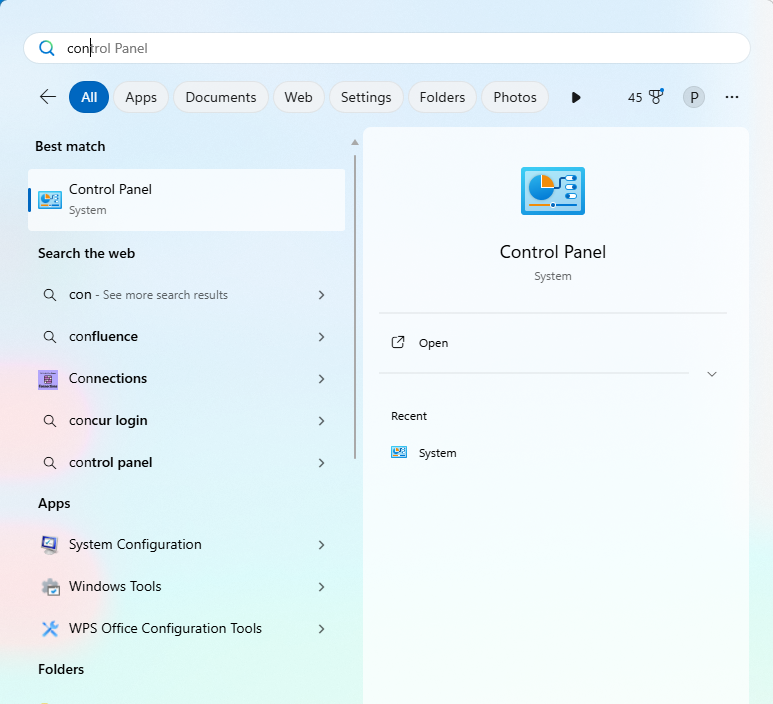
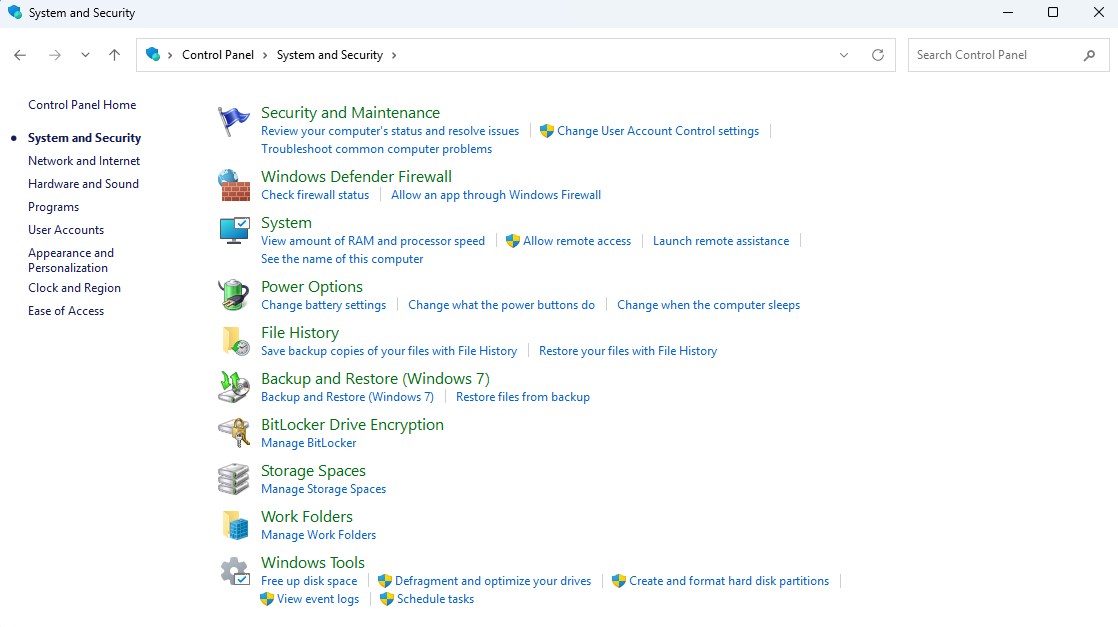
- Go to “Control Panel > System and Security > File History.”
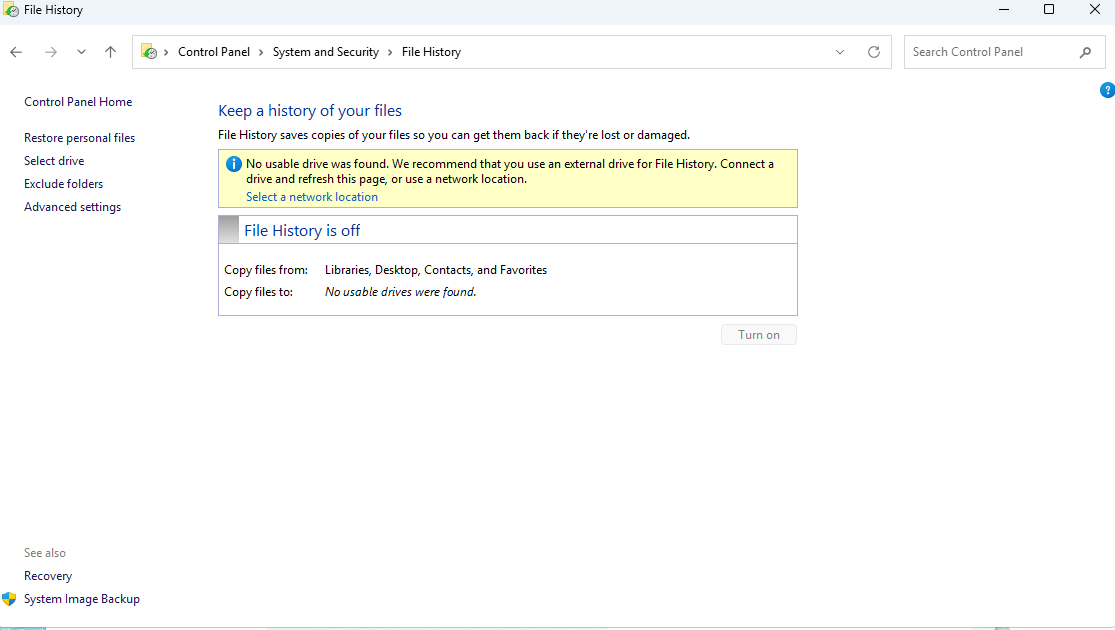
- Click “Restore personal files”—you’ll see a timeline of backed-up files.
- Browse to find the lost files, select them, and click the “Restore” button (green arrow) to save them to the original location.
⚠️ Note: Use this method before data recovery software. Formatting or reallocating space helps the drive become detectable, laying the groundwork for successful file retrieval.
Method 2: Professional Software (Best for Most Broken Hard Drives)
For 90% of damaged drive cases—including RAW drives, corrupted partitions, and partially unresponsive disks—PandaOffice Drecov is the most reliable solution. It’s designed to bypass logical errors and extract data from damaged drives.
Step-by-Step Guide for PandaOffice Drecov (Broken Drive Focus)
- Safe Download & Installation: Obtain PandaOffice Drecov from the official website . Install it on a healthy drive (never on the broken one to avoid data overwriting).
- Identify the Broken Drive: Launch the software—it will automatically scan for connected drives. Select the broken drive (typically labeled as “RAW,” “Unallocated,” or marked with a warning icon).
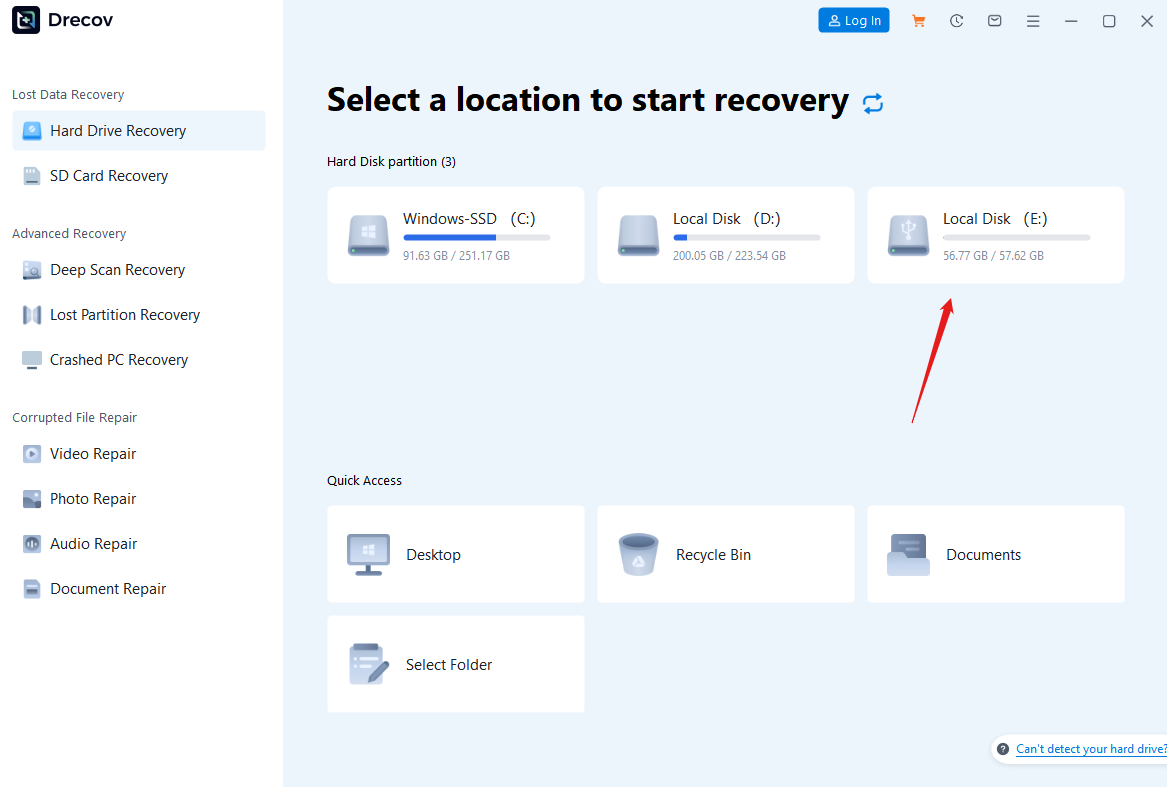
- Scan the Broken Drive: Select the broken drive and click to start scanning.
- Quick Scan: Ideal for recently lost, small files (fast processing).
- Deep Scan: Takes longer but increases the recovery rate by 30% (recommended for complex data loss scenarios).
- Preview & Recover Data: After scanning, preview recoverable files (photos, documents, videos, etc.) to verify integrity. Save the files to a secure external drive—never save them back to the broken drive.


Why It’s Perfect forData Recovery from Broken Hard Drive: It handles both logical damage (RAW, corruption) and mild physical issues (slow, unresponsive drives). The free scan lets you confirm recoverable files before paying—no risk for damaged drive scenarios.
Method 3: Professional Data Recovery Service (For Physically Damaged Drives)
If the hard drive has severe physical damage (clicking/grinding noises, water damage, platter scratches), attempting data recovery yourself carries an extremely high risk. Professional service providers will use specialized tools in a cleanroom lab to repair the hardware and extract the data.
When to Choose This Option: If PandaOffice Drecov cannot recognize the drive, or if the drive makes unusual noises, it is recommended to immediately contact a professional service.
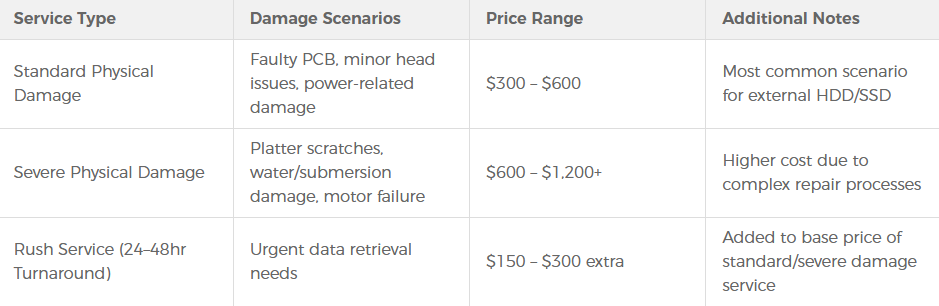
⚠️ Note: This is the most expensive option for damaged hard drive data recovery (costs $\$200$–$\$2,000$ USD), but it is necessary for irreplaceable data (such as important archives, precious memories).
III. How to Protect Data and Avoid Hard Drive Failure Disasters
Preventing hard drive failure is much simpler than recovering data from a failed drive. Follow these tips to keep your hard drive healthy and secure your data:
Guard Against Malware: Ransomware and common viruses often lead to hard drive logical failure. Install reliable antivirus software to avoid needing data recovery due to cyber attacks .
Back Up Important Data: Use cloud services (Google Drive, Microsoft OneDrive) or external hard drives for automatic backups.
Handle Drives Carefully: Avoid dropping mechanical hard drives (platters are fragile and easily damaged), and keep SSDs away from extreme temperature changes. Always properly eject external hard drives to prevent file corruption;
Actively Monitor Drive Health: Use tools like CrystalDiskInfo ($\text{Windows}$ system) to track the hard drive’s $\text{SMART}$ status—if warnings such as “bad sectors” or “low health” appear, replace the drive promptly before failure ;
IV. FAQs About Broken Hard Drive Data Recovery
Q1: Can data be recovered from a broken hard drive that won’t power on?
If the issue is related to power supply (common with external broken drives), try replacing the data cable or adapter. If the drive still fails to power on, it may have physical damage—we recommend seeking professional data recovery services. For logically damaged drives that can power on but aren’t detected, PandaOffice Drecov can provide assistance
Q2: How long does broken hard drive data recovery take?
The recovery time depends on the severity of the damage:
- For a 1TB logically damaged hard drive, the specialized scan in PandaOffice Drecov takes 30 minutes to 2 hours.
- For physically damaged drives sent to professional services, hardware repairs are required, so the process typically takes 3-7 days
Q3: Is broken hard drive data recovery safe? Will it further damage the drive?
Safe tools like PandaOffice Drecov use read-only mode—they won’t modify data on the broken drive or cause additional damage. Avoid using cheap, untrustworthy software: such tools may write data to the drive, leading to overwritten recoverable files or further corruption.
Q4: Is there a difference between recovering data from a broken SSD vs. a broken HDD?
Data recovery is possible for both, but SSDs feature the TRIM function (which automatically erases unused data). If TRIM is enabled on the broken SSD, act quickly. For HDDs, the recovery stability is higher if the platters are not scratched.
Q5: What if broken hard drive data recovery fails?
If software recovery fails, the drive likely has severe physical damage (e.g., platter failure). In this case, contact a professional data recovery service with a cleanroom—they can disassemble the drive and extract data using specialized hardware. We recommend trying software recovery first to save costs.
Final Thoughts on Data Recovery from Broken Hard Drive
Data recovery from broken hard drive doesn’t have to be a lost cause. Start with PandaOffice Drecov for logical damage—it’s affordable, safe, and effective for most damaged drives. For physical issues, turn to professionals to avoid permanent data loss.
Remember: The best defense against broken drives is prevention. Backup regularly and monitor drive health. If your drive is already broken, download PandaOffice Drecov for a free scan —your data may still be recoverable!







