







Digital memories capture life milestones, family vacations, and critical documents that are irreplaceable. However, storage media failure, unexpected system crashes, or accidental formatting can instantly wipe away your media files. Consequently, executing an effective photo recovery plan becomes an urgent priority for any computer user facing sudden data loss. Understanding the mechanics behind file deletion empowers you to salvage lost images safely before permanent overwriting occurs.
When a digital file disappears from a storage drive, the underlying binary payload remains physically intact until new data replaces it. Furthermore, operating systems simply mark the target storage sector as free space, making immediate photo recovery possible through proper technical intervention. PandaOffice Drecov serves as a reliable solution for retrieving damaged, deleted, or missing image files across various storage devices.
This comprehensive master guide provides actionable technical instructions, software recommendations, and proven backup strategies to help you navigate data loss effortlessly.
Understanding the Basics of photo recovery
Before initiating any restoration attempt, understanding how file systems manage deleted storage sectors is essential. Digital cameras, solid-state drives, external hard disks, and memory cards rely on specialized file tables like NTFS, FAT32, or exFAT to track where each image file resides.
Common Data Loss Scenarios and Technical Challenges
Digital media can become inaccessible due to a wide array of system events:
- Accidental File Deletion: Pressing Shift + Delete bypasses the system Recycle Bin or Trash folder, removing file pointers immediately.
- Storage Formatting: Accidental partition formatting erases file allocation tables, leaving raw binary data scattered across storage sectors.
- File System Corruption: Sudden power interruption during write cycles turns storage partitions into RAW unreadable drives.
- Card Reader Interruptions: Unplugging an SD card while a camera is writing files breaks image file headers, causing missing or corrupt previews.
Introducing Drecov for Safe Image Retrieval
Drecov provides advanced algorithms capable of scanning raw drive blocks to reconstruct damaged image headers, metadata, and full-resolution pixel blocks.Moreover, the software handles over 2,000 file types, including RAW camera profiles like CR2, NEF, and ARW alongside standard JPG, PNG, and TIFF files.
⚠ Warning: Install it on a drive different from the one where your data was lost to prevent overwriting.
Applicable Use-Case Scenarios
PandaOffice Drecov addresses a broad set of recovery challenges:
- Digital Camera Storage Loss: Restoring raw photos lost due to sudden camera battery failure during write cycles.
- Accidental External Formatting: Bringing back entire photo archives wiped from external hard drives or flash drives.
- Internal Drive Cleanup Errors:Retrieving pictures deleted from local drives or emptied Recycle Bins.
Solutions to photo recovery issues
Executing an effective photo recovery process requires systematic execution to prevent data overwriting. Furthermore, following specialized procedures ensures that original picture quality is fully preserved without binary corruption.
Understanding Drecov Architecture for Reliable File Retrieval
PandaOffice Drecov features a dual-engine architecture consisting of Quick Scan and Deep Scan operations. Quick Scan processes file allocation tables to locate recently deleted directories. Deep Scan executes raw sector searching to match image signatures even when partition headers are missing.
Additionally, the software includes a standalone file repair module designed to fix broken image structures, corrupted JPEG headers, and blurry thumbnails. Users managing complex storage transfers can review how to transfer photos to USB drive to structure their storage media safely.
⚠ Warning: Install it on a drive different from the one where your data was lost to prevent overwriting.
Step-by-Step photo recovery Instructions Using PandaOffice Drecov
Follow this step-by-step procedure to perform photo recovery using PandaOffice Drecov.
1.Select Target Storage Location
Launch PandaOffice Drecov. Select the exact location where your images were lost, such as a local drive, external drive, or SD card.

2.Initiate Deep Scanning Process
Click Scan to begin scanning. The engine automatically applies Quick Scan first before switching to Deep Scan mode. You can track the progress bar at the top of the interface.
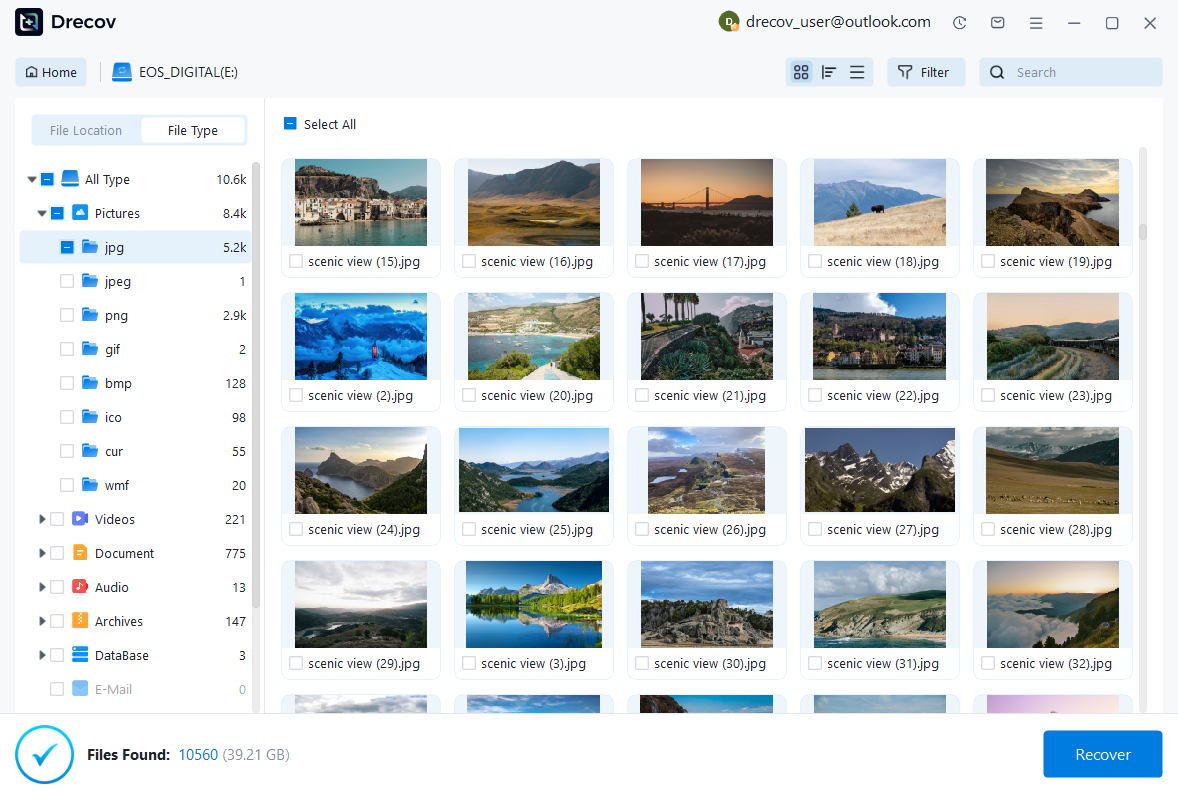
3.Filter and Preview Recoverable Images
Use the file type filter on the left sidebar to select Pictures. Double-click any image file to generate an instant full-resolution preview.

4.Specify Destination and Execute Recovery
Select the checkboxes next to your target images. Click Recover, choose a separate healthy storage drive as the destination directory, and confirm. To maximize safety, review how to recover erased photos from any device for detailed environment-specific guidelines.
Alternative or Complementary Methods for photo recovery
While professional software offers high success rates, alternative built-in system tools and cloud utilities provide helpful backup options for photo recovery.
Manual System Commands and Built-in Utilities
1. Windows Command Prompt (attrib command)
When drive corruption hides files without deleting them, command line tools can reset file attributes.
DOS
attrib -h -r -s /s /d X:\*.*
Replacing X: with your actual drive letter unhides system-marked media files.
2. Native System Backups and Shadow Copies
If Windows System Protection was enabled prior to data loss, right-click the folder containing your lost media, select Properties, and navigate to Previous Versions to restore an earlier snapshot.
3. Cloud Storage Trash Inspection
Cloud services maintain temporary storage folders for deleted media. For detailed cloud clearing management, review how to delete all photos from google photos to prevent unintended permanent data wipes.
Technical Comparison of Recovery Solutions
| Recovery Method | Success Rate | Technical Difficulty | Cost | Best Suitable Scenario |
| PandaOffice Drecov | High | Low | Freemium | Formatted drives, RAW file systems, permanent deletion |
| Windows Command Line | Moderate | Medium | Free | Hidden files caused by malware or attribute flags |
| Cloud Trash Folders | High | Low | Free | Files deleted within 30 days |
| Native Shadow Copies | Moderate | Medium | Free | Files stored on system drives with restore points active |
Tips & Best Practices for Maintaining photo recovery Success
Preventing file overwriting is critical to achieving successful photo recovery outcomes. Furthermore, implementing strong data management practices helps protect important media files against hardware failures.
Essential Rules for Preserving Recoverable Data
- Stop Using Affected Media Immediately: Writing new data creates fresh storage blocks that permanently overwrite lost picture sectors.
- Avoid Installing Recovery Software on Source Drives: Always install recovery tools on a separate partition to protect underlying data blocks.
- Keep Storage Card Readers Clean: Faulty USB card readers can interrupt file transfers and corrupt image partition headers.
- Review Technical Resources: Consult authoritative data restoration guides on Google Developer Documentation for detailed technical standards regarding file system health.
Frequently Asked Questions About photo recovery
Can I complete a photo recovery operation on a formatted SD card?
Yes, formatting wipes file system directories but leaves raw photo sectors intact until new data is saved. Using deep scanning software allows you to locate and rebuild lost image files.
What is the primary difference between Quick Scan and Deep Scan?
Quick Scan reviews existing index files to locate recently deleted items within seconds. Deep Scan inspects every sector on the storage drive, matching raw file signatures to recover images from damaged drives.
Why do some recovered photos fail to open or display previews correctly?
Partial data overwriting can break image headers or corrupt internal metadata structures. Running a dedicated image repair tool helps restore damaged pixel layouts and file headers.
How long does a deep scanning process typically take?
Scan duration depends on drive capacity and interface speeds. A 64GB high-speed SD card scans in minutes, whereas a 2TB hard drive may require several hours.
Can photo recovery software restore images from physical hardware damage?
Software tools recover files lost to logical issues, formatting, or file deletion. Drives with physical hardware failures require physical repair in a professional cleanroom laboratory.
Conclusion
Losing irreplaceable pictures can be stressful, but understanding how file storage works makes photo recovery simple and effective. Acting quickly and avoiding writing new data to affected drives gives you the best chance of restoring lost media. PandaOffice Drecov offers an easy-to-use solution for retrieving lost images from formatted SD cards, corrupted drives, and emptied Recycle Bins. Implementing automated multi-location backups ensures your media assets remain protected against future data loss.
⚠ Warning: Install it on a drive different from the one where your data was lost to prevent overwriting.





