







How to explain what happened….I have an external hard drive that we save our band recording too. I stupidly deleted the audio folder that our recording software saves all the audio tracks to. For some reason the folder never made it to the recycling bin for me to restore from there and it looks like it has replaced that folder on the hard drive with a folder named the same thing that is empty.—from Reddit
Losing important audio files can be frustrating, especially when the recordings contain valuable content such as interviews, music projects, voice memos, podcasts, or lecture recordings. Audio files may disappear due to accidental deletion, system errors, device formatting, or storage corruption. In some cases, files still exist on the storage device but are simply inaccessible.
Fortunately, modern audio file recovery software can scan storage devices and restore lost data. These programs analyze file structures and storage sectors to locate deleted files that are no longer visible in the system interface. Whether the files were removed accidentally or damaged due to corruption, the right tools can significantly improve recovery success.
This guide explains how delete audio recovery works, why audio files are often lost, and which methods are most effective for restoring them. It also covers professional recovery techniques, including a dedicated solution using Pandaoffice Drecov.
In addition to recovering audio recordings, many recovery tools support broader media restoration. That means they can also assist with audio video recovery, restoring multimedia files such as videos, voice recordings, and music tracks stored on various devices.
By understanding the causes of audio file loss and applying the right recovery methods, users can often retrieve valuable recordings that seemed permanently deleted.
Understanding Audio File Loss and Recovery
How Audio Files Become Deleted or Corrupted
Audio files are stored on storage devices such as hard drives, SSDs, USB flash drives, memory cards, and smartphones. When a file is deleted, the operating system usually removes its reference in the file system rather than erasing the actual data immediately. This is why deleted audio recovery is often possible.
However, the chances of successful recovery depend on whether the storage sectors containing the file have been overwritten by new data. If the device continues to be used after deletion, new files may replace the original audio data.
Audio files may also become damaged due to file system errors, interrupted transfers, or software crashes. When this happens, the file may appear in the system but cannot be played. In such situations, audio corrupted file recovery methods may help restore or reconstruct the file.
Data loss can occur on many devices, including computers, SD cards, digital recorders, cameras, and smartphones. Regardless of the storage location, the core principle remains the same: recovery tools scan the device to locate recoverable data fragments.
Using reliable audio files recovery software improves the chances of retrieving both deleted and corrupted recordings.
Common Causes of Audio File Deletion or Damage
Typical Scenarios That Lead to Audio Data Loss
Many users encounter audio file loss during everyday activities. One of the most common scenarios is accidental deletion. A user may remove files while cleaning storage space, only to realize later that important recordings were included.
Another frequent cause involves formatting storage devices. When memory cards or USB drives are formatted, the file system is rebuilt, and stored files become inaccessible. However, the data may still exist temporarily, making delete audio recovery possible with the right tools.
Virus or malware attacks can also lead to audio file loss. Some malicious programs hide or corrupt files, preventing them from opening normally. In these situations, recovery software can scan for hidden or damaged data fragments.
File transfer interruptions are another risk. If a device disconnects while copying or moving audio files, the process may leave incomplete or corrupted data.
Hardware problems may also cause audio files to become unreadable. Faulty storage sectors or aging storage devices sometimes damage files stored on them.
⚠️Warning
Stop using the storage device immediately after discovering data loss. Continuing to save new files may overwrite recoverable data.
Understanding the cause of the problem helps determine the most effective audio corrupted file recovery approach.
Effective Methods to Recover Deleted Audio Files
Check the Recycle Bin or Trash First
Before using advanced recovery tools, it is important to check the system’s Recycle Bin (Windows) or Trash (Mac). Many deleted files remain there until the bin is emptied.
Test Environment
- Windows 11 desktop computer
- Local SSD storage
- Accidentally deleted MP3 audio files
Steps
- Open the Recycle Bin from the desktop.
- Search for the deleted audio files.
- Right-click the file and select Restore.
- The file will return to its original location.
This simple method often resolves cases of accidental deletion without requiring specialized audio file recovery software.
However, if the bin has already been emptied, users must rely on more advanced recovery methods.
Restore Audio Files from Backup
Many operating systems include automatic backup features that can restore previously saved files. If backups exist, they may contain the missing recordings.
Test Environment
- Windows 10 laptop
- External backup drive
- Deleted WAV audio recordings
Steps
- Open the backup location or backup software.
- Search for the missing audio file.
- Select the version you want to restore.
- Copy it back to the original storage location.
Backup restoration is often the safest approach because it does not require scanning the storage device. If a backup exists, recovery can be completed quickly.
However, not all users maintain regular backups. When backups are unavailable, dedicated audio files recovery software becomes necessary.
⚠️Warning
Always verify the restored file before deleting backup copies.
Recover Deleted Audio Files Using Pandaoffice Drecov
When files are permanently deleted or lost after formatting, professional recovery tools may be required. Pandaoffice Drecov provides a powerful scanning engine that searches storage devices for recoverable data.
This software supports audio video recovery across many devices, including hard drives, SSDs, USB drives, and memory cards. It analyzes file signatures and storage sectors to identify lost media files.
Download DrecovTest Environment
- Windows 11 computer
- USB flash drive containing deleted audio recordings
- MP3 and WAV audio files
Steps
- Install and launch Pandaoffice Drecov on your computer.
- Connect the storage device where the audio files were lost.
- Select the device and start the scanning process.
- Wait while the software searches for recoverable files.
- Preview the detected audio recordings.
- Select the files and recover them to another storage location.


Why Choose Pandaoffice Drecov?
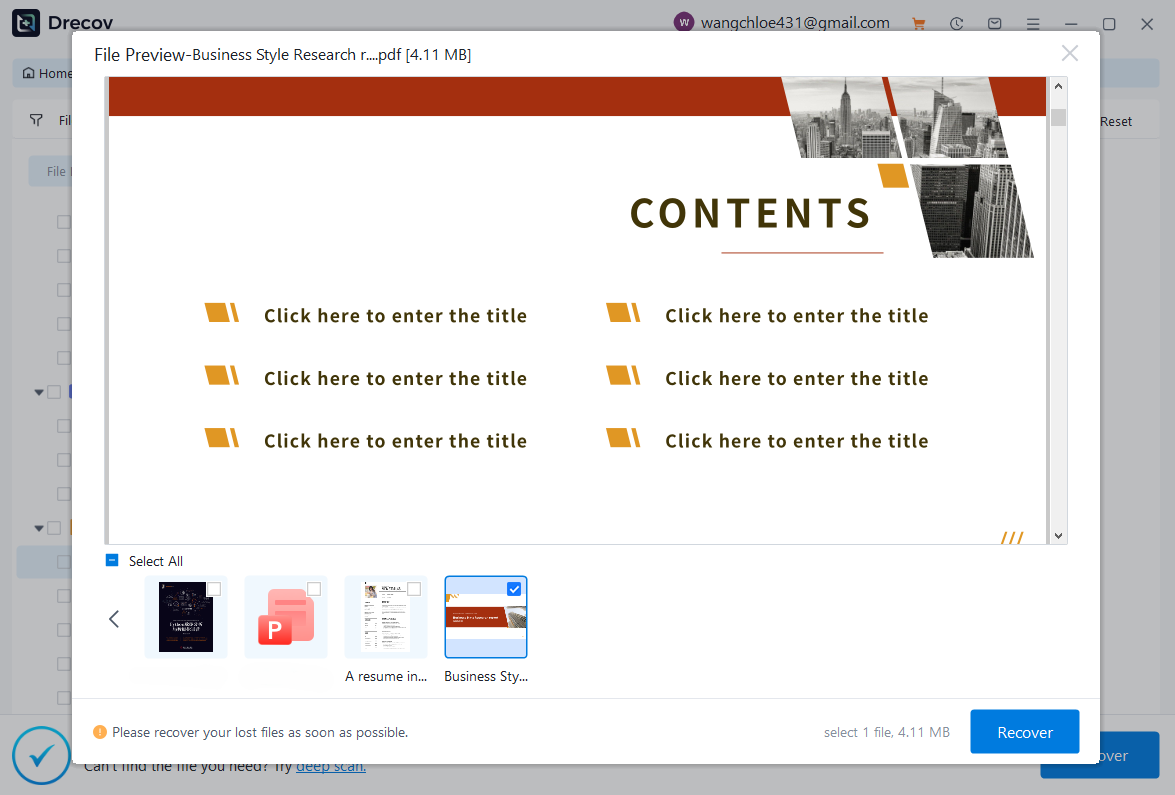
Data loss can occur unexpectedly due to accidental deletion, system crashes, formatting errors, or software failures. Whether you need to restore Windows previous date, perform recover Excel files,or handle deleted PowerPoint recovery, Pandaoffice Drecov provides a reliable and efficient solution designed to restore important documents quickly and safely.
Pandaoffice Drecov is a professional PowerPoint Recovery Software that supports recovery for multiple document types, including Excel spreadsheets, Word documents, and PowerPoint presentations. With advanced scanning technology, the software can detect and recover files even after deletion, formatting, or unexpected system shutdowns. This makes it an ideal tool for users who urgently need Document Recovery from hard drives, SSDs, USB drives, memory cards, and other storage devices.
One of the key advantages of Pandaoffice Drecov is its intelligent deep-scan engine. It carefully analyzes storage sectors to locate lost or hidden files that standard recovery tools often miss. Whether you accidentally deleted a presentation and require deleted PowerPoint recovery, or you lost critical spreadsheets and need to recover Excel files, the software provides fast scanning and high recovery success rates.
The software also features a user-friendly interface that allows beginners and professionals alike to complete recovery tasks in just a few steps. Users can preview recoverable files before restoring them, ensuring that only the needed data is recovered. In situations where files were lost due to system errors, the software can also help recover documents after attempts to restore Windows previous date.
This method is especially useful when files have been removed permanently or after formatting. By scanning raw storage sectors, the software can often reconstruct lost files.
⚠️Warning
Always recover files to a different storage device to avoid overwriting recoverable data.
Use System Restore or File History
Recover Deleted Audio with Built-In OS Tools
Operating systems sometimes maintain previous versions of files or system snapshots. Features like Windows File History or Mac Time Machine allow users to restore lost or deleted audio files without third-party tools.
Test Environment
- Windows 10 PC
- Local hard drive storing MP3 and WAV files
Steps
- Open File History or Restore Previous Versions for the folder where the audio files were stored.
- Browse through available backups to locate the missing recordings.
- Select the desired file version and click Restore.
This method is highly reliable if backups or restore points exist. It also avoids the risks of overwriting recoverable data.
⚠️Warning
System restore or previous version recovery may not work if backups are outdated or disabled.
Scan with Audio File Recovery Software
For files not in the Recycle Bin or backups, dedicated audio files recovery software is the most effective method. These programs scan storage devices deeply, locating both deleted and corrupted audio files.
Test Environment
- Windows 11 laptop
- External SSD containing lost recordings
Steps
- Launch the audio file recovery software on your computer.
- Select the target drive or folder where audio files were lost.
- Choose a scan mode: quick scan for recently deleted files, deep scan for severely lost or corrupted files.
- Preview recoverable audio files before restoring.
- Save the selected files to a different storage device.
This approach works for multiple file formats including MP3, WAV, FLAC, and AAC. It also supports audio corrupted file recovery when files are partially damaged.
Recover Audio from Corrupted Devices
Sometimes audio files are lost because storage devices themselves are corrupted or failing. Audio files recovery software can handle these scenarios by scanning raw sectors and reconstructing data structures.
Test Environment
- Windows 10 PC
- SD card with corrupted audio files
- Files include MP3 and WAV formats
Steps
- Insert the corrupted SD card into a card reader connected to the computer.
- Launch the recovery tool and select the SD card as the target.
- Perform a deep scan to detect files that are partially corrupted.
- Preview recoverable files and select the ones to restore.
- Recover them to a secure storage device.
⚠️Warning
Do not write new data to a corrupted device before recovery; it may overwrite lost files.
Recover Audio from External Devices
External drives, USB sticks, and mobile devices often contain important recordings. Audio video recovery tools can extract lost audio from these devices using similar scanning methods.
Test Environment
- Windows 11 PC
- External USB drive storing music recordings
Steps
- Connect the external device.
- Open the recovery software and select the device.
- Run a deep scan to locate deleted or corrupted audio files.
- Preview files and choose the ones to recover.
- Save recovered files to a separate storage location.
This method also works for smartphones and digital recorders when connected as mass storage devices.
FAQ: Audio File Recovery
How long does audio file recovery take?
The time depends on file size, storage device capacity, and scan type. Quick scans may take minutes, while deep scans can take hours. Recovery speed also depends on device health.
Can corrupted audio files be fully restored?
Many partially corrupted files can be restored using professional recovery tools. Some files may be recovered incompletely, especially if storage sectors are damaged. Audio corrupted file recovery tools attempt to reconstruct file headers and streams to maximize usability.
Is it safe to recover deleted audio files?
Yes, as long as recovered files are saved to a different location than the source. Avoid writing new data to the storage device to prevent overwriting recoverable data.
Can I recover audio from formatted devices?
Yes, if the device has not been heavily used after formatting. Professional audio files recovery software can detect lost files by scanning raw sectors, even if the file system has been reset.
Conclusion: Key Takeaways
Losing audio recordings can be stressful, but multiple solutions exist for deleted audio recovery and audio corrupted file recovery. Simple steps like checking the Recycle Bin, restoring backups, or using system restore may resolve minor cases.
For permanently deleted files, formatted drives, or corrupted devices, professional audio file recovery software is the most effective method. Pandaoffice Drecov is a reliable tool that supports audio video recovery, scanning deeply to reconstruct lost or corrupted audio files.
Preventive measures like regular backups, proper handling of storage devices, and timely software updates reduce the risk of future data loss. By following best practices and using reliable recovery methods, users can restore lost audio files successfully, preserving valuable recordings and media collections.






