







Really confusing, I accidentally deleted precious photos from my Samsung galaxy phone, hoping to recover them. But having checked the junk folders inside my device and not found them. The deleted files might be stored there temporarily before being permanently deleted, but I didn’t find them. Is there any effective way to recover deleted photos on my Samsung galaxy on computer? I really need them. Thank you.—from Microsoft Store
Introduction to Samsung Photo Recovery
Why Samsung Photo Recovery Matters for Users
Photos captured on Samsung Galaxy devices often store valuable personal and professional memories. Losing them due to accidental deletion, system errors, or storage corruption can be frustrating. Fortunately, samsung photo recovery is possible in many cases, even when files seem permanently lost.
Modern Samsung devices include built-in backup features such as Samsung Cloud, Google Photos, and local storage recovery options. These tools make samsung gallery photo recovery easier compared to older devices. However, recovery success largely depends on how quickly you act and whether the data has been overwritten.
In addition, various recovery methods allow users to restore images from internal memory, SD cards, or synced accounts. Whether you’re dealing with accidental deletion or formatting issues, understanding the available recovery paths is critical.
This guide explains practical and tested solutions for samsung lost photos recovery, including both built-in features and professional tools. By following the correct steps, you can significantly improve your chances of retrieving deleted images safely and efficiently.
Common Causes of Photo Loss on Samsung Devices
What Leads to Samsung Phone Deleted Photos Recovery Needs
Understanding the causes of photo loss helps you choose the right recovery method. One of the most common reasons is accidental deletion. Users may mistakenly remove images from the gallery or clear storage without realizing the consequences.
Another frequent cause is system crashes or software updates. During firmware upgrades or unexpected shutdowns, files may become inaccessible, leading to the need for samsung phone deleted photos recovery.
Storage corruption is also a major factor. SD cards or internal memory can become damaged due to improper removal, malware, or physical issues. In such cases, images may disappear or become unreadable.
Factory resets are another critical risk. Resetting your device without backing up data can result in complete data loss, making samsung permanently deleted photos recovery more challenging.
Finally, syncing issues with cloud services may lead to missing files. If synchronization fails or accounts are changed, users may need samsung account photo recovery to retrieve their images.
⚠️Warning: Continuing to use your phone after data loss may overwrite deleted files, reducing recovery success rates.
Proven Methods for Samsung Lost Photos Recovery
Method 1: Restore from Samsung Gallery Recycle Bin
The Samsung Gallery app includes a built-in Trash or Recycle Bin feature that temporarily stores deleted photos. This is one of the simplest ways to perform samsung gallery photo recovery without additional tools.
Test Environment:
Device: Samsung Galaxy S21
OS Version: Android 13
Storage: Internal storage (128GB)
When photos are deleted, they are not immediately erased. Instead, they are moved to the Trash folder and retained for 30 days before permanent deletion.
To recover photos:
- Open the Gallery app on your Samsung device
- Tap the menu icon and select “Trash”
- Browse through deleted photos
- Select the images you want to restore
- Tap “Restore” to return them to the gallery
This method is ideal for recent deletions and requires no technical skills. However, it only works if the Trash feature is enabled and the 30-day period has not expired.
⚠️Warning: Once files are removed from the Trash, this method will no longer work.
Method 2: Recover Photos Using Samsung Cloud Backup
Samsung Cloud allows users to back up photos automatically. If this feature is enabled, you can perform samsung account photo recovery by restoring data from your cloud backup.
Test Environment:
Device: Samsung Galaxy S22
OS Version: Android 14
Backup: Samsung Cloud enabled
To restore photos:
- Open Settings on your device
- Navigate to “Accounts and Backup”
- Tap “Samsung Cloud”
- Select “Restore Data”
- Choose Gallery images
- Tap “Restore”
This method is effective when backups are regularly updated. It provides a reliable way for samsung phone photo recovery without needing third-party tools.
However, it depends entirely on whether backup was enabled before the data loss occurred. If no backup exists, this method will not recover deleted photos.
⚠️Warning: Restoring backup may overwrite current data on your device.
Method 3: Use Google Photos for Samsung Photo Recovery
Many Samsung users sync their images with Google Photos. This provides another option for samsung lost photos recovery, especially if cloud backup is enabled.
Test Environment:
Device: Samsung Galaxy A52
OS Version: Android 13
Backup: Google Photos sync ON
Steps to recover photos:
- Open Google Photos app
- Tap “Library” and go to “Trash”
- Select the deleted photos
- Tap “Restore”
Photos in Google Photos Trash are stored for up to 60 days. This gives users a longer recovery window compared to the Samsung Gallery.
Additionally, if photos are still backed up but not visible on your device, you can simply re-download them from the cloud.
This method is highly effective for samsung phone deleted photos recovery, especially when multiple devices are synced to the same Google account.
Method 4: Recover Photos Using PandaOffice Drecov Software
When photos are permanently deleted and no backup is available, professional recovery software becomes necessary. PandaOffice Drecov is designed for deep scanning and retrieving lost files from Android devices.
Download DrecovTest Environment:
Device: Samsung Galaxy S20
OS Version: Android 12
Connection: USB debugging enabled
Steps:
- Install PandaOffice Drecov on your computer
- Connect your Samsung phone via USB
- Enable USB debugging on your device
- Select photo recovery mode
- Start scanning your device
- Preview and recover deleted photos
This method is suitable for samsung permanently deleted photos recovery, especially when files are no longer accessible through standard methods.
The software performs deep scans to locate hidden or deleted data fragments, increasing recovery chances.
Unlike built-in solutions, it works even after Trash or cloud backups are unavailable, making it a powerful option for samsung photo recovery.
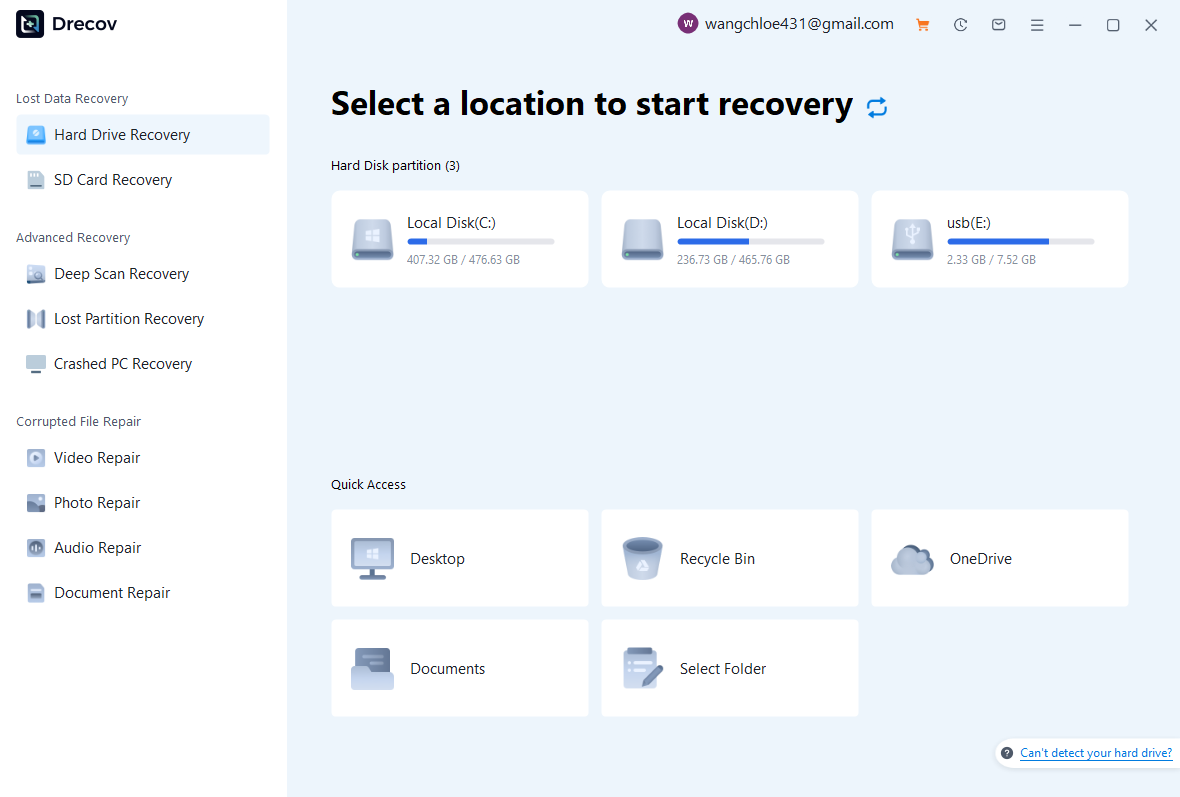


Why Choose PandaOffice Drecov?
When it comes to reliable file data recovery, PandaOffice Drecov offers a balanced combination of performance, ease of use, and broad compatibility. Whether you’ve lost important business files or personal memories, it provides an efficient way to restore data from various loss scenarios, including system crashes, accidental deletion, and formatted drives.
For users looking for advanced Photo Data Recovery Software, PandaOffice Drecov supports a wide range of image formats and storage devices. It can recover high-quality photos from SD cards, cameras, and internal drives while preserving original resolution and file structure. This makes it especially useful for photographers and everyday users alike.
If you are dealing with storage device issues, its external hard drive recovery capability ensures that data can be retrieved from USB drives, HDDs, and SSDs with minimal effort. The software performs deep scans to locate hidden or lost files, even in complex situations like partition loss.
In addition, PandaOffice Drecov excels in Document Recovery, helping users restore essential files such as Word, Excel, and PDFs. It also supports powerpoint recovery, allowing you to retrieve unsaved or deleted presentation files quickly—ideal for professionals working under tight deadlines.
Method 5: Recover Photos from SD Card Backup
If your Samsung device uses an SD card, deleted photos may still be recoverable directly from the storage card. This is a common scenario for samsung phone photo recovery, especially when photos are saved externally.
Test Environment:
Device: Samsung Galaxy S10
OS Version: Android 12
Storage: SanDisk 64GB SD Card
To recover photos:
- Remove the SD card from your Samsung device
- Insert it into a computer using a card reader
- Open the file explorer to locate the DCIM folder
- Check for hidden or recently deleted files
- Copy recoverable images to your computer
If files are not visible, you can enable “Show hidden files” in your system settings. Sometimes deleted images remain stored but hidden due to file system errors.
This method works best when no new data has been written to the SD card after deletion. It is a simple but effective approach to samsung lost photos recovery without installing additional tools.
⚠️Warning: Avoid saving new data to the SD card before recovery, as it may overwrite deleted files permanently.
Method 6: Restore from Local Backup or Smart Switch
Samsung Smart Switch is another useful tool that helps restore backups created on a computer. If you previously backed up your device, this method enables samsung account photo recovery without relying on cloud services.
Test Environment:
Device: Samsung Galaxy Note 20
OS Version: Android 13
Backup Tool: Samsung Smart Switch (PC)
Steps to restore photos:
- Open Smart Switch on your computer
- Connect your Samsung device via USB
- Click “Restore”
- Select a backup file
- Choose photos or gallery data
- Start the restoration process
This method is reliable for samsung gallery photo recovery, provided that backups were created before data loss.
It also allows selective restoration, meaning you can recover only photos without affecting other data on your device.
However, like other backup-based methods, its success depends entirely on whether a backup exists.
⚠️Warning: Restoring a backup may replace current files on your device.
Frequently Asked Questions About Samsung Photo Recovery
Can I Perform Samsung Permanently Deleted Photos Recovery Without Backup?
Yes, it is possible to recover permanently deleted photos even without a backup, but success depends on several factors. When photos are deleted, they are not immediately erased from storage. Instead, the system marks the space as available for new data.
This means recovery tools can scan the device and locate remnants of deleted files. Methods such as professional recovery software are commonly used for samsung permanently deleted photos recovery.
However, the chances of success decrease significantly if new data has overwritten the deleted files. That’s why it’s important to stop using your device immediately after data loss.
For best results:
- Avoid installing new apps
- Do not take new photos
- Disable internet downloads
These precautions increase the likelihood of successful samsung photo recovery even in complex situations.
How Long Do Deleted Photos Stay in Samsung Gallery or Cloud?
The duration depends on the platform used. In Samsung Gallery, deleted photos remain in the Trash for up to 30 days before permanent removal. This makes it the quickest method for samsung gallery photo recovery.
In Google Photos, deleted items are stored in Trash for 60 days, providing a longer recovery window. Samsung Cloud backup duration depends on sync settings and storage availability.
If photos are not recovered within these timeframes, they are permanently deleted from the system. At this point, users must rely on advanced methods like deep scanning tools for samsung phone deleted photos recovery.
Understanding these timelines helps users act quickly and choose the most effective recovery method.
Is Samsung Account Photo Recovery Safe?
Yes, samsung account photo recovery is generally safe when using official Samsung services like Samsung Cloud or Smart Switch. These tools are designed to protect user data and ensure secure restoration.
However, users should always verify that they are logged into the correct Samsung account before restoring data. Using the wrong account may result in missing or incomplete files.
Additionally, ensure your device has sufficient storage space before restoring backups. Lack of space may interrupt the process and cause partial recovery.
To maintain safety:
- Use official Samsung tools only
- Avoid unknown third-party apps
- Keep backups updated regularly
These practices ensure a smooth and secure recovery experience.
Key Takeaways for Samsung Lost Photos Recovery
Best Practices to Improve Recovery Success
Recovering deleted photos on Samsung devices is often possible, but success depends on timing and the method used. Built-in tools like Gallery Trash, Samsung Cloud, and Google Photos provide the easiest solutions for samsung phone photo recovery.
For more complex cases, advanced methods such as SD card recovery or professional tools can help retrieve permanently deleted files. Each approach has its own advantages, and choosing the right one depends on your situation.
To maximize recovery success:
- Act immediately after data loss
- Avoid overwriting storage
- Check all backup sources first
- Use reliable recovery tools when necessary
Combining multiple methods increases the likelihood of successful samsung lost photos recovery.
Conclusion: Choosing the Right Samsung Photo Recovery Method
Final Thoughts on Samsung Phone Deleted Photos Recovery
Losing photos from your Samsung device can be stressful, but recovery is often achievable with the right approach. From simple solutions like the Gallery Trash to advanced tools for samsung permanently deleted photos recovery, there are multiple ways to retrieve lost images.
The key is to understand your specific situation and act quickly. If your photos were recently deleted, built-in recovery options are usually sufficient. If not, deeper recovery methods may be required.
By following the strategies outlined in this guide, users can effectively perform samsung phone deleted photos recovery and protect their data in the future.
Finally, always maintain regular backups to avoid data loss. Prevention is the most reliable way to ensure your photos remain safe and accessible at all times.






