







My PP has frozen, I can’t do anything with it except move the cursor scroll up to look at slides, nothing else works but it hasn’t registered as program stopped working and nothing seems to unfreeze it. The work isn’t saved so I’m scared to do a reset of my PC.— From Reddit
Understanding Why PowerPoint Not Responding Happens
What to Do When PowerPoint Is Not Responding
Encountering PowerPoint not responding can be frustrating, especially when you are working on an important presentation. This issue often appears as a frozen screen, delayed input response, or a complete application crash. In some cases, users may also experience errors where the ppt not working properly or failing to open files altogether.
When PowerPoint stops responding, it usually indicates a conflict between the software and system resources, corrupted files, or problematic add-ins. These issues can disrupt workflow and even lead to data loss if unsaved changes are involved. Understanding what to do when PowerPoint is not responding is crucial to minimize damage and restore normal functionality quickly.
In many cases, the problem is temporary and can be resolved with simple troubleshooting. However, persistent issues may require deeper fixes such as repairing files, disabling extensions, or recovering corrupted data. Identifying the root cause is the first step toward applying the right solution.
⚠️Warning: Avoid force-closing PowerPoint repeatedly, as it may corrupt the current presentation file.
Common Causes Behind PPT Not Working Issues
Why PowerPoint Freezes or Crashes Frequently
There are several reasons why users encounter ppt not working or freezing issues. One of the most common causes is insufficient system resources. Running multiple applications simultaneously can consume memory and processing power, leaving PowerPoint unable to function smoothly.
Corrupted files are another major factor. When a presentation file is damaged, PowerPoint may struggle to open or edit it, leading to freezing or crashes. In such cases, users often need to fix corrupt PowerPoint file issues using repair tools or recovery methods.
Outdated software can also trigger compatibility problems. If your version of PowerPoint or Windows is not updated, it may conflict with newer file formats or system components. Additionally, faulty add-ins or plugins can interfere with PowerPoint’s operation, causing it to become unresponsive.
System-level errors, such as disk issues or memory conflicts, may further contribute to the problem. These issues can affect not only PowerPoint but other applications as well.
Understanding these causes helps users determine whether they need to fix the PPT, update their system, or recover corrupted files.
Proven Solutions to Fix PowerPoint Not Responding
Method 1: Restart PowerPoint and Check System Resources
A simple restart can often resolve temporary issues when dealing with PowerPoint not responding.
Steps to Restart and Free Resources
- Press “Ctrl + Shift + Esc” to open Task Manager.
- Locate Microsoft PowerPoint in the list.
- Select it and click “End Task.”
- Close unnecessary background applications.
- Restart your computer.
- Reopen PowerPoint and try accessing the file again.
Test Environment:
Windows 10, 8GB RAM, Office 2019.
This method works well when the issue is caused by temporary system overload or memory limitations.
Method 2: Open PowerPoint in Safe Mode
Safe Mode helps diagnose whether add-ins or custom settings are causing the issue.
Steps to Launch PowerPoint in Safe Mode
- Press “Windows + R” to open the Run dialog.
- Type
powerpnt /safeand press Enter. - Open your presentation file.
- If it works, go to “File” > “Options.”
- Disable add-ins under the Add-ins section.
- Restart PowerPoint normally.
Test Environment:
Windows 11, Office 365 with multiple add-ins installed.
If the file opens successfully in Safe Mode, it indicates that an add-in is causing the problem.
Method 3: Repair Corrupted PowerPoint File
When a file is damaged, you need to fix corrupt PowerPoint file issues using built-in repair features.
Steps to Fix PowerPoint File Using Open and Repair
- Open PowerPoint.
- Click “File” > “Open.”
- Browse to the corrupted file.
- Click the arrow next to “Open.”
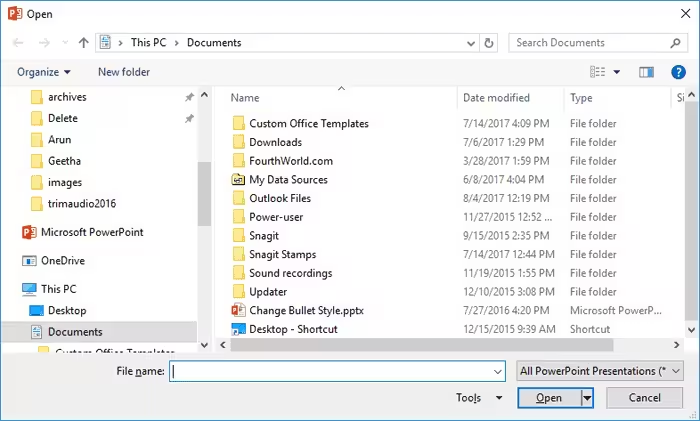
- Select “Open and Repair.”

- Wait for the repair process to finish.
- Save the repaired file.
Test Environment:
Windows 10, PowerPoint 2021, SSD storage.
This method is effective for minor corruption and can help fix PowerPoint file issues quickly.
Method 4: Use Pandaoffice Drecov to Recover Corrupted PowerPoint File
For severe corruption, Pandaoffice Drecov provides a reliable way to recover corrupted PowerPoint file data.
Download DrecovSteps to Recover PPT Files with Drecov
- Install and launch Pandaoffice Drecov.
- Select the drive where the file was stored.
- Click “Scan” to search for lost or damaged files.
- Wait for the scanning process to complete.
- Preview recoverable PowerPoint files.
- Select the file and click “Recover.”
- Save it to a different location.
Test Environment:
Windows 11, 16GB RAM, external hard drive.



Why Choose PandaOffice Drecov?
When it comes to reliable file data recovery, PandaOffice Drecov offers a balanced combination of performance, ease of use, and broad compatibility. Whether you’ve lost important business files or personal memories, it provides an efficient way to restore data from various loss scenarios, including system crashes, accidental deletion, and formatted drives.
For users looking for advanced Photo Data Recovery Software, PandaOffice Drecov supports a wide range of image formats and storage devices. It can recover high-quality photos from SD cards, cameras, and internal drives while preserving original resolution and file structure. This makes it especially useful for photographers and everyday users alike.
If you are dealing with storage device issues, its external hard drive recovery capability ensures that data can be retrieved from USB drives, HDDs, and SSDs with minimal effort. The software performs deep scans to locate hidden or lost files, even in complex situations like partition loss.
In addition, PandaOffice Drecov excels in Document Recovery, helping users restore essential files such as Word, Excel, and PDFs. It also supports powerpoint recovery, allowing you to retrieve unsaved or deleted presentation files quickly—ideal for professionals working under tight deadlines.
This method is ideal for cases where the file cannot be opened or repaired using built-in tools.
Method 5: Disable Hardware Graphics Acceleration
Graphics acceleration can sometimes cause compatibility issues, leading to ppt not working properly.
Steps to Disable Graphics Acceleration
- Open PowerPoint.
- Click “File” > “Options.”
- Go to “Advanced.”
- Scroll to the Display section.
- Check “Disable hardware graphics acceleration.”
- Click “OK” and restart PowerPoint.
Test Environment:
Windows 10, integrated GPU system.
This method is useful for resolving performance-related issues.
System-Level Fixes for Persistent PowerPoint Problems
Updating and Repairing Office Installation
If PowerPoint continues to freeze, repairing or updating the Office installation can help fix the PPT.
Steps to Repair Microsoft Office
- Open Control Panel.
- Go to “Programs and Features.”
- Select Microsoft Office.
- Click “Change.”
- Choose “Quick Repair” or “Online Repair.”
- Follow the instructions.
- Restart your computer.
Test Environment:
Windows 11, Office 365.
This method resolves deeper issues related to corrupted application files.
⚠️Warning: Online Repair may reset custom settings and require reconfiguration.
Method 6: Check for Conflicting Add-ins
Faulty or outdated add-ins can cause PowerPoint not responding or crashes during file editing. Disabling or removing them often restores normal functionality.
Steps to Manage Add-ins
- Open PowerPoint in Safe Mode (
powerpnt /safe). - Click “File” > “Options” > “Add-ins.”
- At the bottom, select “COM Add-ins” and click “Go.”
- Uncheck all add-ins and click “OK.”
- Restart PowerPoint normally.
- Re-enable add-ins one by one to identify the problematic one.
Test Environment:
Windows 10, Office 2019, multiple third-party add-ins installed.
This method helps users isolate conflicts and fix the PPT without losing work.
Method 7: Update Windows and Office
Outdated software can trigger unexpected errors. Keeping both Windows and Office updated often resolves ppt not working issues.
Steps to Update Windows and Office
- Press “Windows + I” and open Settings.
- Go to “Update & Security” > “Windows Update.”
- Click “Check for updates” and install all updates.
- Open any Office application.
- Click “File” > “Account” > “Update Options” > “Update Now.”
Test Environment:
Windows 11 Pro, Office 365.
Regular updates help maintain compatibility and prevent PowerPoint not responding errors.
Method 8: Repair PowerPoint Preferences and Cache
Corrupted settings can cause repeated crashes. Resetting preferences often resolves persistent ppt not working problems.
Steps to Reset Preferences
- Close PowerPoint.
- Navigate to
C:\Users\YourUsername\AppData\Roaming\Microsoft\PowerPoint. - Rename or delete the folder “PowerPoint.”
- Restart PowerPoint; a new settings folder is automatically created.
- Open your presentation and check for responsiveness.
Test Environment:
Windows 10, PowerPoint 2021, local SSD.
This approach ensures that corrupted user preferences do not affect normal operations.
Method 9: Repair Disk Errors to Recover Corrupt PowerPoint File
Sometimes PowerPoint not responding is caused by storage issues. Repairing disk errors can help recover corrupted PowerPoint file data.
Steps to Repair Disk Errors
- Open “This PC” and right-click the drive containing the file.
- Select “Properties” > “Tools.”
- Under Error checking, click “Check.”
- Follow prompts to scan and repair the drive.
- Restart the system and open PowerPoint.
Test Environment:
Windows 11, NTFS drive, 1TB SSD.
This method reduces the risk of file corruption affecting PowerPoint performance.
⚠️Warning: Ensure backup copies of important files exist before running disk repairs.
Method 10: Convert PowerPoint File to a Different Format
If a specific PPT file is not working, converting it to another format may allow access and fix corruption issues.
Steps to Convert PowerPoint File
- Make a copy of the original file.
- Open PowerPoint and click “File” > “Open.”
- Select the corrupted file.
- Save As > choose a different format (e.g., .pptx to .odp or vice versa).
- Open the new file and check if content is intact.
Test Environment:
Windows 10, PowerPoint 2021, cloud-synced storage.
This approach is useful when file structure corruption prevents normal opening.
Best Practices to Prevent PowerPoint Crashes
Tips to Avoid PowerPoint Not Responding
- Enable AutoSave and AutoRecover features.
- Close unnecessary applications to free system resources.
- Keep Office and Windows up to date.
- Avoid opening very large presentations on low-memory systems.
- Regularly back up important files to cloud or external storage.
By following these practices, users can minimize the likelihood of encountering PowerPoint not responding issues.
FAQ: Fixing and Recovering PowerPoint Files
Why is PowerPoint not responding when opening a file?
It could be due to a corrupted file, faulty add-ins, insufficient system memory, or outdated software.
How to recover corrupted PowerPoint file?
Use “Open and Repair,” check temporary files, or use professional software like Pandaoffice Drecov to recover corrupted PowerPoint file.
What to do when PowerPoint is not responding during editing?
Restart in Safe Mode, disable add-ins, free system resources, or repair Office installation.
Can I fix a PPT that freezes repeatedly?
Yes, by repairing preferences, updating software, disabling hardware graphics acceleration, or converting the file to a new format.
Conclusion: Key Takeaways to Fix PowerPoint Not Responding
Summary of Effective Solutions
Encountering PowerPoint not responding or ppt not working issues can be stressful, but most problems are solvable with the right approach. Built-in tools like Open and Repair, Safe Mode, and AutoRecover can resolve many issues quickly. For severe corruption, Pandaoffice Drecov provides reliable recovery.
Updating software, managing add-ins, repairing disk errors, and resetting preferences are essential for long-term stability. By following these steps, users can fix the PPT, recover corrupted files, and prevent future crashes.
⚠️Warning: Always back up presentations regularly to avoid permanent data loss.






