







What Happens When a USB Flash Disk Fails or Files Disappear?
One moment, your USB flash disk is a reliable digital wallet, and the next, it’s either unreadable, prompting a “format required” error, or your key files are mysteriously gone. Whether due to an abrupt disconnection, a virus, or an accidental reformat, data loss can feel final. However, thanks to the way solid-state drives store information, a full and successful USB flash disk recovery is highly probable. Understanding the different scenarios helps in choosing the right recovery strategy.
Core Precaution: Data Protection is Key
The success of any USB flash disk recovery effort hinges on one single action: ensuring NO new data is written to the drive. Any write operation could overwrite the “deleted” data, making retrieval impossible. Keep the disk unplugged until you’re ready to start the recovery process.
Strategic Recovery Methods: From Windows Tools to Specialized Software
1. Restoring a Previous Version
If you were working on a critical document and saved it to the USB flash disk, and the file was then deleted, Windows’ built-in “Previous Versions” feature (if System Protection was enabled) might save the day.
- Step 1: Connect the USB flash disk. Open File Explorer, right-click on the USB drive letter.

- Step 2: Select Properties and navigate to the Previous Versions tab.
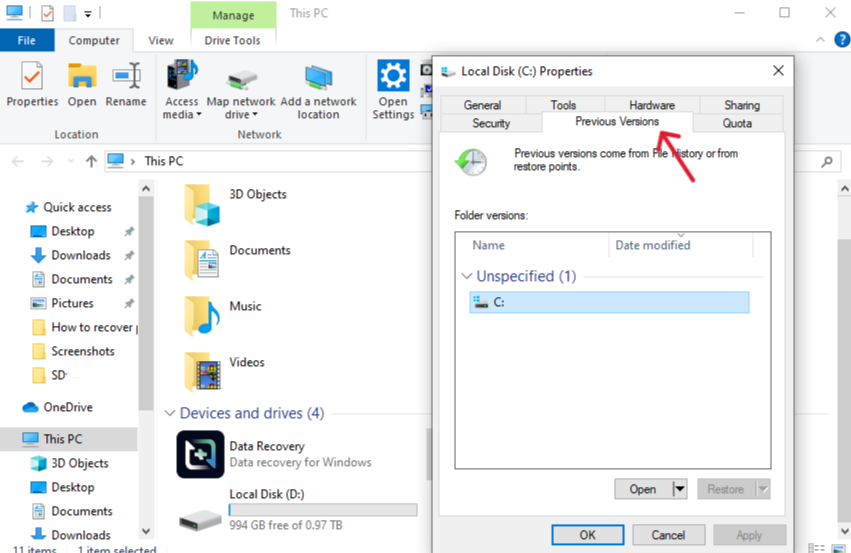
- Step 3: Look for a previous, accessible version of the folder or drive and click Restore. This will roll back the file system to that earlier state.
2. Advanced Recovery with PandaOffice Drecov
When built-in tools fail to find the data, a comprehensive software solution is necessary. PandaOffice Drecov stands out as an easy-to-use yet powerful option for professional-grade USB flash disk recovery. Its streamlined process and strong technical foundation ensure data integrity and a high chance of retrieval.
PandaOffice Drecov Core Advantages:
- High Success Rate: Excellently optimized to recover data from formatted SD card, emptied Recycle Bins, and deleted desktop files.
- Easy-to-Use: A quick, three-step process that even beginners can follow.
- File Repair: Quickly repairs content within files that appear corrupted or unreadable.
- Data Security: The recovery process is local, so you don’t worry about data leaks.
- Trusted Partners: They collaborate with reputable platforms like Trustpilot, Microsoft Store, TechBullion, and Sourceforge.
The Swift 3-Step Retrieval Process:
- Step 1: Configure Scan Parameters:

- After launching the software, select your USB flash disk as the target location.
- To ensure you capture everything, especially files accidentally deleted from the desktop, make sure to tick the box for “Recycle Bin” scanning. You can also specify the types of files you are searching for (e.g., Photos, Documents) to narrow the search.
- Step 2: Deep Scan and Preview Files:
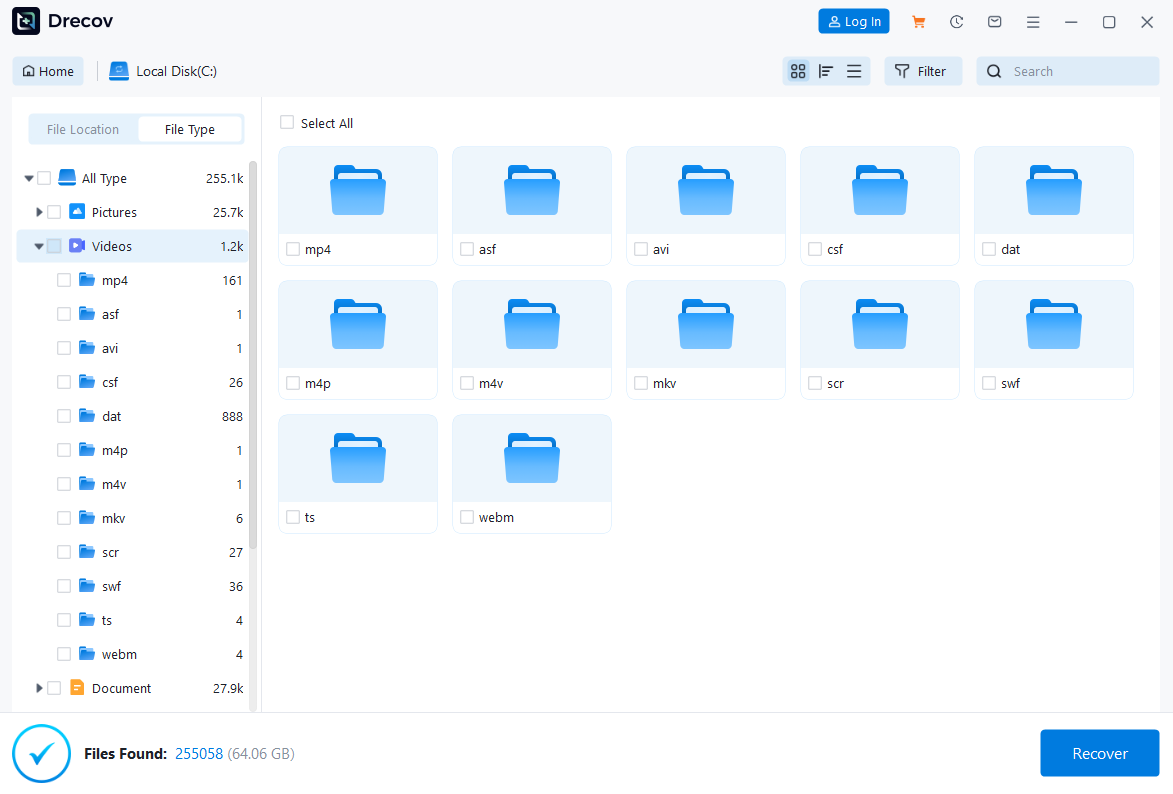
- Click Scan and allow the software to perform its proprietary deep scan. The powerful algorithm searches for file signatures across the entire physical drive.
- Upon completion, the software presents the results in an organized list. View the file previews to confirm that the recovered data is intact and correct.
- Step 3: Final Recovery and Secure Saving:

- Select the files you wish to restore.
- Click Recover and specify a different storage location (e.g., your PC’s main hard drive).
Do not save the recovered files back onto the same USB flash disk, as this could cause data corruption for any remaining files yet to be recovered.
3. Utilizing Device Management for Drive Letter Issues
Sometimes, the USB flash disk appears to be missing simply because it wasn’t assigned a drive letter by the operating system, or it is conflicting with another drive.
- Step 1: Press Windows Key + X and select Disk Management.
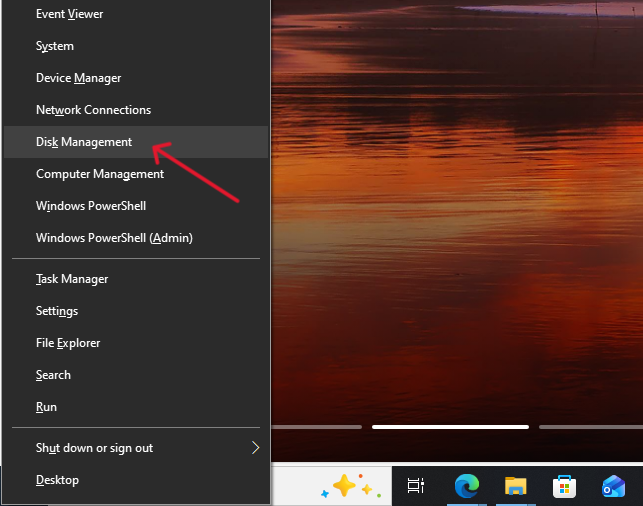
- Step 2: Find your USB flash disk in the list of disks.
- Step 3: Right-click on the drive and select Change Drive Letter and Paths…
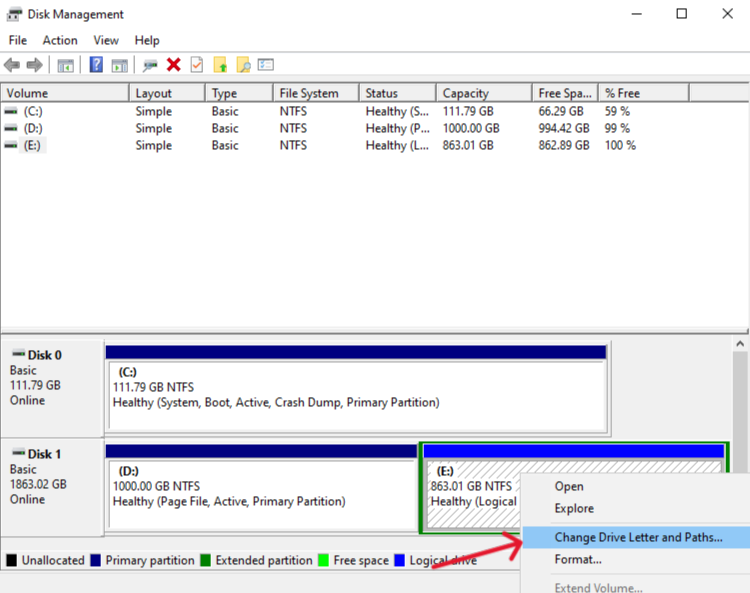
- Step 4: Click Add (or Change) and assign a new, unique letter (e.g., F:, G:) to the drive. This might make the drive and its files accessible again.
How Does the Recovery Actually Work?
When files are saved to your USB flash disk, they are stored as binary data on the NAND flash chips. A tiny file system index (like a table of contents) keeps track of where each file’s data segments begin and end. When you delete a file, the system doesn’t physically wipe the data (that would wear out the flash chip); instead, it only removes the file’s entry from the index and updates a status bit, marking that space as reusable.
Data recovery tools like PandaOffice Drecov use advanced algorithms to ignore this file system index. They perform a raw scan of the entire drive surface, looking for file headers and footers—unique patterns of data that mark the beginning and end of specific file types (like JPEG, DOCX, or MP4). By piecing these fragments back together, the software can reconstruct the original file, effectively achieving USB flash disk recovery even after a full format.
Five Proactive Steps to Prevent USB Flash Disk Fails or File Disappearances
While USB Flash Disk Recovery is possible, prevention is always better. By adopting these five practices, you can significantly reduce the risk of future data loss:
Always Use “Safely Remove Hardware”:
Never pull the USB flash disk directly out of the port. When a drive is connected, the operating system might be actively reading or writing data in the background. Use the “Safely Remove Hardware” or “Eject” function before unplugging. This ensures all write operations are completed and the file system is properly closed.
Maintain Multiple Backups:
The most robust defense against data loss is a “3-2-1” backup strategy: three copies of your data, on at least two different types of media, with one copy stored offsite (e.g., cloud storage). Do not rely on your USB drive as the sole storage location for critical files.
Monitor Physical Condition and Usage:
Avoid exposing your USB flash disk to extreme temperatures, moisture, or physical impact. Treat the drive gently, and avoid connecting it to public or unfamiliar computers that might harbor viruses or malicious software that can corrupt the drive’s file system.
Regularly Check Drive Health (Error Checking):
Periodically use the built-in operating system tools to check the drive’s health. For Windows, right-click the drive in File Explorer, go to Properties > Tools tab, and click Check under Error checking. This can identify and fix minor file system inconsistencies before they escalate into major data loss requiring complex USB Flash Disk Recovery.
Avoid Filling the Drive to Full Capacity
Try to keep at least 10-15% of the USB flash disk storage space free. When flash drives are nearly full, the controller has less space to perform wear leveling (a technique to distribute writes evenly), which can put unnecessary stress on the memory cells and lead to premature failure or data corruption.
Conclusion
The accidental deletion or loss of files from a flash drive can be frightening, but it is rarely permanent. By acting quickly, preventing further writes, and utilizing a powerful, user-friendly tool like PandaOffice Drecov, you can overcome even severe data loss scenarios. Remember that USB Flash Disk Recovery is achievable because the data remains—we just need the right tools to rebuild the index and retrieve it. Keep these steps in mind, and you will be well-equipped to handle future data emergencies.






