







Losing your Chrome bookmarks can feel like losing a map to your digital life—especially when you rely on them for work, research, or long-term personal projects. Imagine this: you’ve spent months or even years building a carefully curated library of bookmarks, only to accidentally hit “Delete” while cleaning up your browser, or experience a sudden system crash that wipes out your Chrome profile. In moments like these, finding reliable solutions for Recovering Deleted Chrome Bookmarks becomes an urgent priority, as hundreds of crucial links vanish at once, leaving you frustrated and anxious.
This scenario isn’t uncommon. Studies indicate that over 25% of internet users experience accidental bookmark or browser data loss each year, often due to simple mistakes, software updates, or unexpected crashes. The good news? Recovering lost bookmarks is entirely possible with the right tools and strategies. In this guide, we’ll show you why PandaOffice Drecov is the best tool for Recovering Deleted Chrome Bookmarks in 2026, explore multiple recovery methods, and share actionable steps to help prevent future losses.
Common Causes of Data Loss and Typical Scenarios
Understanding why Chrome bookmarks disappear helps users act faster and recover data more effectively. Here are the most frequent causes:
1.Accidental Deletion
- Users may unintentionally delete bookmarks while reorganizing folders or cleaning the browser.
- Example: Right-clicking a folder and selecting “Delete” without realizing it contains hundreds of bookmarks.
2.Browser Crash or Forced Shutdown
- Unexpected crashes or power failures can corrupt the Chrome profile, resulting in missing bookmarks.
- Example: Computer freezes during a system update, leading to lost session data.
3.Sync Issues Across Devices
- Chrome Sync occasionally fails, especially when multiple devices use the same account.
- Example: Bookmarks added on a laptop disappear from the desktop browser after a sync conflict.
4.Profile Corruption
- Malware, conflicting extensions, or improper shutdowns can damage Chrome’s User Data folder.
- Example: Corrupted Bookmarks JSON file prevents Chrome from loading any saved bookmarks.
5.System Restore or OS Reinstallation
- Restoring Windows or macOS may overwrite browser data.
- Example: After reinstalling Windows, all local Chrome data is reset, leaving bookmarks lost.
6.Malware or Unauthorized Software
- Malicious programs may delete or modify browser files without user knowledge.
- Example: A rogue cleaning tool clears “unused” Chrome data, erasing bookmarks accidentally.
Tip: Knowing the cause can help you choose the right recovery method and prevent repeated loss.
Data Recovery Principles Explained
Data recovery isn’t magic—it’s based on how computers store and manage data:
1.Deleted Doesn’t Mean Gone
- When a file is deleted, the system simply marks the space as available for new data.
- The actual file remains on disk until overwritten.
2.Fragmentation and Recovery
- Large files, like bookmarks databases, can be split into fragments across the drive.
- Recovery tools reconstruct these fragments to restore the original file.
3.Browser Data Storage
- Chrome stores bookmarks in a JSON file called Bookmarks located in the User Data\Default folder.
- Other important files include History (SQLite database) and Local Storage (app data).
4.Impact of Overwriting
- Writing new data to the drive can overwrite deleted files, reducing recovery chances.
- Immediate action is critical—stop using the affected drive as soon as data loss occurs.
5.Read-Only Recovery Scans
- Tools like PandaOffice Drecov use read-only scans to locate deleted or corrupted files without modifying the original data.
- This ensures maximum recovery potential and avoids accidental permanent deletion.
Analogy for Users: Think of deleted bookmarks like sticky notes that were removed from your notebook—the notes are still in the drawer (disk), but marked as recyclable. Recovery is about finding them before someone uses that paper for something else.
The Best Tools for Recovering Deleted Chrome Bookmarks in 2026 — PandaOffice Drecov
For users seeking a reliable, professional-grade solution, PandaOffice Drecov stands out. Its deep-scan technology and intuitive interface make it ideal for retrieving deleted Chrome bookmarks, even from damaged profiles.
Why PandaOffice Drecov is the Preferred Choice for Professionals
While the market is flooded with recovery tools, PandaOffice Drecov stands out by balancing deep-scan technology with an intuitive, non-technical interface. It is optimized specifically for the complex file structures used by modern browsers.
- Comprehensive Recovery: From accidental deletion and formatting to partition loss, it handles every data loss scenario.
- Safety-First Technology: Utilizing a “Read-Only” scanning engine, it ensures your original data remains untouched and uncorrupted during the search.
- High-Fidelity Preview: Preview HTML, images, PDFs, and documents before committing to the recovery, ensuring you only spend time on the files you actually need.
- Optimized for Modern Browsers: Specifically tailored for Chrome’s complex folder structure.
⚠ CRITICAL WARNING: Do NOT install the software on the same drive where the data was lost. For example, if your web cache was on the C: Drive, install Drecov on a D: Drive or an external USB to prevent overwriting.
Step-by-Step Guide to Recover Chrome Bookmarks
If you are currently facing data loss, stop all activity on the affected drive immediately. Writing new data (like downloading new files or installing apps) can overwrite the very fragments you are trying to save.
- Step 1: Select the Target Scanning Area. Upon launching the software, you will see a clean, organized dashboard.
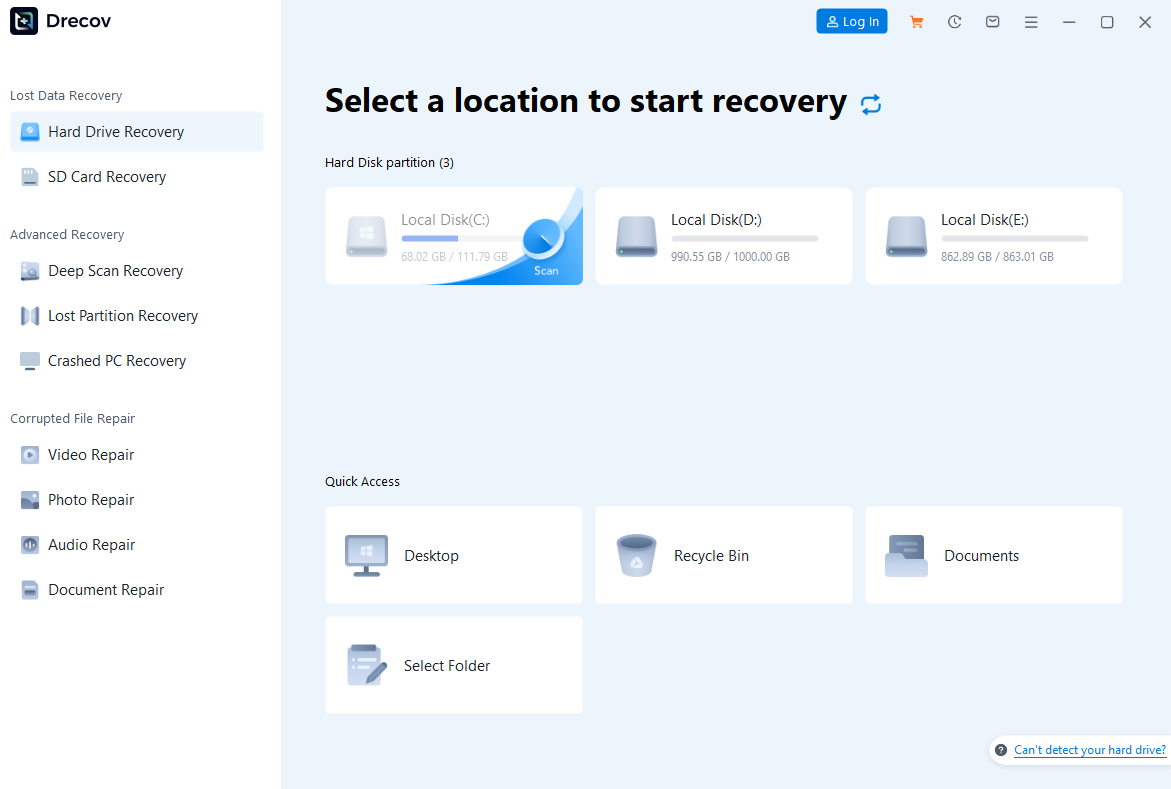
- If your browser is installed in the default path, select “Local Disk (C:)”.
- If you are looking for files from a specific “Downloads” folder, use the “Select Folder” option for a more targeted search.
- Click the “Start” button to begin.
- Step 2: Deep Search and Real-Time Filtering. The software will execute a “Quick Scan” followed by a “Deep Scan” automatically.

- Key Action: You don’t have to wait for the entire process to finish. Use the “Filter” button at the top to sort files by type (e.g., .html, .pdf, .jpg) or by the date they were last modified.
- Look specifically for folders containing keywords like `Cache`, `History`, or `Local Storage` to find web-related data.
- Step 3: Preview and Verify Your Files. Once the scan populates the list, double-click on any file to open the preview window.

- PandaOffice Drecov allows you to view HTML source code or image thumbnails. This ensures you are recovering the specific version of the webpage or file you lost.
- Step 4: Secure One-Click Recovery. Select the checkboxes for the files you wish to retrieve and click the “Recover” button. A window will prompt you to choose a destination.
⚠ PRO TIP: Always save the recovered files to an external drive or a different partition. Never save them back to the original source until you have confirmed the data is fully functional.
Official Method: Recovering Deleted Bookmarks via Chrome Backup
Before turning to third-party tools, Chrome itself provides a basic recovery method:
- Step 1: Locate Your Chrome User Data Folder
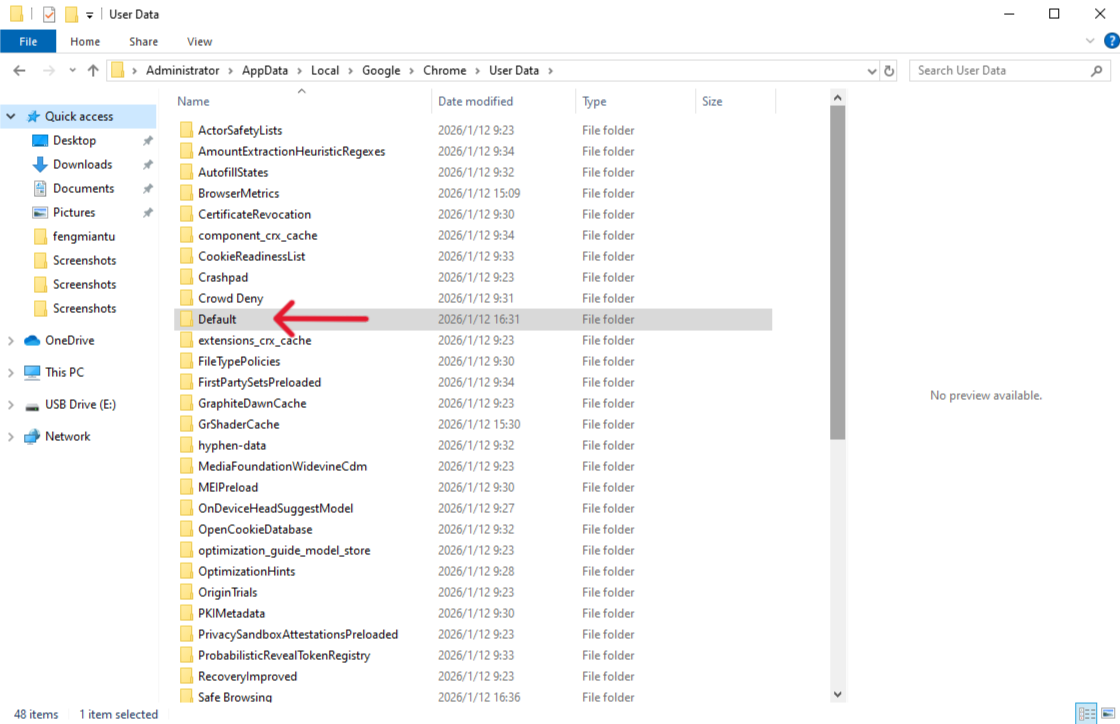
- Windows: C:\Users\[YourUsername]\AppData\Local\Google\Chrome\User Data\Default
- macOS:~/Library/Application Support/Google/Chrome/Default
- Step 2: Find Bookmark Backup Files
Chrome automatically creates a backup called Bookmarks.bak in the same folder.
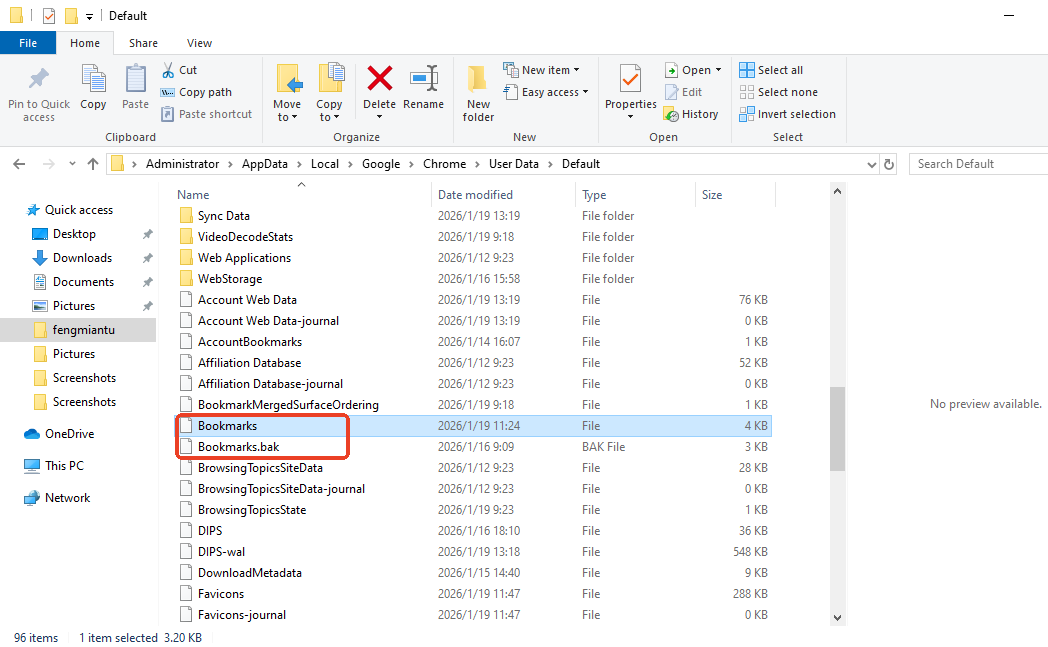
- Step 3: Restore the Backup
- 1.Close Chrome.
- 2.Rename Bookmarks to Bookmarks.old.
- 3.Rename Bookmarks.bak to Bookmarks.
- 4.Reopen Chrome and check if your bookmarks are restored.
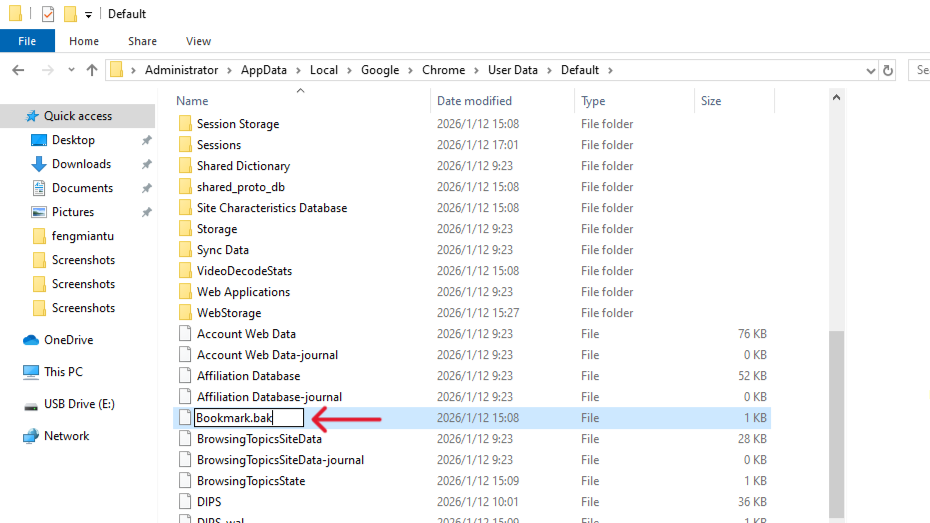
⚠ Warning: This method only works if the backup exists and hasn’t been overwritten.
PandaOffice Drecov vs Official Backup Recovery: Key Comparison
Here’s a clear side-by-side comparison to help users decide the best method for The Best Tools for Recovering Deleted Chrome Bookmarks in 2026:
| Feature / Factor | Official Chrome Backup | PandaOffice Drecov |
| Ease of Use | Moderate (manual file renaming) | Easy (wizard-style interface) |
| Recovery Success Rate | Moderate (depends on available backup) | High (99.8% success even for corrupted profiles) |
| Recovery from Corrupted Profiles | Limited | Excellent |
| Recovery Speed | Fast (if backup exists) | Moderate to fast depending on scan size |
| Preview of Files Before Recovery | None | Full preview (HTML, images, PDFs) |
| Scope of Recovery | Only bookmarks | Bookmarks, cache, history, downloads, profile data |
| Risk of Overwriting Data | Low | Low (read-only scan) |
| Backup Requirement | Backup must exist | Not required, can scan live or deleted files |
Official Backup: Quick solution if you regularly export bookmarks and no corruption exists.
PandaOffice Drecov: Comprehensive recovery option when backups are unavailable, profiles are damaged, or accidental deletion occurred. It’s the safer and more reliable choice for critical data recovery scenarios in 2026.
Pro Tips to Increase Your Recovery Success Rate
1. Speed is Key: Web caches are highly volatile. The sooner you run Drecov, the less likely the system is to overwrite those sectors with new temporary files.
2. Avoid Restarts: Every time a computer reboots, it clears out certain temporary logs. Try to perform the recovery in the current session if possible.
3. Use the Disk Image Feature: For advanced users, Drecov offers a “Disk Image” tool. Create a byte-for-byte copy of your drive first, then scan the image to ensure the original drive remains perfectly preserved.
Preventing Future Bookmark Loss
Prevention is always better than recovery. Consider these strategies:
- Step 1: Regular Backups. Export Chrome bookmarks periodically:
- 1.Open Chrome → Bookmarks → Bookmark Manager.
- 2.Click Export Bookmarks.
- 3.Save to an external drive or cloud storage.
- Step 2: Enable Chrome Sync
- Settings → Sync and Google services → Turn on Sync.
- Your bookmarks will now sync across devices, providing an additional safety net.
- Step 3: Use Recovery-Friendly Extensions
- Extensions like EverSync or Xmarks (if still supported) can create continuous backups.
- Step 4: Create System Restore Points
- On Windows: Control Panel → System → System Protection → Create Restore Point.
- Helps revert browser data in case of profile corruption.
- Step 5: Practice Safe Browser Hygiene
- Avoid installing untrusted extensions.
- Close Chrome properly; avoid force quitting.
- Refrain from clearing caches if unsure about saved bookmarks.
Recovering Deleted Chrome Bookmarks Frequently Asked Questions
1.Can PandaOffice Drecov recover history from “Incognito Mode”?
Incognito mode is designed not to write history to the disk. However, if the browser crashed while you were in Incognito, or if you downloaded files during that session, Drecov can often find those residual traces.
2.Why does the “Deep Scan” take so long?
Deep scanning examines every single sector of your hard drive to find fragmented data. For a 99.8% recovery rate, this level of detail is necessary. You can always pause the scan to check the results found so far.
3. What if the recovered file looks like gibberish?
This usually happens if the file was partially overwritten before recovery. Try looking for “Previous Versions” or secondary backup copies within the Drecov results list.
4. Is it safe to recover bookmarks back to the original drive?
It is not recommended. Always recover to an external drive or different partition first to avoid overwriting remaining data.
5. Can I recover bookmarks from a deleted Chrome profile?
Yes. Drecov can scan the profile folder even if Chrome no longer recognizes it. Preview files carefully before recovery.
6. Are cloud-synced bookmarks safe from accidental deletion?
Cloud sync can help, but it is not foolproof. If a bookmark is deleted on one synced device, the deletion propagates to all devices. Therefore, it’s recommended to regularly export bookmarks as a manual backup in addition to relying on sync.
7. What types of Chrome data can PandaOffice Drecov recover besides bookmarks?
PandaOffice Drecov can recover a wide range of browser data, including:
- Cache files
- Download history
- Local storage and session files
- Browser profiles
This makes it a comprehensive solution for accidental loss or corruption.
8. Can bookmarks recovered by PandaOffice Drecov be immediately used in Chrome?
Yes, after recovery:
- Save the recovered Bookmarks file to a safe location.
- Open Chrome → Bookmarks → Import Bookmarks.
- Navigate to the recovered file and import it.
Always check the recovered bookmarks for completeness before replacing existing ones to avoid conflicts.
Conclusion
Losing Chrome bookmarks doesn’t have to be a catastrophe. By understanding common causes, leveraging official methods, and using PandaOffice Drecov—The Best Tools for Recovering Deleted Chrome Bookmarks in 2026—users can restore their valuable web data quickly and safely.
Combined with proactive strategies like exporting bookmarks, enabling Chrome Sync, using extensions, and creating system restore points, you can turn bookmark loss into a minor inconvenience rather than a digital disaster.
Remember: Speed, precision, and safe storage locations are the keys to successful recovery. With the right approach, every lost bookmark has a strong chance of returning to your Chrome library, making your online workflow safer, smarter, and stress-free.






