







Google Chrome has become one of the most widely used browsers due to its speed, security, and ease of use. One of its essential features is the ability to save favorites or bookmarks, allowing users to quickly access frequently visited websites. However, situations arise where chrome favorites disappeared, leaving users frustrated and worried about losing important links. This problem can occur due to accidental deletion, browser updates, syncing errors, or file corruption.
Understanding how to restore Google Chrome favorites is essential to prevent permanent data loss. Fortunately, most of the time, bookmarks are not permanently erased and can be recovered if you act quickly. Whether you accidentally deleted your bookmarks or Chrome is not displaying them correctly, there are reliable methods to recover favorites Chrome efficiently.
This guide explains multiple approaches to how to restore Google Chrome favorites, ranging from using Chrome’s built-in tools, restoring from backup, to advanced recovery using professional software like Pandaoffice drecov. Following these steps ensures that even if your Chrome favorites disappeared due to unexpected errors, you can regain access to them safely.
⚠️Warning: Avoid installing new extensions or adding new bookmarks before attempting recovery, as this can overwrite the original data and reduce recovery chances.
Common Reasons Why Chrome Favorites Disappear
There are several reasons why your Chrome bookmarks may vanish unexpectedly. Identifying the cause helps determine the most effective recovery strategy.
Accidental Deletion: Users sometimes delete bookmarks unintentionally. Unlike files in the Recycle Bin, Chrome favorites do not go to a system trash folder, making direct recovery challenging without the right tools.
Browser Sync Issues: If Chrome syncing is enabled across multiple devices, a syncing error may overwrite your local bookmarks with an empty or outdated list. This is especially common if you reset Chrome or signed into a new device.
Profile Corruption: Chrome stores bookmarks in your profile folder. If the profile becomes corrupted due to updates, crashes, or malware, favorites may disappear.
File System Errors or Disk Corruption: If your system drive or user profile folder encounters corruption, the bookmark storage file may become unreadable. In such cases, professional recovery tools like Pandaoffice drecov can extract lost bookmarks safely.
⚠️Warning: Avoid using Chrome to add or modify bookmarks after data loss, as new operations may overwrite the old bookmark file, complicating recovery.
Method 1: Restore Bookmarks Using Chrome Backup File
Chrome automatically saves bookmarks in a profile folder, allowing users to restore them manually if they disappear. The typical path is:
C:\Users\[Your Username]\AppData\Local\Google\Chrome\User Data\Default\
Inside this folder, you’ll find files named Bookmarks and Bookmarks.bak. The .bak file is a backup that can be restored.
To recover bookmarks:
- Close Chrome completely.
- Navigate to the folder above.
- Rename Bookmarks to Bookmarks.old to preserve the corrupted file.
- Rename Bookmarks.bak to Bookmarks.
- Reopen Chrome and check if your favorites are restored.
This simple method works if the backup file is intact. However, if the .bak file is missing, corrupted, or outdated, you will need professional software. Pandaoffice drecov can scan the system and recover lost or corrupted Chrome bookmark files efficiently.
⚠️Warning: Always backup existing files before replacing them, as incorrect file handling can permanently delete bookmarks.
Method 2: Recover Chrome Favorites Using Google Account Sync
If you had Chrome sync enabled with your Google account, it’s possible to restore bookmarks from the cloud. This method is particularly helpful if Chrome favorites disappeared after reinstalling or resetting the browser.
- Open Chrome and sign in with your Google account.
- Go to Settings → Sync and Google Services → Manage Sync.
- Ensure Bookmarks sync is enabled.
- Wait a few minutes to allow Chrome to download synced bookmarks.
If bookmarks do not appear immediately, you can check the Google Dashboard online. Chrome sync keeps a record of bookmarks, and you can use this record to restore missing favorites.
⚠️Warning: If syncing has been disabled for a long time, some bookmarks may not be available. Combining this method with Pandaoffice drecov recovery ensures maximum recovery success.
Method 3: Restore Deleted Bookmarks Using System Restore
Windows users can use System Restore to revert the system to an earlier state when Chrome bookmarks were intact. This method does not affect personal files but restores system files, including Chrome’s profile folder.
Steps:
- Press Windows + R, type rstrui, and press Enter.
- Choose a restore point from a date when your bookmarks were present.
- Follow the on-screen instructions to complete the restoration.
- After rebooting, check Chrome favorites to verify recovery.
While System Restore can bring back deleted bookmarks, it has limitations. Files added after the restore point may not be preserved, and this method cannot recover bookmarks from corrupted or deleted profile folders. For reliable results, Pandaoffice drecov can directly recover lost bookmark files even in these situations.
⚠️Warning: Avoid creating new restore points before recovery, as this may overwrite older backups needed for bookmarks restoration.
Part 2 will include:
- Recovering bookmarks from deleted or corrupted Chrome profile folders
- Using professional recovery software (Pandaoffice drecov) step-by-step
- Advanced troubleshooting for corrupted or missing bookmarks
- Preventive strategies to avoid future loss of Chrome favorites
- A final conclusion with key takeaways
Method 4: Recover Deleted or Lost Bookmarks from Chrome Profile Folder
If Chrome favorites disappeared due to profile corruption or accidental deletion, you can attempt to recover bookmarks directly from the Chrome profile folder. The profile folder stores all user data, including bookmarks, history, and extensions. Even if bookmarks are deleted, residual data may remain in the folder and can be recovered.
Navigate to the profile folder:
C:\Users\[Your Username]\AppData\Local\Google\Chrome\User Data\Default\
Look for Bookmarks or temporary files that may contain your lost favorites. Copy the folder to a separate location to prevent accidental overwrites. While manual recovery is possible, it is often time-consuming and error-prone.
This is where Pandaoffice drecov proves invaluable. It can scan the Chrome profile folder, detect lost or corrupted bookmark files, and restore them safely. The software uses advanced algorithms to reconstruct missing data without altering existing files. This method ensures that even favorites deleted long ago or overwritten by system processes can be recovered.
⚠️Warning: Do not modify or create new files in the Default folder during recovery, as this can overwrite recoverable bookmarks.
Method 5: Using Pandaoffice drecov for Complete Bookmark Recovery
For users seeking the most reliable and efficient method, professional software like Pandaoffice drecov offers comprehensive recover favorites Chrome capabilities. The software can restore deleted, corrupted, or missing bookmarks, even if other methods fail.
Download DrecovStep-by-Step Guide:
- Install Pandaoffice drecov on a drive different from the one containing Chrome profile data.
- Launch the software and select System Scan or Application Data Recovery mode.
- Choose the drive or folder where Chrome profile data is stored.
- Start a deep scan. The software will identify bookmark files, temporary files, and other recoverable data.
- Preview recovered bookmarks and select those you want to restore.
- Save restored bookmarks to a safe location and import them back into Chrome via Bookmarks → Import Bookmarks.

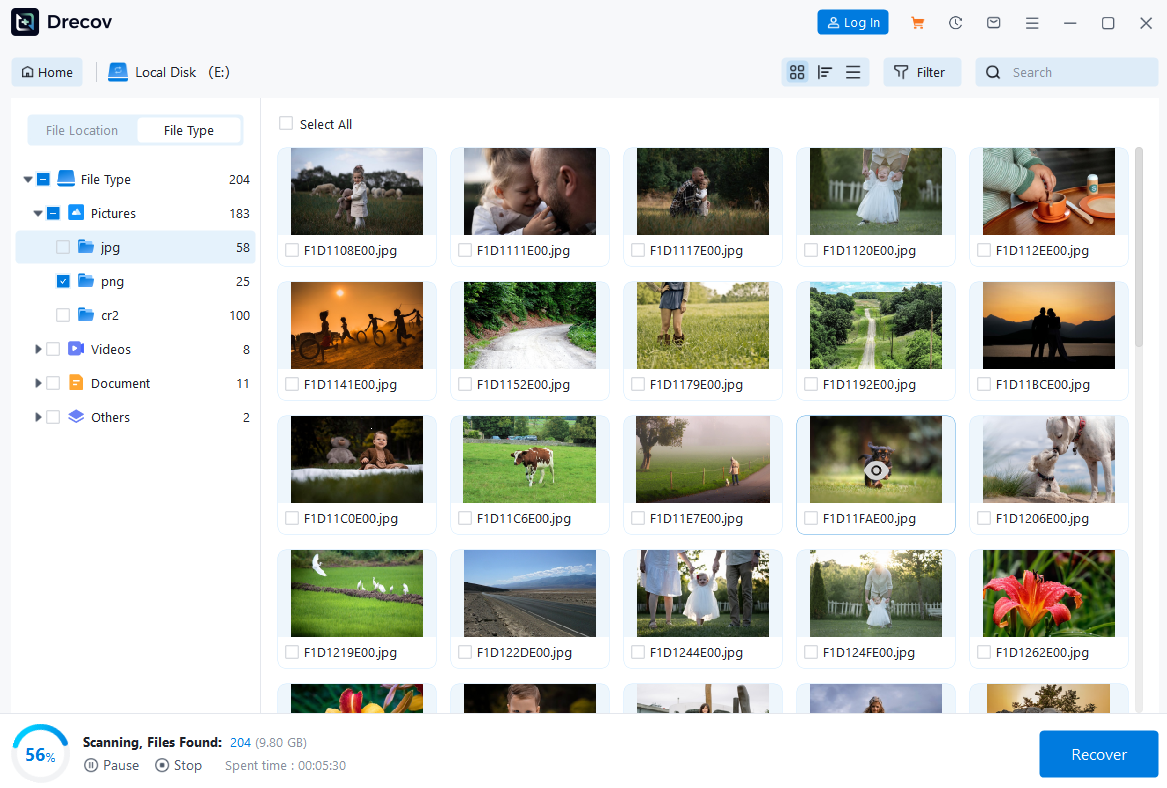

This method ensures maximum recovery success, especially when Chrome favorites disappeared due to corruption or system errors.
⚠️Warning: Never save recovered bookmarks directly to the same folder before verifying their integrity.
Advanced Troubleshooting for Corrupted or Missing Bookmarks
Sometimes bookmarks may appear partially corrupted or inaccessible even after standard recovery methods. Common causes include malware, interrupted syncing, or file system errors.
Troubleshooting Steps:
- Scan your system for malware to prevent future corruption.
- Check Google Sync settings and force a re-sync to recover cloud backups.
- Use Pandaoffice drecov to perform a deep scan for deleted or corrupted bookmark files.
If bookmarks are still missing, consider creating a new Chrome profile and importing recovered bookmark files to avoid conflicts with the old, corrupted profile. By combining software recovery with manual troubleshooting, users can restore almost all lost or deleted bookmarks efficiently.
⚠️Warning: Avoid reinstalling Chrome before recovery, as this may overwrite residual bookmark files.
Preventive Strategies to Protect Chrome Favorites
Recovering bookmarks is important, but preventing loss is even better. Here are strategies to avoid future issues:
- Enable Chrome Sync with your Google account to automatically back up bookmarks across devices.
- Regularly export bookmarks to an HTML file as a secondary backup.
- Avoid installing suspicious extensions or software that may corrupt your Chrome profile.
- Keep your system protected with antivirus and anti-malware programs.
- Use professional recovery software like Pandaoffice drecov for periodic checks on corrupted or missing files.
Following these steps ensures that even if problems occur, restoring Google Chrome favorites is quick and reliable.
⚠️Warning: Never store critical bookmark backups on a single device; always keep multiple copies.
Conclusion
Losing Chrome bookmarks can be frustrating, but in most cases, they can be restored. Whether your chrome favorites disappeared due to accidental deletion, profile corruption, system errors, or sync issues, there are multiple recovery options.
Manual methods, such as restoring from the backup file, using Chrome Sync, or System Restore, work in many cases. However, for comprehensive and reliable recovery, professional software like Pandaoffice drecov ensures maximum success by scanning and reconstructing lost or corrupted bookmarks efficiently.
By combining recovery tools with preventive strategies like backups and syncing, users can safeguard their favorites and maintain quick access to important websites. Acting quickly, avoiding data overwrites, and using reliable software dramatically improve the chances of full restoration.






