







USB drives are go-to storage for work files, family photos, and personal data—but corruption or RAW file system errors can strike unexpectedly. Whether your USB turned RAW after accidental formatting, virus attacks, or sudden disconnection, losing access to critical data is frustrating. This SEO-optimized guide walks you through proven methods to recover data from corrupted USB drive , including tools, step-by-step operations, and prevention tips—tailored for beginners and tech-savvy users alike.
Why Do USB Drives Become Corrupted or RAW?
Understanding the root cause helps avoid repeat issues and choose the right recovery approach. After all, solving “USB turned RAW how to recover data” starts with knowing why it happened:
File System Damage:
Sudden power cuts, improper ejection, or physical damage can corrupt FAT32/NTFS/exFAT file systems, turning the USB into RAW—one of the top triggers for RAW USB drive data recovery needs.
Virus/Malware Attacks:
Malicious software can alter USB drive structures, rendering data unreadable or triggering RAW errors, leading to urgent virus-infected USB drive data retrieval requests.
Bad Sectors:
Over time, USB flash memory develops bad sectors that disrupt data storage and access—requiring solutions to fix bad sectors on USB and recover files.
Formatting Errors:
Interrupted quick/full formatting or accidental formatting of the wrong drive often leads to RAW status, a common scenario for USB corrupted after accidental formatting recovery.
Hardware Issues:
Faulty USB controllers, damaged ports, or aging flash memory can cause corruption—even requiring broken USB port data extraction in severe cases. 【Kingston USB Hardware Troubleshooting】
Key Pre-Recovery Tips to Avoid Permanent Data Loss
Before starting recovery, take these critical steps to protect your data—mistakes here can make recover files from RAW USB without formatting impossible:
Stop Using the USB Drive Immediately:
Avoid saving new files, formatting, or scanning with untrusted tools—this overwrites lost data, a top reason USB data recovery fails.
Check Physical Connections:
Test the USB on different ports/devices to rule out connection issues (e.g., faulty laptop USB ports) that might mimic USB drive not recognized data recovery scenarios.
Note Error Messages:
Jot down alerts like “USB not recognized” or “You need to format the disk before using it”—these hint at the corruption type and guide fix RAW USB and recover data efforts.
Backup Recovered Data Promptly:
Once files are retrieved, save them to a separate drive (not the corrupted USB) to prevent re-loss—critical for backup data from corrupted USB drive workflows.
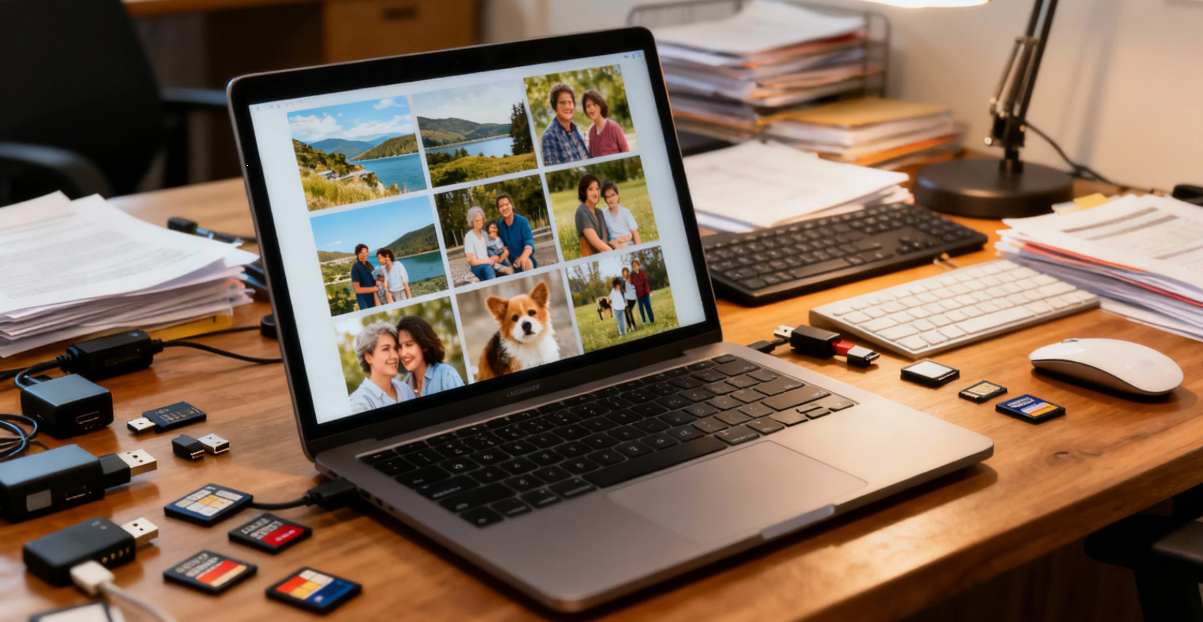
3 Proven Methods to Recover Data from Corrupted/RAW USB Drives
Method 1: Use Specialized USB RAW Data Recovery Software (Highest Success Rate)
Specialized tools are designed to bypass RAW file system errors and extract data directly—ideal for most users needing recover photos from RAW USB drive or restore documents from corrupted USB stick solutions.
- Choose a Reliable Tool: Opt for best USB RAW data recovery software 2025 with 85%+ success rate, such as PandaOffice Drecov (supports 1,000+ formats), Disk Drill , or Stellar. Prioritize tools compatible with corrupted USB data recovery Windows 11 and Mac RAW USB data recovery software needs
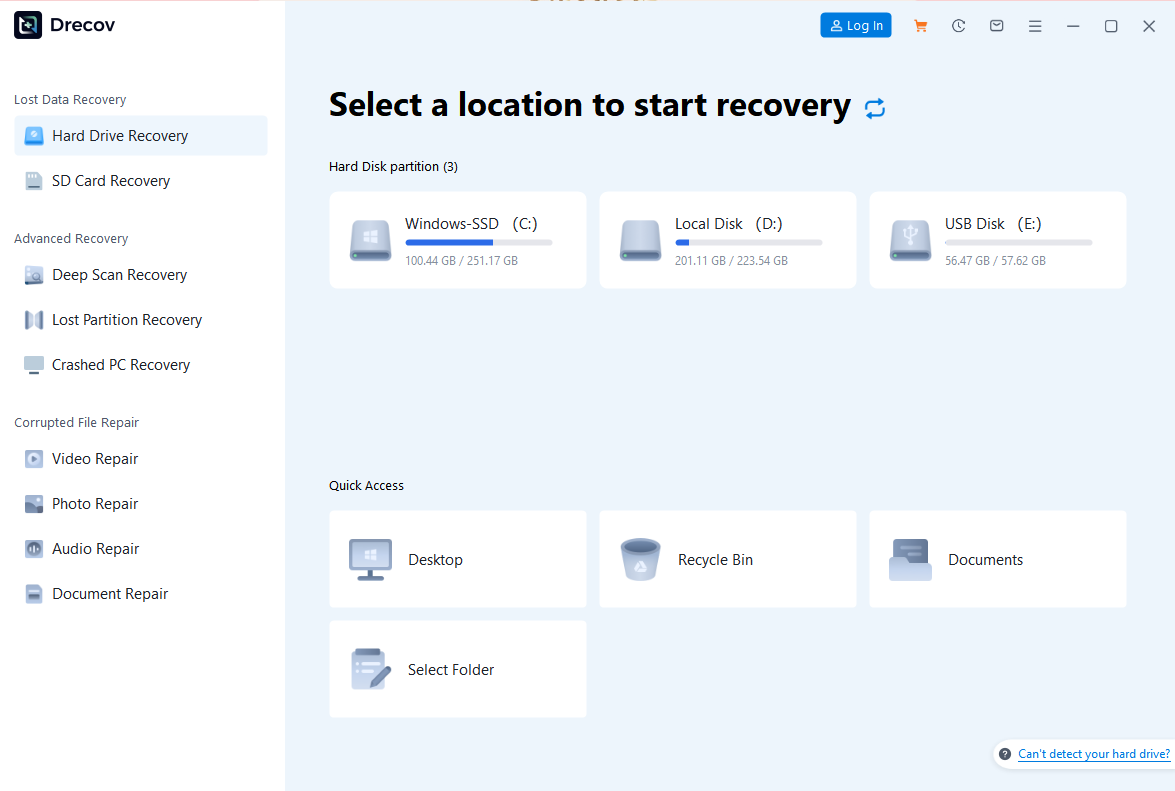
- Install and Launch the Tool: Download from the official website to avoid malware. Select the “Hard Drive Recovery” or “SD Card Recovery” mode—tailored for retrieve videos from unreadable USB drive tasks.
- Scan the Corrupted/RAW USB: Run a Quick Scan first (5-10 minutes) for recently lost files. If results are incomplete, use Deep Scan to dig into RAW sectors—essential for interrupted formatting USB data recovery.
- Preview and Select Files: Use the preview feature to verify file integrity (e.g., check photo clarity, open documents) before recovery—saves time when doing batch file recovery from RAW USB drive.
- Recover to a Safe Location: Save retrieved files to a local disk or external drive—never back to the corrupted USB, as this risks overwriting data needed for exFAT/NTFS/FAT32 corrupted USB recovery.


Best For: RAW USB drives, corrupted USB data recovery after formatting, virus-induced corruption, and inaccessible files—covers 90% of USB data loss due to sudden disconnection recovery scenarios.
Method 2: Fix Corrupted USB Drive with CHKDSK (Windows Only)
CHKDSK is a built-in Windows tool to repair file system errors—perfect for USB drive access denied data recovery when the USB is recognized but unreadable.
- Connect the USB to Your Windows PC: Ensure the PC detects the drive (even if it’s labeled RAW).
- Open Command Prompt as Administrator: Press “Win + X” and select “Command Prompt (Admin)” or “Windows Terminal (Admin)”.

3.Run the CHKDSK Command: Type chkdsk X: /f /r (replace “X” with your USB drive letter) and press Enter. The “/f” fixes errors, and “/r” scans for bad sectors—key for CHKDSK USB repair and data recovery.
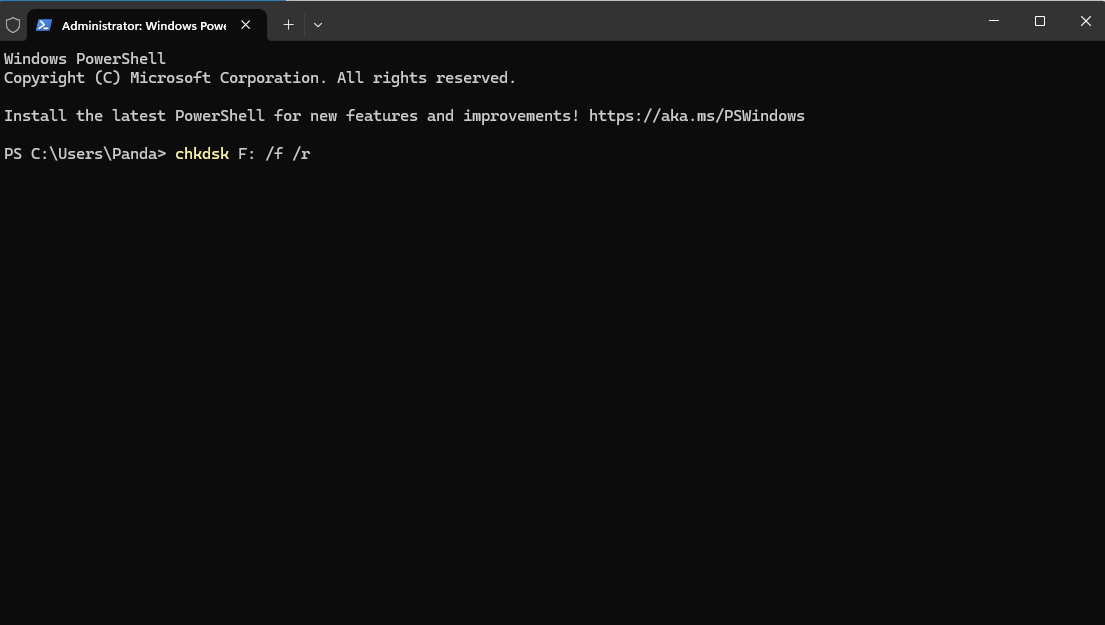
4.Wait for Completion: The process may take 10-30 minutes depending on USB size. Restart your PC and check if the USB is accessible.
Best For: Minor USB corruption, file system errors, and USB drives showing “access denied” messages—complementary to software for aging USB flash drive data recovery.
Method 3: Convert RAW USB to NTFS/FAT32 Without Formatting (Data-Safe)
If the USB is RAW but you want to retain data, convert the file system using DiskPart—for advanced users needing DiskPart convert RAW to NTFS without data loss.
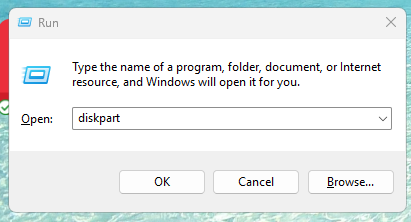
- Launch DiskPart: Press “Win + R”, type “diskpart”, and press Enter.
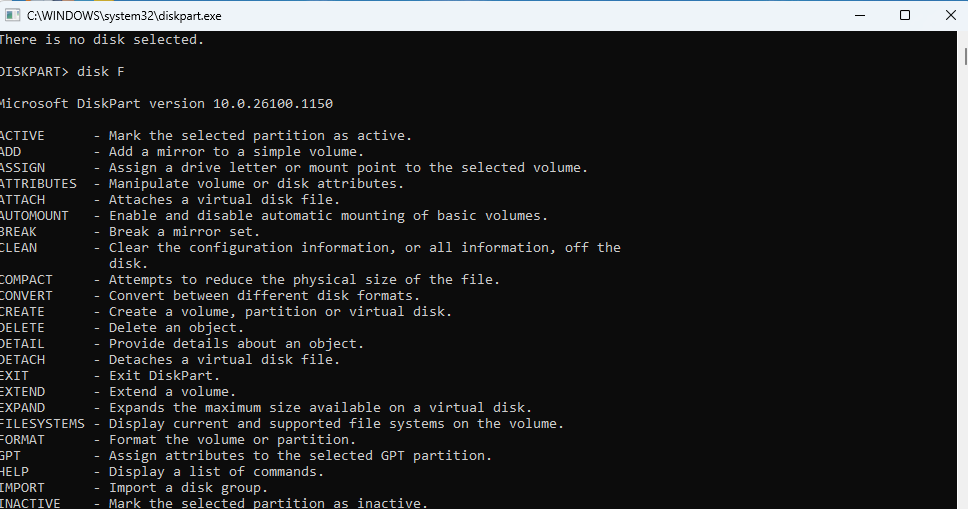
- List and Select the USB Drive: Type
list diskto find your USB (identify by size), thenselect disk X(replace “X” with the USB disk number). - Clean and Convert: Type
clean(backs up file system info), thenconvert ntfs(orconvert fat32for smaller USBs). - Assign a Drive Letter: Type
assignto give the USB a new letter. Restart your PC and access the drive.
Best For: Advanced users looking to fix RAW USB file systems without data loss can pair the method with reliable software for complete data recovery from corrupted USB drives.
Top 3 USB Data Recovery Software for Corrupted/RAW Drives (2025)
1. PandaOffice Drecov
- Key Features: 85%+ RAW USB recovery success rate, Deep Scan for overwritten files, supports 1,000+ formats (JPG, MP4, DOCX, RAW images), free preview—ideal for PandaOffice Drecov RAW USB recovery guide workflows.
- Best For: Beginners and professionals needing fast, reliable user-friendly corrupted USB recovery tool solutions.
- Use Case: Perfect for recover photos from RAW USB drive, restoring work documents after formatting, and fixing virus-corrupted USB data.
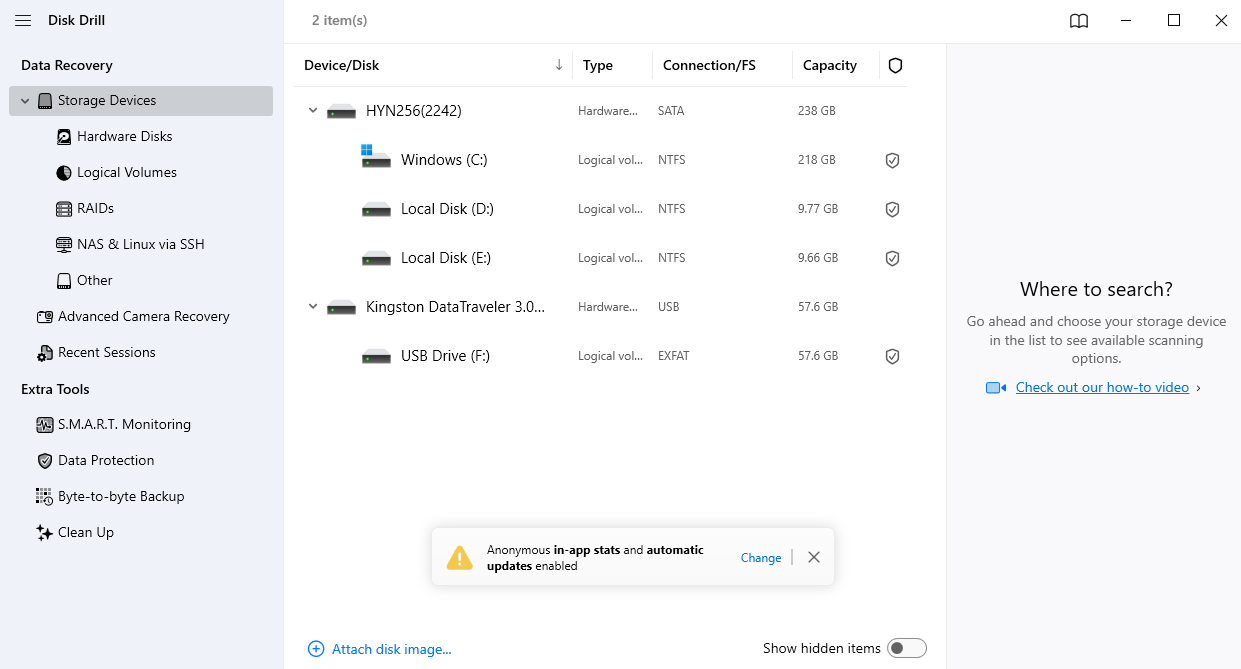
2. Disk Drill
- Key Features: Quick RAW drive recovery, data protection tools, support for NTFS/FAT32/exFAT, batch file recovery—tailored for Disk Drill corrupted USB data recovery steps.
- Best For: Users prioritizing speed and additional data safety features—great for USB data recovery software for large files (1TB+).
- Use Case: Ideal for retrieve videos from unreadable USB drive and preventing future data loss with built-in protection tools.
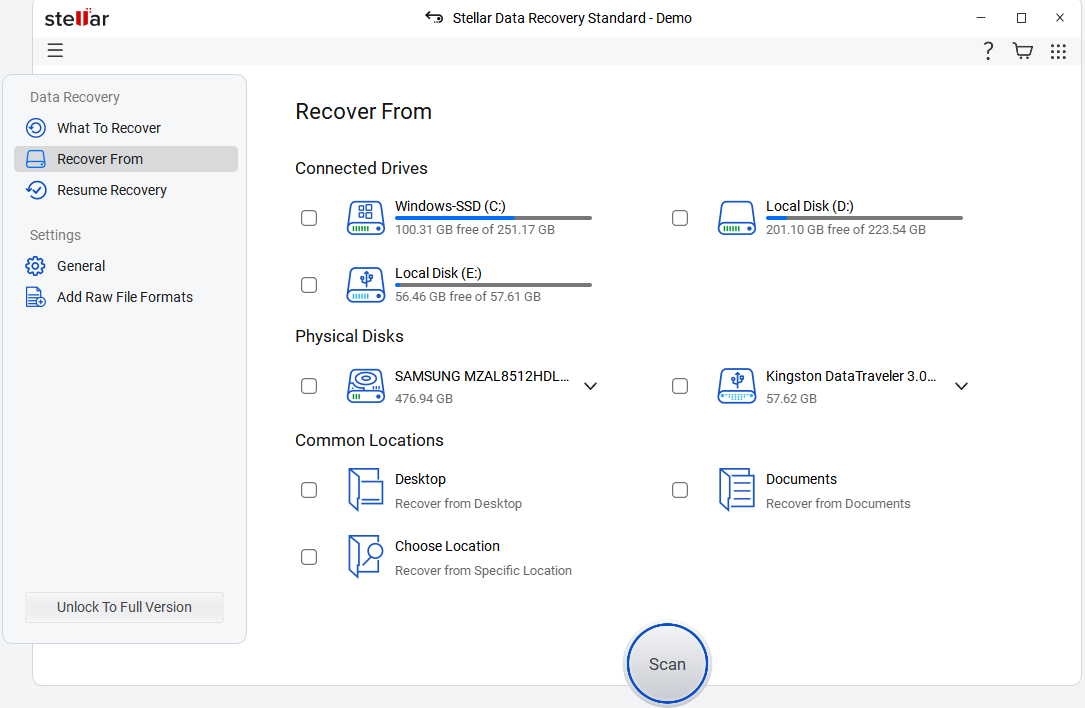
3. Stellar Data Recovery
- Key Features: Advanced file repair (fixes corrupted videos/docs), business-grade security, compatibility with 1TB+ USB drives—known as Stellar business-grade USB recovery software.
- Best For: Business users with complex recovery needs (e.g., corporate data on corrupted USBs).
- Use Case: Perfect for recover data from corrupted USB and repair drive tasks, especially for sensitive work files.
How to Fix a Corrupted/RAW USB Drive Without Data Loss (Post-Recovery)
After retrieving your data with RAW USB drive data recovery step by step methods, repair the USB to make it usable again—here’s how to fix corrupted USB drive without data loss and ensure long-term use:
Format the USB Drive:
- Use Windows File Explorer or Disk Utility (Mac) to format the drive to FAT32 (for <32GB) or exFAT (for >32GB)—critical after USB data recovery after format.
Scan for Bad Sectors:
- Use CHKDSK (Windows) or Disk Utility’s “First Aid” (Mac) to detect and isolate bad sectors—prevents repeat corruption.
Update USB Drivers:
- Outdated drivers can cause recurring corruption—update via Device Manager (Windows) or System Report (Mac).
Use Reliable USB Brands:
- Invest in Kingston, SanDisk, or Samsung USB drives to reduce hardware-related corruption risks—part of long-term USB data protection tips 【SanDisk USB Maintenance Guide】.
Common Mistakes to Avoid During RAW/Corrupted USB Data Recovery
- Using Free Tools with Limited Features: Free RAW USB data recovery tool (with limitations) often caps recovery size (e.g., 2GB) or lacks Deep Scan, leaving critical data unrecovered.
- Formatting the RAW USB Immediately: Formatting erases data permanently—always recover first, then format—this is the #1 mistake in fix RAW USB and recover data processes.
- Ignoring Cross-System Compatibility: Ensure recovery tools work with your OS (Windows/Mac) to avoid compatibility issues—key for Mac RAW USB data recovery software users .
- Saving Recovered Files to the Corrupted USB: This overwrites remaining data and leads to permanent loss—violates avoid data overwriting during USB recovery best practices.
Final Thoughts: Recover Data from Corrupted/RAW USB Drives Effortlessly
Corrupted or RAW USB drives don’t have to mean permanent data loss. By using specialized USB RAW data recovery software, following RAW USB drive data recovery step by step processes, and avoiding common mistakes, you can retrieve photos, documents, and videos efficiently. Remember to prevent USB from turning RAW or corrupted by handling drives carefully and backing up data regularly.
Whether you’re a student needing to restore documents from corrupted USB stick or a professional tackling virus-infected USB drive data retrieval, this guide equips you with the tools and knowledge to turn a data crisis into a minor inconvenience. Ready to recover your data? Choose a trusted tool like PandaOffice Drecov and follow the steps above—your lost files are just a few clicks away.






