







my powerpoint has been bringing up a notification saying it needs to be repaired. and after a while it stopped working. how can i fix it—from Microsoft Store
Understanding PowerPoint Errors and File Access Failures
What Causes PowerPoint Files to Become Unusable
PowerPoint is an essential tool for presentations, yet users frequently encounter various PowerPoint errors that interrupt their workflow. These issues may appear in different forms, such as “powerpoint file cannot be opened,” “powerpoint can’t open this type of file,” or unexpected crashes during editing.
In most cases, these errors indicate that the presentation file is either corrupted or incompatible with the current PowerPoint environment. Corruption can occur due to incomplete file saving, abrupt system shutdowns, or storage media failures. On the other hand, compatibility issues often arise when opening files created in newer or older versions of PowerPoint.
Another layer of complexity comes from application-level conflicts. For example, outdated Office installations, problematic add-ins, or insufficient system resources can lead to persistent Powerpoint problems. These issues may not only affect file opening but also prevent saving, editing, or exporting presentations.
Understanding the root nature of these problems is essential before attempting any repair. A clear diagnosis helps determine whether the issue lies in the file, the software, or the system environment.
⚠️Warning: Opening a damaged file repeatedly without repair attempts may worsen corruption and reduce recovery chances.
Main Reasons Behind PowerPoint Problems and Errors
Why PowerPoint Cannot Open, Save, or Repair Files
There are several common triggers behind errors such as “powerpoint cannot save” or “powerpoint cannot repair file.” One of the leading causes is unexpected interruption during file operations. If PowerPoint crashes or the system shuts down while saving, the file structure may become incomplete.
Storage-related issues also contribute significantly. Files stored on unreliable USB drives, SD cards, or network locations may become corrupted due to bad sectors or unstable connections. When such files are accessed, PowerPoint may display messages like “powerpoint file cannot be opened.”
Another frequent cause is file format inconsistency. When users attempt to open unsupported or partially converted formats, they may encounter “powerpoint can’t open this type of file.” This is especially common when downloading files from external sources or converting between formats.
System-level errors, including General Protection Fault, can also disrupt PowerPoint operations. These errors usually indicate deeper issues such as memory conflicts, outdated drivers, or corrupted system files, which can indirectly damage presentation files.
By identifying these causes, users can choose targeted solutions instead of relying on trial-and-error fixes.
Effective Solutions to Fix PowerPoint Errors and Restore Files
Method 1: Use PowerPoint Open and Repair Tool
The built-in “Open and Repair” feature is one of the most accessible solutions for resolving PowerPoint errors, especially when dealing with minor corruption.
Steps to Use Open and Repair
- Launch Microsoft PowerPoint without opening any file.
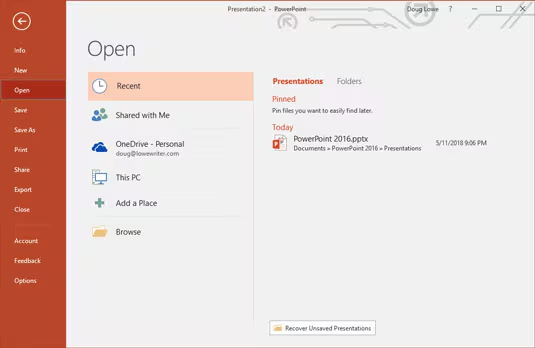
- Click on “File” in the top menu.
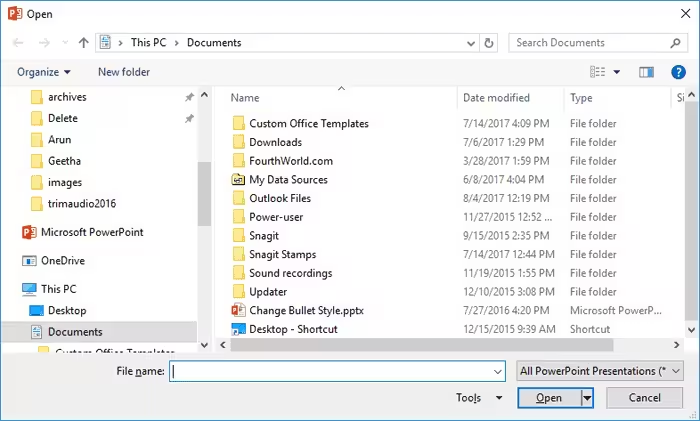
- Select “Open” and browse to the location of the problematic file.
- Click once on the file to highlight it.
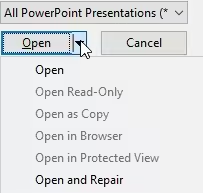
- Click the small arrow next to the “Open” button.
- Choose “Open and Repair” from the dropdown menu.
- Wait for PowerPoint to scan and attempt automatic repair.
- If the file opens, immediately click “Save As” to store a new copy.
Test Environment:
Windows 11 Pro, Microsoft PowerPoint 2021, 16GB RAM, NVMe SSD.
This method works best when the file structure is only partially damaged. It can recover text, images, and slide layouts in many cases. However, if PowerPoint displays “powerpoint cannot repair file,” you will need a more advanced solution.
⚠️Warning: Always save the repaired file under a new name to avoid overwriting the original corrupted version.
Method 2: Repair Corrupted Files Using Pandaoffice Drecov
When built-in tools fail, Pandaoffice Drecov provides a powerful alternative for handling severe Powerpoint problems, including files that cannot be opened at all.
Download DrecovSteps to Recover PowerPoint Files with Drecov
- Download and install Pandaoffice Drecov on your computer.
- Launch the software and select the storage location where the file was saved.
- Click the “Scan” button to begin searching for lost or corrupted files.
- Wait for the scan to complete; this may take several minutes depending on the drive size.
- Use the preview feature to locate your PowerPoint file.
- Select the file and click “Recover.”
- Save the recovered file to a different storage location.
Test Environment:
Windows 10 Home, Pandaoffice Drecov latest version, 8GB RAM, USB 3.0 external drive.
This method is highly effective when dealing with severe corruption, deleted files, or storage-related damage. It can recover files even when PowerPoint reports “powerpoint file cannot be opened.”
Unlike basic repair tools, Drecov performs deep scanning, making it suitable for complex recovery scenarios.



Why Choose PandaOffice Drecov?
When it comes to reliable file data recovery, PandaOffice Drecov offers a balanced combination of performance, ease of use, and broad compatibility. Whether you’ve lost important business files or personal memories, it provides an efficient way to restore data from various loss scenarios, including system crashes, accidental deletion, and formatted drives.
For users looking for advanced Photo Data Recovery Software, PandaOffice Drecov supports a wide range of image formats and storage devices. It can recover high-quality photos from SD cards, cameras, and internal drives while preserving original resolution and file structure. This makes it especially useful for photographers and everyday users alike.
If you are dealing with storage device issues, its external hard drive recovery capability ensures that data can be retrieved from USB drives, HDDs, and SSDs with minimal effort. The software performs deep scans to locate hidden or lost files, even in complex situations like partition loss.
In addition, PandaOffice Drecov excels in Document Recovery, helping users restore essential files such as Word, Excel, and PDFs. It also supports powerpoint recovery, allowing you to retrieve unsaved or deleted presentation files quickly—ideal for professionals working under tight deadlines.
Method 3: Convert File Format to Resolve Compatibility Issues
If you encounter “powerpoint can’t open this type of file,” the issue may be related to format incompatibility rather than corruption.
Steps to Convert PowerPoint File Format
- Make a copy of the original file to avoid data loss.
- Right-click the file and rename the extension from .pptx to .zip.
- Extract the ZIP file to a new folder.
- Check if the internal XML files and media folders are accessible.
- Alternatively, upload the file to Google Slides.
- Open the file in Google Slides.
- Click “File” > “Download” > “Microsoft PowerPoint (.pptx).”
- Try opening the newly downloaded file in PowerPoint.
Test Environment:
Windows 11, Google Chrome, Google Slides online platform.
This method works well when the file structure is intact but incompatible with your PowerPoint version. It can also fix minor structural inconsistencies.
⚠️Warning: Improperly editing extracted XML files may permanently damage the presentation.
Method 4: Disable Add-ins to Fix PowerPoint Problems
Add-ins enhance PowerPoint functionality, but faulty or outdated add-ins can cause serious Powerpoint problems, including crashes and file access issues.
Steps to Disable Add-ins in PowerPoint
- Close PowerPoint completely.
- Press and hold the “Ctrl” key while launching PowerPoint to start in Safe Mode.
- Click “File” > “Options.”
- Select “Add-ins” from the left panel.
- At the bottom, choose “COM Add-ins” and click “Go.”
- Uncheck all add-ins and click “OK.”
- Restart PowerPoint normally.
- Attempt to open the problematic file again.
Test Environment:
Windows 10, Microsoft Office 365, multiple third-party add-ins installed.
If the file opens successfully, one of the add-ins is likely causing the issue. Re-enable them one by one to identify the problematic component.
Fixing System-Level Issues Related to PowerPoint Errors
Resolving General Protection Fault in PowerPoint
A General Protection Fault is a critical system error that can disrupt PowerPoint and cause file corruption. It usually occurs when the application attempts to access restricted memory.
Steps to Fix General Protection Fault
- Restart your computer to clear temporary memory issues.
- Update Windows to the latest version.
- Update or reinstall Microsoft Office.
- Open Command Prompt as administrator.
- Run the command:
sfc /scannow - Wait for the system to repair corrupted files.
- Update device drivers, especially graphics and chipset drivers.
- Restart the system and test PowerPoint again.
Test Environment:
Windows 11 Pro, updated drivers, Office reinstalled.
Fixing system-level issues is essential because they can repeatedly trigger PowerPoint errors, even after file repair.
⚠️Warning: Ignoring system errors may lead to recurring file corruption and data loss.
Method 5: Fix “PowerPoint Cannot Save” by Changing File Location
The error “powerpoint cannot save” often occurs when PowerPoint lacks permission to write to a specific location or when the storage path is unstable. This is common when saving files to network drives, external devices, or protected system folders.
Steps to Change Save Location
- Open the PowerPoint file if possible.
- Click “File” and select “Save As.”
- Choose a different location, such as Desktop or Documents.
- Rename the file to avoid overwriting the original.
- Click “Save” and check if the process completes successfully.
- If successful, move the file to the desired folder afterward.
Test Environment:
Windows 10, Microsoft PowerPoint 2019, local NTFS drive.
This method works well when the issue is related to permissions or storage path conflicts. It is also useful when working with files stored on removable drives or cloud-synced folders.
⚠️Warning: Avoid saving directly to unstable external drives during editing sessions.
Method 6: Repair PowerPoint File by Inserting Slides into a New Presentation
When a file shows “powerpoint file cannot be opened,” you can attempt to recover its content by importing slides into a new presentation.
Steps to Insert Slides into a New File
- Open Microsoft PowerPoint and create a blank presentation.
- Go to the “Home” tab.
- Click the dropdown arrow next to “New Slide.”
- Select “Reuse Slides.”
- Click “Browse” and locate the corrupted file.
- Select the file and wait for slides to load.
- Insert slides individually or all at once.
- Save the new presentation file.
Test Environment:
Windows 11, PowerPoint 2021, SSD storage.
This approach bypasses the corrupted structure of the original file and extracts usable content. It is especially helpful when only part of the file is damaged.
Method 7: Open PowerPoint in Safe Mode to Bypass Errors
If PowerPoint crashes or displays persistent PowerPoint errors, launching it in Safe Mode can help isolate the problem.
Steps to Open PowerPoint in Safe Mode
- Press “Windows + R” to open the Run dialog box.
- Type
powerpnt /safeand press Enter. - PowerPoint will launch without add-ins or custom settings.
- Open the problematic file.
- If it opens successfully, disable add-ins or reset settings.
- Restart PowerPoint normally and test again.
Test Environment:
Windows 10, Office 365, Safe Mode enabled.
Safe Mode is useful for diagnosing issues caused by configuration conflicts or faulty extensions.
Handling Severe PowerPoint File Corruption Scenarios
Method 8: Extract Content from Temporary Files
PowerPoint sometimes creates temporary files that may contain recoverable data when the original file becomes unusable.
Steps to Recover from Temporary Files
- Open File Explorer.
- Navigate to:
C:\Users\YourUsername\AppData\Local\Microsoft\Office\UnsavedFiles - Look for files with recent timestamps.
- Copy the file to another location.
- Rename the file extension to .pptx.
- Attempt to open it in PowerPoint.
- Save a new version if successful.
Test Environment:
Windows 11, Office AutoRecover enabled.
This method is effective when PowerPoint crashes unexpectedly and leaves behind recoverable fragments.
Method 9: Use Previous Versions to Restore PowerPoint Files
Windows includes a feature that allows users to restore earlier versions of files, which can help resolve Powerpoint problems caused by recent corruption.
Steps to Restore Previous Versions
- Locate the PowerPoint file in File Explorer.
- Right-click the file and select “Properties.”
- Go to the “Previous Versions” tab.
- Select an available version from the list.
- Click “Restore” or “Open” to preview.
- Save the restored version separately.
Test Environment:
Windows 10, System Protection enabled.
This method depends on whether restore points or file history backups are available.
FAQ: Common PowerPoint Errors and Solutions
Why does PowerPoint say “powerpoint can’t open this type of file”?
This error usually occurs when the file format is unsupported or corrupted. Converting the file format or updating PowerPoint can often resolve the issue.
What should I do if “powerpoint cannot repair file”?
If the built-in repair tool fails, you should use advanced recovery methods such as professional software or slide extraction techniques to recover the content.
How can I fix “powerpoint cannot save”?
Try saving the file to a different location, checking permissions, or disabling add-ins. These steps often resolve saving issues.
Can General Protection Fault damage PowerPoint files?
Yes, a General Protection Fault can cause PowerPoint to crash unexpectedly, which may result in file corruption if it occurs during saving or editing.
Conclusion: Key Takeaways for Fixing PowerPoint Problems
Best Practices to Prevent and Fix PowerPoint Errors
Dealing with PowerPoint errors can be frustrating, especially when important presentations are at risk. However, most issues can be resolved using a structured approach. Built-in tools like “Open and Repair” are effective for minor corruption, while advanced solutions such as Pandaoffice Drecov provide deeper recovery capabilities for severe cases.
Understanding the root causes—whether they involve file corruption, compatibility issues, or system-level errors like General Protection Fault—is essential for selecting the right solution. Additionally, methods like Safe Mode, slide reuse, and file format conversion offer practical ways to recover content without relying solely on repair tools.
To minimize future risks, users should adopt preventive measures such as saving files regularly, maintaining updated software, and avoiding unstable storage devices. These practices not only reduce the likelihood of encountering Powerpoint problems but also ensure a smoother workflow.
⚠️Warning: Always maintain backup copies of important presentations to avoid irreversible data loss.






