







In the modern digital landscape, our browsers are more than just tools; they are curated libraries of our professional and personal lives. If you have ever asked yourself, “how do I transfer Firefox bookmarks”, you are likely in the middle of a transition—perhaps upgrading to a new PC, switching browsers, or simply performing a long-overdue system cleanup.
Losing a collection of bookmarks can feel like losing a personal index of the internet. Fortunately, Mozilla Firefox provides robust tools to ensure your data stays with you. This comprehensive guide will walk you through every method available, from native sync features to advanced data recovery using PandaOffice Drecov data recovery software.
What Does Transferring Firefox Bookmarks Mean?
Bookmarks Explained in Simple Terms
Let’s be honest—bookmarks are like your personal internet treasure chest. Every time you save a webpage in Firefox, you’re essentially pinning it for future use. Over time, this collection grows into something incredibly valuable: favorite blogs, work tools, research pages, shopping links—you name it.
So when people ask “how do I transfer Firefox bookmarks”, what they really mean is: how do I move my saved web pages from one device, browser, or system to another without losing them? Think of bookmarks as your digital memory. Losing them would feel like forgetting all your favorite places overnight. That’s why transferring them safely is so important.
Why Bookmark Transfer Matters
You might need to transfer bookmarks for several reasons. Maybe you’re upgrading to a new laptop. Maybe you’re switching browsers. Or maybe you just want a backup in case something goes wrong. According to official Mozilla Support, Firefox even automatically stores up to 15 bookmark backups to prevent data loss. That tells you something: bookmarks are important enough to protect proactively.
Main Methods to Transfer Firefox Bookmarks
Export and Import Method
The most common way to transfer bookmarks is by exporting them into a file—usually an HTML file—and then importing that file on another device. This method is simple, reliable, and works across different browsers. It’s like packing your bookmarks into a suitcase and unpacking them somewhere else. Using an HTML file is a “universal” language that almost every browser on the planet understands.
Firefox Sync Method
The second method is even more convenient: Firefox Sync. Instead of manually moving files, Sync automatically transfers bookmarks (and other data) across devices when you log into the same account. It’s like having your bookmarks follow you wherever you go—no USB drive needed. This is the preferred method for users who jump between a desktop at work and a laptop at home.
How to Export Firefox Bookmarks (Step-by-Step)
If you prefer the manual control of a file-based transfer, exporting is the first step. This creates a portable snapshot of your data.
Using the Library Window
Let’s walk through the exact steps. Don’t worry—this is easier than it sounds.
- Step 1: Open your Firefox browser on the source computer.
- Step 2: Click the Menu button (represented by three horizontal lines in the top-right corner).
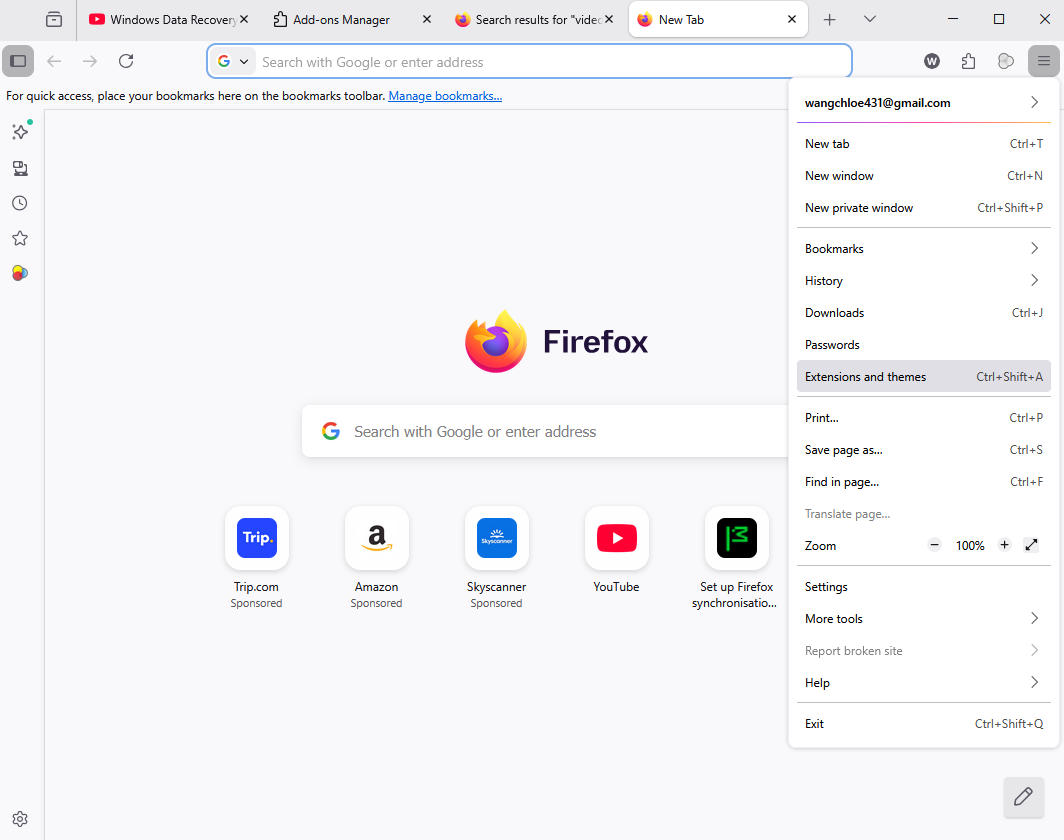
- Step 3: Select Bookmarks and then click on Manage Bookmarks at the bottom (or press Ctrl+Shift+O on Windows).
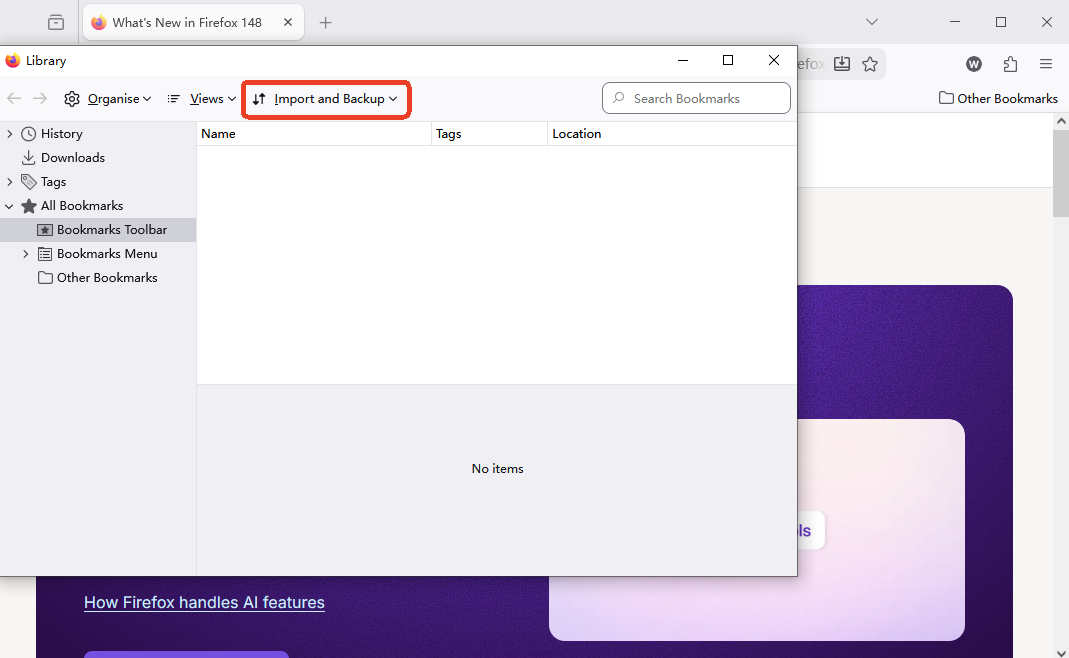
- Step 4: In the Library window that pops up, look at the top toolbar and click on Import and Backup.
- Step 5: From the dropdown menu, choose Export Bookmarks to HTML….
- Step 6: A window will appear asking where to save the file. Choose a location like your Desktop or a USB drive, name it something like
bookmarks.html, and click Save.
Choosing HTML vs Backup Files
Here’s where things get interesting. Firefox gives you two distinct formats:
| Format | Use Case | Compatibility |
| HTML | Transfer between different devices or different browsers | Universal |
| JSON (.json) | Restoring a backup within Firefox specifically | Firefox Only |
HTML is the best choice if you’re moving bookmarks anywhere else. JSON backups are more like a safety net for Firefox itself; they contain more metadata but are harder to open in other programs.
How to Import Firefox Bookmarks on Another Device
Once you have your HTML file, the “transfer” part is halfway done. Now you need to introduce that file to your new environment.
Import from HTML File
Now that you’ve exported your bookmarks, it’s time to bring them into a new device. Follow these steps:
- Step 1: Open Firefox on the new device.
- Step 2: Open the Library window again (Ctrl+Shift+O).
- Step 3: Click Import and Backup and select Import Bookmarks from HTML….
- Step 4: Locate the
bookmarks.htmlfile you moved via USB or cloud storage. - Step 5: Select the file and click Open.
Within seconds, your bookmarks will appear exactly as they were. It’s like cloning your browsing history—fast, clean, and surprisingly satisfying.
Import from Another Browser
If you’re switching from Chrome, Edge, or another browser, Firefox makes it even easier. You can use the built-in Import Wizard, which allows you to import bookmarks, passwords, and browsing history all in one go. No manual file handling is required. Simply go to Settings > General > Import Data to start the wizard.
Advanced Recovery: How to transfer Firefox bookmarks using PandaOffice Drecov data recovery software
What happens if your computer crashed before you could export your bookmarks? Or what if you accidentally deleted the bookmarks.html file? This is a nightmare scenario for many, but it is not the end of the road. In the professional world of data management, we turn to specialized tools.
You can learn how to transfer Firefox bookmarks even from a damaged or formatted drive by using PandaOffice Drecov data recovery software. This tool is designed to scan your hard drive for “ghost” files that the operating system no longer sees.
⚠ Warning: Always install the software on a different drive than the one where the data was lost to prevent overwriting.
Step-by-Step Recovery with PandaOffice Drecov
- Step 1: Select Location. Launch the program and select the drive where Firefox was installed (usually the
C:drive).

- Step 2: Deep Scan. Run a “Deep Scan.” The software will look for the places.sqlite file or existing
.jsonand.htmlbookmark backups located in the Firefox Profile folder.

- Step 3: Filter and Preview. Use the search bar in PandaOffice Drecov to type “bookmarks” or look for files in the path:
Users\AppData\Roaming\Mozilla\Firefox\Profiles\. - Step 4: Recover. Select the found files and click Recover. Save them to an external drive.
- Step 5: Restore to Firefox. Once recovered, you can use the Import and Backup > Restore function in Firefox to load the recovered JSON file.
Using PandaOffice Drecov data recovery software provides a safety net when standard export methods fail due to system corruption or accidental deletion.
Internal Resources for Firefox Users
- How to download video from Firefox 2026 guide
- Where is the Firefox bookmarks location?
- Where are Firefox bookmarks stored on your PC?
How to Transfer Firefox Bookmarks Using Sync
Setting Up Firefox Sync
If you prefer automation and have a working internet connection, Sync is your best friend. It eliminates the need for manual files entirely.
- Step 1: Click the Firefox menu and click Sign In next to “Sync and save data.”
- Step 2: Enter your email and create a Firefox Account.
- Step 3: Check your email to verify the account.
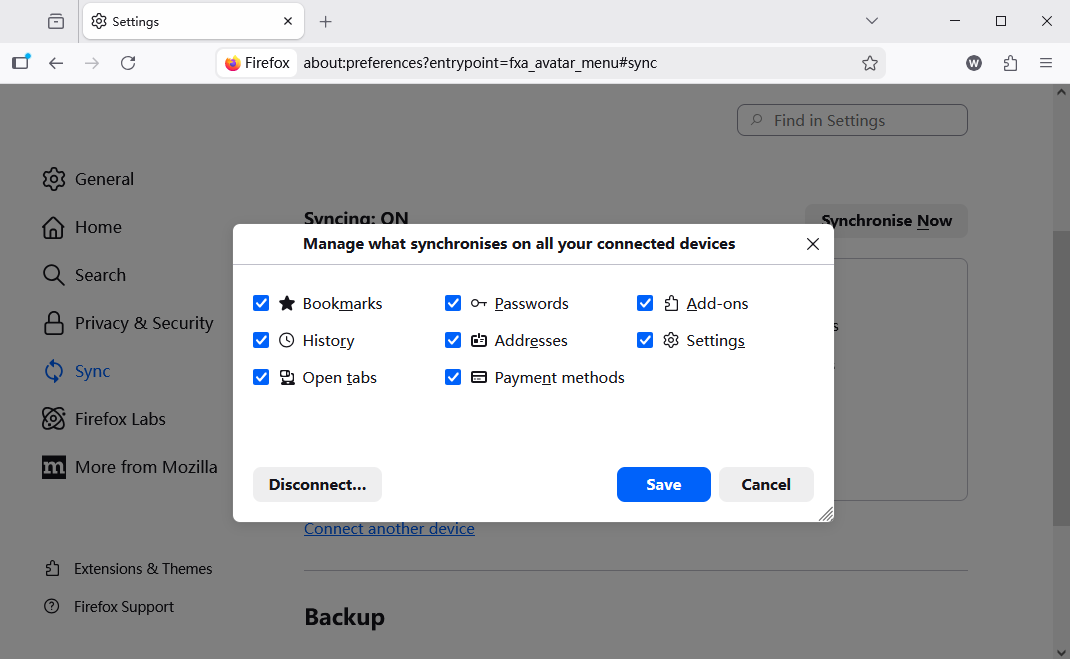
- Step 4: Once signed in, go to Sync Settings and ensure the Bookmarks checkbox is selected.
Syncing Across Devices
Now here’s the magic: log into Firefox on another device (phone, tablet, or another PC) using the same credentials. Your bookmarks will appear automatically. There is no exporting and no importing. This method is especially useful if you use multiple devices or want real-time updates. It’s like having your bookmarks live in the cloud, protected by Mozilla’s end-to-end encryption.
Transferring Bookmarks Between Different Browsers
Firefox to Chrome or Edge
Want to move your bookmarks out of Firefox? No problem. Just export them as an HTML file using the steps mentioned earlier. Open Chrome or Edge, go to their respective “Import Bookmarks” settings, and upload that HTML file. It’s a universal system—like using a USB drive that works everywhere.
Chrome or Others to Firefox
Going the other way? Firefox has you covered. Use the Import Wizard to pull bookmarks directly from another browser installed on your system. It detects compatible browsers like Google Chrome or Microsoft Edge automatically and lets you choose what to transfer. It’s smooth, quick, and beginner-friendly.
Common Problems When Transferring Bookmarks
Missing Bookmarks After Transfer
Sometimes, things don’t go perfectly. You might import your bookmarks and notice some are missing. This usually happens because the export file was incomplete or you selected the wrong import option. Often, bookmarks are placed in a folder named “From Firefox” or “Imported Bookmarks” rather than the main toolbar. Always check all subfolders in your Bookmarks Menu.
Corrupted or Incomplete Files
If your bookmarks don’t load at all, the file might be corrupted. This can happen due to interrupted downloads, file transfer errors, or system crashes. In these cases, try re-exporting the file or checking the automatic backups Firefox creates. If the file is truly gone, this is where PandaOffice Drecov becomes essential to retrieve the original database files from your disk sectors.
Best Practices for Bookmark Management
Organizing Before Transfer
Before transferring bookmarks, take a moment to clean things up. Delete duplicates. Organize folders. Rename unclear links. Why? Because whatever mess you have now will follow you to the new device. Think of it like moving house—you don’t want to bring junk with you.
Backup Strategies
Never rely on just one method. Use both:
- HTML export for portability and offline storage.
- Firefox Sync for daily convenience and multi-device access.
By maintaining a physical backup on a cloud drive or USB, you ensure that even if you lose access to your Firefox account, your data remains safe.
Transfer Firefox Bookmarks FAQs
1. Can I transfer Firefox bookmarks to another computer without internet?
Yes, use the HTML export method and transfer the file via a USB flash drive or external hard drive.
2. Does Firefox Sync transfer bookmarks instantly?
Generally, yes. Changes sync automatically once you’re signed in and connected to the internet, though it may take a minute or two to propagate to all devices.
3. Can I transfer bookmarks to a different browser?
Absolutely. Export as HTML from Firefox and import that file into Chrome, Edge, Safari, or Opera.
4. What if my bookmarks didn’t transfer correctly?
Try re-importing the file or use a JSON backup. Also, check the “Other Bookmarks” folder, as imported items are sometimes sorted there by default.
5. Is it safe to use Firefox Sync?
Yes, Firefox Sync uses end-to-end encryption. Mozilla cannot read your data; only your devices with your account password can decrypt it.
Conclusion
Figuring out how do I transfer Firefox bookmarks isn’t complicated once you understand the options. Whether you choose the manual export/import method, the effortless Sync feature, or the powerful recovery capabilities of PandaOffice Drecov data recovery software, both approaches get the job done reliably.
The key is choosing what works best for your situation. Need a quick one-time transfer? Go with HTML export. Want seamless syncing across devices? Firefox Sync is the way to go. If disaster strikes, professional recovery tools are your last, best line of defense. Once you’ve done it once, it becomes second nature—like copying files or sending an email. And the best part? You never have to lose your favorite websites again.






