







In the modern digital landscape, your browser is more than just a portal to the internet; it is a repository of your habits, preferences, and personal history. Firefox remains a top choice for users who prioritize privacy and speed. However, managing that privacy often leads to a common question: how do i delete firefox cookies?
Whether you are looking to clear space, fix site loading errors, or protect your identity, understanding the mechanics of cookies is essential. Furthermore, for those who inadvertently delete too much—like a crucial login session or a saved form—knowing how to recover that data using tools like PandaOffice Drecov is equally vital. In this comprehensive guide, we will explore everything from basic maintenance to advanced data recovery.
Understanding the Role of Cookies in Firefox
Before we dive into the “how-to,” it is important to understand what you are actually removing. Cookies are small files that websites place on your computer. They store information such as your login status, site preferences, and tracking data. While they make the web more convenient, they can also bloat your browser’s performance over time.
Learning how do i delete firefox cookies is the first step toward a cleaner, faster browsing experience. However, keep in mind that clearing cookies will log you out of most websites.
Why You Might Need to Clear Your Data
- Privacy Protection: Deleting cookies prevents advertisers from tracking your movements across different websites.
- Troubleshooting: If a website isn’t loading correctly or shows an “Access Denied” error, corrupted cookies are often the culprit.
- Security: If you are using a public or shared computer, deleting cookies is a non-negotiable step to protect your accounts.
How to Delete Internet Cookies in Firefox: The Standard Method
For the majority of users, the built-in settings in Firefox are the most efficient way to manage data. This method allows you to wipe the slate clean for all sites or target specific ones.
Option 1: Clearing All Cookies and Site Data
If you want a fresh start, follow these steps to remove all stored data.
- Step 1: Open your Firefox browser and click on the three horizontal lines (the “hamburger” menu) in the top-right corner.
- Step 2: Select Settings from the dropdown menu. Alternatively, you can type
about:preferencesinto the address bar and press Enter. - Step 3: Navigate to the Privacy & Security panel on the left-hand side.
- Step 4: Scroll down to the Cookies and Site Data section.
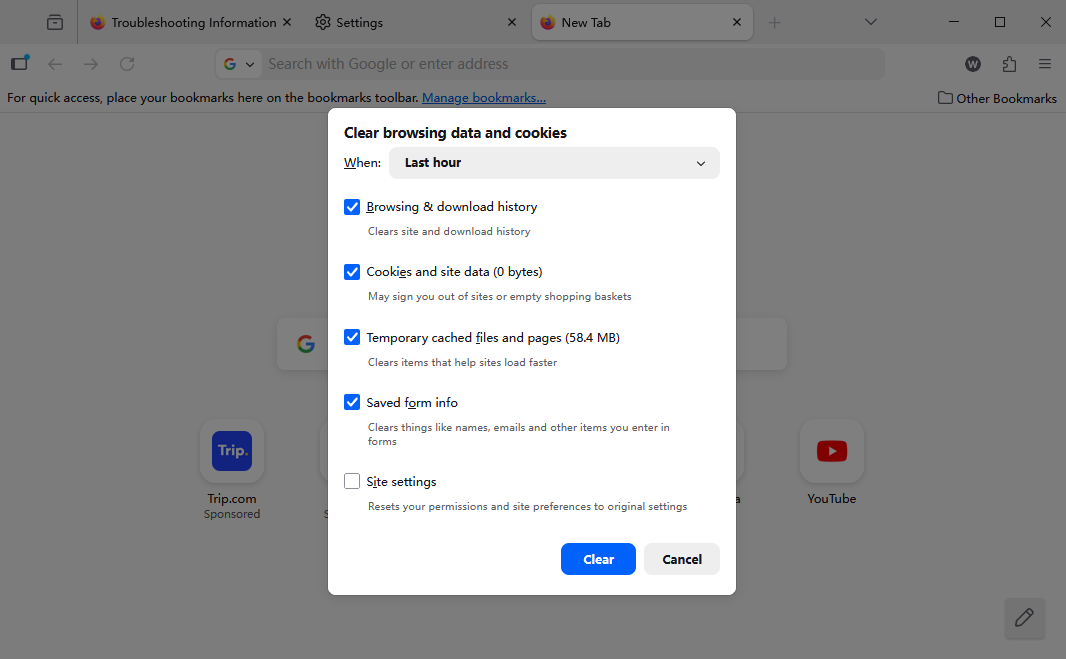
- Step 5: Click the Clear Data… button.
- Step 6: A dialog box will appear. Ensure that Cookies and Site Data is checked. You can also check Cached Web Content to free up more disk space.
- Step 7: Hit Clear. Firefox will prompt you with a warning that this may sign you out of websites. Confirm your choice.
Option 2: Deleting Cookies for a Single Website
Sometimes, you only have trouble with one specific site. In this case, you don’t need to nuking everything.
- Step 1: While visiting the website in question, click the Padlock icon to the left of the URL in the address bar.
- Step 2: Select Clear cookies and site data…
- Step 3: A confirmation box will appear. Click Remove to delete only the data associated with that specific domain.
Pro Tip: For keyboard enthusiasts, the fastest way to access the “Clear Recent History” menu is the hotkey Ctrl + Shift + Delete (Windows) or Command + Shift + Delete (Mac).
How to Enable Cookies in Firefox for Better Browsing
While deleting data is great for privacy, many modern web applications simply won’t function if cookies are entirely disabled. If you find that sites are not “remembering” you or shopping carts keep emptying, you need to know how to enable cookies in firefox.
- Step 1: Open the Settings menu and go to Privacy & Security.
- Step 2: Under Enhanced Tracking Protection, you will see three options: Standard, Strict, and Custom.
- Step 3: To ensure cookies are enabled for most sites while maintaining security, select the Standard setting. This is the default and provides a balance of performance and privacy.
- Step 4: If you have selected Custom, ensure that the “Cookies” checkbox is either unchecked or set to “Cross-site tracking cookies” rather than “All cookies.”
- Step 5: If you want to allow cookies for specific sites while blocking them generally, scroll down to Manage Exceptions… and add the URLs of the sites you trust.
For more detailed official documentation on these settings, visit the Mozilla Firefox Support page.
Advanced Management: The Firefox Profile Folder
When you ask how do i delete firefox cookies, you are usually interacting with the user interface. However, the actual data is stored in a database file on your hard drive. Firefox stores cookies in a file named cookies.sqlite.
The Path to Your Data:
- Windows:
%APPDATA%\Mozilla\Firefox\Profiles\ - macOS:
~/Library/Application Support/Firefox/Profiles/
Knowing this path is crucial for data recovery experts. If Firefox crashes and won’t open, or if you’ve accidentally deleted your profile, these files are what you need to target for recovery.
Data Recovery: Using PandaOffice Drecov to Restore Lost Browser Data
Data loss happens to the best of us. Perhaps you were trying to solve the problem of how do i delete firefox cookies but ended up deleting your entire browser profile, including saved passwords, history, and bookmarks. This is where professional-grade tools like PandaOffice Drecov come into play.
PandaOffice Drecov is a robust data recovery suite designed to scan your storage media for “ghost” files—data that the operating system has marked as deleted but has not yet been overwritten by new information.
⚠ Warning: Install it on a drive different from the one where your data was lost to prevent overwriting.
How to Recover Firefox Data with PandaOffice Drecov
- Step 1: Select the Scan Location. Launch the program. Select the local disk (usually the C: drive) where your Firefox profile was located.

- Step 2: Deep Scan. Choose the Deep Scan option. This will meticulously look for fragmented
.sqlitefiles and JSON files associated with Firefox.

- Step 3: Filter Results. Once the scan is complete, use the search bar within Drecov to look for “Firefox” or “cookies.sqlite”.

- Step 4: Preview and Recover. Select the relevant files. PandaOffice Drecov allows you to see the file health. Select a safe recovery destination (like a USB drive) and click Recover.
Warning: Do not continue browsing or downloading new files once you realize data is missing. Every new byte written to the disk increases the chance that your lost Firefox cookies or bookmarks will be permanently overwritten.
Maximizing Your Firefox Experience: Tips for Data Longevity
Managing your browser isn’t just about deletion; it’s about smart maintenance. If you frequently find yourself searching for how do i delete firefox cookies, you might benefit from automating the process or securing your most important data.
Automating Cookie Deletion
You can set Firefox to delete cookies every time you close the browser. This ensures that no tracking data persists between sessions.
- Go to Settings > Privacy & Security.
- Under Cookies and Site Data, check the box for Delete cookies and site data when Firefox is closed.

Securing Your Bookmarks and History
While cookies are temporary, bookmarks are often permanent. If you are cleaning out your cookies to fix a slow browser, ensure you haven’t accidentally touched your bookmark library. If you find your bookmarks have disappeared, refer to these specialized recovery guides:
- Where is the Firefox bookmarks location? Find your data instantly.
- Where are Firefox bookmarks stored on your PC?
Troubleshooting Common Issues
Sometimes, simply knowing how do i delete firefox cookies isn’t enough because the browser might encounter errors during the process.
“Firefox Cannot Delete Cookies”
If you try to clear your data and nothing happens, it is possible that the cookies.sqlite file is set to “Read Only” or has become corrupted.
- Close Firefox completely.
- Navigate to your Profile Folder (using the path mentioned earlier).
- Find
cookies.sqliteand delete it manually. Firefox will create a fresh, empty one when it restarts.
Checklist for Firefox Maintenance:
- Weekly: Clear your cache and non-essential cookies.
- Monthly: Export a backup of your bookmarks to an external drive.
- As Needed: Use PandaOffice Drecov to recover any files deleted by mistake.
- Always: Keep your Firefox browser updated to the latest version for the best security patches.
Recovering Deleted Bookmarks
If your cleanup session went too far and you lost your favorite sites, don’t panic. Firefox keeps automatic backups of your bookmarks. However, if those backups are also gone, you’ll need to follow this 5-minute guide to delete/recover bookmarks from Firefox.
As you master the art of data management, you may find you want to do more with your browser, such as saving media for offline use. Managing your data effectively allows you to use advanced features without slowing down your system. For instance, if you’ve cleared enough cache and cookies to make room for media, you might want to learn how to download video from browser Firefox (2026 Guide).
Conclusion
In summary, knowing how do i delete firefox cookies is a fundamental skill for any internet user. It empowers you to control your privacy, troubleshoot technical glitches, and keep your browser running at peak performance. By utilizing the built-in settings to delete internet cookies in firefox and knowing how to enable cookies in firefox when necessary, you maintain a perfect balance between usability and security.
However, accidents are a part of digital life. When a routine cleanup goes wrong, tools like PandaOffice Drecov provide a critical safety net, ensuring that your most important browsing data is never truly gone.






