







In my efforts to fix my previous problem, I resorted to a fresh install of Windows 10. I have two drives – one is an SSD on which I installed only Windows-related files, and the other is a 500gb traditional hard drive on which everything else was installed. It was during the install of Windows, through the Windows Media Creation Tool method (created installation media onto USB, booted from that USB) that I got to the step where I was to format the disk(s) for a fresh install. Forgetting that both the SSD and HDD were both still installed, I’m 99% sure that I removed a partition on the HDD by mistake. —from Microsoft Store
Losing a hard disk partition can be stressful, especially if it contains critical files. Hard drives may lose partitions due to accidental deletion, formatting errors, system crashes, or malware attacks. Recovering a lost partition requires reliable tools and methods that minimize data loss.
Using a disk partition recovery software can restore your lost drives efficiently. In this guide, we will explore multiple approaches, including using built-in Windows tools, command-line methods, and third-party solutions. One such tool is Pandaoffice Drecov, a professional data recovery solution capable of retrieving lost partitions safely.
⚠️Warning: Attempting to recover a partition without proper precautions may overwrite the data. Always back up existing files before starting.
This article will also explain how to use disk partition recovery tools for different environments, provide step-by-step instructions, and cover common questions about disk partition recovery software.
Understanding Disk Partition Loss
Why Partitions Disappear
A hard disk partition is a logically separated section of storage on your drive. When a partition disappears, the data within may still exist but becomes inaccessible. Common causes include:
- Accidental deletion using Disk Management or diskpart delete recovery partition commands
- Corruption of the Master Boot Record (MBR) or GUID Partition Table (GPT)
- File system errors due to malware, system crashes, or sudden power loss
- Formatting a drive without creating a new partition
Understanding the cause is critical for choosing the correct recovery method. For example, accidental deletion may be addressed with command-line tools, while file system corruption may require a specialized disk partition recovery tool.
Importance of Disk Partition Recovery
Why Restoring Lost Partitions Matters
Losing a partition can disrupt work, delete personal or business data, and even affect system booting. Recovering partitions quickly is crucial because:
- Some hard disk partition recovery software can restore files even after formatting
- Prompt recovery prevents overwriting deleted data
- Effective disk partition recovery tools ensure system stability after restoration
For business users, even a small lost partition can result in lost documents, databases, or project files. Home users may lose photos, videos, or music. Reliable recovery software provides a safety net for these situations.
⚠️Warning: Continuing to use a drive after partition loss can overwrite recoverable data. Stop using the drive until recovery is complete.
Preparation Before Recovery
Steps to Minimize Risk
Before attempting disk partition recovery, prepare the system:
- Identify the lost partition: Use Windows Disk Management or third-party software to locate the unallocated space.
- Stop using the drive: Avoid writing new files to prevent overwriting recoverable data.
- Back up remaining partitions: Ensure unaffected partitions are safely backed up.
- Choose the right recovery method: Decide between built-in tools, command-line methods, or third-party software like Pandaoffice Drecov.
A careful preparation step ensures that disk partition recovery software works effectively, especially when performing complex recovery tasks.
Methods to Recover Lost Partitions
Method 1: Recover Using Windows Built-in Tools
Test Environment:
Windows 10 Pro, 1TB SATA SSD, standard desktop setup, GPT disk configuration.
Steps to recover a lost partition using Windows:
- Open Disk Management via Win + X → Disk Management.
- Locate unallocated space where the lost partition existed.
- Right-click and choose New Simple Volume to recreate the partition.
- Assign a drive letter and format the partition with the original file system.
This method is suitable for recently deleted partitions without complex corruption. However, it may not restore lost files inside the deleted partition. For full recovery, specialized software is recommended.
Method 2: Using DiskPart Command-Line Tool
Test Environment:
Windows 11 Home, 512GB NVMe SSD, GPT disk table, laptop.
DiskPart provides an advanced command-line solution for disk partition recovery:
- Open Command Prompt (Admin).
- Launch DiskPart:
diskpart
- List available disks:
list disk
- Select the target disk:
select disk 0
- Display partitions:
list partition
- Identify unallocated space and create a new partition:
create partition primary
- Format and assign a drive letter:
format fs=ntfs quick
assign letter=E
⚠️Warning: DiskPart commands execute immediately; verify disk numbers carefully to prevent accidental data loss.
This method is effective when diskpart delete recovery partition was previously executed and the partition structure needs to be recreated.
Method 3: Recover Lost Partition Using Pandaoffice Drecov
Download DrecovTest Environment:
Windows 10 Enterprise, 2TB SSD, GPT disk, desktop workstation, administrator account enabled.
Pandaoffice Drecov is a professional disk partition recovery software that can restore lost partitions even after accidental deletion, formatting, or corruption.
Steps:
- Install and open Pandaoffice Drecov.
- Select the affected hard disk.
- Perform a full scan to detect lost partitions.
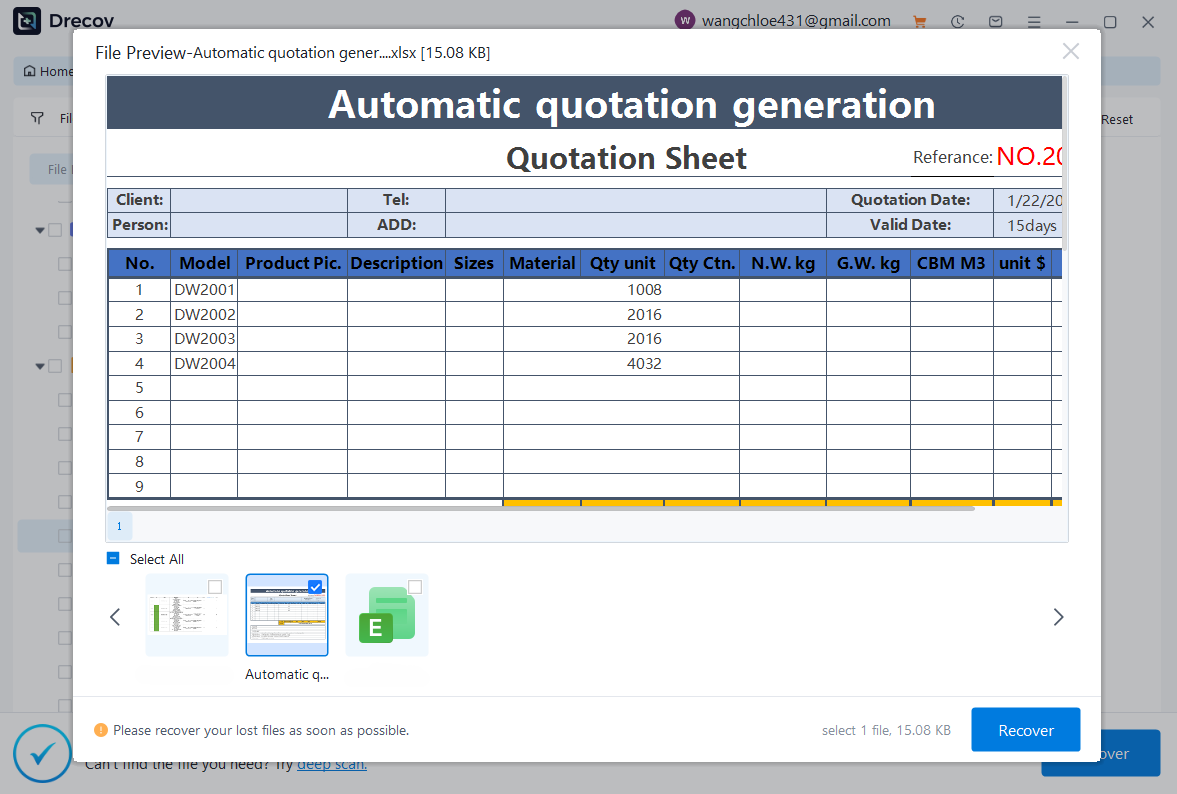
- Preview recoverable files.
- Select the partitions or files to restore, then save to a different drive.


Why Choose Pandaoffice Drecov?
Data loss can occur unexpectedly due to accidental deletion, system crashes, formatting errors, or software failures. Whether you need to restore Windows previous date, perform recover Excel files,or handle deleted PowerPoint recovery, Pandaoffice Drecov provides a reliable and efficient solution designed to restore important documents quickly and safely.
Pandaoffice Drecov is a professional PowerPoint Recovery Software that supports recovery for multiple document types, including Excel spreadsheets, Word documents, and PowerPoint presentations. With advanced scanning technology, the software can detect and recover files even after deletion, formatting, or unexpected system shutdowns. This makes it an ideal tool for users who urgently need Document Recovery from hard drives, SSDs, USB drives, memory cards, and other storage devices.
One of the key advantages of Pandaoffice Drecov is its intelligent deep-scan engine. It carefully analyzes storage sectors to locate lost or hidden files that standard recovery tools often miss. Whether you accidentally deleted a presentation and require deleted PowerPoint recovery, or you lost critical spreadsheets and need to recover Excel files, the software provides fast scanning and high recovery success rates.
The software also features a user-friendly interface that allows beginners and professionals alike to complete recovery tasks in just a few steps. Users can preview recoverable files before restoring them, ensuring that only the needed data is recovered. In situations where files were lost due to system errors, the software can also help recover documents after attempts to restore Windows previous date.
This method is particularly reliable for severe cases, including formatted drives or corrupted partition tables. Using professional disk partition recovery tools ensures a high recovery success rate while keeping the system stable.
⚠️Warning: Always save recovered files to a different drive to avoid overwriting lost data.
Method 4: Check File System Integrity Before Recovery
Test Environment:
Windows 11 Pro, 1TB SSD, desktop, MBR disk layout.
Sometimes partitions appear lost due to file system errors. Running a check can help:
- Open Command Prompt (Admin).
- Run the following command to check the disk:
chkdsk E: /f /r
- Repair any detected issues.
- Retry accessing the partition.
This method is suitable for cases where disk partition recovery tools detect the partition but cannot access the files due to corruption.
Method 5: Restore Partition From Backup or System Image
Test Environment:
Windows 10 Pro, 1TB SSD, standard laptop, GPT disk.
If you previously created a system image or full backup:
- Connect the backup drive.
- Open Control Panel → Recovery → System Image Recovery.
- Follow the prompts to restore the lost partition.
While not all users maintain a backup, this is the safest method for ensuring complete recovery, especially for critical business data.
Method 6: Recover Lost Partition Using PowerShell
Test Environment:
Windows 11 Enterprise, 2TB SSD, GPT partition table, desktop workstation with administrator privileges.
PowerShell is a powerful command-line tool that allows detailed disk and partition management:
- Open Windows Terminal (Admin).
- Run:
Get-Disk
- Identify the disk with the lost partition.
- Display partitions on the disk:
Get-Partition -DiskNumber 0
- If a partition is missing, create a new one using:
New-Partition -DiskNumber 0 -UseMaximumSize -AssignDriveLetter
- Format the partition if necessary:
Format-Volume -DriveLetter E -FileSystem NTFS -Confirm:$false
PowerShell allows scripting for multiple systems, making it ideal for IT administrators performing batch disk partition recovery operations.
⚠️Warning: Commands in PowerShell do not prompt for multiple confirmations, so double-check disk numbers.
Method 7: Using Third-Party Disk Partition Recovery Tools
Test Environment:
Windows 10 Pro, 1TB SATA SSD, MBR disk structure, desktop PC.
Various disk partition recovery software options exist for users who prefer graphical interfaces or need extra functionality, including:
- Scanning for lost partitions after deletion or formatting
- Recovering partitions from corrupted disks
- Previewing files before recovery
When using third-party disk partition recovery tools, follow these best practices:
- Install the tool on a drive other than the one being recovered.
- Scan the affected disk.
- Preview and select partitions or files to restore.
- Save the recovered data to a separate storage device.
This approach is suitable for situations where built-in methods cannot detect the lost partition.
Method 8: Using Disk Partition Recovery After Diskpart Delete Recovery Partition
Test Environment:
Windows 11 Pro, 500GB NVMe SSD, GPT disk table, laptop.
If a partition was deleted using diskpart delete recovery partition, it can often be restored using advanced recovery software:
- Use a free disk partition recovery software or professional tool like Pandaoffice Drecov.
- Select the affected disk.
- Perform a deep scan to detect deleted partitions.
- Recover the partition and save files to a separate disk.
⚠️Warning: Avoid writing any new data to the affected drive, as this may overwrite recoverable partitions.
This method ensures recovery even after using command-line deletion commands.
Method 9: Restoring Lost Partition From System Backup
Test Environment:
Windows 10 Pro, 1TB HDD, desktop, GPT layout.
If a system image backup exists, restoring a lost partition is straightforward:
- Connect the external backup drive.
- Open Control Panel → Recovery → System Image Recovery.
- Follow on-screen prompts to restore the lost partition.
This method is ideal for critical business or personal data, ensuring complete and safe restoration.
Frequently Asked Questions About Disk Partition Recovery
What is the best disk partition recovery software
Professional tools like Pandaoffice Drecov are highly recommended because they can recover partitions lost due to deletion, formatting, or corruption. They also allow file previews and selective recovery, minimizing data loss.
Can I recover a partition deleted using diskpart
Yes. If the partition was recently deleted, software recovery tools can detect and restore it, even after executing diskpart delete recovery partition commands. Stop using the drive immediately to prevent data overwriting.
How do I recover a lost partition without overwriting data
Do not save files to the affected disk. Use professional recovery software or built-in tools to scan and recover partitions to a separate drive. Following these precautions increases success rates for disk partition recovery.
Why is my lost partition not detected
The partition may be corrupted, or the disk may have physical issues. In such cases, professional hard disk partition recovery software like Pandaoffice Drecov is recommended, as it can detect partitions that Windows cannot access.
Does using professional recovery software guarantee 100% success
No software can guarantee full recovery in all cases. However, disk partition recovery tools significantly increase recovery success, especially when used immediately after partition loss.
Conclusion
Recovering lost partitions requires understanding the cause of data loss and choosing the appropriate method. Options include:
- Using Disk Management or DiskPart for simple cases
- Employing PowerShell for advanced users
- Utilizing Pandaoffice Drecov for professional recovery
- Restoring from backups or system images
⚠️Warning: Always verify the target disk and avoid writing new data before recovery.
By following these steps, users can safely restore lost partitions using disk partition recovery software, hard disk partition recovery software, and other disk partition recovery tools, ensuring system stability and minimizing data loss.






