







I can’t delete a partition on my Windows 11 and Windows 10 PC as they are using the same hard drive. It is a SanDisk SATA 512GB SSD. Currently, there are four partitions on the hard drive. I want to merge the E and F partitions into one but partition F can’t be deleted from the built-in disk management tool. It comes with error all the ways. What is the best way to force delete a partition in Windows 11 or Windows 10?—from Microsoft Store
Many Windows 10 users encounter recovery partitions on their hard drives that occupy valuable disk space. A Windows 10 recovery partition is created by the system or manufacturer to store recovery tools for troubleshooting and reinstalling Windows. While useful for system recovery, these partitions may not be needed if you have external recovery media, and deleting them can free up space for personal files.
⚠️Warning: Removing a recovery partition may prevent you from using built-in system recovery tools. Always back up your system or create recovery media before proceeding.
This guide explains multiple ways to delete recovery partition in Windows 10, including built-in tools, command-line utilities, and professional software like Pandaoffice Drecov, which ensures safe partition removal and data protection.
Why Recovery Partitions Exist
Purpose and Role of Windows 10 Recovery Partitions
A Windows 10 recovery partition stores system repair files and boot information. It enables Windows to repair startup problems, reinstall the system, or reset Windows to factory settings without external media.
Reasons you may want to delete a recovery partition Windows 10 include:
- Reclaiming disk space on smaller drives, especially SSDs
- Removing old or duplicate recovery partitions after upgrades
- Preparing drives for new operating systems or dual-boot configurations
Although recovery partitions are small, usually 500MB–1GB, multiple partitions can reduce usable disk space. Understanding their role ensures safe deletion without affecting Windows functionality.
Risks of Deleting Recovery Partitions
Potential Consequences
While delete recovery partition Windows 10 can free up space, it carries risks:
- Loss of built-in recovery options
- Difficulty restoring Windows without external installation media
- Possible accidental deletion of system partitions, leading to boot failure
⚠️Warning: Always confirm the target partition before deletion. Mistakenly deleting system partitions can make Windows unbootable.
Using professional software like Pandaoffice Drecov minimizes these risks because it provides a clear interface for identifying partitions and preserving system stability.
Preparing to Delete Recovery Partition
Steps to Ensure Safety
Before attempting to delete recovery partition in Windows 10, follow these precautions:
- Back up your system or create a bootable USB recovery drive.
- Verify partition contents to ensure it only contains recovery files.
- Identify the correct partition using Disk Management or third-party tools.
- Close all programs to prevent write operations during deletion.
Proper preparation reduces the risk of accidental data loss and ensures that recovery options are available if needed in the future.
Methods to Delete Recovery Partition in Windows 10
Method 1: Using Windows Disk Management
Test Environment:
Windows 10 Pro, 1TB SATA SSD, GPT disk layout, desktop workstation.
Steps:
- Open Disk Management (Win + X → Disk Management).
- Locate the Windows 10 recovery partition.
- Right-click and choose Delete Volume.
- Confirm the deletion. The space will become unallocated.
- Optionally, extend an adjacent partition into the free space.
This method is straightforward for users who prefer GUI-based tools but is limited to partitions not marked as protected.
⚠️Warning: Some partitions may not allow deletion due to system protection.
Method 2: Using DiskPart Command-Line Tool
Test Environment:
Windows 10 Home, 500GB SSD, MBR disk.
Steps:
- Open Command Prompt as Administrator.
- Launch DiskPart:
diskpart
- List available disks:
list disk
- Select the target disk:
select disk 0
- List partitions:
list partition
- Select the recovery partition:
select partition 3
- Delete the partition:
delete partition override
This method is effective when GUI tools do not allow deletion of a protected recovery partition.
⚠️Warning: DiskPart commands execute immediately; double-check disk and partition numbers.
Method 3: Deleting Recovery Partition Using PowerShell
Test Environment:
Windows 10 Enterprise, 1TB NVMe SSD, GPT disk, administrator privileges.
PowerShell provides an alternative command-line method:
- Open Windows PowerShell (Admin).
- List disks:
Get-Disk
- Select the disk and list partitions:
Get-Partition -DiskNumber 0
- Identify the recovery partition.
- Remove the partition:
Remove-Partition -DiskNumber 0 -PartitionNumber 3 -Confirm:$false
PowerShell offers scripting options for batch operations and is useful for IT administrators.
⚠️Warning: Ensure the partition number is correct to avoid deleting system partitions.
Method 4: Using Pandaoffice Drecov
Download DrecovTest Environment:
Windows 10 Pro, 2TB SSD, GPT disk, desktop.
Pandaoffice Drecov is a professional tool that can safely identify and remove deleted recovery partitions Windows 10:
Steps:
- Install and launch Pandaoffice Drecov.
- Scan the disk to locate all partitions, including recovery partitions.
- Select the partition to remove and confirm deletion.
- Optionally, reclaim the space by merging or creating new partitions.


Why Choose Pandaoffice Drecov?
Data loss can occur unexpectedly due to accidental deletion, system crashes, formatting errors, or software failures. Whether you need to restore Windows previous date, perform recover Excel files,or handle deleted PowerPoint recovery, Pandaoffice Drecov provides a reliable and efficient solution designed to restore important documents quickly and safely.
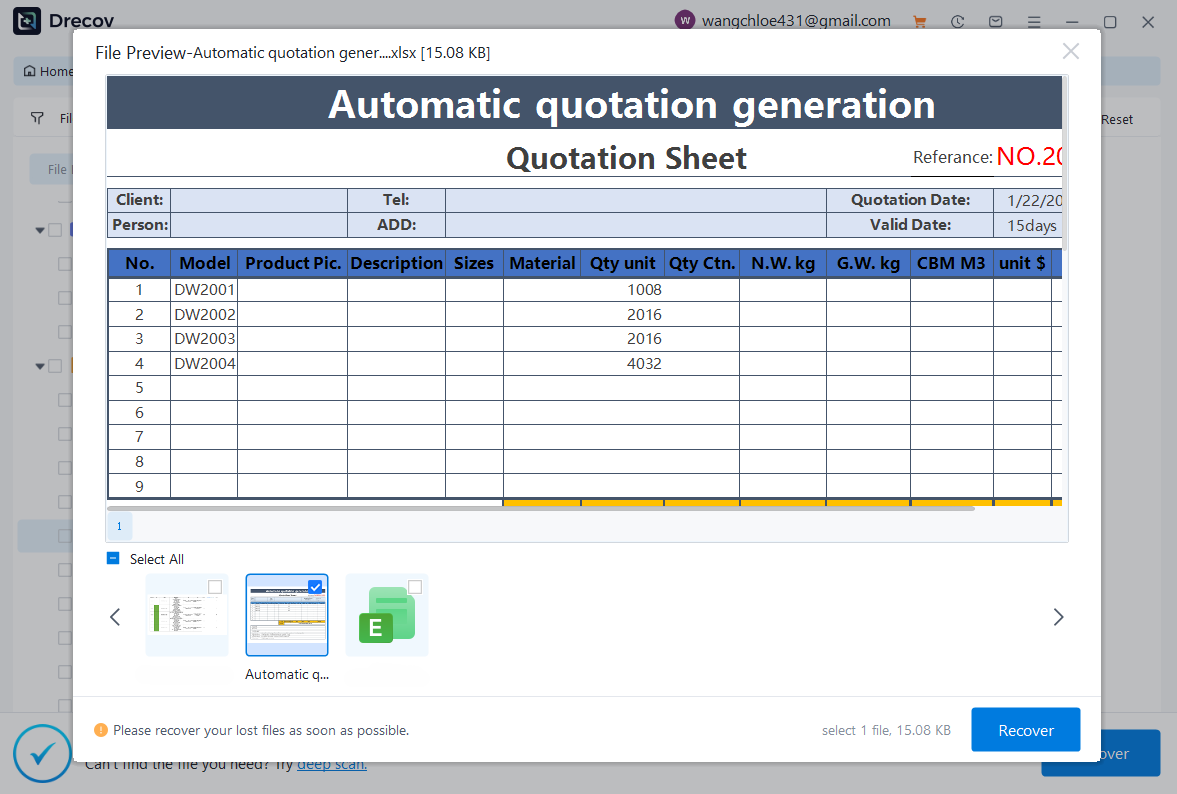
Pandaoffice Drecov is a professional PowerPoint Recovery Software that supports recovery for multiple document types, including Excel spreadsheets, Word documents, and PowerPoint presentations. With advanced scanning technology, the software can detect and recover files even after deletion, formatting, or unexpected system shutdowns. This makes it an ideal tool for users who urgently need Document Recovery from hard drives, SSDs, USB drives, memory cards, and other storage devices.
One of the key advantages of Pandaoffice Drecov is its intelligent deep-scan engine. It carefully analyzes storage sectors to locate lost or hidden files that standard recovery tools often miss. Whether you accidentally deleted a presentation and require deleted PowerPoint recovery, or you lost critical spreadsheets and need to recover Excel files, the software provides fast scanning and high recovery success rates.
The software also features a user-friendly interface that allows beginners and professionals alike to complete recovery tasks in just a few steps. Users can preview recoverable files before restoring them, ensuring that only the needed data is recovered. In situations where files were lost due to system errors, the software can also help recover documents after attempts to restore Windows previous date.
Using dedicated software reduces the risk of deleting the wrong partition and ensures system integrity.
⚠️Warning: Always recover or back up important data before deletion.
Method 5: Removing Recovery Partition After System Upgrade
Test Environment:
Windows 10 Pro, 1TB HDD, desktop, MBR layout.
After upgrading Windows, old recovery partitions may remain. To safely remove them:
- Open Disk Management.
- Identify obsolete recovery partitions.
- Delete using Disk Management or DiskPart.
- Reallocate unallocated space to main system partition.
This method helps reclaim disk space after upgrades and prevents duplicate recovery partitions.
Method 6: Using Third-Party Disk Partition Tools
Test Environment:
Windows 10 Pro, 1TB SSD, GPT disk layout, desktop.
Third-party disk partition recovery tools can help manage and delete protected partitions. Steps:
- Install a professional tool (e.g., Pandaoffice Drecov).
- Launch the software and scan the drive for all partitions.
- Select the Windows 10 recovery partition you want to remove.
- Confirm deletion and save changes.
- Optionally, extend other partitions into the freed space.
This approach ensures partitions are removed safely and allows precise control over the process.
Method 7: Deleting Recovery Partition Using Command-Line Scripts
Test Environment:
Windows 10 Enterprise, 500GB NVMe SSD, GPT disk, administrator access.
Advanced users can script partition deletion:
- Open Windows PowerShell (Admin).
- Use:
Get-Partition -DiskNumber 0
- Identify the recovery partition.
- Run:
Remove-Partition -DiskNumber 0 -PartitionNumber 3 -Confirm:$false
This method is effective for batch deletions or when multiple recovery partitions exist.
⚠️Warning: Scripts execute immediately; verify the disk and partition number before running.
Method 8: Deleting a Recovery Partition Windows 10 After Diskpart Command
Test Environment:
Windows 10 Home, 1TB HDD, MBR layout, desktop.
If you previously executed a diskpart delete recovery partition command, some recovery partitions may remain partially listed. Steps:
- Open Disk Management and locate residual partitions.
- Use DiskPart to select and delete them:
select disk 0
list partition
select partition 3
delete partition override
- Reallocate the unallocated space to a main volume.
This method ensures no leftover recovery partitions occupy disk space.
Method 9: Removing Recovery Partition After System Upgrade
Test Environment:
Windows 10 Pro, 2TB SSD, GPT disk, upgraded from Windows 8.
System upgrades can leave old recovery partitions. To remove:
- Open Disk Management.
- Identify partitions with old system recovery files.
- Delete them via Disk Management or PowerShell.
- Merge unallocated space with existing partitions if needed.
Frequently Asked Questions About Deleting Recovery Partitions in Windows 10
Can I delete a recovery partition Windows 10 safely?
Yes. It is safe if you have external recovery media or a system backup. Using tools like Pandaoffice Drecov ensures you delete only the recovery partition without affecting system stability.
What happens after deleting the Windows 10 recovery partition?
The space becomes unallocated and can be merged with another partition. However, the built-in recovery options will no longer be available.
Can I recover a deleted recovery partition Windows 10?
Yes, using professional recovery software or disk partition recovery tools, you can restore partitions deleted accidentally, provided no new data has overwritten the space.
Why can’t I delete a recovery partition in Windows 10 using Disk Management?
Some partitions are protected by Windows as part of the system or manufacturer setup. In such cases, command-line tools like DiskPart, PowerShell, or professional software are required.
Is it necessary to delete the recovery partition?
Not always. Only delete if you need extra space or are confident in having alternative recovery options.
Conclusion
Deleting a Windows 10 recovery partition can free valuable disk space but must be done carefully to avoid system issues. Options include:
- Using Disk Management for GUI-based deletion
- Employing DiskPart or PowerShell for command-line control
- Leveraging professional software like Pandaoffice Drecov for safe and precise removal
⚠️Warning: Always back up your system or create recovery media before deletion.
By following the steps outlined in this guide, users can safely delete recovery partition Windows 10, reclaim disk space, and maintain system stability while minimizing risk of data loss.






