







Imagine you are finalizing a major quarterly report. You have dozens of draft versions cluttering your desktop, so you decide to perform a quick cleanup. You select the old drafts, hit the delete key, and then, without a second thought, right-click the trash icon to perform a permanent purge. Suddenly, you realize that the final version—the one with the approved data—was accidentally dragged into that group. Panic sets in as you search for a way to windows 10 empty recycle bin recover those essential documents. Many users believe that once the trash is emptied, the files vanish into a digital void. Fortunately, this is rarely the case, and with the right approach, you can restore your data before it is lost for good.
Part 1: The Hidden Logic of File Deletion
Understanding the “why” before the “how” is essential for a successful recovery. When you perform a windows 10 empty recycle bin recover attempt, you are essentially racing against the operating system’s internal management.
Why Do Files Get Deleted Permanently?
There are several ways users lose data beyond the standard “Empty Recycle Bin” command:
- The Shift + Delete Shortcut: This bypasses the Recycle Bin entirely, marking data as deleted immediately.
- Storage Sense Automation: Windows 10 features a tool called Storage Sense that can automatically clear the bin every 30 days.
- Recycle Bin Overload: If a file is larger than the allocated storage for the bin (usually 5%–10% of your drive), Windows deletes it permanently instead of storing it.
- Recycle Bin Glitches: Sometimes the bin fails to display items or malfunctions, leading to unintended data loss. For more on bin technicalities, see this discussion on Recycle Bin issues.
The Science of “Invisibility”
Why is a windows 10 empty recycle bin recover even possible? Think of your hard drive as a massive book with a Table of Contents. When you “empty” the bin, Windows does not take an eraser to every page of the book. Instead, it simply removes the entry from the Table of Contents.
The actual data (the chapters of the book) remains on the disk. Windows simply marks those clusters as “available for overwriting.” As long as you don’t save new files that occupy those specific clusters, your old data remains perfectly intact.
Part 2: Step-by-Step Restoration Strategies
If you need to perform a windows 10 empty recycle bin recover operation, follow these methods in order. Remember: the less you use your computer right now, the higher your success rate will be.
Method 1: Using Windows File History (The Internal Backup)
File History is a built-in feature that creates snapshots of your files over time. If you had this turned on, you are in luck.
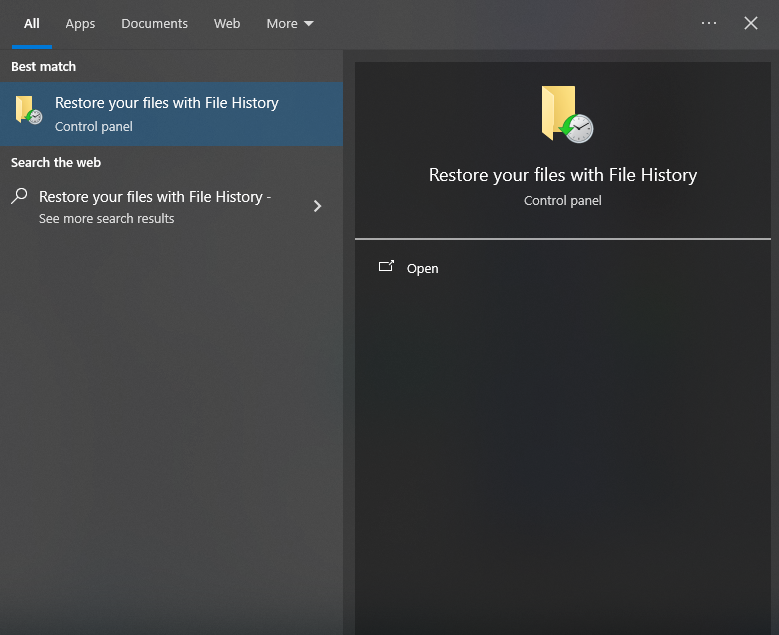
- Step 1: Click the Start menu and type
File History. Select Restore your files with File History.
- Step 2: A window will appear showing your backed-up folders. Navigate to the folder where your deleted files were originally located (e.g.,
C:\Users\YourName\Documents). - Step 3: Use the navigation arrows at the bottom to scroll through different versions by date and time.

- Step 4: Once you identify the file, select it and click the green Restore button. This will return the file to its original location.
Method 2: Professional Restoration with PandaOffice Drecov
When internal backups fail or weren’t enabled, you need a deep-sector scanning tool. PandaOffice Drecov is specifically engineered to handle windows 10 empty recycle bin recover scenarios where the file system pointers are missing.
This software is particularly powerful because it can reconstruct file headers for over 1,000 file types, including complex video formats and encrypted documents. This makes it an indispensable tool for a wide range of data loss scenarios, including:
- Accidental Desktop Deletions: Instantly retrieving files wiped from your local workspace.
- Disk Formatting Errors: Salvaging files from drives that have been completely wiped or reformatted.
- External Media Rescue: Recovering lost data from formatted or corrupted SD cards and USB flash drives.
- Sync Conflict Resolution: Reversing data loss caused by synchronization errors between your PC and the OneDrive cloud.
- Browser Metadata Recovery: Restoring lost Chrome bookmarks and other essential application data.”
Important: Install the software on a different drive (like a USB flash drive or Drive D:) to ensure you do not overwrite the deleted data on Drive C:.
- Step 1: Selection. Launch the application. On the main dashboard, you will see a list of logical drives and a shortcut for Recycle Bin. Select the Recycle Bin icon to narrow the search.

- Step 2: Initiate Scan. Click the Start Scan button. The software will perform a “Quick Scan” to find recently deleted index entries, followed by a “Deep Scan” which reads the raw binary data of the disk.

- Step 3: Filter Results. Use the sidebar to filter by file type (e.g., Graphics, Documents, Video). You can also search for a specific filename if you remember it.

- Step 4: Preview and Save. Double-click a file to preview its content. If it looks correct, tick the checkbox and click Recover. Select a destination folder on an external drive to finalize the process.
Method 3: Windows File Recovery (Microsoft’s Command Line Tool)
For those comfortable with a technical interface, Microsoft offers a free utility in the Microsoft Store.
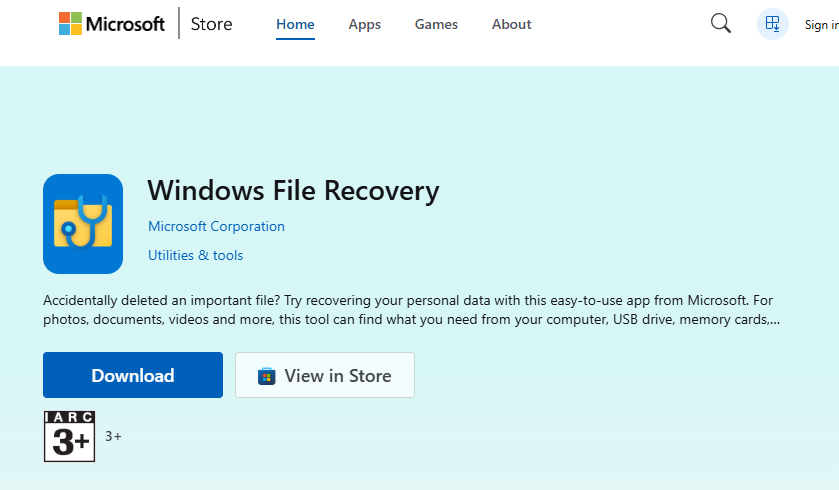
- Step 1: Download Windows File Recovery from the Microsoft Store.
- Step 2: Press
Win + Xand select Windows PowerShell (Admin). - Step 3: Enter the following command structure:
winfr source-drive: destination-drive: /regular /n \$Recycle.Bin\- Example:
winfr C: D: /regular /n \$Recycle.Bin\*.docx(This targets only Word files from the bin).
- Example:
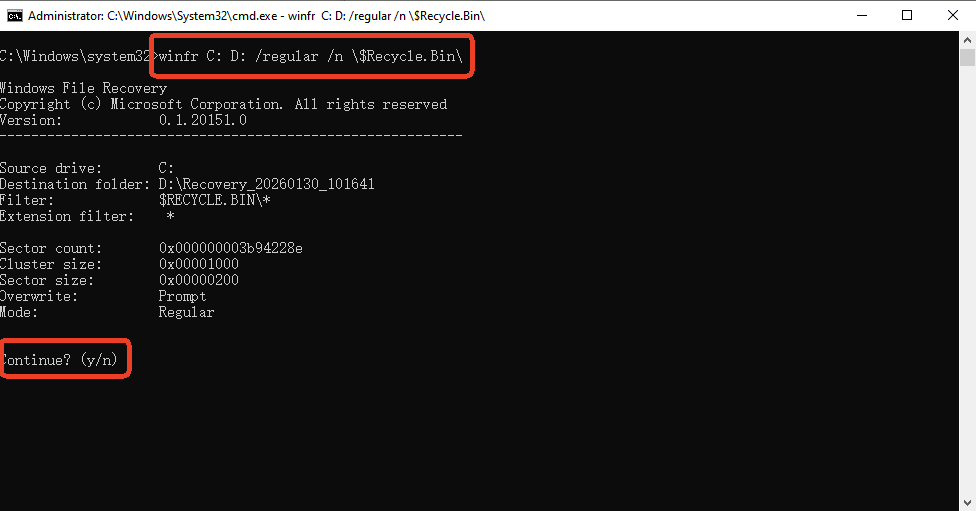
- Step 4: Review the summary and press Y to begin the scan. The tool will create a “Recovery” folder on your destination drive.
Method 4: Restoring via Previous Versions (Shadow Copies)
This method relies on System Protection points, which are often created during Windows updates.
- Step 1: Navigate to the folder that previously contained the files you deleted.
- Step 2: Right-click the folder and select Properties.
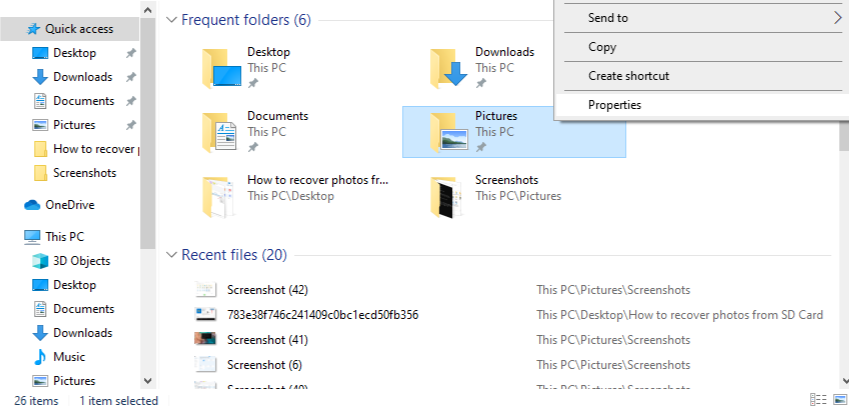
- Step 3: Go to the Previous Versions tab. If shadow copies are available, they will be listed here by date.
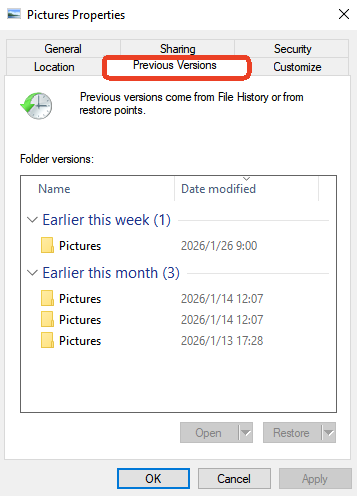
- Step 4: Select a version that predates the deletion and click Open to verify the contents. If the files are there, click Restore.
Comparison Table: Choosing the Best Recovery Path
To help you decide which windows 10 empty recycle bin recover method fits your situation, consider the following comparison:
| Feature | File History | PandaOffice Drecov | Windows File Recovery (CMD) | Previous Versions |
| Success Rate | High (If enabled) | Highest (Deep Scan) | Moderate | Low |
| Ease of Use | Simple | User-Friendly UI | Technical (CLI) | Simple |
| Speed | Instant | Fast / Deep Options | Slow | Instant |
| Preview Capability | Yes | Yes (Full Visual) | No | Yes |
| Best For | Routine Backups | Critical/Old Data | Expert Users | System Points |
Why choose PandaOffice Drecov? Unlike the built-in Windows tools, Drecov doesn’t rely on pre-existing backup settings. It scans the physical disk structure directly, making it the most reliable option for users who never set up a backup plan.
Part 3: Proactive Strategies to Prevent Data Loss
Once you successfully complete a windows 10 empty recycle bin recover task, your next goal should be ensuring you never have to do it again.
1. Increase Recycle Bin Size
If your bin is too small, large files are deleted permanently without warning.
- Right-click the Recycle Bin -> Properties.
- Select your main drive and increase the Custom size (MB) to a larger value.
2. Configure Cloud Backups
Services like OneDrive or Google Drive offer a “Second-Stage Recycle Bin.” If you delete a file synced to the cloud, you usually have 30 to 60 days to recover it from the service’s website, regardless of what you do on your local PC.
3. Disable Automatic Purging
Check your Storage Sense settings:
- Go to Settings > System > Storage.
- Click Configure Storage Sense.
- Ensure “Delete files in my recycle bin if they have been there for over…” is set to “Never” or a long duration like 60 days.
Recover Deleted Files From Recycle Bin Windows 10 After Emptying FAQs
Q1: Can I windows 10 empty recycle bin recover files from an SSD?
Recovering from an SSD is more challenging than an HDD because of the TRIM command. TRIM tells the SSD to physically clear data blocks immediately after deletion to maintain speed. However, if you act immediately (within minutes) and shut down the PC, recovery is still possible using PandaOffice Drecov.
Q2: Is there a free way to recover my emptied bin?
Yes, Windows File Recovery and File History are free. However, they are often less effective than professional tools for complex data loss where the file metadata has been damaged.
Q3: How long do I have to recover my files?
There is no set time limit. It depends entirely on “Disk Churn.” If you download a 50GB game after deleting a 1MB Word file, the Word file will likely be overwritten instantly. If the computer is idle, the data might stay there for months.
Conclusion
Losing data after a cleanup can be a nightmare, but as we have explored, a windows 10 empty recycle bin recover is entirely feasible with the right knowledge. Whether you utilize the native Windows File History, the command-line interface of WinFR, or the robust, sector-level scanning of PandaOffice Drecov, your files are likely waiting to be rediscovered.
The most vital takeaway is to stop using the affected drive immediately to prevent overwriting. By combining professional recovery software with a disciplined backup routine, you can turn a potential data disaster into a minor, fixable inconvenience.






