







The gaming world has been buzzing with discussions about the switch 2 usb-c port restrictions ever since rumors and reports about Nintendo’s next-generation console started circulating online. For many gamers, the USB-C port is more than just a charging connector; it is the gateway for accessories, docking stations, external displays, controllers, storage devices, and third-party hardware compatibility. So when people hear the word “restrictions,” concern spreads fast across the gaming community.
Nintendo has always approached hardware ecosystems differently compared to companies like Sony, Microsoft, or Valve. The original Nintendo Switch already had unique limitations tied to power delivery, docking compatibility, and accessory authentication. With the arrival of the next-generation Switch platform, many users are wondering whether Nintendo will tighten control over USB-C functionality even more.
If you are planning to buy the next Nintendo console, understanding these potential switch 2 usb-c port restrictions could save you money, frustration, and compatibility headaches. This guide explains what USB-C restrictions mean, why Nintendo may implement them, how they affect accessories, and what gamers should expect moving forward.
What Are Switch 2 USB-C Port Restrictions?
USB-C is designed to be universal. In theory, one cable should handle charging, video output, data transfer, and peripheral connections across many devices. In practice, manufacturers often place software or hardware limitations on USB-C functionality. For the switch 2 usb-c port restrictions, the concern centers around whether Nintendo will limit third-party docks, charging accessories, and external storage support.
Recent technical findings suggest the Switch 2 features a dual-port design: a bottom port for docking (USB 3.2, 4K@60Hz) and a top port for handheld peripherals. However, “restrictions” often refer to proprietary handshakes. Even if a third-party dock fits the port, the switch 2 usb-c port restrictions might prevent it from outputting video unless it meets specific, often proprietary, Nintendo protocols.
Think of USB-C like a universal key shape. Even though many keys physically fit the lock, the manufacturer can still decide which ones are allowed to open the door through digital encryption or non-standard power negotiation.
Why Nintendo May Restrict USB-C Functionality
Nintendo’s approach usually revolves around three main priorities: security, hardware stability, and ecosystem control.
Protecting the Console Hardware
One major reason for switch 2 usb-c port restrictions is hardware safety. USB-C technology supports varying power delivery standards, voltages, and data transfer modes. Poor-quality chargers or unofficial docks can sometimes supply unstable power levels. The original Nintendo Switch had several reported issues involving third-party docks that allegedly “bricked” systems due to incompatible power negotiation.
Nintendo also earns revenue through licensed accessories. By enforcing switch 2 usb-c port restrictions, the company can encourage consumers to purchase officially approved hardware. This is common throughout the gaming industry—much like printer companies do with ink cartridges.
Maintaining Software Security
USB-C ports provide data access, not just charging. Restricting communication channels may help prevent exploits, unauthorized modifications, or hacking attempts. Limiting switch 2 usb-c port restrictions could become another layer of security protection for the next-gen platform.
How to Fix Corrupted SD Card After USB-C Transfer Failure
One of the most frustrating consequences of switch 2 usb-c port restrictions and non-standard protocols is data corruption. When a user attempts to transfer screenshots, videos, or game data using a non-compliant USB-C cable or hub, the connection may drop mid-transfer. This abrupt interruption often leads to a “RAW” file system or a card that the console no longer recognizes.
If you find yourself in this situation, do not panic. You can fix corrupted SD card after USB-C transfer failure by following these technical steps on a Windows PC.
Step 1: Perform a Physical and Driver Check
Before moving to software fixes, ensure the issue isn’t hardware-related.
- Action: Remove the SD card from the Switch and insert it into a high-quality card reader connected to your PC.
- Action: Open Device Manager (right-click Start > Device Manager), find your SD card under “Disk drives,” right-click it, and select “Update driver.”
Step 2: Assign a New Drive Letter
Sometimes the card isn’t “corrupted” but simply lost its pathing due to the switch 2 usb-c port restrictions interrupting the mounting process.
- Action: Press Win + X and select Disk Management.
- Action: Locate your SD card. If it has no letter (e.g., E:, F:), right-click the partition and select Change Drive Letter and Paths.
- Action: Click Add and assign a new letter.
Step 3: Use the CHKDSK Command Utility
This is a powerful way to fix corrupted SD card after USB-C transfer failure without losing your files, as it repairs the logical file system structure.
- Action: Press the Windows Key, type
cmd, and select Run as Administrator. - Action: In the black window, type
chkdsk X: /f(replace X with your SD card’s actual drive letter). - Action: Press Enter. Windows will attempt to fix file system errors.
Warning: Do not close the window until the process reaches 100%. If CHKDSK reports that the drive is “RAW,” move immediately to the data recovery step below.
Mastering Recovery with PandaOffice Drecov Data Recovery Software
When manual repairs fail, professional-grade tools are necessary. If the switch 2 usb-c port restrictions caused a severe crash that rendered your SD card unreadable, PandaOffice Drecov data recovery software is the industry standard for restoring lost gaming media and save backups.
This software specializes in deep-sector scanning, which can bypass the “corrupted” layer of an SD card to find the actual data bits underneath. Here is how to use PandaOffice Drecov data recovery software effectively:
⚠ Warning: Install it on a drive different from the one where your data was lost to prevent overwriting.
Step 1: Initiate Deep Scan for Game Data
- Action: Hover over the SD card icon and click the Scan button.

- Action: PandaOffice Drecov data recovery software will begin two phases: a Quick Scan for recently deleted files and a Deep Scan for fragmented data caused by the USB-C transfer failure.
Warning: Do not disconnect the card during this process. A deep scan on a 512GB card may take 30-60 minutes.
Step 2: Preview and Targeted Recovery
- Action: Use the filter sidebar to sort by “Video” or “Image” to find your Switch captures.
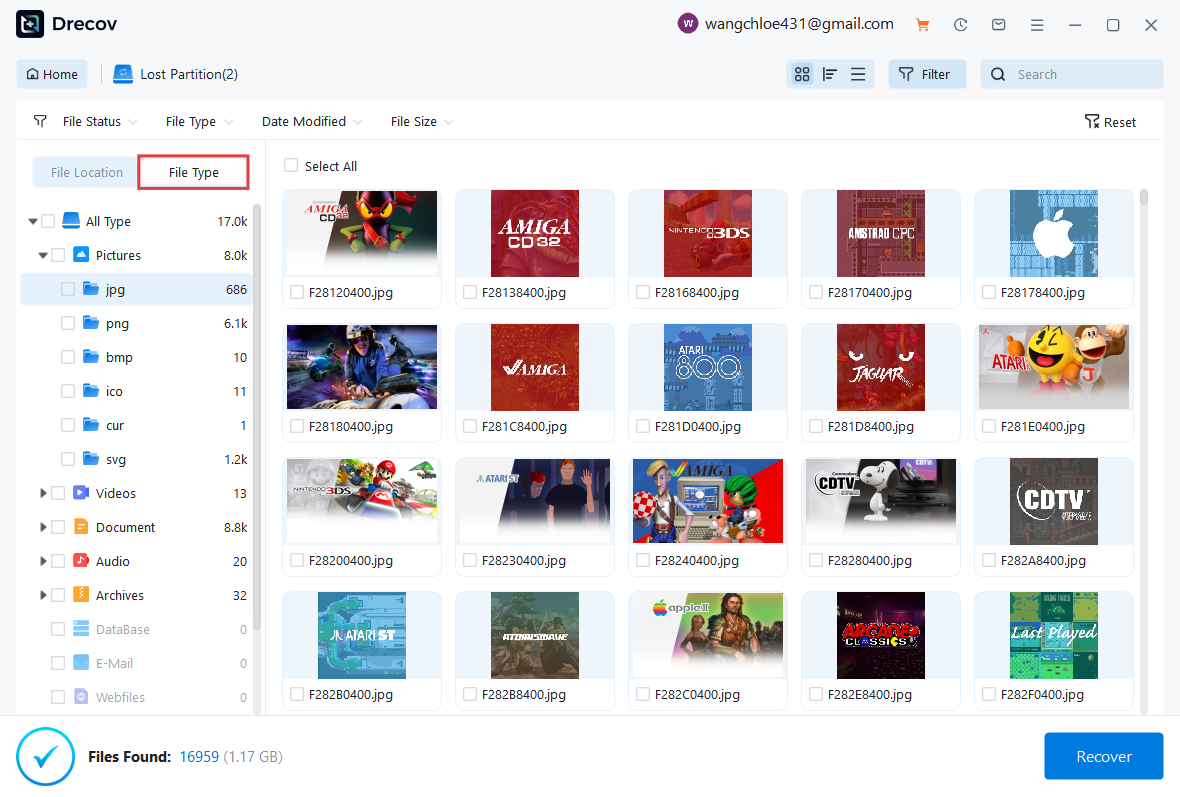
- Action: Double-click a file to preview it. This ensures the file is healthy before you commit to saving it.
- Action: Check the boxes for the files you want and click the Recover button.
Warning: Never save the recovered files back onto the same corrupted SD card. Always save them to your PC’s desktop or a different hard drive first to avoid overwriting data.
Internal Links for Continued Device Safety
To further secure your gaming and computing environment, consider these essential guides:
- Learn how to create a recovery partition in Windows 10 to protect your PC’s local game backups.
- If you manage your console via web interfaces, find out where are Firefox bookmarks stored on your PC to keep your gaming resource links safe.
- Prepare for the worst-case scenario by learning how to create a Windows 10 recovery disk so you can always access your recovery tools.
Advanced Technical Solutions for USB-C Port Issues
If you suspect the switch 2 usb-c port restrictions are affecting the console’s internal OS or how it interacts with the registry of your connected PC, you may need to go deeper than just SD card fixes.
Updating Third-Party Hub Firmware
Many modern USB-C hubs (like those from 8BitDo or Skull & Co) now feature upgradable firmware to bypass switch 2 usb-c port restrictions.
- Step 1: Connect your hub to a PC using a standard USB-A to USB-C cable.
- Step 2: Visit the manufacturer’s support page and download the “Switch 2 Compatibility Update.”
- Step 3: Run the
.exeor.dmgfile and follow the prompts to flash the new handshake protocols to the hub.
Checking the Windows Registry for USB Recognition
If your PC refuses to see the Switch 2 via USB-C after a failed update, the “USB Descriptor” might be stuck in the registry.
- Path:
HKEY_LOCAL_MACHINE\SYSTEM\CurrentControlSet\Control\Class\{36fc9e60-c465-11cf-8056-444553540000} - Action: Advanced users can delete the “UpperFilters” and “LowerFilters” values (after backing up the registry) to force Windows to re-enumerate all USB devices. This often resolves “Device Not Recognized” errors stemming from the console’s restricted data modes.
Will Official Nintendo Accessories Become Mandatory?
As we have seen, the switch 2 usb-c port restrictions are not just about making things difficult; they are about maintaining a specific standard of communication. If these restrictions increase, official accessories may become essential instead of optional.
Comparison: Official vs. Third-Party Accessories
| Feature | Official Nintendo Dock/Charger | Unlicensed Third-Party |
| Power Delivery | Proprietary 15V/2.6A – 20V/3A | Standard PD (Variable) |
| Video Out | Guaranteed 4K/60Hz | Hit-or-miss (Firmware dependent) |
| Data Safety | Low risk of corruption | Higher risk due to handshake fails |
| Price | Premium / High | Budget-friendly |
For most casual players, the switch 2 usb-c port restrictions may barely matter. Official accessories will work smoothly, and the overall gaming experience remains excellent. However, for those who travel or use complex streaming setups, staying informed is the best defense against data loss.
Conclusion
The conversation surrounding switch 2 usb-c port restrictions reflects a larger debate happening across the technology world. Gamers want flexibility and compatibility, while manufacturers want safety and ecosystem control. By understanding how to fix corrupted SD card after USB-C transfer failure and keeping tools like PandaOffice Drecov data recovery software in your digital toolkit, you can navigate these restrictions with confidence.
Before buying that ultra-cheap travel dock, remember that the USB-C port may look universal on the outside, but the protocols hidden within are what keep your console—and your data—safe. Stay updated, use certified cables whenever possible, and always keep a backup of your most precious gaming memories.






