







Losing critical data is a stressful experience that almost every PC user faces at some point. Whether it was an accidental deletion, a sudden system crash, or a formatting error, the need to windows restore files quickly and efficiently is paramount. Fortunately, modern operating systems and advanced recovery tools make it entirely possible to bounce back from devastating data loss.
When standard recovery methods fail, relying on dedicated software is the safest path forward. In this comprehensive guide, we will introduce PandaOffice Drecov data recovery software as a premier solution to reclaim your missing data. Furthermore, we will explore various technical methods—ranging from beginner-friendly built-in tools to advanced recovery strategies—to help you restore files windows successfully without breaking a sweat.
Understanding the Basics of Windows Restore Files
To effectively restore removed files windows, it helps to understand what happens when a file disappears. When you delete a file on Windows, the operating system does not immediately erase the actual data from your hard drive sector. Instead, it marks that specific space as “available” for new data.
Common Data Loss Scenarios
- Accidental Deletion: Pressing
Shift + Delete, which bypasses the Recycle Bin entirely. - File System Corruption: Drive formatting or unexpected power outages that corrupt the master file table.
- Malware Attacks: Ransomware or viruses that stealthily hide or delete system and personal files.
The major challenge when trying to windows restore files is time. If you continue using your computer, the system will eventually overwrite that “available” space with new temporary files, system logs, or software updates. Consequently, the original data becomes permanently unrecoverable.
To combat this, PandaOffice Drecov data recovery software functions by scanning the deep architecture of your storage sectors. It identifies these marked spaces and pieces the fragmented data back together before it gets overwritten. Whether you are trying to figure out where are Firefox bookmarks stored on your PC after an unexpected browser crash, or dealing with an accidental drive wipe, Drecov serves as your digital safety net.
Comprehensive Solutions to Windows Restore Files
Depending on how your files were lost, different levels of intervention are required. Below are step-by-step methods organized by technical complexity.
Beginner Level: Utilizing Built-In Windows Features
Before turning to third-party tools, Windows offers native safety nets that can help you restore files windows instantly.
Method 1: The Recycle Bin Quick Fix
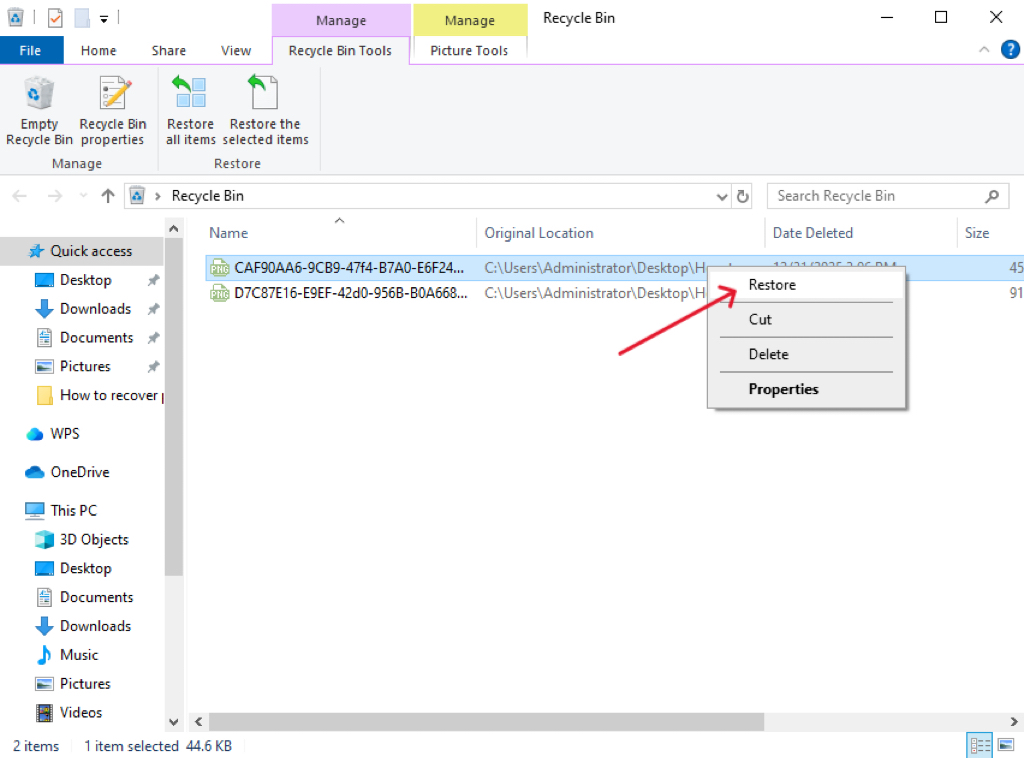
If you simply clicked “Delete” or dragged a file to the trash, it resides in the Recycle Bin.
- Double-click the Recycle Bin icon on your desktop.
- Locate your missing file or folder.
- Right-click the item and select Restore. The file will return to its original directory.
Method 2: Undo Delete Hotkey
If the deletion literally just happened a few seconds ago:
- Press the hotkey
Ctrl + Zon your keyboard. - This action will immediately reverse the last file operation, including deletions.
Intermediate Level: Professional Recovery with PandaOffice Drecov
When files bypass the Recycle Bin via Shift + Delete or drive formatting, built-in features fall short. This is where PandaOffice Drecov data recovery software excels. It safely extracts deeply buried files without altering your existing storage structure.
⚠ Warning: Install it on a drive different from the one where your data was lost to prevent overwriting.
Step 1: Select the Target Location
On the main dashboard, you will see a list of available local drives, external disks, and common locations like the Desktop or Recycle Bin. Select the specific drive where you need to windows restore files and click Scan.

Step 2: Preview and Filter the Scanned Data
The software will initiate a Quick Scan followed automatically by a Deep Scan. You can use the file-type filter (e.g., Documents, Graphics, Audio) to narrow down results. Drecov allows you to double-click and preview images or text files to ensure integrity before recovery.

Step 3: Securely Restore Removed Files Windows
Check the boxes next to the files you wish to recover. Click the Recover button.
Crucial: Always save the recovered files to an external drive or a different partition than the source drive.
Note: If you find yourself needing to wipe a device entirely before setting it back up for recovery purposes, see our guide onhow to factory reset a Chromebook step-by-step guide. For more detailed technical references on managing your PC’s operating systems and official utilities, visit the Microsoft Support Documentation.
Advanced Level: System Backups and Command-Line Recovery
For power users dealing with system-wide file loss or corrupted file structures, Windows provides deep-level administrative utilities.
Method 1: Restoring from File History
If you previously configured Windows File History, you can roll back folders to earlier states.
- Open the Start menu, type
Restore your files with File History, and pressEnter. - Browse through the available backups using the left and right arrow keys at the bottom of the window to find the desired date.
- Locate the specific files you want to restore removed files windows.
- Click the green Restore icon to return them to their original location.
Method 2: Using the Command Prompt (ATTRIB Command)
Sometimes, malware changes file attributes, making them invisible rather than deleted. You can fix this via the command line.
- Press
Win + R, typecmd, and pressCtrl + Shift + Enterto run as Administrator. - Type the drive letter followed by a colon (e.g.,
E:) and pressEnter. - Type the following command precisely:
attrib -h -r -s /s /d *.* - Press
Enter. This command strips the Hidden (-h), Read-only (-r), and System (-s) attributes from all files and subdirectories (/s /d), revealing files that appeared to be completely gone.
Alternative and Complementary Methods
While PandaOffice Drecov data recovery software offers a highly intuitive user experience, it is wise to understand alternative tools and manual avenues available in the tech space.
| Method / Tool | Pros | Cons | Best Used For |
| PandaOffice Drecov | High success rate, deep sector scanning, intuitive preview function. | Requires a download. | All-purpose recovery (accidental, formatted, corrupted drives). |
| Windows File Recovery (CLI Tool) | Free, official tool directly from Microsoft. | Text-only command line interface, difficult for beginners, no file preview. | Advanced users comfortable with command prompts. |
| Cloud Storage Rollbacks (OneDrive/Google Drive) | Instantly restore files windows from anywhere; includes version history. | Limited to files that were actively synced prior to deletion. | Recovering previous drafts of office documents. |
| System Restore Points | Reverts system files, registry paths, and software states to a previous date. | Does not backup or restore personal files like photos, PDFs, or emails. | Resolving OS corruption or bad software installations. |
Tips & Best Practices for Successful Data Recovery
Maximizing your chances to successfully restore removed files windows relies heavily on user behavior immediately following data loss. Furthermore, maintaining digital hygiene ensures you face fewer data emergencies in the future.
- Stop Using the Device Immediately: As soon as you realize a file is missing, halt all web browsing, downloading, and gaming. This minimizes disk write cycles that could destroy your recoverable data.
- Recover to an External Drive: When retrieving files via recovery software, never write the output data back to the same drive being scanned. Doing so can overwrite other deleted files still waiting in the queue.
- Run Regular Backups: Implement the 3-2-1 backup strategy: Keep 3 total copies of your data, across 2 different types of media (e.g., local external drive and cloud storage), with 1 copy kept completely offsite.
- Keep Web Browsers Synchronized: Cloud-tied apps make it significantly simpler to manage recoveries. For instance, if you encounter browser-related data loss, you can easily learn how to recover deleted bookmarks in Chrome through cloud profile syncing.
Frequently Asked Questions
Can I windows restore files that were deleted months ago?
It depends entirely on disk usage. If the drive has had minimal activity since the deletion, the sectors might still be untouched. However, if the drive is your primary operating system disk, the likelihood of those sectors being overwritten over several months is high.
Is it safe to use PandaOffice Drecov data recovery software on an SSD?
Yes. However, note that Solid-State Drives (SSDs) utilize a feature called TRIM, which actively clears deleted data blocks to maintain write speeds. Therefore, you should run Drecov immediately after data loss on an SSD before the automated TRIM command executes.
Why do some recovered files turn out corrupted or unreadable?
This occurs when a file was partially overwritten by the operating system before the recovery process began. While software can piece together the remaining fragments, missing headers will result in a corrupted file.
Does a Windows System Restore point bring back deleted photos?
No. System Restore points only monitor and back up system-level files, Windows Registry paths, and application configurations. Consequently, it will not restore removed files windows of a personal nature, such as photos, videos, or documents.
Conclusion
Losing critical files can bring your workflow to a grinding halt. However, knowing how to efficiently windows restore files empowers you to handle these situations with confidence. While Windows provides basic built-in tools like the Recycle Bin and File History, they are often insufficient for complex or widespread data loss scenarios.
For robust, comprehensive protection, PandaOffice Drecov data recovery software offers the deep-scanning capabilities required to safely restore files windows from formatted, corrupted, or emptied storage sectors. By acting quickly, avoiding unnecessary disk writes, and utilizing professional recovery software, you can safeguard your digital life against unexpected data disasters.






