







USB drives are one of the most commonly used storage devices in the world. From storing office documents and family photos to transferring videos and software, USB flash drives offer convenience and portability. However, accidental deletion, corruption, formatting errors, malware attacks, and physical damage can lead to sudden data loss. This is where recovery software for usb drive becomes essential.
In this comprehensive guide, you will learn everything about USB recovery software, including its benefits, features, top tools, recovery methods, and tips to prevent future data loss.
What Is Recovery Software for USB Drive?
A recovery software for usb drive is a specialized tool designed to recover deleted, lost, corrupted, or inaccessible files from USB flash drives, pen drives, memory sticks, and external storage devices.
These programs scan the USB drive sector by sector to locate recoverable files and restore them safely. Whether your files disappeared accidentally or your USB drive became unreadable, recovery software can help retrieve valuable data quickly.
Common Causes of USB Drive Data Loss
Understanding the reasons behind data loss can help users choose the right recovery solution. Below are the most common causes:
- Accidental File Deletion: Users often delete important files by mistake and later realize they need them.
- USB Drive Formatting: Formatting a USB drive without backing up data can erase all stored files instantly.
- Virus or Malware Attack: Malware infections can hide, corrupt, or delete files from USB devices.
- Corrupted File System: Improper removal or power failure may damage the file system and make the drive inaccessible.
- Physical Damage: Water damage, overheating, or broken connectors can affect the usability of a USB drive.
- Interrupted File Transfers: Disconnecting the drive during data transfer can corrupt files and folders.
Why You Need USB Recovery Software
Data recovery software is often the easiest and most affordable solution for restoring lost files. Here are some major advantages:
- Quick recovery of deleted files
- Easy-to-use interface
- Support for multiple file types
- Recovery from formatted drives
- Deep scanning technology
- Compatibility with Windows and Mac
- Preview before restoring files
Modern recovery tools can recover photos, videos, Word documents, Excel files, ZIP archives, music files, emails, and much more.
Features to Look for in Recovery Software for USB Drive
Not all recovery tools are created equal. Choosing software with the right features ensures better recovery success.
- Deep Scan Capability: Deep scan technology searches every sector of the USB drive for recoverable files.
- File Preview Option: Previewing files before recovery helps users identify the correct data.
- Multiple File Format Support: The software should support images, videos, documents, and audio formats.
- User-Friendly Interface: An intuitive interface makes recovery easier for beginners.
- Fast Recovery Speed: Efficient scanning saves time, especially for large-capacity USB drives.
- Compatibility: Ensure the software works with your operating system and USB file system such as FAT32, exFAT, or NTFS.
- Safe Recovery Process: Reliable software restores files without overwriting existing data.
Best Recovery Software for USB Drive
Here are some of the top USB recovery software tools available today.
1. PandaOffice Drecov Data Recovery Software
PandaOffice Drecov data recovery software stands out as a premier professional-grade recovery suite explicitly engineered to tackle severe data loss scenarios on external storage media. Built with cutting-edge proprietary deep-scanning algorithms, it easily reconstructs fragmented files and unreadable partitions that traditional tools fail to access. Learn more on the PandaOffice Drecov Official Website.
- Key Features: Highly optimized for USB drive file recovery software operations; automated raw sector carving; interactive file preview pane; comprehensive support for FAT32, exFAT, and NTFS file systems.
- Pros: Exceptional recovery success rate on formatted drives, exceptionally fast processing speeds, completely beginner-friendly workflow.
- Cons: Deep scanning large drives may require some patience.
2. Disk Drill
Disk Drill is known for its advanced recovery features and modern interface. Discover its capabilities on the Disk Drill Official Website.
- Key Features: Deep scanning technology; Recovery Vault protection; supports over 400 file formats; USB drive and external storage recovery.
- Pros: Fast scanning, easy navigation, excellent file organization.
- Cons: Some premium features require payment.
3. Recuva
Recuva is a lightweight recovery solution developed for Windows users. Check it out on the CCleaner Recuva Official Website.
- Key Features: Quick and deep scan modes; portable version available; recovers files from damaged drives; secure overwrite feature.
- Pros: Free version available, lightweight software, simple recovery process.
- Cons: Limited advanced features.
Automated Sector Extraction via PandaOffice Drecov Data Recovery Software
When file allocation indexes are severely broken or formatted away, manual operational command procedures fail. This is where advanced automated tools are required. PandaOffice Drecov data recovery software is a highly optimized, automated usb data recovery program built to parse raw storage structures and rebuild lost partitions without demanding advanced command-line expertise.
⚠ Warning: Install it on a drive different from the one where your data was lost to prevent overwriting.
Step 1. Connect Device and Boot the Interface
Plug the target physical storage device directly into a high-speed motherboard port. Launch the desktop program interface and verify that your flash device displays under the external drive detection layout panel.

Step 2. Initiate the Advanced Deep Scan Operation
Hover your cursor directly over the missing drive item display profile. Click the primary “Scan” action toggle button located on the right side of the asset selection table row.
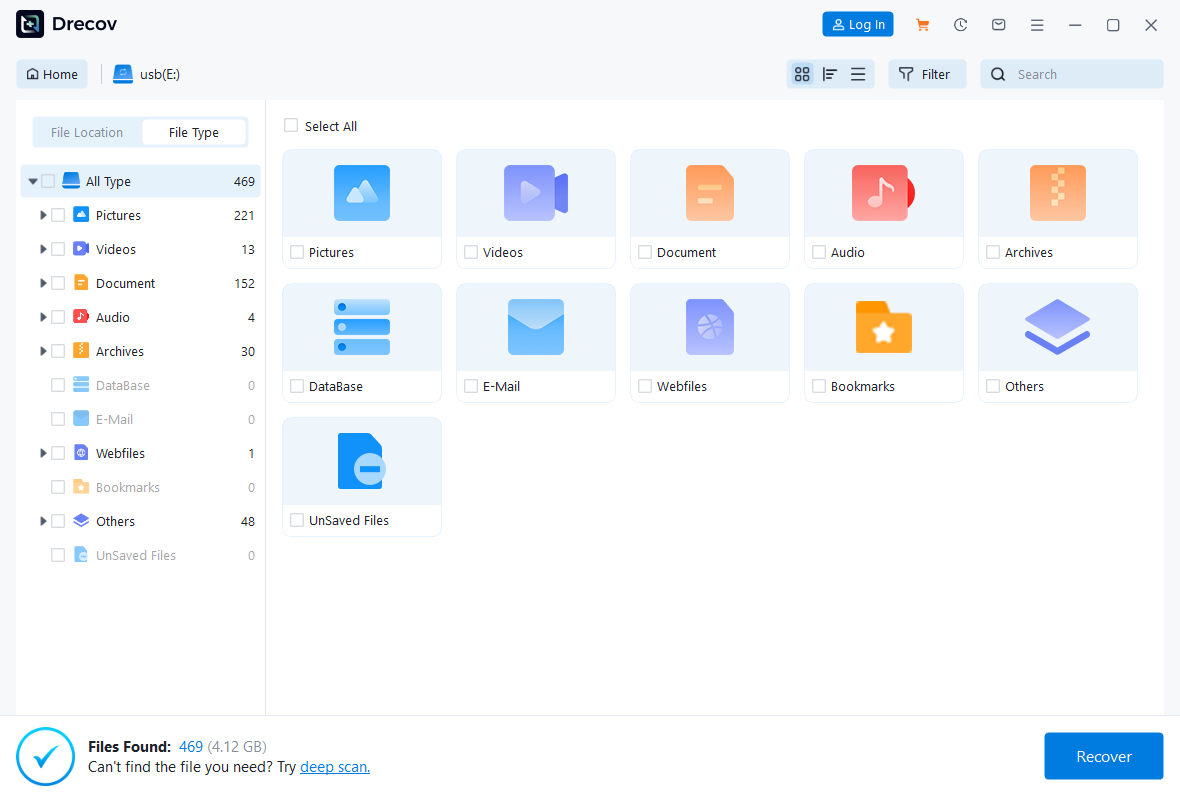
Step 3. Filter and Preview Discovered File Elements
Browse through the automatically populated list pane organized by format type extensions (.docx, .jpg, .mp4). Double-click individual pictures or document items to open an absolute real-time preview check window.

Step 4. Extract and Relocate Rebuilt File Structures
Mark the select checkbox toggles right next to the directories you need to extract. Click the main “Recover” action button and designate a backup destination path situated on your local hard disk array.
Warning: Avoid moving target data directly back onto the unzipped source flash device during active restoration steps. Doing so risks corrupting the remaining scan sectors.
Technical Solutions to Restore Your USB Drive Files
Data recovery tasks range from using simple built-in command-line tools to utilizing highly optimized premium utilities. Below are four data recovery solutions arranged by operational complexity and technical depth, beginning with a straightforward native tool and culminating in advanced automated recovery software.
Native Command-Line Restoration via Windows File Recovery
Windows File Recovery is a command-line command utility created by Microsoft. It acts as a baseline usb recovery software for users who prefer avoiding third-party graphical applications. It is entirely free and interacts directly with storage layers.
Step 1.Verify Target Drive Letter
Insert the affected USB drive into an open port. Launch File Explorer by pressing the Windows Key + E shortcut. Note the exact letter assigned to your device (for example, Drive E:).
Step 2.Deploy Windows File Recovery Tool
Launch the Microsoft Store app. Search for the official application named “Windows File Recovery”. Download and install it onto your primary local machine storage.
Step 3.Initialize an Elevated Command Prompt
Click the Windows Start menu, type “cmd”, right-click the Command Prompt entry, and choose “Run as administrator”. Click “Yes” on the subsequent User Account Control safety pop-up window.
Step 4.Execute the Recovery Syntax
Type the target command template into the terminal:
winfr E: C:\USBRecovery /regular. Replace “E:” with your physical USB path and “C:\USBRecovery” with your secure storage path. Press Enter to process the data blocks.Warning: Never map the output restoration folder to the exact same USB drive you are attempting to salvage. Writing data to the target flash cells triggers immediate file destruction via cell overwriting.
File System Correction and Unhiding via Command Prompt
When files disappear due to a malicious viral infection, malware frequently modifies partition block attributes rather than completely erasing storage bits. This approach uses built-in diagnostic tools to execute a thorough usb stick data recovery software protocol manually.
Step 1.Launch the Elevated Console Environment
Open your Windows Search bar, input the term “cmd”, right-click the desktop terminal shortcut, and click “Run as administrator”.
Step 2.Repair Logical Directory Faults
Type the structural integrity command into the interface:
chkdsk F: /f. Replace “F:” with your exact USB drive layout indicator. Press Enter. This step resolves sector table tracking misalignments.Step 3.Force Reset File Visibility Rules
Input the attribute modification syntax exactly as shown:
attrib -h -r -s /s /d F:\*.*. Ensure you alter the “F:” prefix to match your target hardware device partition assignment.Step 4.Extract Recovered Directory Structural Data
Press Enter and wait for the cursor to blink open again. Open File Explorer to inspect your USB storage space. A new, unnamed folder containing your missing unhidden files will appear.
Low-Level Hex Manipulation via Registry Editor
When logical disk access completely breaks down, the operating system storage stack may fail to assign mount points due to hardware identifier corruption. Correcting this requires direct parameter manipulation within the central configuration registry hive, effectively establishing a manual framework for usb disk data recovery software deployments.
Step 1.Access the Native Registry Interface
Press the Windows Key + R key combination simultaneously to load the system execution utility window. Input “regedit” inside the open dialog field and hit Enter.
Carefully trace down through the nested folder directory tree map using the exact path blueprint:
HKEY_LOCAL_MACHINE\SYSTEM\CurrentControlSet\Control\StorageDevicePolicies.Step 3.Correct Storage Device Policy Blocks
If the key folder named “StorageDevicePolicies” does not exist, right-click the parent “Control” folder node, select New > Key, and name it “StorageDevicePolicies”.
Step 4.Toggle Write Protection Lockouts
Right-click inside the blank right panel workspace, choose New > DWORD (32-bit) Value, and name it “WriteProtect”. Double-click it, adjust the underlying value assignment number to “0”, and click OK.
Step 5.Reinitialize System Mount Settings
Close the Registry Editor window, safely pull the physical USB stick out from the port, restart the computer, and plug the stick back into a functional rear port to test block structural visibility.
Evaluating Specialized Recovery Tools by Scenario
Choosing the right approach depends heavily on how your files were lost. Each class of usb data recovery software fills a specific niche, from simple accidentally deleted files to complex file system errors.
Deploying Targeted USB Flash Memory Recovery Programs
When working with legacy storage media, generic recovery platforms sometimes miss files due to unique sector layouts. Specialized usb flash memory recovery programs are fine-tuned to handle the wear-leveling algorithms used by older flash chips, making them ideal for retrieving data from aged pen drives.
Restoring Partitions via USB Drive Data Recovery Software
When a drive displays as “RAW” or asks to be formatted, the partition table itself is usually broken. Using robust usb drive data recovery software allows you to reconstruct these virtual boundaries, pulling entire folder hierarchies back from an otherwise unreadable device.
Handling File Failures via USB Drive File Recovery Software
If an individual document corrupts during a copy process, you do not always need to scan the entire device. Targeted usb drive file recovery software focuses on tracing the fragmented clusters of specific file extensions, reassembling damaged pieces into working documents.
Salvaging Portable Media with USB Memory Stick Data Recovery
Removable storage form factors like micro-SD cards and mini thumb drives frequently suffer from loose physical contact points. Running specialized usb memory stick data recovery utilities helps manage these sudden hardware disconnections during a scan, pausing and resuming gracefully without crashing your progress.
Alternative Advanced Recovery Vectors
When a USB drive fails to show up in standard operating system menus, you must shift your focus from software-level file extraction to lower-level storage configuration and boot environments.
This structural reset prepares your flash drive for deep restoration sweeps. If you accidentally overwrite a critical file during this process, tools like PandaOffice Drecov can help. You can read up on techniques to recover overwritten Excel files in Windows 11/10/8/7 to keep your office workflows safe from configuration mistakes.
Comparative Assessment of Data Recovery Tools
To help you find the right tool for your situation, this table breaks down the recovery success rates, scan times, and file format support across different software categories.
| Software Category Profile | Recovery Success Rate Metric | Relative Deep Scan Speed Performance | Supported System File Layout Formats |
| Command Line Packages | Low to Medium | Ultra Fast Processing Rates | NTFS, FAT32 partition layouts |
| Basic Windows Tools | Medium Range | Moderate Scan Speeds | Standard FAT32 setups |
| PandaOffice Drecov Suite | Outstanding | Fast Engine Scan Speed | FAT32, exFAT, NTFS, ext4 systems |
| Legacy Flash Extractors | Moderate Profile | Slow Sector Iterations | Basic FAT16, legacy FAT32 blocks |
Tips to Improve USB Data Recovery Success
Following these best practices can improve recovery chances.
- Avoid Using the USB Drive: Writing new data may overwrite deleted files.
- Recover Files Immediately: The sooner you attempt recovery, the higher the success rate.
- Use Trusted Software: Reliable tools reduce the risk of file corruption.
- Save Recovered Files Elsewhere: Never restore files back to the same USB drive during recovery.
- Scan Thoroughly: Use deep scan mode for better results.
How to Prevent Future USB Drive Data Loss
Prevention is always better than recovery. Here are effective ways to protect your data.
- Regular Backups: Store important files in cloud storage or external hard drives.
- Safely Eject USB Drives: Always use the “Safely Remove Hardware” option before disconnecting.
- Use Antivirus Software: Protect your computer and USB drives from malware attacks.
- Avoid Cheap USB Drives: Low-quality drives often fail prematurely.
- Keep Multiple Copies: Maintain duplicate copies of important documents and photos.
Frequently Asked Questions
Can deleted USB files be recovered permanently?
Yes, deleted files can often be recovered unless they have been overwritten by new data.
Which recovery software is best for beginners?
EaseUS and Recoverit are excellent choices for beginners because of their simple interfaces.
Can I recover files from a corrupted USB drive?
Yes, many recovery programs can restore files from corrupted or inaccessible USB drives.
Is free recovery software enough?
Free tools work for small recovery tasks, but premium software offers better scanning and recovery capabilities.
How long does USB recovery take?
Recovery time depends on the drive size, damage level, and scan type. Deep scans may take several hours.
Conclusion
Losing important files from a USB drive can be stressful, but modern recovery software for usb drive makes file restoration easier than ever. Whether your data was deleted accidentally, lost due to formatting, or damaged by corruption, powerful recovery tools can help retrieve your files safely.
Choosing the right software depends on your recovery needs, budget, and technical experience. Tools like Disk Drill, Recuva provide reliable options, while PandaOffice Drecov data recovery software offers an automated, deep-scanning alternative for complex logical failures. To avoid future data loss, always back up important files, use antivirus protection, and safely remove USB devices. With the right precautions and recovery software, you can protect your valuable digital data effectively.






