







Accidentally hitting “Delete” or emptying your Recycle Bin can trigger immediate panic. However, losing a document, photo, or critical project file does not mean it is gone forever. If you are wondering how to restore a deleted file efficiently, the solution depends entirely on understanding how storage media handles data deletion.
When you delete a file, the operating system simply marks the storage space it occupied as “available” for new data. Consequently, your drive keeps the actual file intact until new information overwrites it. To maximize your chances of a successful recovery, you must stop using the affected drive immediately to prevent data overwriting. Furthermore, utilizing a dedicated solution like PandaOffice Drecov data recovery software can automate this complex process, allowing you to salvage your files with just a few clicks.
Understanding the Basics of How to Restore a Deleted File
When searching for a reliable deleted file restorer, it helps to understand what happens beneath the user interface. Windows and macOS use file systems (such as NTFS, exFAT, or APFS) to keep track of file locations through pointers.
The Mechanics of Data Deletion
- Soft Deletion: Moving a file to the Recycle Bin or Trash removes its directory pointer but keeps the data blocks intact.
- Hard Deletion: Emptying the Recycle Bin or using
Shift + Deleteinstructs the master file table to clear the file index. - The Overwrite Risk: Once the system marks the space as free, background system processes, browser caches, and temporary files can write over your lost data.
Common Data Recovery Challenges
- Solid-State Drives (SSDs) and TRIM: Modern SSDs utilize a command called TRIM. This feature automatically clears deleted data blocks in the background to maintain write speeds. Therefore, recovering files from an SSD is significantly more time-sensitive than recovering from a traditional Hard Disk Drive (HDD).
- File Fragmentation: Large files are often scattered across different sectors of a drive, making manual reassembly difficult if the file table is corrupted.
Fortunately, PandaOffice Drecov data recovery software bypasses these obstacles. The software performs deep sector-by-sector scans to identify orphaned data signatures, even when the file directory system is completely destroyed. Whether you are dealing with an accidental Shift + Delete command, a formatted partition, or a sudden system crash, Drecov serves as an enterprise-grade deleted file restorer optimized for everyday users.
⚠ Warning: Install it on a drive different from the one where your data was lost to prevent overwriting.
Solutions to Restore Deleted Files
Depending on how you lost the data, you can employ different recovery methods ranging from beginner-friendly automated utilities to advanced system configurations.
Beginner Level: Restoring via Windows Native Tools
Before downloading software, check if the files are still cached within your operating system’s temporary storage repositories.
Step 1: Locate and Check the Recycle Bin
If you executed a standard deletion, your data resides in the system’s temporary holding area. For a comprehensive breakdown of managing this folder, review this guide on everything you need to know about emptying the Recycle Bin.
- 1.Double-click the Recycle Bin icon on your desktop.
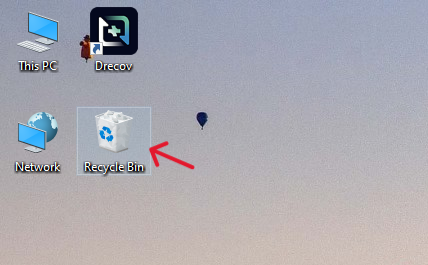
- 2.Search for your file name, right-click it, and select Restore.
Tip: If you cannot find the icon, you can learn how to find the Recycle Bin in Windows 10 using quick methods to navigate directly to its file path.
Step 2: Use Windows File Recovery
Microsoft provides a free command-line app for Windows 10 (version 2004 and above) and Windows 11.
- 1.Open the Microsoft Store and download Windows File Recovery.
- 2.Press
Windows Key + Xand select Terminal (Admin) or Command Prompt (Admin). - 3.Input the target syntax:
winfr C: E: /regular /n \Users\<Username>\Documents
Warning: This tool requires a secondary drive (E:) to save the recovered files, as writing them back to the source drive (C:) can cause permanent data corruption.
Intermediate Level: Using PandaOffice Drecov Data Recovery Software
When native tools fail, or if you have cleared your trash bin, a dedicated deleted file restorer is required to run a deep raw-file signature scan.
⚠ Warning: Install it on a drive different from the one where your data was lost to prevent overwriting.
Step 1: Select the Target Drive and Scan
- Select the specific drive letter (e.g., Local Disk C:) or external media device from the dashboard interface. Click the Scan button to initiate the Quick Scan, which automatically transitions into a Deep Scan to parse raw data sectors.

Step 2: Filter and Preview
- Use the file-type filter sidebar to sort results by extensions like
.docx,.jpg, or.mp4. Select the file and click Preview to verify the data’s integrity.

Step 3: Recover
- Mark the checkboxes next to the desired items and click Recover. Choose an external storage location or a separate network drive to complete the process safely.
System File Checking and Registry Verification
If files disappear due to file system corruption or malware infections, you must repair the operating system’s underlying index structure.
Step 1: Execute the System File Checker (SFC)
- Action: Type
cmdin the Windows search bar, right-click Command Prompt, and choose Run as administrator. Then, Inputsfc /scannowand pressEnter. - Technical Note: This utility verifies the integrity of all protected operating system files and replaces corrupted, damaged, or missing versions with cached copies located at
%WinDir%\System32\dllcache.
Step 2: Check the Registry Configuration for Missing Shell Folders
Sometimes files are hidden or redirected due to altered registry keys.
- 1.Press
Windows Key + R, typeregedit, and hitEnterto access the Registry Editor. - 2.Navigate to the following explicit path:
HKEY_CURRENT_USER\Software\Microsoft\Windows\CurrentVersion\Explorer\User Shell Folders - 3.Double-click the Personal string key on the right pane and ensure its value data points correctly to
%USERPROFILE%\Documents. If the path has been altered, modify it back to the default setting to restore normal profile indexing.
Alternative or Complementary Methods
To completely master how to restore a deleted file, it is useful to evaluate alternative data recovery methodologies alongside PandaOffice Drecov data recovery software.
| Recovery Method | Pros | Cons | Ideal Scenario |
| Windows File History | Built-in, automated backup, completely free to use. | Requires prior setup, depends entirely on external storage availability. | Reverting to older file iterations or recovering altered code files. |
| PandaOffice Drecov | High recovery rate, raw sector scanning, deep filters. | Requires software installation, deep scanning large drives takes time. | Accidental permanent deletion, partition loss, formatted drives. |
| Cloud Storage Versioning | Instantly accessible from any device, immune to local drive hardware failure. | Storage capacity limitations, strictly requires active internet access. | Restoring cloud-synced documents (OneDrive, Google Drive). |
Using External Installation Media for System Recovery
In severe scenarios where a system crash deletes critical system files and causes boot loops, standard software cannot run. Consequently, users must use external tools to stabilize the OS. For detailed troubleshooting steps on setting up external environments, read about how to reinstall Windows 10 from USB to fix system errors. This baseline lets you safely mount a secondary deleted file restorer platform without altering internal storage integrity.
For deeper technical insights into data storage architecture and partition management rules, consult the foundational documentation on Microsoft Learn File Systems Infrastructure.
Tips & Best Practices for File Recovery
Implementing a strategic approach to data management significantly minimizes the risk of permanent file loss.
Optimizing Recovery Success
- Avoid Web Browsing on the Target PC: Visiting web pages generates immense cache data, cookies, and temporary internet files that immediately write to your drive, risking data overwriting.
- Utilize Read-Only Scanning: Ensure your chosen recovery tool operates in a read-only environment during the scanning phase to prevent accidental drive modification.
Maintaining Data Integrity
- Deploy the 3-2-2 Backup Rule: Maintain three separate copies of your critical data. Store them across two different types of physical media, and ensure at least one copy is kept in an off-site, secure cloud environment.
- Safely Eject Media: Never disconnect USB drives or SD cards while a read/write operation is active. Abruptly pulling out media causes File Allocation Table (FAT) corruption.
Hidden Pitfalls to Avoid
Do not run defragmentation utilities (defrag.exe) after realizing files are missing. Defragmenting reorganizes data blocks, which instantly overwrites the sectors holding your deleted files.
Frequently Asked Questions
1. How to restore a deleted file if the Recycle Bin was emptied?
When you empty the Recycle Bin, the system removes the directory pointers, but the underlying data stays on the drive. You can deploy PandaOffice Drecov data recovery software to scan the drive sectors directly and recover the raw data before new files overwrite those sectors.
2. Can I restore deleted files from a formatted USB drive?
Yes. Formatting clears the file allocation table but does not wipe the data blocks unless you specifically perform a ‘Full Format’. A specialized deleted file restorer can run signature matching to recover missing files from a “Quick Formatted” drive.
3. How long do I have to recover a deleted file on an SSD?
Because of the system’s internal TRIM command, you must recover deleted SSD files immediately. Once the operating system issues a TRIM instruction during idle maintenance, the drive purges the blocks, making recovery impossible.
4. Is it possible to use PandaOffice Drecov data recovery software on a crashed computer?
Yes. You can remove the hard drive from the crashed computer, connect it to a functioning PC as a secondary drive using a SATA-to-USB adapter cable, and run Drecov to extract the missing data safely.
5. Why are some recovered files corrupted or unreadable after recovery?
New system data corrupts the file if it partially overwrites a portion of the deleted file’s sector cluster before the user initiates the recovery process.
Conclusion
Losing critical data is stressful, but learning how to restore a deleted file equips you to handle these situations effectively. Native system features like the Recycle Bin or File History offer a basic first line of defense. However, for complex scenarios involving formatted drives or emptied trash bins, professional data recovery utilities are necessary.
By deploying PandaOffice Drecov data recovery software, you gain access to deep raw-sector scanning algorithms that can restore lost data even under severe corruption scenarios. To protect your digital workspace moving forward, pair these automated recovery tools with consistent backup habits and proactive storage health monitoring.






