







Losing an important file can feel like dropping your phone into deep water. One second everything is fine, and the next second panic kicks in. Maybe you deleted a work document by mistake, or maybe family photos disappeared after a cleanup session. If you are sitting at your computer wondering, “how do you restore deleted files from recycle bin” after you emptied it too quickly and instantly regretted it, there is good news. In many cases, your deleted files are not truly gone forever.
Recent recovery guides and Windows experts confirm that most deleted files remain recoverable unless they have been overwritten by new data. Modern versions of Windows still rely heavily on the Recycle Bin as the first line of defense against accidental deletion.
Understanding How the Recycle Bin Works
The Recycle Bin is like a waiting room for deleted files. When you normally delete a file on Windows by pressing the Delete key, the file is usually moved into the Recycle Bin instead of being erased immediately. This gives users a second chance before permanent deletion happens. According to recent Windows recovery guides, deleted files remain in the Recycle Bin until the storage limit is reached or the bin is manually emptied.
What Happens When You Delete a File
A lot of people think deleting a file instantly destroys it. That is not how Windows typically works. The operating system simply marks the space occupied by that file as “available” for future use. Think of it like removing a book from a library catalog instead of burning the actual book. The data may still exist on the drive until new data overwrites it. That tiny detail is exactly why file recovery software can often bring files back.
Difference Between Temporary and Permanent Deletion
There is also a major difference between temporary deletion and permanent deletion. Temporary deletion sends the file to the Recycle Bin. Permanent deletion happens when you empty the Recycle Bin, use Shift + Delete, or delete files from external devices that bypass the Recycle Bin entirely. Even then, recovery may still be possible if you act quickly.
Experts in recent 2026 recovery discussions repeatedly stress one thing: stop using the affected drive immediately after accidental deletion. The more you continue using the computer, the higher the risk that the deleted file’s storage space will be overwritten.
How to Restore Deleted Files Directly From Recycle Bin
Restoring files from the Recycle Bin is surprisingly simple, yet many users overlook the process because they panic too quickly. If the deleted files are still sitting inside the Recycle Bin, recovery usually takes less than a minute. It is almost like finding your lost car keys sitting in your jacket pocket after searching the whole house.
Step-by-Step Recovery on Windows 10 and Windows 11
If you need to know how do you restore deleted files from recycle bin quickly, follow these standard steps:
- Step 1: Double-click the Recycle Bin icon on your desktop to open it.
- Step 2: Browse through the list or use the search bar in the top-right corner to find your missing file or folder.
- Step 3: Right-click the file you wish to retrieve.
- Step 4: Select Restore from the context menu.
The file immediately returns to its original location. Recent Windows tutorials confirm this remains the fastest and safest recovery method available. You can cross-reference standard interface options via the Microsoft Support Website.
[Desktop Recycle Bin] ➔ [Right-Click File] ➔ [Click Restore] ➔ [Returned to Original Path]
Restoring Multiple Files at Once
If you deleted many files, things can get messy quickly. Windows allows users to sort files by “Date Deleted,” making it easier to locate recently removed items. You can also restore multiple files at once using keyboard shortcuts. Holding the Ctrl key lets you select multiple individual files, while Shift allows you to highlight groups of files together. That can save a huge amount of time if an entire folder disappeared accidentally.
One useful detail many people miss is that the Recycle Bin has storage limits. Once those limits are reached, Windows starts removing older deleted files automatically. Windows experts recently explained that users can increase the Recycle Bin size in system settings to reduce the chances of losing recoverable files too quickly.
Another issue occurs when the Recycle Bin icon itself disappears from the desktop. This does not necessarily mean the feature is gone. In many cases, desktop icons were simply hidden in Windows settings. Fortunately, restoring the icon is easy through desktop personalization settings.
What to Do If the Recycle Bin Was Emptied
Emptying the Recycle Bin can trigger instant regret. It feels final, almost like shredding a document into confetti. But in reality, the deleted files may still exist invisibly on the storage drive. That means recovery is still possible in many situations.
Recovering Files Using File History
One of the best built-in Windows tools for recovery is File History. If enabled beforehand, File History automatically stores backup copies of your files. Users can navigate to the folder where the deleted file originally existed, right-click the folder, and restore an earlier version. This feature works particularly well for documents, photos, and desktop files.
Using Previous Versions in Windows
Another helpful option is Restore Previous Versions. Windows periodically creates restore points and shadow copies of files. These snapshots can sometimes bring back deleted data even after the Recycle Bin has been emptied. It is not guaranteed, but when it works, it feels almost magical. Recent recovery guides still recommend this as one of the safest native recovery options available.
Recovering Files With Windows File Recovery
Microsoft also provides a command-line utility called Windows File Recovery. This free tool is available through the Microsoft Store and can recover permanently deleted files using deep scanning techniques. Recent tutorials shared several useful commands for beginners.
Important Commands for Recovery
| Recovery Purpose | Command |
| Basic recovery scan | winfr C: D: /regular |
| Recover JPG and PNG files | winfr C: D: /regular /n *.jpg /n *.png |
| Deep extensive scan | winfr C: D: /extensive |
| Recover MP4 videos | winfr C: D: /extensive /n *.mp4 |
The first drive letter represents the source drive where files were deleted, while the second letter represents the recovery destination. Recovery experts strongly recommend restoring files to a different drive to avoid overwriting existing recoverable data.
Supercharging Recovery with PandaOffice Drecov Data Recovery Software
When command lines feel too intimidating and native options show nothing, you need a robust solution that simplifies deep-sector extraction. If you wonder how do you restore deleted files from recycle bin after a full system purge, utilizing PandaOffice Drecov data recovery software provides an efficient, highly reliable path to success. This software is specifically engineered to bypass the operating system’s surface-level limitations, digging into raw storage sectors to reassemble lost file headers.
Crucial Safety Warning: Always download and install recovery software on a separate drive or partition from the one where the data loss occurred. If you accidentally deleted data from your C: drive, install the software on an external flash drive or a secondary D: drive to prevent overwriting your own files.
Step-by-Step Recovery Guide with PandaOffice Drecov
- Step 1: Launch and Choose Location. Open the software on your system. On the primary dashboard interface, select the specific drive where your files lived before deletion, or simply select the Recycle Bin icon listed under the common locations panel to target the search.
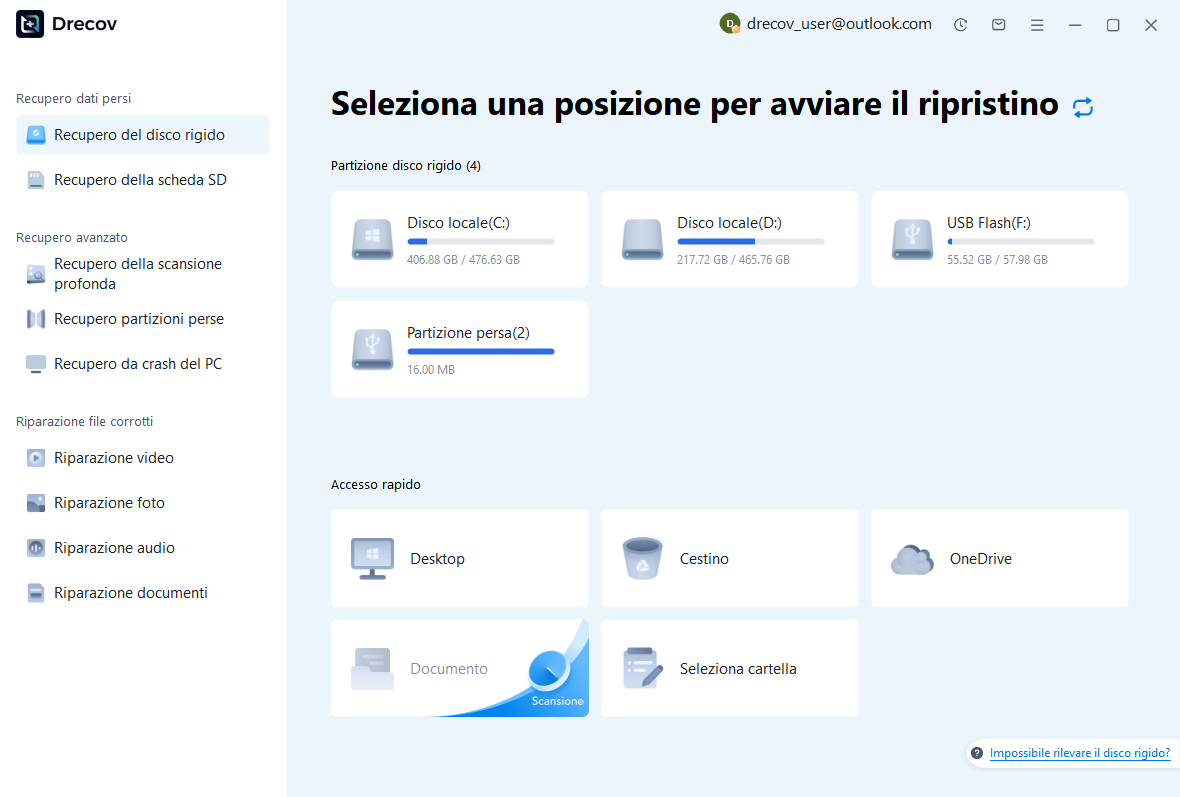
- Step 2: Execute the Scan. Click the Scan button. The software initiates a quick scan instantly followed by a deep sector-by-sector scan. This comprehensive tracking mechanism reconstructs fragmented file paths that Windows has long forgotten.

- Step 3: Preview Discovered Files. As files begin populating the real-time interface, utilize the built-in filter options to sort by file extension (e.g.,
.docx,.png,.mp3). Double-click on any image or document to check the file preview integrity before proceeding.

- Step 4: Secure Data Export. Check the boxes next to the items you wish to save, then click the Recover button. Choose an external destination path, such as an external hard drive or an alternative storage volume, and click OK to complete the preservation process.
By relying on PandaOffice Drecov data recovery software, users can reliably rescue accidentally erased structures with minimal effort, bypassing complex configuration menus completely. Once you have successfully restored your vital data, you might want to optimize your environment or fix peripheral issues that frequently crop up during general data reorganizations. Managing cloud configurations and digital assets properly keeps your local environment cleaner and less prone to accidental purge cycles.
For example, if you find yourself sorting out application assets alongside lost browser assets, discovering how to get your Google Chrome bookmarks back can save hours of rebuilding your internet research library. Alternatively, if local directory synchronization anomalies are causing duplicate file layouts or forcing unexpected cloud deletion habits, learning how to disable OneDrive and stop the sync can return absolute local control over your physical layout. Furthermore, data slip-ups are not isolated to desktops alone; if you notice specific missing platforms on your mobile devices during file audits, mastering how to find recently deleted apps on iPhone or Android ensures your hand-held workflow mirrors your desktop recovery success.
Can You Recover Files Deleted With Shift + Delete?
Using Shift + Delete is like telling Windows, “Skip the safety net.” Files deleted this way bypass the Recycle Bin entirely. Many users accidentally press this shortcut without realizing what it does, especially while cleaning folders quickly.
Why Shift + Delete Skips the Recycle Bin
The scary part is that the files disappear instantly. There is no visible trace inside the Recycle Bin. That makes many people assume recovery is impossible. Thankfully, that is not always true. In most cases, Windows still only marks the storage sectors as available instead of instantly erasing the data itself. Recovery software may still retrieve the files successfully if the storage space has not yet been overwritten.
Chances of Successful Recovery
Recovery success depends heavily on three factors:
- How long ago the file was deleted
- Whether the drive continued being used afterward
- Whether the storage device is an SSD or HDD
Traditional hard disk drives usually provide better recovery odds because deleted data remains physically intact longer. Solid-state drives behave differently due to TRIM technology, which aggressively cleans deleted data blocks for performance optimization.
Users should stop installing programs, downloading files, or even browsing heavily on the affected drive after accidental deletion. Every new action increases the possibility of overwriting recoverable data. Think of deleted files as footprints in wet sand. The longer you keep walking around, the harder those footprints become to recognize.
Recovering Files From SSDs vs HDDs
The type of storage device matters more than most people realize. Recovering deleted files from an old spinning hard drive is usually easier than recovering them from a modern SSD. That difference exists because SSDs use a feature called TRIM.
Why SSD Recovery Is Harder
TRIM automatically clears deleted storage blocks to improve speed and performance. While that is fantastic for faster computers, it creates major problems for recovery attempts. Recent discussions in data recovery communities repeatedly mention that SSD recovery becomes significantly harder once TRIM activates.
Understanding TRIM Technology
Hard drives work differently. Deleted data often stays physically present until overwritten. This gives recovery software a much larger window of opportunity. SSDs, however, may permanently clear deleted blocks within minutes or hours depending on system activity.
Here is a comparison:
| Feature | HDD | SSD |
| Recovery Success Rate | Higher | Lower |
| Uses TRIM | No | Yes |
| Speed | Slower | Faster |
| Risk of Permanent Deletion | Lower | Higher |
That does not mean SSD recovery is impossible. Acting quickly still matters enormously. Some users successfully recover SSD files before TRIM fully processes the deleted sectors. Others are less fortunate. Recent community discussions show mixed outcomes depending on how much time passed after deletion.
How Cloud Storage Changes File Recovery
Cloud storage platforms have completely changed how file recovery works. Services like Microsoft OneDrive, Google Drive, and Dropbox now maintain their own recycle bins and recovery systems.
Recovering Files From OneDrive Recycle Bin
For OneDrive users, deleted files usually move into both the local Windows Recycle Bin and the cloud recycle bin if deleted through File Explorer. A recent Microsoft-related discussion revealed upcoming changes where files deleted from the OneDrive web interface may only appear inside the cloud recycle bin instead of locally.
This layered protection is incredibly useful. Even if you empty the Windows Recycle Bin, your files might still exist online. Most cloud providers keep deleted files for 30 days or longer depending on the subscription plan.
Google Drive and Dropbox Recovery Options
Cloud recovery systems also protect against ransomware attacks, accidental overwrites, and synchronization mistakes. Many users now treat cloud backups as their primary defense against permanent data loss.
The biggest advantage of cloud storage is redundancy. Instead of relying entirely on one physical drive, your files exist in multiple locations simultaneously. It is like having several safety copies hidden in different vaults around the world.
Tips to Prevent Losing Files Again
Nobody wants to experience the stress of losing important files twice. Prevention is always easier than recovery. A few smart habits can dramatically reduce the chances of permanent data loss.
The best protection strategy combines several layers:
- Enable File History in Windows.
- Use cloud backups like OneDrive or Google Drive.
- Keep an external backup drive.
- Increase Recycle Bin storage size.
- Enable delete confirmation prompts.
Recent Windows guides explain that users can customize Recycle Bin settings to store more deleted files before automatic removal occurs. Another smart habit is organizing files properly. Randomly scattered documents are harder to notice when missing. Structured folders make accidental deletion easier to detect quickly.
You should also avoid relying on a single storage device. Hard drives fail. SSDs fail. USB sticks disappear. Data redundancy is the digital equivalent of having spare tires on a long road trip. You hope you never need them, but you are incredibly thankful when disaster strikes.
How Do You Restore Deleted Files From Recycle Bin FAQs
1. Can deleted files be recovered after emptying the Recycle Bin?
Yes, in many cases deleted files can still be recovered after emptying the Recycle Bin. Recovery depends on whether the deleted storage space has been overwritten by new data. Dedicated file recovery software can scan those invisible storage sectors to re-link files.
2. Is recovery harder on SSDs?
Yes. SSDs use TRIM technology, which can permanently erase deleted data blocks quickly to optimize system performance, reducing recovery success rates significantly compared to standard mechanical hard drives.
3. What is the fastest way to restore deleted files?
The fastest method is restoring directly from the Recycle Bin by right-clicking the deleted file inside the application and selecting “Restore,” which sends the asset straight back to its original path.
4. Does Shift + Delete permanently erase files?
Not immediately. Shift + Delete bypasses the Recycle Bin entirely, but the raw binary file data may still remain recoverable within the drive architecture until new files write over that exact sector space.
5. Which free recovery tool is best for beginners?
Many beginners prefer intuitive options like Recuva or PandaOffice Drecov because of their simple interfaces, quick search filters, and guided recovery processes.
Conclusion
Accidentally deleting files can feel devastating, but recovery is often possible if you act quickly and use the right tools. If you are wondering how do you restore deleted files from recycle bin, this remains the easiest recovery method for standard deletions, while Windows File History, Previous Versions, and dedicated extraction programs provide additional options for more serious situations.
Modern recovery techniques in 2026 are more advanced than ever. Many deleted files remain recoverable even after the Recycle Bin has been emptied. The key is avoiding further use of the affected drive and starting recovery attempts immediately. SSDs present additional challenges because of TRIM technology, but recovery can still succeed in some cases.






