







Losing important data can feel like a nightmare. Whether you accidentally cleared your desktop or a system crash wiped out your project, knowing how to restore deleted files is an essential digital skill. Fortunately, data is rarely gone immediately after deletion. Instead, the operating system marks the storage space as “available,” meaning your files remain hidden on the drive until new data overwrites them.
To maximize your chances of a successful retrieval, you must act fast and stop using the affected drive immediately. While manual methods work in some scenarios, specialized software offers the highest success rate. In this comprehensive guide, we recommend PandaOffice Drecov data recovery software as a premier, user-friendly solution to get your files back without technical headaches.
Understanding the Basics of How to Restore Deleted Files
When you delete a file on Windows or macOS, the system does not instantly shred the actual bits of data. Consequently, the file pointer is removed, but the actual data payload remains intact on your hard drive or flash storage. Understanding this mechanism is the foundation of effective data recovery.
Common Data Loss Scenarios
Data loss happens to everyone eventually. Some of the most frequent challenges include:
- Accidental shift-deletion ($Shift + Delete$) which bypasses the temporary trash storage entirely.
- Formatting a drive or partition by mistake during system updates.
- File corruption caused by sudden power outages or malware attacks.
Why Choose PandaOffice Drecov?
When these crises strike, PandaOffice Drecov data recovery software bridges the gap between complex file system architecture and the everyday user. It scans the raw sectors of your storage device, pieces together fragmented file signatures, and presents them in an easy-to-navigate directory tree. This ensures you can preview and rescue your documents safely.
⚠ Warning: Install it on a drive different from the one where your data was lost to prevent overwriting.
3 Proven Methods to Restore Deleted Files
Different data loss situations require different approaches. Below, we break down three solutions categorized by technical complexity.
Method 1: Check the Recycle Bin
Before moving to advanced tools, always check the most obvious location. If you performed a standard deletion, your files are likely sitting in the system trash.
- 1. Open the Recycle Bin by double-clicking its icon on your desktop. If you cannot locate it, learn where is the Recycle Bin in Windows 10.
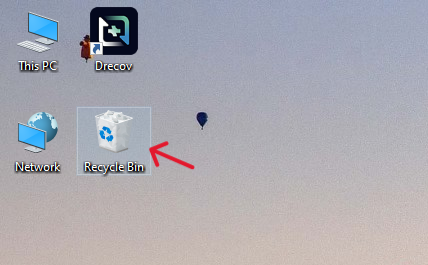
- 2. Browse or search for your deleted file name in the search bar.
- 3. Right-click the file and select Restore. The file will instantly return to its original folder path.
Note: If you have already permanently cleared this folder, you will need to learn how to restore deleted files from an empty Recycle Bin.
Method 2: Use PandaOffice Drecov Data Recovery Software
If your files were permanently deleted using $Shift + Delete$ or lost during a drive format, standard system tools cannot view them. This is where PandaOffice Drecov data recovery software serves as the most reliable strategy.
PandaOffice Drecov is a professional-grade data recovery suite engineered to rescue lost, formatted, or corrupted files from internal hard drives, external SSDs, USB flash drives, and memory cards. Powered by an advanced deep-scan algorithm, it reconstructs fragmented file structures with an industry-leading success rate. Furthermore, the software provides a secure, read-only scanning environment that ensures your existing data remains completely untouched and safe throughout the entire retrieval process.
⚠ Warning: Install it on a drive different from the one where your data was lost to prevent overwriting.
Follow these exact steps to complete the recovery process using PandaOffice Drecov :
- Step 1: Select the Target Location. Launch the software. Select the specific drive, external USB, or partition where your data was originally stored, then click Scan.

- Step 2: Preview and Filter. The tool will execute a Quick Scan followed by a Deep Scan. You can use the file-type filter (e.g.,
.docx,.jpg,.mp4) to find your items quickly.

- Step 3: Recover the Data. Check the boxes next to the files you want to save. Click the Recover button and choose a secure storage destination on a different drive.
Method 3: Restore from a Shadow Copy or File History
Windows includes a built-in backup mechanism called File History, which creates automated copies of files in key user folders.
- Navigate to the parent folder where your deleted file used to live.
- Right-click the folder and select Properties.
- Switch to the Previous Versions tab. This tab pulls data from system shadow copies.
- Select a timestamp from before the deletion occurred, click Open to verify the contents, and then click Restore.
Warning: This method only functions if you had previously toggled File History to “On” within your Windows System Settings.
Alternative or Complementary Recovery Methods
While PandaOffice Drecov data recovery software provides an automated, comprehensive solution, other technical avenues exist depending on your specific setup.
| Method | Pros | Cons | Ideal For |
| Windows File Recovery (CMD) | Free tool from Microsoft | No graphical interface; requires complex command lines | Advanced IT professionals |
| Cloud Backups (OneDrive/Google Drive) | Accessible from anywhere | Limited to files synced before deletion occurred | Cloud-integrated workflows |
| Command Prompt (attrib command) | Good for hidden malware files | Cannot recover genuinely overwritten data | Flash drives with virus issues |
If your data loss stems from a severe operating system failure, you might need to boot from external media. In those extreme cases, it is often necessary to reinstall Windows 10 from a USB drive to fix core errors before deploying software tools.
Tips & Best Practices to Optimize Recovery Success
Data recovery relies heavily on the physical state of your storage sectors. To ensure you successfully achieve your goal of discovering how can we restore deleted files, adhere strictly to these industry best practices:
- Stop Writing Data Immediately: Do not download files, stream videos, or install apps on the device. Every new megabyte written reduces the probability of recovering clean files.
- Recover to a Separate Drive: Always save recovered files to an external hard drive, network share, or secondary SSD. Saving them back to the source drive can corrupt the remaining unrecovered files.
- Account for Trim on SSDs: Modern Solid-State Drives use the TRIM command to clear deleted blocks actively. For technical insights into how storage controllers manage deleted data sectors, see the Microsoft Storage Subsystem Documentation. Because of TRIM, you must run recovery software immediately on SSDs before the system runs its idle maintenance cycles.
Conclusion
Mastering how to restore deleted files can save you hours of lost productivity. While built-in tools like the Recycle Bin or File History offer basic protection, they fall short during complex formatting errors or permanent deletion events.
Fortunately, PandaOffice Drecov data recovery software provides a dependable safeguard. Its deep scanning capabilities give you the best possible chance to restore your critical business files and personal memories. Download a secure copy of PandaOffice Drecov today, and establish a routine backup plan to ensure your data remains protected against future digital accidents.






