







Think about this scenario: You have just returned from a crucial business meeting or a university lecture where you used a shared computer to copy some files. Back at your home office, you plug in your thumb drive, but the folders are gone. Curiously, the drive’s properties window indicates that several gigabytes are still occupied. You haven’t deleted anything, yet the screen is a blank canvas of frustration. In moments like these, many tech-savvy users immediately search for how to show hidden files on usb cmd to regain control over their data. This issue is incredibly common, often leaving users wondering if their precious work has vanished into thin air or if a digital poltergeist is at play.
In this extensive guide, we will demystify the “vanishing file” phenomenon, provide a masterclass on using the Windows Command Prompt, and introduce advanced recovery tools to ensure you never lose access to your files again.
Part 1: Understanding the Invisible – Why Do USB Files Hide?
When your data disappears without being deleted, it is usually because the “attributes” of the files have been altered. Every file on your Windows system has specific tags known as attributes—such as Read-only, Hidden, and System. When a file is marked as both “Hidden” and “System,” it becomes invisible to the standard File Explorer view.
Why Does This Happen?
There are several reasons why you might find yourself needing to learn how to show hidden files on usb cmd:
- The “Shortcut Virus” Menace: This is the primary culprit. Malware often targets removable drives, moving your folders into a hidden directory and replacing them with look-alike shortcuts. When you click the shortcut, the virus executes, and then opens your folder to hide the fact that your system is now infected.
- System File Protection: Sometimes, Windows mistakenly flags user folders as critical system files. Since Windows protects system files by hiding them to prevent accidental deletion, they disappear from your sight.
- Accidental Attribute Changes: A simple slip of the mouse or a buggy third-party application might have toggled the “Hidden” attribute in the file properties.
- File System Errors: Sudden power loss or improper removal of the drive can lead to a “dirty” file system bit. As noted in discussions on Microsoft Learn, these errors can cause Windows to fail in rendering the file structure correctly.
Part 2: Restoring Visibility – Expert Solutions
If you are facing an empty drive that claims to be full, follow these methods in order. We will start with the classic command-line approach and move toward professional-grade recovery.
Method 1: The Command Line Mastery
The most direct answer to how to show hidden files on usb cmd involves the attrib command. This utility allows you to modify the file flags directly at the system level, bypassing the limitations of the graphical interface.
- Step 1: Identify your Drive Letter. Plug in your USB and open “This PC.” Note the letter assigned to your drive (e.g.,
G:,H:, orF:). - Step 2: Launch the Command Prompt. Press the
Windows Key + Son your keyboard, type cmd, right-click the result, and select Run as Administrator. This is vital because changing system attributes requires elevated privileges.

- Step 3: Access the Drive. Type your drive letter followed by a colon (e.g.,
G:) and hit Enter. - Step 4: Execute the Reveal Command. To properly execute how to show hidden files on usb cmd, type the following string exactly:
attrib -h -r -s /s /d *.*-h: Clears the Hidden attribute.-r: Clears the Read-only attribute.-s: Clears the System attribute./s: Processes matching files in the current folder and all subfolders./d: Processes folders as well.
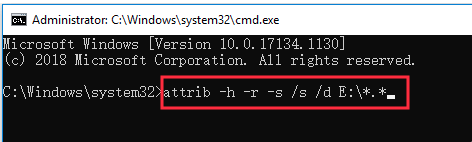
- Step 5: Verify. Once the command finishes (the blinking cursor returns), open your USB in File Explorer. You should see a new folder (often without a name) containing all your “missing” data.
Method 2: Advanced Data Retrieval with PandaOffice Drecov
Sometimes, a virus does more than hide files; it might delete them or corrupt the partition table so that even the attrib command fails. When you can’t use how to show hidden files on usb cmd because the files aren’t just hidden but are logically “gone,” you need PandaOffice Drecov. This tool is designed to scan the raw sectors of your flash drive to reconstruct lost directories.
- Step 1: Setup. Download and install PandaOffice Drecov. Ensure your infected or “empty” USB is connected.
- Step 2: Select the USB Location. Launch the software. On the main dashboard, locate the “External Devices” category and click on your specific USB drive.

- Step 3: Deep Scan for Hidden Traces. Click Scan. The software will bypass the operating system’s file table (which might be lying to you) and look for the actual data signatures on the disk.

- Step 4: Filter and Preview. After the scan, use the search bar or the “Hidden Files” filter to find your folders. Drecov allows you to preview images and documents before you commit to the recovery.

- Step 5: Secure Restoration. Click Recover.
Pro Tip: Always save the files to your computer’s local C: or D: drive. Do not save them back to the same USB until you have fully formatted it to ensure no virus remains.
Broad Compatibility of PandaOffice Drecov
While it excels at showing hidden content, Drecov is a “Swiss Army Knife” for these scenarios:
- USB Driver Error: Accessing files when the PC says the drive is malfunctioned.
- Raw USB: Recovering data from drives that have lost their NTFS/FAT32 formatting.
- USB Drive Not Recognized: Scanning drives that don’t appear in File Explorer but show up in the software’s deep-scan engine.
- Files Deleted with Shift Delete: Retrieving items that were permanently removed and bypassed the Recycle Bin.
Method 3: The Control Panel Alternative (GUI Method)
If you are uncomfortable with coding and want an alternative to how to show hidden files on usb cmd, you can try the Windows Folder Options, though this is often less effective against stubborn malware.
- Step 1: Open File Explorer and click on the View tab at the top.
- Step 2: Click Options on the far right, then Change folder and search options.
- Step 3: In the View tab, find “Hidden files and folders” and select Show hidden files, folders, and drives.
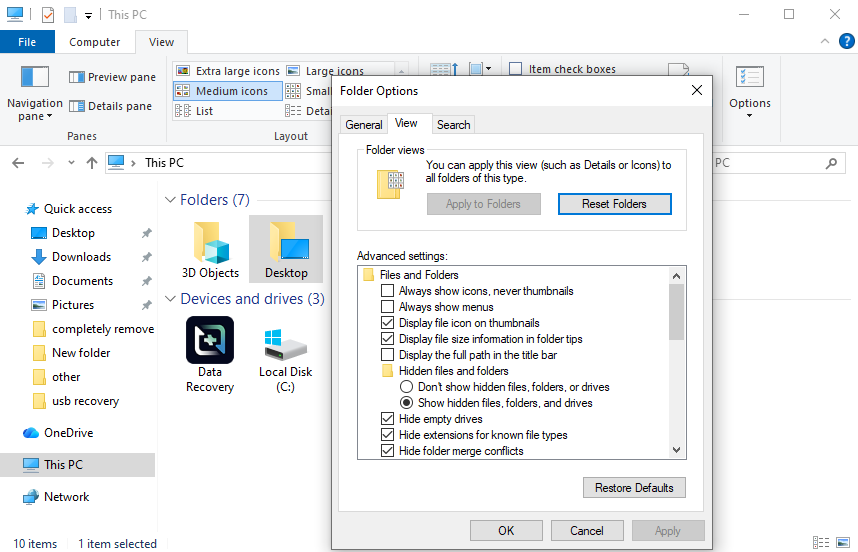
- Step 4: Crucial Step: Uncheck the box that says Hide protected operating system files (Recommended). Click Yes on the warning.
- Step 5: Click Apply. If your folders reappear but look “faded,” it means the hidden attribute is still active, and you should return to the CMD method to permanently unhide them.
Method Comparison: Choosing the Best Approach
| Feature | CMD (attrib) | PandaOffice Drecov | File Explorer Options |
| Primary Goal | Change file attributes | Recover deleted/corrupt data | Change local display settings |
| Effectiveness | High for hidden files | Highest for all scenarios | Low (often reset by viruses) |
| Complexity | Moderate (syntax required) | Low (User-friendly UI) | Very Low |
| Success Rate | ~75% | ~99% | ~40% |
| Risk | Low | Zero (Read-only scan) | Low |
Part 3: Essential Prevention – Keeping Your USB Safe
Once you have learned how to show hidden files on usb cmd and recovered your data, your next priority should be ensuring this never happens again.
- Disable AutoRun: Open Settings > Devices > AutoPlay and turn it off. This prevents a usb virus from executing the moment you plug the drive in.
- Regular Backups: Treat a USB drive as a transport tool, not long-term storage. Always keep a copy of the data on your primary PC or cloud storage.
- Vaccinate Your Drive: Create an empty folder named
autorun.infon your USB and set its attributes to “Read-only.” This can trick some older viruses into thinking the drive is already “occupied.” - Use Quality Antivirus: Ensure your real-time protection is active. Modern antivirus software will intercept a usb virus and prevent it from hiding your folders in the first place.
FAQ: Deep Dive into USB Hidden Files
Q1: Why does the attrib command say “Access Denied”?
This usually happens for two reasons: you didn’t run CMD as an Administrator, or the files are currently being “locked” by an active virus. Try running the command in Safe Mode.
Q2: Will learning how to show hidden files on usb cmd delete my data?
No. The attrib command is non-destructive. It only changes the “tags” or “labels” attached to the files. It does not delete, move, or modify the content inside your files.
Q3: Is PandaOffice Drecov free to use?
Most professional tools like Drecov allow you to scan and preview your files for free. This is great because you can confirm that your missing folders are recoverable before deciding to proceed with the full restoration.
Q4: Can I use this CMD method on a Mac?
No, the attrib command is specific to Windows. On a Mac, you would use the Terminal command defaults write com.apple.finder AppleShowAllFiles YES followed by killall Finder.
Q5: What if my USB shows as “Unallocated” in Disk Management?
If the drive is unallocated, the attrib command won’t work because there is no drive letter. In this case, PandaOffice Drecov is your only option to scan the unallocated space and find your lost partitions.
Conclusion
Losing sight of your files on a thumb drive is a stressful experience, but it is rarely a permanent one. By mastering how to show hidden files on usb cmd, you gain a powerful, built-in tool to combat the most common malware tricks. However, if the situation is more dire—involving accidental deletion or file system corruption—professional solutions like PandaOffice Drecov offer a reliable safety net.
Always remember: your data is likely still there, just waiting to be unhidden. By following the steps in this guide, from basic command-line attributes to advanced recovery and proactive prevention, you can ensure your digital life remains organized, visible, and secure.






