







In digital forums like Reddit, Quora, and specialized tech support hubs, a recurring cry for help echoes through the threads: “My drive isn’t showing up!” or “I can’t access my wedding photos from the thumb drive!” These frantic queries often stem from a sudden encounter with a usb error, a frustrating barrier that stands between you and your vital files. Whether it is a “Device Not Recognized” notification or a “File Directory is Corrupted” alert, these issues can strike at the worst possible moments. Understanding the mechanics behind these malfunctions is the first step toward reclaiming your data and ensuring your hardware remains reliable.
Part 1: Decoding the Mystery – What Exactly is a USB Error?
Before we dive into the “how-to” of fixing things, we need to understand the “why.” In layman’s terms, a usb error occurs when the communication bridge between your computer’s operating system and the external hardware breaks down. Think of your USB drive as a library and your computer as a reader; if the library’s front door is jammed, the index card system is missing, or the books have been moved to a secret room, the reader cannot do their job.
Common Culprits Behind Connection Failures
Several factors can trigger a usb driver error, ranging from physical wear and tear to invisible software glitches:
- Driver Conflicts: Your computer uses “drivers” to talk to the hardware. If these are outdated or corrupted, the conversation stops.
- File System Corruption: Improperly “ejecting” a drive can leave the file structure in a mess, leading to a logical usb error.
- Power Supply Issues: Some USB ports don’t provide enough juice, causing the drive to disconnect repeatedly.
- Hardware Degradation: The flash memory chips inside have a limited lifespan. Eventually, they wear out, triggering a permanent usb driver error.
- Registry Mismatches: Sometimes, Windows “remembers” a device incorrectly in its registry, preventing a fresh connection.
Part 2: Step-by-Step Solutions to Resolve Every USB Error
Dealing with a usb error requires a systematic approach. We recommend starting with software-based fixes before moving to advanced data recovery tools.
Method 1: Reinstalling Universal Serial Bus Controllers
If your hardware is fine but the software is confused, a clean slate often fixes the usb error.
- Step 1: Press Windows Key + X and select Device Manager from the menu.
- Step 2: Scroll down and expand the Universal Serial Bus controllers section.
- Step 3: Right-click on your USB device (it may appear as “Unknown Device” if there is an active usb error).
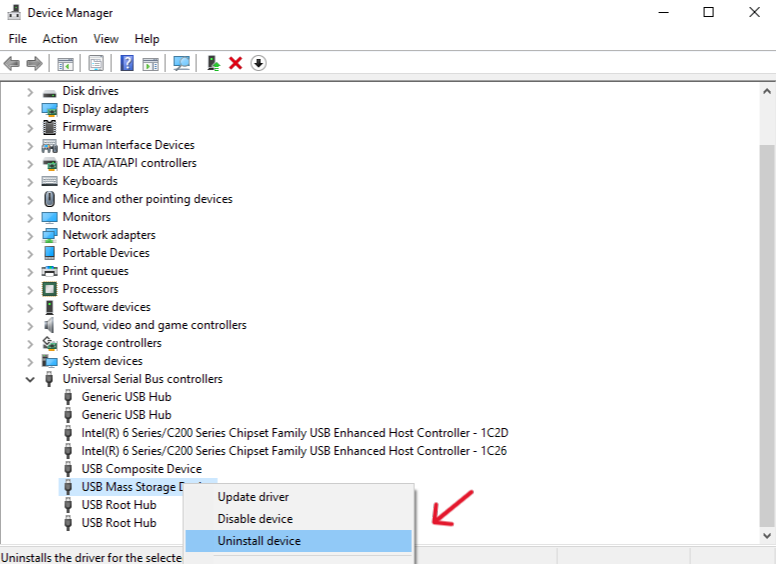
- Step 4: Select Uninstall device. Confirm the action.
- Step 5: Unplug your USB drive, restart your computer, and plug it back in. Windows will automatically reinstall the drivers.
Method 2: Professional Recovery with PandaOffice Drecov
When the usb error involves data loss or a “Formatted” prompt, standard Windows tools aren’t enough. PandaOffice Drecov is a specialized utility designed to bypass logical errors and extract data directly from the storage cells. It is particularly effective for “RAW” drive errors where the file system has vanished.
- Step 1: Launch the application. On the home screen, select the drive letter corresponding to the device experiencing the usb driver error.

- Step 2: Click Deep Scan. The software will bypass the corrupted file directory and search for file signatures (like .jpg, .docx, or .mp4).

- Step 3: Once the scan completes, use the Preview function to check the integrity of your photos or documents.

- Step 4: Select the files you need and click Recover.
Note: Always save recovered files to your local hard drive, never back onto the device with the usb error.
Method 3: Using the CHKDSK Command via Terminal
If the usb error is caused by “bad sectors” or file system inconsistencies, the Check Disk tool can often repair the logical structure without deleting data.
- Step 1: Type cmd in the Windows Search bar, right-click Command Prompt, and select Run as Administrator.

- Step 2: Identify your USB drive letter (e.g., Drive G:).
- Step 3: Type the following command:
chkdsk D: /f /r /x(Replace D with your actual drive letter).
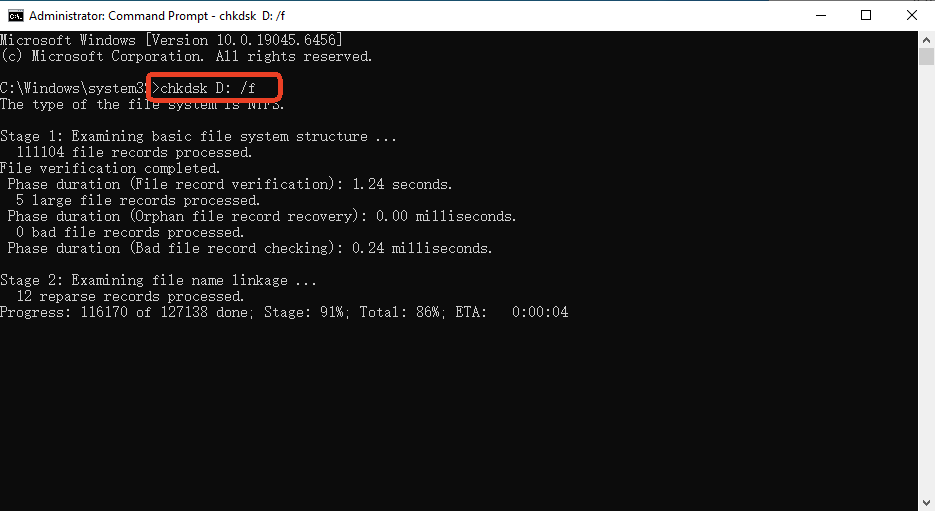
- Step 4: Press Enter. The system will scan the file system and attempt to fix any usb error it finds.
- Step 5: Once the process reaches 100%, close the window and try accessing your drive again.
Method 4: Modifying the Windows Registry for Power Management
Sometimes, Windows puts USB ports to “sleep” to save power, which triggers a persistent usb driver error on high-performance drives.
- Step 1: Press Windows Key + R, type
regedit, and hit Enter. - Step 2: Navigate to the following path:
HKEY_LOCAL_MACHINE\SYSTEM\CurrentControlSet\Control\Class\{36fc9e60-c465-11cf-8056-444553540000} - Step 3: In the right pane, look for UpperFilters and LowerFilters.
- Step 4: If they exist, right-click and Delete them. This resets the filter stack that often causes a usb error.
- Step 5: Restart your PC to apply the changes.
Beyond the Basics: Understanding Severe USB Damage
While the methods above solve 90% of issues, some scenarios indicate deeper trouble. Recognizing these helps you decide when to use PandaOffice Drecov immediately versus attempting a manual fix.
- Physical Port Damage: If the USB plug is wobbly, no software can fix that usb error. You may need hardware repair.
- Firmware Corruption: The “brain” of the USB chip is dead. In this state, the computer won’t even acknowledge a device is plugged in.
- Virus/Malware Encrypting Files: A malicious usb error might hide your files. Always run a virus scan before attempting recovery.
Pro Tip: If you frequently encounter a usb error across different devices, your computer’s motherboard or power supply might be the true culprit.
USB Driver Error Solution Comparison Table
To help you choose the best path to resolve your usb error, refer to the comparison below:
| Method | Best For… | Success Rate | Risk Level | Why Choose This? |
| Device Manager | Driver glitches | Moderate | Low | Fast, built-in, and requires no downloads. |
| PandaOffice Drecov | Data Recovery/RAW Drives | High | Zero | Safest for files; ignores file system corruption. |
| CHKDSK Command | File system errors | High | Moderate | Good for fixing “Access Denied” issues. |
| Registry Edit | Connection drops | Low | High | Solves deep OS-level communication bugs. |
Fix USB Errors FAQs
Q1: Why does my computer say “USB device not recognized” after I dropped the drive?
This is likely a hardware-based usb error. Dropping a drive can crack the internal solder joints. If the computer still “sees” something but can’t read it, PandaOffice Drecov might still be able to pull data before the chip fails completely.
Q2: Can a usb error be caused by a specific USB port?
Yes. Front-panel ports on desktop PCs often have weaker power delivery. If you see a usb error, try plugging the device into the rear ports directly on the motherboard.
Q3: Will formatting my drive fix every usb error?
Formatting is a “reset” button. It fixes software-related usb error issues but erases all data. We recommend using PandaOffice Drecov to save your files before you even think about formatting.
Q4: Is it safe to ignore a “Scan and Fix” prompt from Windows?
While you can ignore it, that prompt is an early warning of an impending usb error. It’s best to let Windows scan it or back up your data immediately.
Conclusion
Encountering a usb error is undoubtedly stressful, but it doesn’t have to result in data loss. By understanding whether the issue lies with your drivers, the file system, or the physical hardware, you can apply the right fix. For simple connectivity issues, the Device Manager or Registry tweaks often do the trick. However, when your precious data is at stake, using a dedicated recovery tool like PandaOffice Drecov is the most reliable way to bypass a usb error and get your files back. Remember: always eject your drives safely and keep backups to prevent future headaches!






