







Have you ever plugged in your USB drive, expecting to access your vital files, only to find that nothing happens? Or worse—Windows pops up a dreaded notification stating, “USB device not recognized”? When this happens, your priority shifts to data preservation; fortunately, learning how to fix an unrecognized USB drive without losing data is often simpler than it seems, provided you use the right diagnostic steps before attempting a format.
In this exhaustive guide, we will explore exactly how to fix an unrecognized USB drive without losing data. We have structured these solutions from the simplest “quick fixes” to advanced system recoveries, ensuring you have the highest probability of getting your files back safely.
Why Your USB Drive Is Not Recognized
To implement a fix, we must first diagnose the symptoms. When a USB drive fails to mount or appear in File Explorer, it is usually due to a communication breakdown between the hardware and the Operating System.
Common Error Messages
Depending on the specific corruption, you might encounter these alerts:
- “USB device not recognized”: The last USB device you connected to this computer malfunctioned.
- “You need to format the disk before you can use it”: Windows sees the drive but cannot read the file system.
- “Drive not accessible. The parameter is incorrect”: A deeper logical error is present.
- “Unknown USB Device (Device Descriptor Request Failed)”: A hardware or driver handshake error.
- USB showing as RAW: The partition table is missing or corrupted.
Hardware vs. Software Problems
Understanding the root cause is the first step toward a successful recovery.
| Problem Type | Common Causes | Difficulty Level |
| Hardware | Bent connectors, broken NAND chips, faulty USB ports, or insufficient power. | High (May require professional repair) |
| Software | Corrupted drivers, drive letter conflicts, RAW file systems, or registry errors. | Low to Medium (User-fixable) |
Pro Tip: If your drive is physically hot to the touch or making a clicking sound, unplug it immediately. These are signs of electrical failure that software cannot fix.
First Things to Do Before You Panic
Before attempting any technical repairs to fix an unrecognized USB drive without losing data, perform these preliminary checks. Sometimes the solution is deceptively simple.
Stop Using the Drive Immediately
If the USB is malfunctioning, any further “write” actions (trying to save new files to it or running aggressive repair tools) can overwrite the very data you are trying to save. Think of the drive as a crime scene; you want to preserve the evidence exactly as it is.
Try Another USB Port or Computer
Often, the culprit isn’t the flash drive but the USB port itself.
- Direct Connection: Avoid using USB hubs or front-panel ports on a PC case. Plug the drive directly into the motherboard ports at the back of the computer.
- Cross-Platform Test: If you are on Windows, try plugging the drive into a Mac or a Linux machine. Sometimes a different OS can “see” a partition that Windows ignores.
Check Physical Damage
Inspect the USB connector. Is it wobbly? Are the gold contact pins inside dirty or corroded? A quick cleaning with a dry cotton swab or a puff of compressed air can sometimes restore the connection.
Method 1: Using PandaOffice Drecov for Data Safety
If basic troubleshooting fails, your priority shifts from “fixing the drive” to “securing the data.” Many Windows repair commands (like chkdsk or diskpart) can be destructive if used incorrectly. This is where PandaOffice Drecov becomes essential. It is a professional-grade recovery tool designed to extract files from unrecognized, RAW, or corrupted partitions before you attempt risky repairs.
Warning: Never install recovery software onto the USB drive you are trying to fix, as this will overwrite your lost data.
Step-by-Step Data Recovery with PandaOffice Drecov
- Step 1: Connect and Select. Insert your unrecognized USB drive. Launch the software and select the drive from the “External Devices” list. Even if the drive shows as “Unallocated” or “RAW” in Windows, Drecov can usually identify the underlying sectors.

- Step 2: Deep Scan. Click the Scan button. The tool will perform a sector-by-sector analysis to reconstruct the file directory.

- Step 3: Preview and Filter. Once the scan is complete, use the preview feature to verify the integrity of your photos or documents.

- Step 4: Secure Recovery. Select the files you need and click Recover. Choose a destination folder on your computer’s internal drive or a different external storage device.
By using this method first, you ensure that even if the subsequent repair steps fail, your files are already safe and sound.
Check USB Status in Disk Management (Windows)
To fix an unrecognized USB drive without losing data, you need to see what the computer sees. Windows File Explorer only shows “healthy” volumes, but Disk Management shows everything.
How to Open Disk Management
- Press Windows + X and select Disk Management from the menu.
- Alternatively, press Windows + R, type
diskmgmt.msc, and hit Enter.
What Different Status Messages Mean
Look for your USB drive (usually labeled as “Disk 1” or “Disk 2”). Its status tells us the next step:
- Unallocated Space: The partition is gone. You need recovery software (Drecov) to find the “ghost” files.
- RAW File System: The “language” of the drive is corrupted. It needs a file system rebuild.
- No Drive Letter: The drive is healthy, but it’s “invisible” to File Explorer.
- Not Initialized: The Master Boot Record (MBR) is corrupted.
Method 2: Assign a Drive Letter Without Formatting
If your USB drive appears in Disk Management as “Healthy” but doesn’t show up in “This PC,” it likely lacks a drive letter. This is the easiest way to fix an unrecognized USB drive without losing data.
Step-by-Step Instructions
- Step 1: In Disk Management, right-click the block representing your USB drive’s partition.
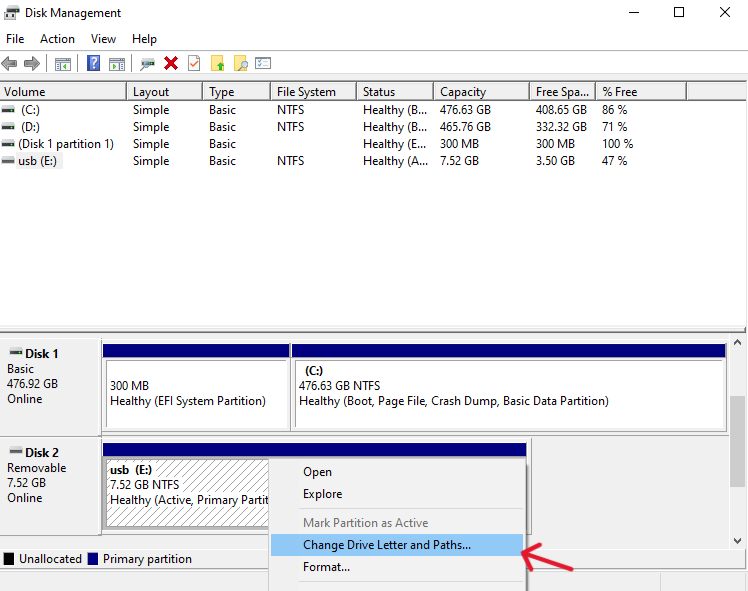
- Step 2: Select Change Drive Letter and Paths…
- Step 3: Click Add.
- Step 4: Choose a letter from the dropdown menu (e.g., Drive Z:). Pick a letter toward the end of the alphabet to avoid conflicts with networked drives.
- Step 5: Click OK and check if the drive now appears in File Explorer.
Method 3: Update or Reinstall USB Drivers
Sometimes the software “bridge” between Windows and your hardware is broken. This often happens after a major Windows Update.
Using Device Manager
- Step 1: Right-click the Start button and select Device Manager.
- Step 2: Expand the Disk drives section.
- Step 3: Right-click your USB drive (it might be listed as “USB Mass Storage Device”) and select Update driver.
- Step 4: Choose Search automatically for updated driver software.
Reinstalling USB Controllers
If updating doesn’t work, the controller itself might be hung.
- In Device Manager, scroll down to Universal Serial Bus controllers.
- Right-click USB Root Hub and select Uninstall device. Repeat this for all Root Hub entries.
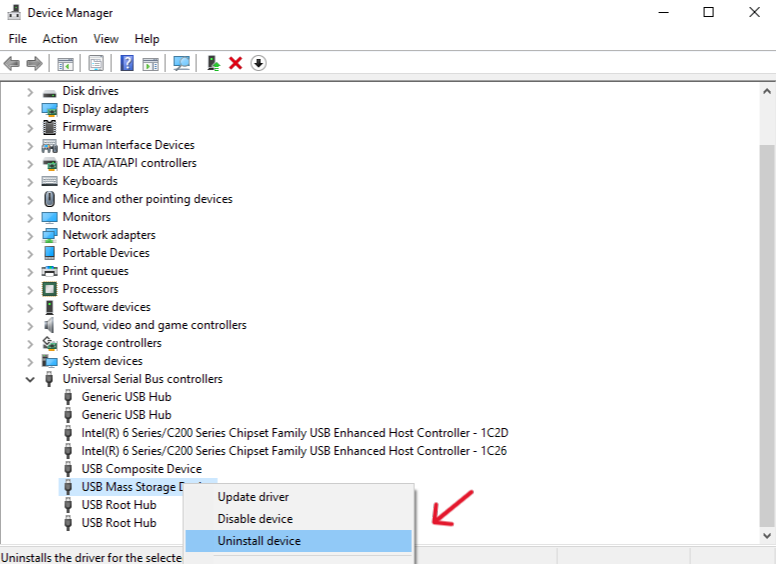
- Restart your PC. Upon reboot, Windows will automatically detect the hardware and reinstall the “clean” drivers.
Method 4: Fix File System Errors Using CHKDSK
If your drive is recognized but gives errors when you try to open folders, the file system structure might have minor “logical” holes. The Check Disk (CHKDSK) utility can patch these.
When to Use CHKDSK
Use this method only if the drive has a drive letter assigned and is not showing as RAW.
Critical Warning: Running CHKDSK on a failing drive can sometimes cause permanent data loss if the sectors are physically degrading. Ensure you have recovered important files with PandaOffice Drecov first.
Safe Command Syntax
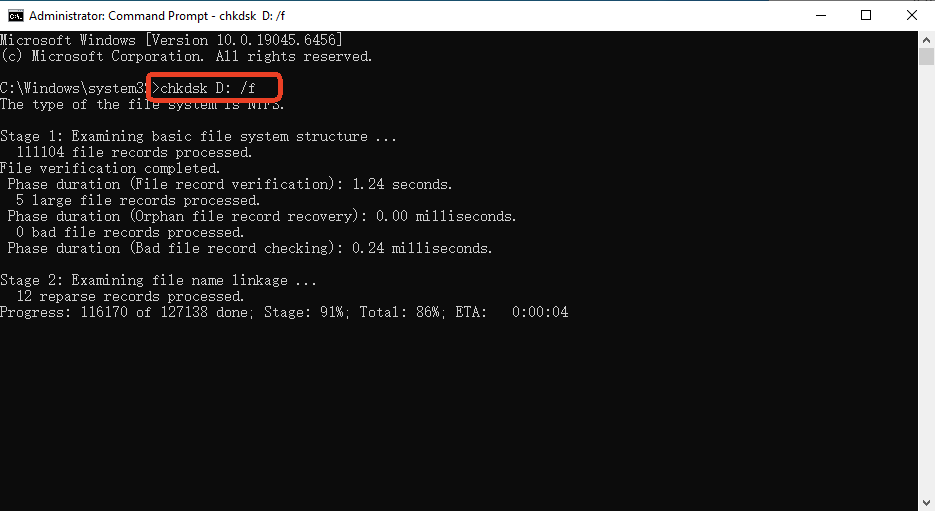
- 1. Press Windows + S, type
cmd, and select Run as Administrator.

- 2. Type the following command and press Enter:
chkdsk D: /f /r(Replace D: with the actual letter of your USB drive)./ftells Windows to fix errors it finds./rtells it to locate bad sectors and recover readable information.
Method 5: Fix RAW USB Drive Without Losing Data
A “RAW” drive is a storage device that has no Windows-recognizable file system (like NTFS or FAT32). This usually happens when the drive is unplugged while it is still writing data.
Safe Repair Process
- Recover: Use PandaOffice Drecov to pull the files off the RAW partition.
- Format: Once files are safe, right-click the drive in Disk Management and select Format.
- Settings: Choose FAT32 for drives under 32GB or exFAT/NTFS for larger drives. Set the Allocation unit size to “Default.”
- Execute: Ensure “Perform a quick format” is checked and click OK. The drive is now usable again.
Method 6: Repair Corrupted USB Using Command Prompt (DiskPart)
If the drive is “Read Only” or stubborn, DiskPart is the nuclear option.
Warning: The clean command in DiskPart permanently erases all partition information. Use this only after data recovery.
DiskPart Guide
- 1. Open Command Prompt (Admin).
- 2. Type
diskpartand press Enter. - 3. Type
list diskto see all drives. Identify your USB by its size. - 4. Type
select disk X(Replace X with your USB’s number. Do not get this wrong!). - 5. Type
attributes disk clear readonly(This fixes drives stuck in write-protected mode). - 6. (Optional) Type
cleanif you intend to wipe and start over.
Method 7: Fix USB Not Recognized on Mac
If you are a macOS user, the process is slightly different but follows the same logic.
Using Disk Utility
- Go to Applications > Utilities > Disk Utility.
- Click View > Show All Devices.
- Select your USB drive from the left sidebar.
- If it is greyed out, click the Mount button at the top.
First Aid Repair
If mounting fails, use the built-in repair tool:
- Select the USB volume.
- Click the First Aid icon.
- Click Run. macOS will verify the catalog hierarchy and attempt to repair invalid extent headers.
Advanced Fixes for Unrecognized USB
Sometimes the issue lies deep within the system’s power management or firmware settings.
Disable USB Selective Suspend
Windows sometimes “puts to sleep” USB ports to save power, which can lead to recognition issues.
- Open Control Panel > Power Options.
- Click Change plan settings next to your active plan.
- Click Change advanced power settings.
- Expand USB settings > USB selective suspend setting.
- Set it to Disabled for both “On battery” and “Plugged in.”
Check BIOS/UEFI Settings
If the USB isn’t detected in Disk Management or even on other computers, it might be disabled at the hardware level.
- Restart your PC and tap F2, F10, or DEL to enter BIOS.
- Navigate to Advanced or Peripherals.
- Ensure USB Controller and Legacy USB Support are set to Enabled.
When the USB Shows 0 Bytes
Seeing “0 bytes free, 0 bytes used” is a common symptom of a corrupted partition table or a controller firmware glitch.
Recovery Approach
In this state, Windows “sees” the hardware but doesn’t know how to talk to the memory chips.
- Check for malware using a dedicated scanner; some viruses hide partitions.
- Use PandaOffice Drecov’s “Deep Scan” mode; it can often bypass the “0 byte” reporting and read the raw data directly from the NAND flash.
- If software fails, the firmware on the USB controller may be corrupted, requiring a specialized “Mass Production Tool” from the manufacturer (e.g., Phison, Alcor, or Silicon Motion).
Prevent USB Drive From Becoming Unrecognized Again
Once you successfully fix an unrecognized USB drive without losing data, you want to ensure it never happens again.
Safe Removal Practices
The “Safely Remove Hardware” icon isn’t just for show. When you click it, Windows flushes the “write cache,” ensuring all data is physically on the drive before the power is cut. Never yank a drive out while the LED is flashing.
Avoiding Power Interruptions
Using a USB drive during a thunderstorm or on a laptop with a dying battery is risky. A sudden power failure during file transfer is the primary cause of a RAW file system.
Regular Backups
USB drives use “NAND” flash memory, which has a limited number of read/write cycles. They are not meant for long-term “cold” storage.
- The 3-2-1 Rule: Keep 3 copies of your data, on 2 different media types, with 1 copy off-site (Cloud storage).
Fix an unrecognized USB Drive FAQs
1. Can I fix an unrecognized USB without formatting?
Absolutely. Assigning a new drive letter, updating drivers, or using the First Aid tool on Mac are all non-destructive ways to restore access.
2. Is CHKDSK safe for my files?
Generally, yes. However, if the USB has physical hardware damage, the stress of a CHKDSK scan can sometimes worsen the situation. Always backup/recover your most critical files first.
3. Why did my USB suddenly become RAW?
This usually happens due to “unclean shutdowns.” This includes pulling the drive out during a write operation, a system crash, or a sudden power outage.
4. What if Disk Management doesn’t show the drive at all?
If the drive doesn’t appear in Disk Management even after trying different ports, the internal controller or the NAND chip may have failed physically. At this point, professional lab recovery is the only option.
5. How long does data recovery take?
Using a tool like PandaOffice Drecov, a standard 32GB drive scan usually takes 10-20 minutes, depending on the speed of the USB interface (USB 2.0 vs 3.0/3.1).
Conclusion
Dealing with a non-responsive flash drive is stressful, but as we’ve explored, there are numerous ways to fix an unrecognized USB drive without losing data. To summarize the core strategy:
- Don’t Panic & Don’t Format: Most issues are logical errors that can be bypassed.
- Verify Hardware: Test different ports and computers to rule out a dead socket.
- Prioritize Data: Use a tool like PandaOffice Drecov to extract your files before running system commands like CHKDSK or DiskPart.
- System Maintenance: Keep your USB drivers updated and your Windows Power Options optimized.
- Safe Habits: Always use the “Safely Remove” feature to prevent file system corruption.
By following these steps methodically, you can transform a potential data disaster into a minor technical hiccup.






