







Imagine this: You are preparing for a major presentation. Your USB drive, containing weeks of research and final drafts, suddenly prompts an error message: “You need to format the disk in drive G: before you can use it.” In a moment of panic or a lapse in judgment, you click “Format disk.” Within seconds, the progress bar finishes, and your drive is as empty as a desert.Now, you face a desperate race against time to recover data from the formatted USB.
The sinking feeling in your stomach is universal. Whether it was a forced format due to a file system error or a simple human mistake, the question remains: Is that data gone forever? The short answer is a resounding no. You can still recover data from formatted USB drives if you act quickly and follow the right protocols. This guide will walk you through the “why” and “how” of bringing your files back from the digital grave.
The Library Metaphor: Why Formatted Data Isn’t Actually Gone
To understand how we recover data from formatted USB devices, we need to demystify what happens during a format. Think of your USB drive as a massive library.
When you store a file, the computer does two things:
- It writes the actual content (the “pages” of the book) onto the shelves.
- It records the file’s location in a Master File Table (the library’s “catalog card”).
When you perform a Quick Format, the computer doesn’t go through the library and burn every book. Instead, it simply throws away the catalog cards and marks all the shelves as “Empty and Available.” The books—your data—are still sitting on the shelves! They remain there until a new file comes along and is written directly over them.
As long as you haven’t saved new files to the drive, a specialized tool can “walk the aisles,” scan the shelves manually, and rebuild the catalog. This is the fundamental principle that allows us to recover data from formatted USB storage.
Critical First Steps: The “Do No Harm” Rule
Before we dive into the methods, you must observe these golden rules to ensure you don’t turn a recoverable situation into a permanent loss:
- Stop using the drive immediately: Do not save new photos, documents, or even tiny text files to the formatted USB.
- Do not “Check Disk” (chkdsk): While useful for some errors, this utility can sometimes overwrite file headers during repair.
- Avoid DIY “Repair” software of unknown origin: Stick to reputable tools to avoid further file system corruption.
Method 1: Using Windows Command Prompt
Sometimes, a format or a “raw” drive error doesn’t delete data but hides it behind a corrupted attribute layer. While this isn’t a “recovery” in the traditional sense, it is the first logical step to recover data from formatted USB when the file structure is still partially intact.
- Step 1: Plug your USB drive into your computer.
- Step 2: Press
Win + R, typecmd, and pressEnter.

- Step 3: In the black window, type the drive letter of your USB (e.g.,
E:) and hitEnter.
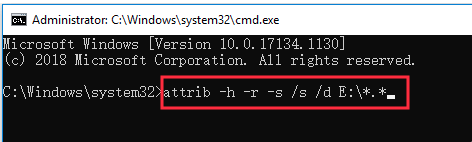
- Step 4: Type the following command:
attrib -h -r -s /s /d *.*and pressEnter.
This command strips away “Hidden,” “Read-only,” and “System” attributes that might be masking your files after a logic error format. If the folders reappear, you’ve hit the jackpot. If not, it’s time to move to professional-grade recovery.
Method 2: Professional Recovery with PandaOffice Drecov
When a standard command fails, you need a tool that can read the “shelves” of the library directly. PandaOffice Drecov is a premier solution specifically engineered to recover data from formatted USB drives with a high success rate and a user-friendly interface. It excels at deep scanning sectors that Windows can no longer see.This makes it an indispensable tool for a wide range of data loss scenarios, including:
- Accidental Desktop Deletions: Instantly retrieving files wiped from your local workspace.
- Disk Formatting Errors: Salvaging files from drives that have been completely wiped or reformatted.
- External Media Rescue: Recovering lost data from formatted or corrupted SD cards and USB flash drives.
- Sync Conflict Resolution: Reversing data loss caused by synchronization errors between your PC and the OneDrive cloud.
- Browser Metadata Recovery: Restoring lost Chrome bookmarks and other essential application data.”
Warning: Never install recovery software onto the USB drive you are trying to save!
Detailed Steps for PandaOffice Drecov:
- Step 1: Device Selection. Launch the program and insert your formatted USB. The software will display a list of available drives. Select your USB drive from the “External Devices” section.

- Step 2: Initiating the Scan. Click the “Scan” button. The software will perform a “Quick Scan” followed by a “Deep Scan.” The Deep Scan is crucial to recover data from formatted USB because it looks for file signatures (like the unique “DNA” of a JPEG or PDF) rather than just relying on the deleted catalog.

- Step 3: Preview and Filter. Once the scan completes, use the sidebar to filter by file type (e.g., Photos, Documents). You can double-click files to preview them to ensure they aren’t corrupted.

- Step 4: Execution. Select the files you need and click “Recover.” Choose a destination folder on your computer’s hard drive—not the USB—to save the recovered data.
Method 3: Utilizing Windows File Recovery
For users who are comfortable with a command-line interface but want something more powerful than attrib, Microsoft offers “Windows File Recovery.”
- Step 1: Download “Windows File Recovery” from the Microsoft Store.
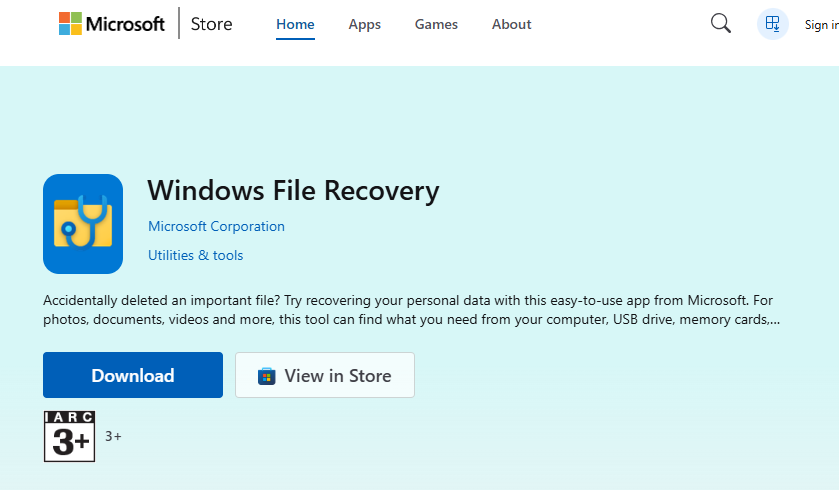
- Step 2: Open the app, which launches a Command Prompt.
- Step 3: Use the “Extensive” mode, which is designed to recover data from formatted USB (FAT32 or exFAT systems).
- Step 4: Type the command:
winfr G: C:\RecoveryDest /extensive(Replace G: with your USB letter and the C: path with your desired save location). - Step 5: Wait for the process to finish and check the destination folder for a “Recovery” directory.
Method 4: Restoring from a Previous Version
If you frequently use the USB drive on a single Windows 10 or 11 computer, the system might have created a “Shadow Copy” or a Restore Point that includes your files.
- Step 1: Open “This PC” or File Explorer.
- Step 2: Right-click your USB drive and select “Properties.”
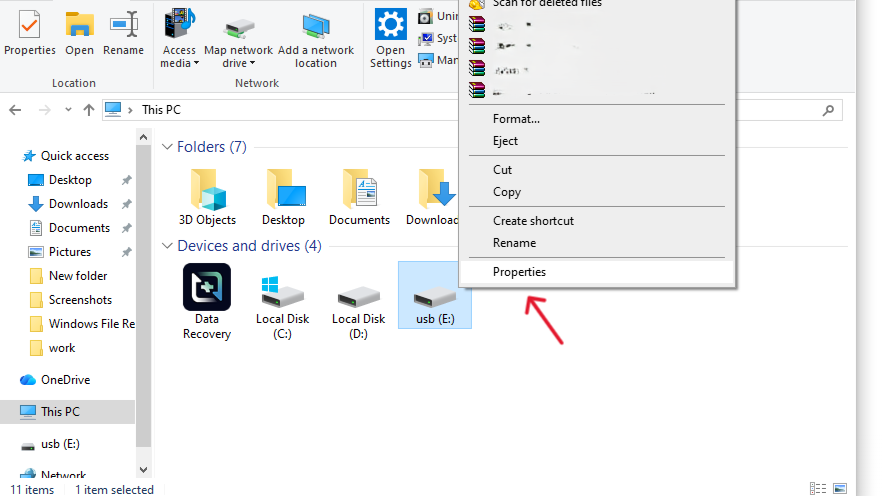
- Step 3: Click the “Previous Versions” tab.
- Step 4: If there are older versions of the drive listed, select the one dated before the format and click “Restore.”
Note: This method only works if “System Protection” was turned on for that specific drive, which is rare for USBs but always worth a check.
Preventing Future Data Loss: A Proactive Checklist
While knowing how to recover data from formatted USB drives is vital, preventing the need for recovery is even better. Follow these steps to safeguard your digital life:
- The 3-2-1 Backup Rule: Keep 3 copies of your data, on 2 different media types, with 1 copy off-site (Cloud storage).
- Safe Ejection: Always click “Safely Remove Hardware.” Pulling a USB out during a write cycle is the #1 cause of “Drive must be formatted” errors.
- Regular Integrity Checks: Every few months, right-click your USB -> Properties -> Tools -> Check. This fixes minor file system errors before they require a format.
- Use Write-Protect Switches: If your USB has a physical write-protect switch, use it when plugging into public computers (like libraries or print shops) to prevent virus-induced formatting.
Recover data from formatted USB FAQ
Q: Can I recover data from a USB after a “Full Format”?
A: It is much harder. A “Quick Format” just deletes the index, while a “Full Format” (available in Windows) often overwrites the sectors with zeros. If you unchecked the “Quick Format” box, professional tools like PandaOffice Drecov may still find fragments, but the success rate drops significantly.
Q: Does formatting a USB remove viruses?
A: Yes, it usually clears the software on the drive, but it also deletes your data. It’s better to use an Antivirus scan first before resorting to formatting.
Q: How much does it cost to recover data from formatted USB drives?
A: DIY software like PandaOffice Drecov is often the most cost-effective. Physical lab recovery can cost hundreds or thousands of dollars and is usually reserved for physically broken drives.
Q: Why are my recovered files named “File001.chk” or have random names?
A: When the “catalog” is lost, the software has to guess the names. The content is usually intact, but you may need to open them to see what they are and rename them manually.
Conclusion
Losing files to a format feels like a digital disaster, but as we’ve explored, the data often remains hidden just beneath the surface. By understanding the underlying principles of file storage and using specialized tools like PandaOffice Drecov, you can successfully recover data from formatted USB drives with minimal stress. Remember to stop using the drive immediately, choose the right recovery method for your technical level, and always maintain a backup for the future.






