







Ever plugged in your USB drive, seen the little LED light turn on, felt that brief moment of relief… and then nothing? No pop-up. No drive letter and no files. Just silence. If your USB drive is not showing up but the light is on, you’re not alone—and no, it doesn’t automatically mean your data is gone forever. Think of it like a car with headlights on but an engine that won’t start. Power is flowing, but something is blocking communication.
In this guide, we’ll break down why this happens, how to fix it step by step, and what to do if you need USB data recovery—all in plain English, no tech jargon overload.
What Does It Mean When the USB Light Is On but Not Detected?
When the LED light turns on, it means the USB drive is receiving power from your computer. That’s good news. But detection requires more than power—it needs proper communication between hardware, drivers, and the operating system.
In simple terms:
- ✅ Power = light is on
- ❌ Data connection = system doesn’t recognize the drive
The problem usually lies in software, drivers, file systems, or internal USB components, not total device death. When your USB drive is not showing up but the light is on, the physical connection is likely intact, but the digital handshake is failing.
Common Reasons a USB Drive Has Power but No Access
Understanding the “why” helps you choose the right “how” when it comes to fixing the issue. Here are the usual suspects:
1.Corrupted File System
If the file system is damaged, your computer may refuse to mount the drive—even if it’s physically fine. This often happens after an improper ejection or a sudden power loss.
2.Outdated or Faulty USB Drivers
Drivers act as translators. If they’re broken or outdated, your OS and USB drive can’t “talk.” Windows might see a device is plugged in, but it won’t know what to do with it.
3.No Drive Letter Assigned
Sometimes the drive exists… it’s just invisible. If Windows fails to assign a letter (like D: or E:), the drive won’t appear in File Explorer.
4.Logical Errors or Bad Sectors
Internal errors can prevent proper detection. Over time, the flash memory chips inside a USB can develop “bad sectors” that the operating system struggles to read.
Initial Checks Before Panicking
Before diving into deeper fixes, try these quick wins. Often, when a USB drive is not showing up but the light is on, the solution is simpler than it seems.
- Plug the USB drive into another USB port: Use the ports directly on the motherboard (on the back of a desktop) rather than the front case ports.
- Avoid USB hubs: Connect the drive directly to the computer to ensure it receives maximum power and bandwidth.
- Try the drive on another computer: This helps determine if the issue is with the drive or your specific PC configuration.
- Restart your system: A reboot clears stuck processes and refreshes the USB bus.
How to Fix USB Drive Not Showing Up on Windows
If the hardware is okay, the software needs a nudge. Windows has several built-in tools to bridge the gap.
Update or Reinstall USB Drivers
Faulty drivers are the #1 cause of detection issues.
- 1. Press Win + X and select Device Manager.
- 2. Expand Universal Serial Bus controllers.
- 3. Look for “USB Mass Storage Device.” If it has a yellow exclamation mark, it’s definitely a driver issue.
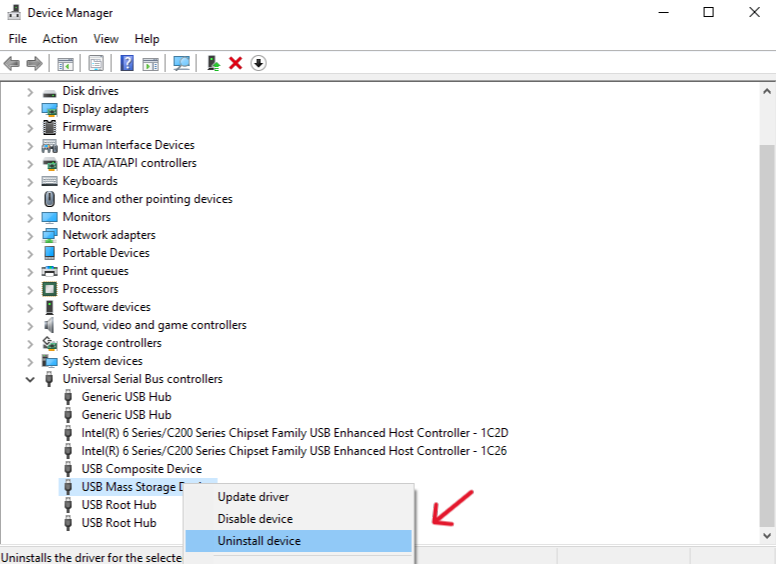
- 4. Right-click it and select Uninstall device.
- 5. Unplug your USB, Restart your PC, and plug it back in. Windows will automatically reinstall the drivers.
Check Disk Management
- 1. Press Win + X and select Disk Management.
- 2. Look for your USB drive in the list.
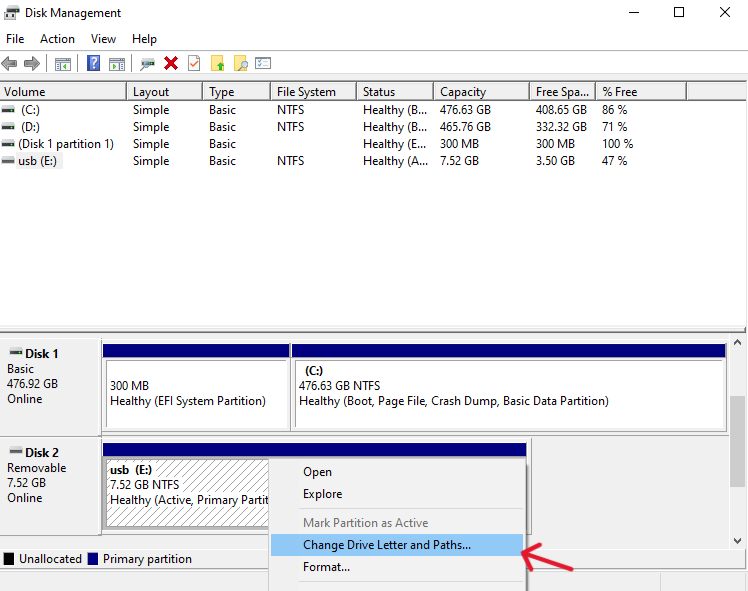
- 3. If it has no letter, right-click and select Change Drive Letter and Paths to assign one.
Professional Recovery: Using PandaOffice Drecov
If the drive is visible in Disk Management but “Inaccessible,” “RAW,” or “Unallocated,” you should use a professional tool. PandaOffice Drecov is designed specifically for these scenarios where the hardware is powered but the data is locked away. This makes it an indispensable tool for a wide range of data loss scenarios, including:
- Accidental Desktop Deletions: Instantly retrieving files wiped from your local workspace.
- Disk Formatting Errors: Salvaging files from drives that have been completely wiped or reformatted.
- External Media Rescue: Recovering lost data from formatted or corrupted SD cards and USB flash drives.
- Sync Conflict Resolution: Reversing data loss caused by synchronization errors between your PC and the OneDrive cloud.
- Browser Metadata Recovery: Restoring lost Chrome bookmarks and other essential application data.”
Here is how to use PandaOffice Drecov to get your files back:
- Step 1: Connect and Launch
First, ensure your USB drive is plugged into the computer. Open the PandaOffice Drecov application. On the home screen, you will see a list of all connected drives, including those that might not be showing up in your standard File Explorer.

- Step 2: Select the Target USB Drive
Under the “External Devices” section, locate your USB drive. Even if it doesn’t have a drive letter, Drecov should recognize it by its capacity (e.g., 32GB or 64GB). Click on the drive to select it as the scan target.
- Step 3: Start the Deep Scan
Click the “Scan” button. PandaOffice Drecov will perform a two-stage scan. It first looks for the file structure; if that is corrupted, it moves to a “Deep Scan” that analyzes the raw data sectors of the USB chip to find “lost” fragments.

- Step 4: Preview Your Files
Once the scan is complete, you can browse through the found files. Drecov allows you to filter by file type (Photos, Documents, Videos). Use the Preview function to verify that the files are intact before you proceed to the final step.

- Step 5: Recover and Save
Select the files you want to keep and click the “Recover” button.
Crucial Tip: Always save your recovered files to your computer’s local hard drive or a different external disk—never back onto the faulty USB drive itself.
Best Practices for USB Data Recovery
If you’ve determined the drive has a logical error, follow these golden rules:
- Stop using the drive immediately: The more you try to “fix” it by writing new files, the more you risk overwriting your data.
- Don’t format unless data is expendable: Formatting creates a new, empty index, effectively telling the computer that there are no files on the drive.
- Recover data to a different drive: This prevents data corruption during the rescue process.
- For a deeper dive into system-level errors: you can check out this comprehensive guide on how to fix USB device not recognized from HP, which offers additional troubleshooting tips for hardware-specific conflicts.
USB Drive Not Showing Up but the Light Is On FAQs
1. Why is my USB detected but not accessible?
This is usually due to file system corruption (the drive becomes RAW) or driver conflicts.
2. Is my USB drive dead if the light is on?
Not necessarily. The light confirms the drive is receiving electricity, meaning the internal memory chips are likely still functional.
3. Can PandaOffice Drecov recover data from a RAW drive?
Yes, it is specifically designed to read data from drives that the operating system can no longer understand.
Conclusion
When your USB drive is not showing up but the light is on, it’s frustrating—but it’s rarely the end of the road. In most cases, the problem lies in drivers, file systems, or system settings.
By using tools like PandaOffice Drecov and following the troubleshooting steps above, you protect your chances of a successful USB data recovery. The key is acting early, carefully, and strategically. Remember, the light is a beacon of hope; as long as there is power, there is a path to your data.






