







Few things are more frustrating than sitting down to watch an important video only to encounter the dreaded playback message: “This video file cannot be played error code 23301.” Whether you are trying to stream movies, watch essential online classes, attend live webinars, or enjoy sports, this unexpected playback block can instantly ruin your digital experience. The problem often appears out of nowhere, and it can disrupt various web browsers, online streaming platforms, and embedded web video players alike.
Furthermore, users often encounter closely related variations of this issue, such as the video file cannot be played error code or this video file cannot be played error code 232011, both of which point to similar underlying digital architectural failures.
This educational guide explains what causes the this video file cannot be played error code 23301 notification, explores how to fix it across different devices and browsers, and details advanced data recovery methodologies using PandaOffice Drecov data recovery software if your local source video files have become corrupted or lost during download.
Understanding the Technical Architecture of Error Code 23301
While encountering these codes might sound like a highly technical nightmare, the good news is that they are usually fixable within minutes. Most cases stem from temporary browser conflicts, corrupted system cache files, outdated software components, extension interference, internet connectivity drops, or temporary server-side problems. Think of online video streaming like a high-speed highway system. The video data must travel through multiple checkpoints before successfully reaching your screen. If even one checkpoint becomes blocked—such as corrupted tracking cookies, overly strict browser security settings, or unstable data transmission—the video player will stop working entirely and display an error code.
Before diving into the fixes, we must understand what is happening behind the digital curtain. This video file cannot be played error code 23301 is a browser-based video playback issue that typically triggers when a streaming JW Player or HTML5 video system fails to load, process, or authenticate video content properly.
This error frequently occurs on:
- Premium streaming websites and video-on-demand services.
- Online learning platforms and corporate training portals.
- Embedded video players within blogs and news outlets.
- Cloud-integrated browser video applications.
The visual error message usually presents itself on a dark background within the player block as:
This video file cannot be played.
(Error Code: 23301)
The core issue almost always relates to communication blockages between your local browser client and the remote host video server. When the player initializes a request for the media segments, it expects a smooth handshake. If that handshake is interrupted by a bad cache line, an ad-blocker script, or an unresolved DNS query, the player throws the 23301 code to prevent a total browser crash.
Common Causes of Browser-Based Playback Failures
Several distinct technical problems can trigger the video file cannot be played error code family. To help you identify the root cause affecting your system, review this structural breakdown:
| Primary Cause | Technical Description | Impact on Video Player |
| Corrupted Browser Cache | Damaged temporary internet files or outdated site data scripts. | Prevents the video player from loading updated JavaScript configurations. |
| Extension Interference | Aggressive ad blockers, privacy guards, or script-blocking add-ons. | Accientally blocks legitimate video stream segments, misidentifying them as ads. |
| Network Instability | Weak Wi-Fi signals, packet loss, or insufficient bandwidth. | Drops the connection mid-stream, triggering a timeout within the player module. |
| Outdated Browser Build | Using old web browser versions missing modern web media standards. | Fails modern HTML5, Widevine DRM, or advanced video codec compliance checks. |
| Cookie Synchronization Failures | Expired session cookies or cross-site tracking blocks. | Prevents the streaming server from authenticating your user viewing session. |
| VPN or Proxy Interference | Geometric restrictions or IP blacklists applied to public proxy servers. | Causes the server to reject the media stream request entirely due to security flags. |
| Local File Corruption | Interrupted downloads resulting in incomplete or broken local media files. | The system cannot read the index entries of the file, resulting in an unplayable loop. |
Tier 1: Basic Operational Fixes
If you are facing the this video file cannot be played error code 23301 message, you should always begin with low-complexity fixes. These methods require no technical background and resolve a massive percentage of everyday streaming issues.
Method 1: Force-Refresh the Video Webpage
Sometimes the communication failure between the server and your browser is completely temporary. A basic refresh re-initializes the video scripts, updates session data tokens, and clears out momentary media pipeline stalls.
- Step 1: Click on the address bar of your active web browser.
- Step 2: Press the Ctrl + F5 keys simultaneously on Windows, or hold down Cmd + Shift + R on a Mac. This forces a hard reload, bypassing your local cache for that specific webpage.
- Step 3: Wait for the site elements to rebuild completely, then press the play button on the media window.
Method 2: Restart Your Web Browser
If a hard refresh fails to clear the problem, the browser’s background processes may have become unstable or locked due to a memory leak.
- Step 1: Close all open tabs within your browser window.
- Step 2: Click the X icon in the upper-right corner to exit the application completely. For a thorough reset on Windows, press Ctrl + Shift + Esc to open the Task Manager, find the browser process (e.g.,
chrome.exe), right-click it, and select End task. - Step 3: Relaunch the browser, navigate back to your video link, and check if the video file cannot be played error code remains.
Method 3: Diagnose Network Stability and Router State
High-definition video streams require a consistent stream of data packets. If your local network suffers from high latency or packet dropouts, the video player will time out.
- Step 1: Navigate to an official network diagnostic site like Speedtest by Ookla to verify your active download speeds and ping rates.
- Step 2: If speeds are unusually low, unplug the power cable from the back of your internet modem or router.
- Step 3: Wait exactly 30 seconds to allow the internal capacitors to discharge fully, plug the power cable back in, and wait for the indicator lights to turn solid green. Try launching your stream once more.
Tier 2: Intermediate Browser Configuration Fixes
When basic steps do not resolve the this video file cannot be played error code 23301, the root cause is likely an explicit setting or database conflict inside your browser configuration.
Method 1: Clear Browser Cache and Tracking Cookies
Browsers store immense amounts of temporary data to accelerate page loading speeds. Unfortunately, when websites update their media players, your old cached scripts can conflict with the new code, triggering this video file cannot be played error code 232011 or 23301.
Below are the exact steps to clear this data in Google Chrome:
- Step 1: Launch your Chrome browser and press the global hotkey combination Ctrl + Shift + Delete (or Cmd + Shift + Delete on macOS) to instantly summon the “Clear browsing data” control window.
- Step 2: Set the Time Range dropdown box to All time to ensure no corrupted historical files remain behind.
- Step 3: Place explicit checkmarks next to the options labeled Cookies and other site data and Cached images and files.
- Step 4: Click the blue Clear data action button at the bottom of the prompt interface.
- Step 5: Shut down Chrome completely, relaunch it, and attempt to load your media stream.
Method 2: Audit and Disable Interfering Browser Extensions
Aggressive ad-blocking extensions and privacy scripts frequently mistake legitimate video player data packages for promotional tracking scripts, causing a playback freeze.
- Step 1: In your browser address bar, type
chrome://extensions/and press the Enter key to load the extension management interface. - Step 2: Locate any active ad blockers, script managers, or third-party tracking shields.
- Step 3: Click the toggle switch on each extension card to turn them Off temporarily.
- Step 4: Return to your video page and hit refresh. If the video plays flawlessly, you have identified the culprit. You can add an exception rule for that specific website within your ad blocker settings so you do not have to keep it disabled permanently.
Method 3: Isolate via Incognito/Private Mode
Incognito mode opens a clean sandboxed browser window that operates without using your historical cookies or active extensions, providing an ideal testing environment.
- Step 1: Open your browser and press Ctrl + Shift + N (or Cmd + Shift + N on Mac) to launch a dark Incognito window.
- Step 2: Copy the exact URL of the troublesome video and paste it directly into the Incognito address bar.
- Step 3: Press Enter and test playback. If the video streams without a hitch, it confirms your primary browser window suffers from extension conflicts or corrupted cache lines.
Method 4: Ensure JavaScript Integration is Fully Enabled
Modern web-based media frameworks run almost exclusively on JavaScript frameworks. If JavaScript has been blocked or turned off by a security application, web video players will fail completely.
- Step 1: Click on the three vertical dots menu icon in the upper right-hand corner of Chrome and select Settings.
- Step 2: Move through the left navigation panel to select Privacy and security, then click on Site settings in the main area.
- Step 3: Scroll down until you find the Content section and click directly on JavaScript.
- Step 4: Ensure the radio button for Sites can use JavaScript is selected. Refresh your video screen to apply the runtime configurations.
Tier 3: Advanced System and Environment Fixes
If you are still staring at this video file cannot be played error code 23301, the issue sits deeper within your operating system environment, graphics rendering engine, or domain connection tables.
Method 1: Modify Hardware Acceleration Parameters
Hardware acceleration delegates intensive visual processing tasks directly to your dedicated Graphics Processing Unit (GPU). However, buggy graphics card drivers can cause synchronization drops with HTML5 video players.
- Step 1: Access your browser Settings panel.
- Step 2: Type the exact phrase
Hardware accelerationinto the top search bar located inside the settings screen. - Step 3: Locate the option titled Use graphics acceleration when available (or similar depending on your browser version) and toggle the selection switch to Off.
- Step 4: Click the Relaunch button that appears immediately next to the toggle switch to restart the browser with a pure software-based video rendering engine active.
Method 2: Perform an Operating System DNS Flush
An outdated or poisoned local Domain Name System (DNS) cache can map video content delivery network (CDN) addresses incorrectly, pointing your browser to dead server paths.
- Step 1: Press the Windows Key + S on your keyboard, type
cmdinto the search box, right-click on the Command Prompt search result, and choose Run as administrator. - Step 2: Inside the elevated command window, type the following command precisely:
ipconfig /flushdnsand press Enter. - Step 3: The console will return a success message stating: “Successfully flushed the DNS Resolver Cache.” Type
exit, press Enter, and test your stream once more.
Recovering Lost or Corrupted Local Video Files
Sometimes, users face a sudden playback error. This often happens when a local video download is interrupted by network drops. When a transfer fails, the video file index gets corrupted. Consequently, parts of the media file are lost entirely from your hard drive, solid-state drive, or external storage device.
Traditional browser troubleshooting steps will not work for local file loss or structural damage. Instead, you must employ professional file restoration methods. This is where PandaOffice Drecov data recovery software provides an exceptional solution. It easily recovers lost or corrupted media files from your system.
Introduction to PandaOffice Drecov Data Recovery Software
PandaOffice Drecov data recovery software is a highly advanced, deep-scanning file rescue application built to restore missing, formatted, or heavily corrupted digital media files from all storage file systems (including NTFS, FAT32, exFAT, and APFS). It utilizes deep cluster reconstruction algorithms to piece back together fragmented video formats like MP4, MKV, MOV, and AVI that failed to save correctly during sudden browser crashes or system shutdowns.
⚠️ Critical Warning Prompt: Never download or install data recovery software onto the exact same drive partition where your lost video files were originally stored! Doing so can overwrite the deleted data spaces, making full recovery impossible. Always install the software on a secondary drive or partition.
Step-by-Step Media Recovery Process Using PandaOffice Drecov
Follow these step-by-step instructions to scan your local storage drives and recover missing or partially written video data:
- Step 1: On the main dashboard interface of the software, you will see a comprehensive layout listing all connected storage devices, internal hard drives, and peripheral media. Select the specific drive letter or folder destination where your missing video files were located. For instance, if the browser downloaded the file to your default user path, select the C: Drive or click Select Folder to point directly to your
C:\Users\YourName\Downloadspath.

- Step 2: Click the prominent Scan button in the lower-right corner. The software will automatically execute a two-stage scan. First, a rapid Quick Scan parses the Master File Table for immediate file entries. Then, a comprehensive Deep Scan reads the raw sector data bit-by-bit to find fragmented video file signatures.

- Step 3: As the scan progresses, use the left-hand navigation filter panel to narrow down the results. Click on Filter, select Video, and check the specific extension boxes corresponding to your files (such as
.mp4or.mkv). This lets you skip through thousands of unrelated system files easily.
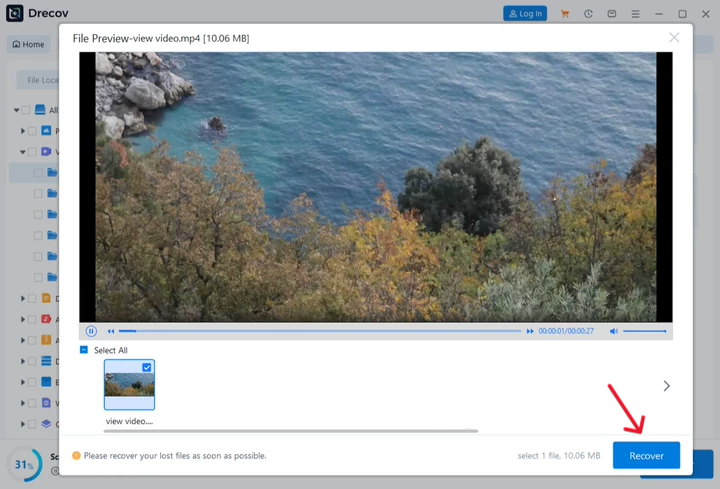
- Step 4: Once the scan concludes, double-click on any recovered video item from the results list to view its file health status in the built-in preview pane.
- Step 5: Select the checkmarks next to the video files you wish to rescue, then click the Recover button.
- Step 6: A directory prompt will pop up asking for a destination path. Select an external hard drive or an alternative storage volume completely separate from the original drive. Click OK to finalize the file restoration process safely.
Related Guides for Advanced Windows System Maintenance
Once you have successfully restored your files and fixed your video playback errors, keeping your underlying operating system stable is vital to prevent future data issues. For deeper system optimization and file storage troubleshooting, explore our comprehensive technical guides below:
- If you are encountering cloud storage syncing blocks or network file delays that interfere with local video playback initialization, read our comprehensive steps on how to remove OneDrive from Windows 11 to streamline your local file system management.
- To protect your system from critical operating system crashes that can corrupt downloaded media and trigger playback errors, follow our guide on how to create a Windows 10 recovery disk to keep an emergency boot option handy.
- If you want to build a dedicated, isolated backup environment directly inside your main storage drive to safeguard high-capacity video projects, learn how to create a recovery partition in Windows 10 to protect your work from future system failures.
Best Practices to Prevent Error Code 23301 and Video Corruptions
To avoid running into this video file cannot be played error code 23301 or dealing with corrupted data down the road, it is best to use a few proactive web browsing habits:
- Keep Your Web Browsers Updated: Check your browser settings regularly to ensure you are running the newest stable version. Web developers push weekly updates to keep up with changing DRM certificates and media player protocols.
- Minimize Active Browser Extensions: Try to limit your active extensions to tools you use every day. If you prefer running advanced ad blockers, learn how to add your favorite streaming platforms to their “white list” or exclusion panels.
- Let Downloads Finish Completely: Avoid closing your web browser or shutting down your computer while a large video file download is still running in the background. Interrupting a file transfer is a primary cause of corrupted local index entries.
- Clear Cache on a Regular Schedule: Clearing out your temporary browser cache every few months keeps old site data from building up and causing compatibility glitches with updated web applications.
- Use Reliable, Premium VPNs: If you need to use a VPN for privacy, choose a high-quality service that offers dedicated media streaming servers. This helps prevent your connection from getting flagged or blocked by automated content networks.
Conclusion
Encountering this video file cannot be played error code 23301 or its close cousin this video file cannot be played error code 232011 can certainly be annoying when you are ready to watch a video. Fortunately, these errors are almost always caused by minor software mismatches or temporary network drops rather than serious hardware issues or permanent damage.
By systematically working through the fixes outlined above—from simple page refreshes and clearing cache lines to disabling faulty extensions and resetting your DNS configurations—you can easily get your streaming video player back up and running. Furthermore, if an abrupt system crash or network drop leaves you with a missing or corrupted local video file, a professional tool like PandaOffice Drecov data recovery software can help scan your storage drives and restore your media files safely. Keeping your web browser updated and your system well-maintained ensures a smooth, interruption-free streaming experience moving forward.






