







When users face the daunting task of formatting, resetting, repairing, or overwriting a storage device, they often seek a secure safeguard to prevent permanent data loss. This critical preliminary phase is commonly referred to as file software recovery. Typically, individuals begin searching for reliable restoration solutions under stressful circumstances—such as accidental deletions, corrupted document errors, mysteriously missing directories, or sudden data transfer failures. Under these conditions, the single most important rule of thumb is to immediately halt all write activities, isolate the affected drive, and completely avoid saving any new information to that directory to prevent the original data from being permanently overwritten.
We will demonstrate how a professional tool like PandaOffice Drecov simplifies this process. By executing a strictly read-only scanning algorithm, it allows you to deep-scan your media, preview found files before restoring them, and safely rescue your valuable data without modifying a single byte of your original drive structure.
Quick Answer
file software recovery should start with data protection, not repair. Stop using the affected device, check simple causes, and scan the exact loss location with PandaOffice Drecov. Use Quick Scan for recent deletion and Deep Scan for formatting, corruption, partition issues, or older file loss. Save recovered files to another healthy drive.
Why Recovery Should Come Before Repair
Running repair tools can alter your file system, formatting often overwrites vital directory indexes, and system resets frequently wipe existing folder structures. This is why professional file software recovery must be prioritized before attempting any troubleshooting experiments that write new data to the drive.
In most data loss scenarios, deleted or formatted files remain physically present on the storage medium and are highly salvageable—but only until new information takes their place. Therefore, the success of any data rescue effort hinges on how quickly you stop using the source device.
To help you secure these vulnerable files, PandaOffice Drecov offers a comprehensive restoration solution. It is designed to safely scan a wide range of hardware—including PC internal drives, USB flash drives, SD and memory cards, HDDs, SSDs, and external enclosures. Whether you need to bring back lost photos, videos, critical documents, compressed archives, audio files, or important emails, this utility ensures a seamless and risk-free retrieval process.
⚠ Warning: Install it on a drive different from the one where your data was lost to prevent overwriting.
Safer Workflow
| Situation | What to Do First |
|---|---|
| Files are missing | Start file software recovery from the original location and avoid new writes. |
| Windows asks to format | Do not format before recovery. Scan first. |
| Folders look empty | Check hidden files, then run a recovery scan. |
| Device is unstable | Copy recovered files to another healthy drive. |
Before You Scan
- Confirm where the loss happened so file software recovery targets the right drive, folder, or partition.
- Prepare another storage device with enough free space for recovered files.
- Close programs that may write cache files to the affected device.
- Do not install recovery software onto the same drive that lost data.
- Keep the goal of file software recovery simple: recover files first, repair the device later.
Recover Files With PandaOffice Drecov
- Step 1: Open PandaOffice Drecov and choose the location or path where the files were lost. Start scanning that location. This keeps file software recovery focused on the original source.

- Step 2: Let Quick Scan finish first. If the files are not complete, continue with Deep Scan for a deeper search.

- Step 3: Filter results by file type, path, size, or modified date. This makes large recovery results easier to review.
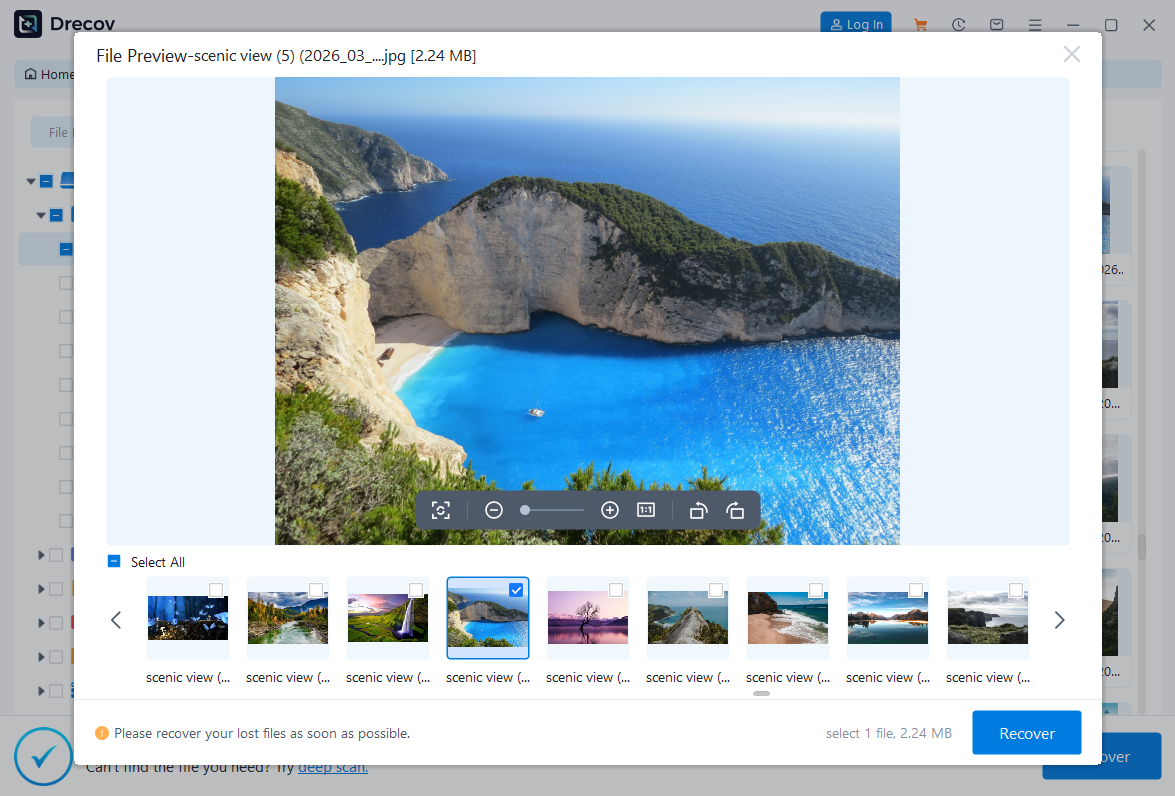
- Step 4: Preview files before recovery when preview is available. This helps confirm file quality before saving.
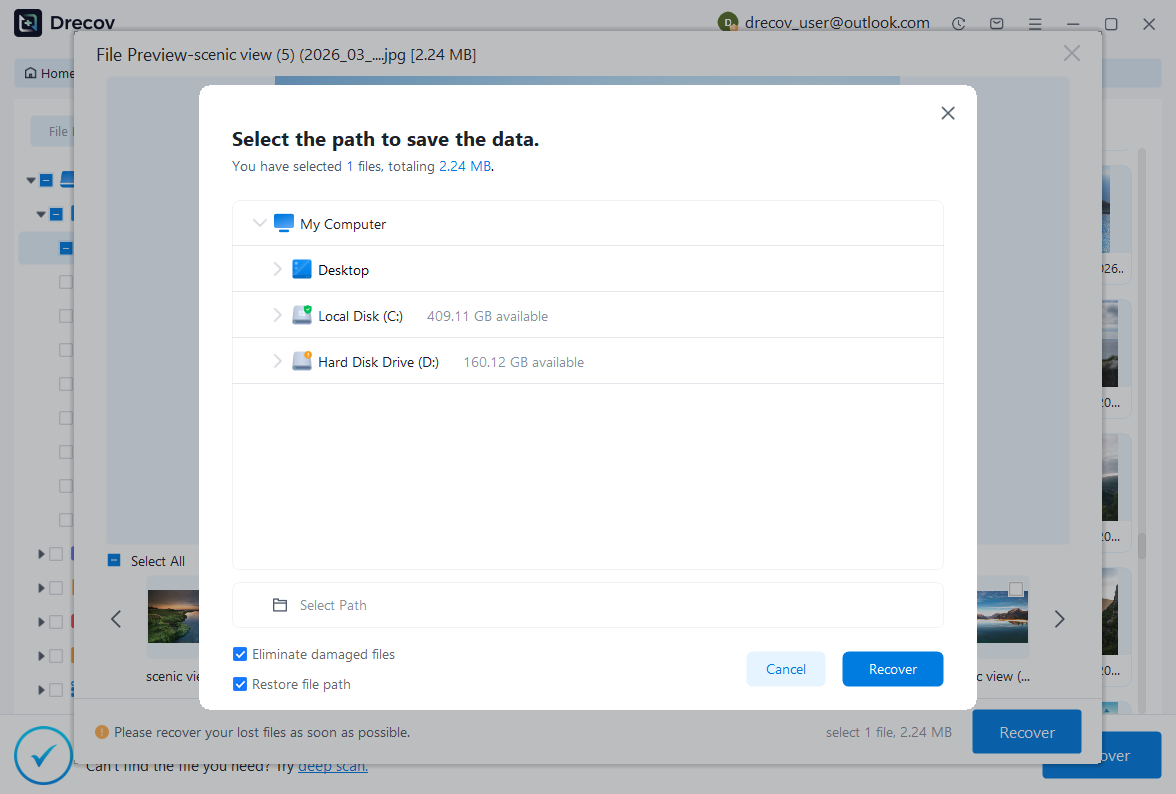
- Step 5: Select the needed files and recover them to a different healthy drive.
- Step 6: If files do not appear in the expected folder, check the chosen destination for a Drecov or Recovery folder.
Mistakes to Avoid
- Do not treat file software recovery as the last step after many failed repairs. It should be the first protective step.
- Do not save recovered files back to the damaged or formatted device.
- Do not run repeated formatting attempts if the files still matter.
- Do not assume files are gone just because Windows cannot show the folder.
- Do not delay file software recovery while continuing to copy files onto the same storage device.
FAQ
Can PandaOffice Drecov help with file software recovery?
Yes. PandaOffice Drecov can help with file software recovery by scanning the selected storage location and letting users preview recoverable files before saving them.
Should I use Quick Scan or Deep Scan?
Use Quick Scan for recent deletion. Use Deep Scan when files are missing after formatting, corruption, partition loss, or a device error.
Where should I save recovered files?
Save them to another healthy drive. Saving to the original device may overwrite data that still needs recovery.
What if file names are missing?
Check reconstructed folders, file type groups, and preview results. Some recovery cases lose original names but still preserve useful content.
Conclusion
File software recovery is most successful when it is done early and carefully. Stop using the affected device, scan the original location, preview recoverable files, restore them to another drive, and only then repair or format the source. PandaOffice Drecov gives file software recovery a clear workflow for safer recovery on common Windows storage devices.






