







Data loss is a nightmare that almost every computer user faces at some point. Whether it is a slip of the finger on the “Delete” key or a systematic error, the panic of losing an important document is universal. Usually, the first line of defense is that small, iconic wastebasket icon on your desktop. However, what happens when that icon disappears? Or even worse, what if you emptied it and now need those files back? In this comprehensive guide, we will explore everything from locating a missing icon to performing advanced data recovery using professional tools. If you have ever asked yourself, “where do i find recycle bin in windows 10,” this article is designed specifically for you.
Locating the Basics: Where Is My Recycle Bin on My PC?
By default, Windows 10 places the Recycle Bin directly on your desktop. It is a system folder that temporarily stores deleted files, allowing you to restore them before they are permanently wiped from the drive. However, due to accidental setting changes or system updates, it might vanish.
Restoring the Icon via Desktop Icon Settings
If you cannot see the icon, your first step shouldn’t be a deep system search. Instead, check your personalization settings. This is the most common reason users wonder where is my recycle bin on my pc.
- Step 1: Right-click on any empty space on your Windows 10 desktop.
- Step 2: Select Personalize from the context menu.
- Step 3: On the left-hand sidebar, click on Themes.
- Step 4: Scroll down on the right side or look under “Related Settings” to find Desktop icon settings.
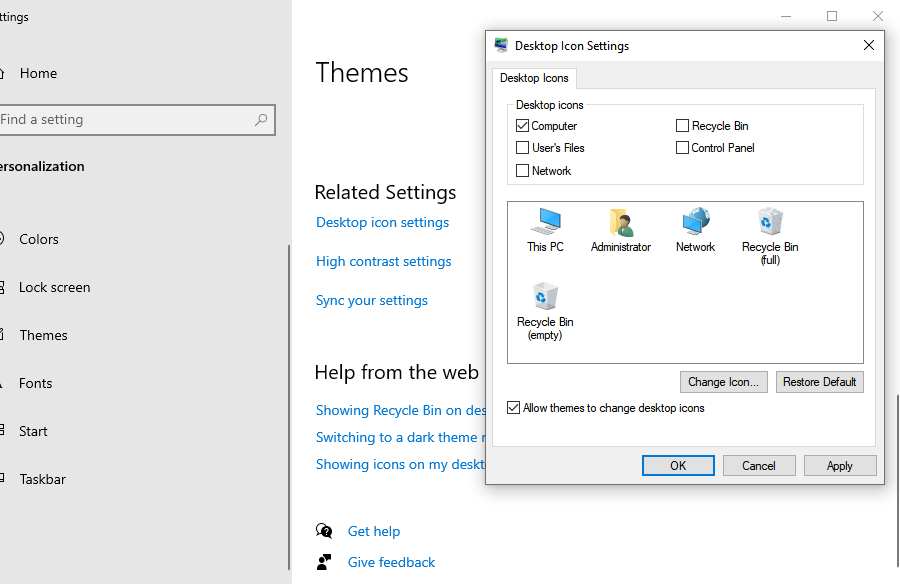
- Step 5: In the new window that pops up, ensure the checkbox next to Recycle Bin is ticked.
- Step 6: Click Apply and then OK.
Where Do I Find the Recycle Bin Using Alternative Methods?
Sometimes, the desktop isn’t the most convenient place to access your deleted files, especially if you have dozens of windows open. If you are still asking “where do i find the recycle bin,” there are several “backdoor” ways to reach it quickly.
Method 1: Using the File Explorer Address Bar
File Explorer is the heart of Windows file management. You can jump to the Recycle Bin directly from any folder view.
- Step 1: Press Windows + E to open File Explorer.
- Step 2: Click the first “>” (arrow) in the address bar at the top of the window.
- Step 3: A dropdown menu will appear. Select Recycle Bin from the list. This is often the fastest way to find it when you are already deep in folder structures.
Method 2: The Run Command Technique
For those who prefer keyboard shortcuts, the “Run” dialog box is a powerful ally.
- Step 1: Press Windows + R on your keyboard.
- Step 2: Type the following command:
shell:RecycleBinFolder. - Step 3: Press Enter. This will instantly trigger the Recycle Bin window to open, regardless of your desktop settings.
Where Is Recycle Bin Win 10 in Tablet Mode?
Windows 10 features a “Tablet Mode” designed for touchscreens, which often hides desktop icons to provide a cleaner interface. This leads many users to ask, “where is recycle bin win 10 when my desktop icons are gone?”
When Tablet Mode is active, the traditional desktop is replaced by the Start Menu. To find your deleted files here, you have two main options:
- Pin it to Start: Open the Recycle Bin using the “Run” command mentioned above, right-click the icon in the sidebar, and select Pin to Start.
- Switch Modes: Go to Settings > System > Tablet and change your settings to “Use desktop mode” to bring back your standard icons.
For more official documentation on how Windows manages your desktop environment, you can visit Microsoft’s Official Windows Support.
Where Is Recycle Bin on Windows: Accessing via PowerShell and CMD
If you are a power user or a system administrator, you might need to access or manage the bin through a command-line interface. If you find yourself wondering where is recycle bin on windows from a terminal perspective, Windows stores these files in a hidden system folder named $Recycle.Bin.
Viewing the Bin via Command Prompt
- Step 1: Type cmd in the Windows search bar and Run as Administrator.
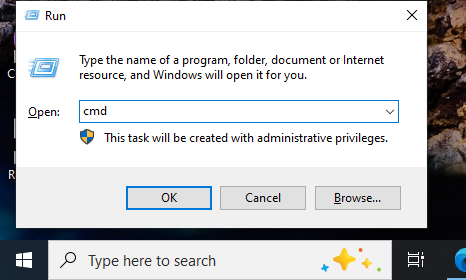
- Step 2: Type
cd C:\$Recycle.Binand press Enter. - Step 3: Type
dir /ato see the various SIDs (Security Identifiers) that represent the Recycle Bins for different users on the PC.
Warning: Modifying files directly within the
$Recycle.Binfolder via CMD is risky. It is always safer to use the GUI (Graphical User Interface) unless you are performing advanced system recovery.
Where Do I Find Recycle Bin on My Computer if it’s Corrupted?
Occasionally, the Recycle Bin becomes corrupted, and clicking it results in an error message or a “hang.” If you are searching for where do i find recycle bin on my computer only to find it broken, you may need to reset it.
Resetting a Corrupted Recycle Bin
- Step 1: Right-click the Start button and select Windows PowerShell (Admin).
- Step 2: Type the command:
rd /s /q C:\$Recycle.Binand press Enter. - Step 3: Restart your computer. Windows will automatically recreate a fresh, healthy Recycle Bin folder on your C: drive.
Beyond the Bin: Advanced Data Recovery with PandaOffice Drecov
Finding the Recycle Bin is easy, but what if the files you need aren’t there? Perhaps you used Shift + Delete to bypass the bin, or you recently clicked “Empty Recycle Bin.” In these cases, the files are no longer visible to the Windows operating system, but they still exist physically on your hard drive sectors—until they are overwritten by new data.
This is where professional software like PandaOffice Drecov becomes essential. It is a high-performance data recovery tool designed to retrieve lost partitions, deleted files, and formatted data with a high success rate.
⚠ Warning: Install it on a drive different from the one where your data was lost to prevent overwriting.
How to Use PandaOffice Drecov for Deep Recovery
If you’ve realized your files are gone and finding where do i find recycle bin in windows 10 didn’t help, follow these steps:
Step 1: Choose the Scan Location
Launch the program. On the main interface, you will see a list of available drives. Select the drive where your files were originally stored (usually Local Disk C: for desktop/documents) and click Scan.

Step 2: Real-time Preview
As the scan progresses, PandaOffice Drecov will categorize found files by type (e.g., Photos, Documents, Videos). You can use the Filter function to search for specific file extensions like .docx or .jpg.

Step 3: Execute Recovery
Once you locate your missing files, check the boxes next to them. Click the Recover button. You will be prompted to choose a destination folder. Select an external drive or a different partition to ensure data integrity.
More Data Recovery Insights and Strategies
Mastering your digital environment means knowing more than just where do i find recycle bin in windows 10. It involves proactive management and knowing the right tools for specific scenarios.
For instance, managing your desktop clutter is a great way to prevent accidental deletions. If you are looking to tidy up your workspace, you might want to learn how to hide recycle bin from desktop. This keeps your interface clean while keeping the bin accessible via File Explorer.
Additionally, some users prefer to bypass the bin entirely for security reasons, though this increases risk. You can read more about how to delete recycle bin on desktop and restore data to understand the underlying file system mechanics better.
Finally, if you work in a cross-platform environment, data recovery isn’t limited to Windows. If you’ve made a mistake on a MacBook, the process is slightly different but equally manageable. Check out this guide on how to undo empty recycle bin on mac for Apple-specific solutions.
Best Practices to Avoid Permanent Data Loss
Now that you know where is recycle bin on windows and how to recover files if the bin is empty, let’s look at how to prevent these “heart-attack” moments in the future.
- Enable Delete Confirmations: Sometimes Windows 10 is set to delete files instantly without asking. To change this, right-click the Recycle Bin, select Properties, and check Display delete confirmation dialog.
- Regular Backups: Use Windows “File History” or cloud services like OneDrive. Even the best recovery tool cannot help if data has been physically overwritten.
- Check Bin Capacity: If you delete a file larger than the “Maximum Size” allocated to your Recycle Bin, Windows will delete it permanently. You can increase this size in the Recycle Bin Properties.
- Stop Using the Drive: The moment you realize a file is missing, stop saving new files or downloading updates. This minimizes the chance of overwriting the “hidden” data.
Summary Table: Accessing the Recycle Bin
| Method | Best For | Keyword Shortcut / Path |
| Desktop Icon | Daily Use | N/A |
| File Explorer | Multitasking | Click “>” in Address Bar |
| Run Command | Hidden Icons | shell:RecycleBinFolder |
| PowerShell | Corruption Issues | cd C:\$Recycle.Bin |
| PandaOffice Drecov | Emptied Bin | Professional Recovery Tool |
By understanding the various ways to find and manage your Recycle Bin, you transform from a frustrated user into a confident digital navigator. Whether you were simply looking for where is recycle bin win 10 or needed a deep-dive into the capabilities of PandaOffice Drecov, you now have the tools to handle almost any data loss scenario.
Remember, the Recycle Bin is your first safety net, but professional recovery software is your ultimate insurance policy. Keep your software updated and your backups frequent!
Conclusion
Navigating the complexities of file management starts with a simple question: where do i find recycle bin in windows 10? As we have explored throughout this guide, the answer can range from a simple desktop icon adjustment to utilizing advanced command-line shortcuts like shell:RecycleBinFolder. Whether you were searching for where is my recycle bin on my pc because of a hidden setting or trying to figure out where is recycle bin win 10 while using Tablet Mode, understanding these access points is the first step in protecting your digital workflow.
However, simply knowing where is recycle bin on windows is only half the battle. Digital accidents—such as bypassing the bin with Shift + Delete or prematurely emptying it—require a more robust solution. This is where professional tools like PandaOffice Drecov prove invaluable. By following the structured recovery steps—from safe installation to real-time file previewing—users can effectively reverse permanent data loss that the standard OS cannot handle.






