Recover editable SVG work before rebuilding the illustration
To recover Inkscape SVG files, check the configured autosave location and any emergency-save message before opening and saving the old original again. A crash may leave a separate candidate containing later work. However, a normal close without saving and a severe crash do not guarantee such a file. Preserve what survives, then compare its actual objects with the missing design.
An SVG can also look incomplete because a linked image or font is unavailable. That differs from losing vector paths. Therefore, separate the missing content into editable objects, external images, text appearance, and rendered output. This guide uses different recovery routes for those cases rather than assuming every blank area requires deleted-file software.
Keep the surviving files unchanged
Copy the original SVG, nearby candidate files, and linked image folder into a recovery workspace. Also record the last changes you remember, such as a new logo curve, a moved label, or a revised page. These details provide a concrete comparison target. A candidate with the right filename can still predate the work you need.
If a crash dialog identifies a saved location, record that full path before dismissing it. Also note the Inkscape version and whether the document had ever received a manual save. Autosave and emergency-save behavior can depend on these circumstances. Do not clean temporary folders or run a storage cleanup while those locations may contain the only surviving design candidate.
Free route 1: inspect the configured autosave folder
- Open Inkscape’s preferences and inspect Input/Output, then Autosave, for the actual configured location.
- Copy plausible existing autosave SVG files to a separate recovery folder.
- Open the copied candidates one at a time and compare the missing objects.
- Save the best candidate as a new native SVG without replacing the original evidence.
Autosave must have produced a file before the interruption to help now. Changing the interval after a crash does not reconstruct the previous session. Also avoid judging candidates solely by a generic name or modification time. Several open documents may have generated separate autosaves, so inspect the page content and a distinctive recent edit in each plausible file.
Compare editable objects in the candidate
Use the object and layer controls to inspect the expected paths, groups, and text. Then select the specific object that you thought disappeared. A candidate can render similarly while containing a flattened image instead of editable vector content. Confirm that the type of surviving object supports your next task, especially when you need to revise a curve or a text label.
Check the document’s page sizes and multiple-page content when relevant. A recent object may sit outside the initially visible page. Fit the drawing into view and inspect the object list before concluding that it is absent. Conversely, a familiar thumbnail does not prove that later revisions survived. The meaningful check is the actual curve, text, or arrangement you need to recover.
Free route 2: locate an emergency-save SVG
- Use the crash dialog’s reported path if you recorded it.
- Inspect that location and the relevant user or document directories for an emergency SVG with a crash timestamp.
- Copy candidates elsewhere before opening or modifying them.
- Open a working copy, inspect the drawing, and save it under a clearly identified recovery name.
Inkscape attempts an emergency save for some crashes, but the attempt can fail or preserve the same problem that caused the crash. Therefore, an emergency filename is a candidate rather than a guarantee. If opening it triggers another failure, keep the original candidate intact and compare an earlier autosave. Repeating the same crash does not create a more complete version of the missing drawing.
Recover useful content from an unstable candidate
If a candidate opens long enough to inspect but fails on a particular operation, first save a separate copy when possible. Then identify which page or object triggers the problem. Transfer a verified subset into a new document only in a controlled working copy. This can preserve useful paths while leaving the uncertain object for later investigation.
Do not immediately delete every unusual object to make the document open reliably. A complex filter, linked image, or clipping group may be an important part of the design. Record what you remove and compare the visual result against a known export. A stable partial document can be valuable, but it should not silently replace the original artwork as a complete recovery.
Free route 3: reconnect an existing linked image
- Select the missing or broken image object and inspect its expected source path.
- Locate the original image in the project assets or an existing delivery package.
- Update the reference in a copied SVG using the appropriate image controls for your version.
- Compare the image’s content, crop, scale, and placement before saving the recovered document.
A linked image lives outside the SVG, while an embedded image travels inside it. If the external file merely moved, restoring the correct reference can fix the appearance without recovering deleted vector data. However, relinking cannot recreate a genuinely absent source image. Also avoid choosing an older export with the same name unless its pixels and dimensions match the intended asset.
Check clipping and transformation
A correct source image can still look wrong if you replace it in a way that changes its transform or clipping relationship. Inspect the recovered image at its intended size and within its existing mask or clip. Then compare the result with the last reliable output. A simple visible rectangle is not enough when the design depends on a carefully cropped photograph.
If you want a portable recovered document, consider embedding the verified image in a new copy where appropriate. Then move that copy to a test folder and reopen it. This checks that the design no longer relies on an unavailable original path. Keep the source asset separately too, since later image editing may require more information than the SVG’s displayed result.
Free route 4: use an existing vector export as limited salvage
- Locate a previously exported SVG or PDF from the relevant design revision.
- Open or import a copy into a new Inkscape document with suitable import settings.
- Inspect which paths, text, groups, and images remain editable.
- Save the salvage result separately and document any missing structure or appearance differences.
A vector export can preserve useful shapes when the native design is unavailable. However, it may omit Inkscape-specific editing information, page organization, or the original object structure. Imported text can also behave differently depending on the export and available fonts. Treat this route as a content rescue with explicit limits rather than assuming that any PDF reconstructs the original document exactly.
Decide what a raster export can supply
A PNG or JPEG can preserve appearance and provide a tracing reference. It does not contain the original vector paths, editable text, or layer relationships. If you redraw curves from that image, label the result as reconstruction. Also compare dimensions and line shapes carefully, because an image that looks sharp at one size may be a poor reference for precise production artwork.
For a logo, distinguish a temporary visual substitute from an editable master. A raster reference might help meet an internal review need while you continue searching native candidates. It should not automatically become the source for large-scale printing or cutting. The intended output determines whether the surviving information is enough, and that decision should be explicit.
Diagnose missing objects before assuming file loss
Inspect layers, object visibility, opacity, clipping, and the current view. A hidden group or an object outside the page can make valid content seem absent. First use the object controls to locate the expected item. If the item exists, investigate its display and position in a copy. If it is absent, compare historical candidates instead of repeatedly changing the view.
Keep text problems separate from path loss
A font substitution can change line breaks, spacing, and the apparent position of a label. Check the intended font and whether it is available on the recovery machine. Then compare the text itself with the expected wording. Converting all text to paths may preserve one appearance, but it also changes editability, so do that only in a separate output copy when appropriate.
Also check whether an existing export already converted text to paths. Those curves can preserve letter shapes without retaining the underlying text string. This distinction matters for future revisions and accessibility. A recovered design can be visually faithful while still requiring manual text reconstruction, and your acceptance note should identify that limitation.
A worked recovery after a logo-editing crash
Suppose you changed a logo’s curve and tagline before Inkscape crashed. The manually saved SVG contains the old curve. Preserve it, then compare autosave and emergency candidates. Inspect the curve nodes and the tagline text in each candidate. Choose the source that actually contains the change, rather than selecting a file simply because its timestamp falls closest to the crash.
Combine candidates without losing valid later work
One candidate may contain the revised curve while another has the corrected tagline. Keep both and transfer the verified objects into a new recovery document. Then compare the group transforms, alignment, and page dimensions. Copying an object between documents can introduce a different scale or placement context, so verify the final composition rather than assuming a successful paste completes the recovery.
Next export a review image at the intended dimensions. Compare its edges, spacing, and colors with the design target. Also inspect the native SVG again to confirm that the elements remain editable. This two-part check prevents a good-looking export from hiding a damaged or simplified master file that will cause trouble during the next revision.
Inspect a damaged SVG with care
SVG uses structured XML, but a text editor cannot infer missing path coordinates from an abruptly truncated file. Preserve a damaged source before any manual edit. An experienced user may identify a small syntax issue in a working copy, yet the result still needs inspection in Inkscape. Removing a malformed section can make a file parse while discarding important artwork.
Avoid extension-only fixes
Changing a filename from a temporary suffix to SVG can make a genuine candidate recognizable. It cannot turn a zero-byte file, a shortcut, or an unrelated image into vector artwork. Check the file’s content and size before treating a renamed item as recovered. If it opens, compare the intended objects and save a new native copy instead of overwriting the original candidate.
For SVGZ, preserve the compressed original and use an appropriate decompression tool on a copy if inspection is necessary. Keep the compression issue separate from the drawing’s content. A readable archive can contain an incomplete SVG, while a damaged container may prevent access to otherwise useful content. These are different limits, and neither justifies promising a complete repair.
Identify which SVG objects preserve the missing design
An Inkscape recovery can contain paths, text, embedded images, and externally linked assets in different combinations. Inspect the object types that matter for your next revision. For a technical icon, you may need editable curves and consistent stroke widths. For a poster, you may also need live text and the original photograph. This object-level inventory explains whether a candidate supports continued editing or only preserves a useful visual reference.
Compare a distinctive curve rather than a thumbnail
Select the curve that changed most recently and inspect its shape at a useful zoom. Compare the endpoints, corners, and nearby alignment with a reliable reference. Then inspect whether it remains a path or has become part of a raster image. A matching appearance at thumbnail size can conceal a simplified or flattened object that will not support the same future edits.
Also inspect group transformations when transferring an object between candidates. A curve can retain its coordinates while changing apparent size or position in another group context. Keep the source candidate and compare the pasted result against the intended page dimensions. If you need to adjust placement, record that as a reconstruction step rather than assuming the transfer recovered the original composition automatically.
Recover clipped artwork without discarding the useful structure
A clip or mask can make valid content appear absent or cropped incorrectly. Inspect the relevant group and its relationships in a working copy before deleting the clip. If you temporarily release it for diagnosis, preserve a baseline and compare what becomes visible. This helps distinguish hidden surviving artwork from genuinely missing objects without sacrificing the original arrangement.
Check the image and the clipping shape together
Suppose a product photograph appears as an empty clipped area after moving a project. First identify whether the image source is unavailable. Then reconnect the correct image and inspect the existing crop. Replacing the whole group with a new photograph may lose the original transform and clip relationship. Repairing the source first can preserve those useful design decisions when the source file still exists.
If the clipping shape itself is absent, an older native candidate may provide it while a newer candidate supplies the image or other objects. Transfer the verified shape into a separate recovery document and compare its size and alignment. Then test the resulting export. This is a controlled combination of surviving sources, and a short source note makes its limitations clear for the next editor.
Preserve text meaning and visual appearance separately
A recovered label can retain its words while losing the intended font, or retain letter shapes as paths while losing the editable string. Inspect both aspects. For live text, compare the wording, font availability, spacing, and line breaks. For outlined text, confirm that the visible letters match the intended label while documenting that ordinary text editing is no longer available.
Use an output reference to resolve spacing differences
Compare a known export with the recovered native label at the intended output size. Focus on line endings, alignment, and the space around adjacent shapes. A font substitution can change those relationships without producing a file error. Restore the correct font environment when available, or make a deliberate replacement in a new copy and document the resulting design change.
Do not convert every text object to paths simply to hide a font warning during recovery. That can remove useful editability and make later language or wording changes harder. If a path-based delivery copy is appropriate, create it separately after accepting the native recovery. Keep the editable source and the output-oriented copy clearly identified so they do not become interchangeable by accident.
Assess an imported PDF as a reconstruction source
A PDF can preserve valuable vector content, but its object organization may reflect the export process rather than the original design. Inspect imported paths, groups, clipping, text, and images before planning the next edit. Then identify which elements need cleanup or rebuilding. This assessment turns an apparently complex imported page into a practical recovery inventory instead of assuming it recreates the original SVG structure.
Test editability on a disposable copy
Choose one representative shape and one text element and inspect how they behave during a small edit. Then undo or discard the test copy. If a visible letter consists of paths, plan for wording changes accordingly. If an effect became a raster image, record the resolution limit before using it for a larger output. These small checks reveal the actual information available in the imported source.
Also compare page size and units against the intended artwork. A recovered visual can appear correct while arriving at a different physical scale. This matters for print, cutting, or any design that depends on real dimensions. Measure a known element and verify the output settings before generating a replacement deliverable from an imported candidate.
Inspect filters and effects after a crash recovery
A native candidate may retain an effect definition while displaying it differently in another environment. Compare the intended appearance and inspect whether the effect remains editable. If a particular effect triggers instability, preserve the original candidate and test a narrow change in another copy. Avoid rasterizing the whole document as the first response, since that can discard otherwise recoverable vector content.
Keep a visual salvage and an editable candidate in parallel
You may have a reliable raster export and an uncertain native SVG. Preserve both while investigating. The export can serve as an appearance reference, while the native file may still provide paths and text for continued work. Combining these roles deliberately is more useful than choosing one file as universally complete when each preserves a different part of the design.
Finish by checking the recovered artwork at the dimensions and format you actually need to deliver. Inspect fine edges, transparency, clipping, and text in a fresh export. Then reopen the native source and verify the objects needed for the next revision. This paired acceptance check establishes both immediate usefulness and future editability, while leaving any reconstructed elements clearly documented.
Check physical dimensions before reusing recovered vectors
For artwork intended for print or cutting, measure a known element in the recovered document. Then compare the page dimensions and export settings with the intended specification. A curve can look correct while using an unexpected scale after import or transfer. Preserve the candidate before adjusting units or transforms, and verify the resulting output rather than assuming that a familiar page shape establishes the right physical size.
Keep master and delivery copies identifiable
Save the accepted editable SVG separately from any copy prepared for a specific delivery format. The delivery copy may outline text, simplify effects, or embed images for portability. Those choices can be appropriate while changing future editability. Record which file remains the master and test that it reopens with the expected objects, so a later revision does not begin from an unnecessarily flattened output.
Also retain a review image showing the accepted appearance. It provides a quick comparison if fonts, rendering, or linked assets behave differently on another machine. However, keep it in its proper role as a visual reference. The native object inspection remains necessary when you need to establish whether the recovered paths and text support continued editing.
When deleted-file recovery is relevant to Inkscape
PandaOffice Drecov may help find saved SVG files, existing autosaves, or linked image assets deleted from accessible storage. It cannot regenerate a curve that never reached disk or recover editable vectors from a screenshot alone. Try the native candidate routes first, and reduce writes to the affected location while you assess whether storage recovery is needed.
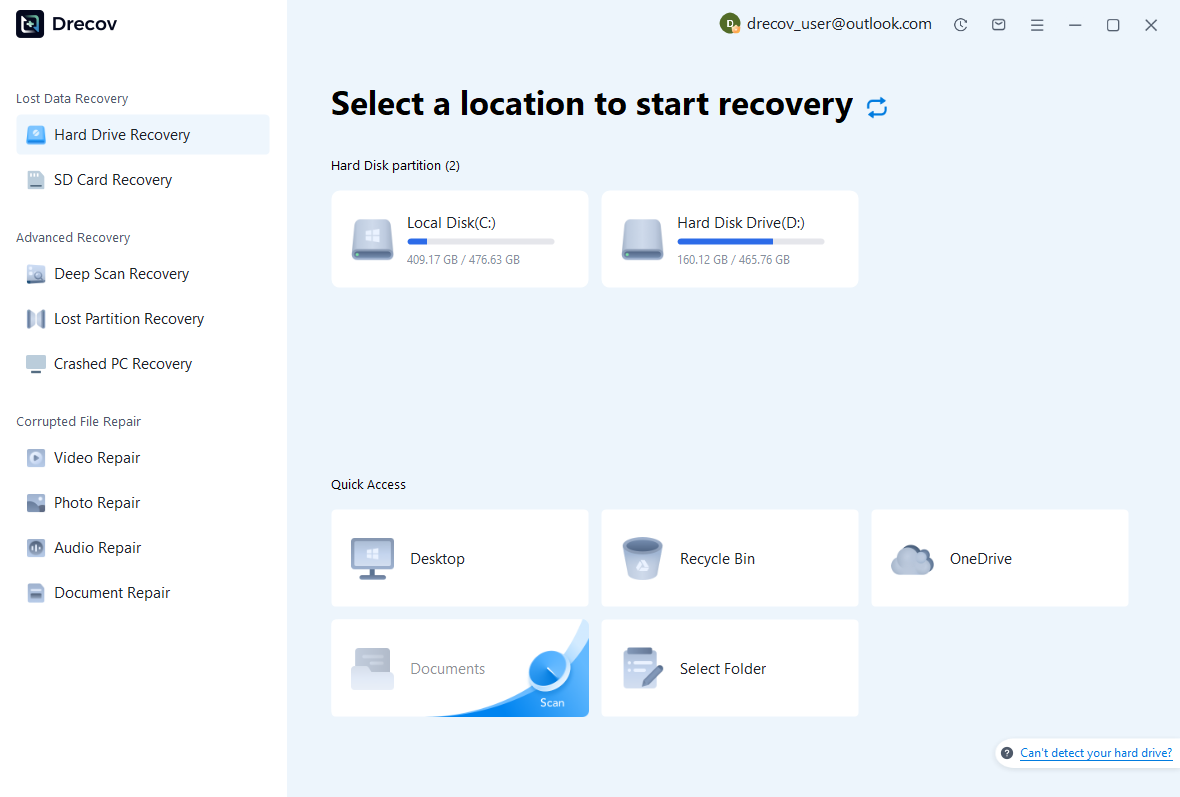
Step 1: select the original drawing or asset location
Choose the drive or partition that held the missing SVG, autosave folder, or linked images. These may be different locations, so record which missing item each search targets. Keep recovery output on other healthy storage. If the drive repeatedly disconnects or cannot read reliably, assess that condition before running a routine file scan.
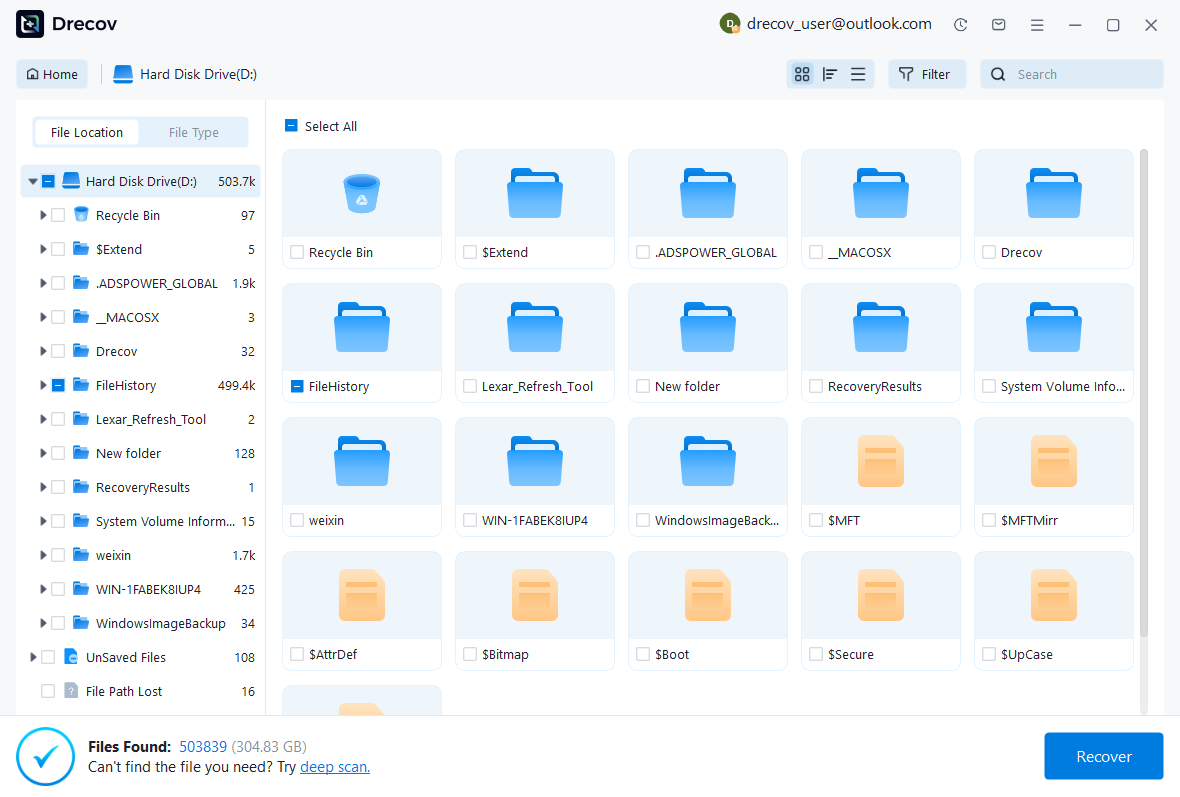
Step 2: compare SVG and asset candidates
Review available names, paths, sizes, dates, and previews where supported. Save plausible native documents and their linked images together. A preview may show a rendered appearance without proving that every path or text object is intact. Preserve several useful revisions when necessary, then inspect their editable contents in Inkscape after recovery.
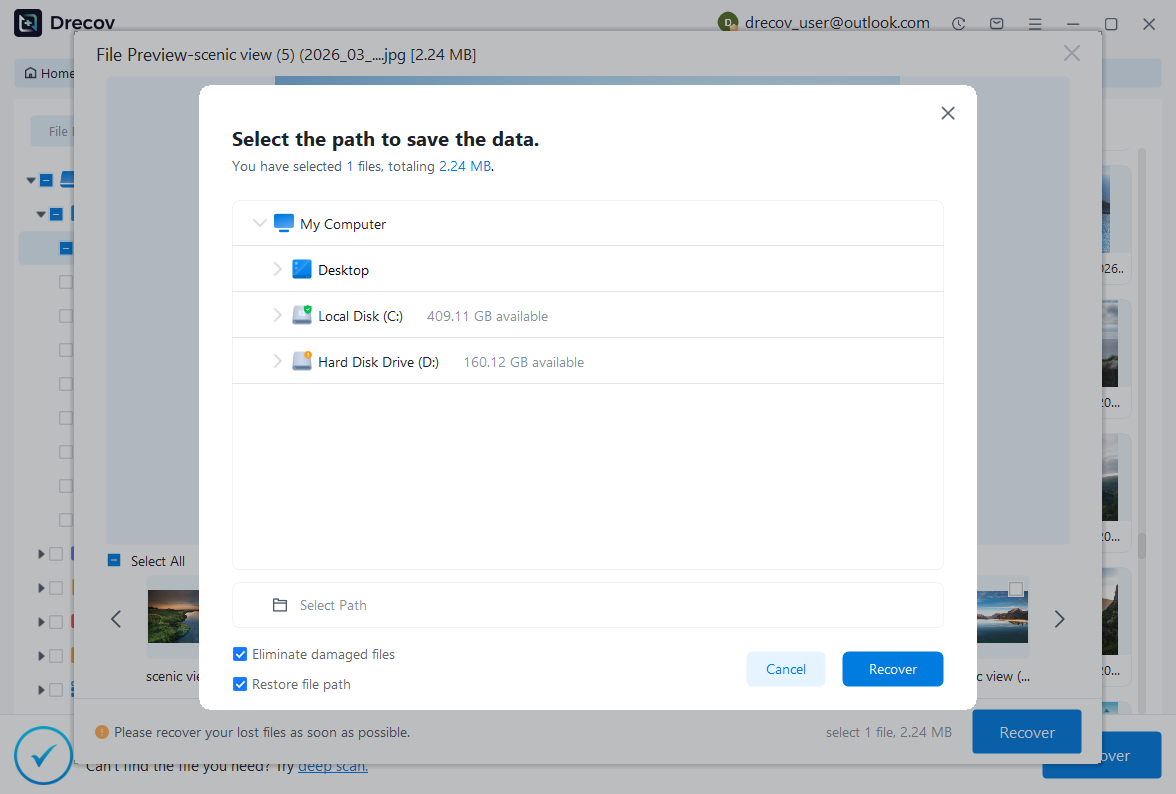
Step 3: recover elsewhere and test both native and output files
Restore selected items to a separate destination and open working copies. Check paths, text, layers, pages, clips, and external images, then generate a new review export. Retain rejected candidates separately. A successful file scan or a recognizable thumbnail does not establish that the recovered SVG is ready to serve as the editable master.
Confirm the final artwork and preserve the next milestone
Close and reopen the accepted recovery SVG from its new location. Then inspect its linked assets and export the intended output again. This catches references that remained available only through the previous session or old folder. Also record which candidate supplied the main drawing and which elements you reconstructed from exports or visual references.
Test autosave without risking the recovered design
Use a disposable drawing to verify the configured autosave directory and interval. Make a harmless change, wait for the configured behavior, and inspect the resulting file. Also check retention and write access. This practical test tells you where a future candidate would live instead of relying on an assumed default path that may differ between installations.
Keep the preserved originals, accepted SVG, and delivery exports clearly separated. If only a raster image survives, state that the result preserves appearance while editable vectors remain missing. That gives you a useful next step for reconstruction without presenting an incomplete recovery as a finished design master.
Related recovery resources
Explore the relevant recovery options: Hard drive recovery, External hard drive recovery.
For another recovery case and its practical checks, read the related recovery guide.
Check the vendor guidance for the installed version: official recovery documentation 1, official recovery documentation 2.