







Managing a digital workspace is much like organizing a physical desk. When clutter builds up, productivity often drops. One of the most common eyesores for Windows users is the persistent trash can icon. If you are looking for how to hide recycle bin from desktop environments, you have come to the right place. This guide provides a comprehensive deep dive into customization, system optimization, and—crucially—how to ensure your data remains safe even when your desktop is minimalist.
As experts in data recovery and system management, we understand that “out of sight” should never mean “out of mind.” While we help you achieve that sleek, aesthetic look, we will also cover the technical safety nets you need, such as using PandaOffice Drecov to retrieve files that might be lost once the icon is no longer staring you in the face.
The Aesthetic and Functional Benefits of a Clean Desktop
Before we dive into the technical steps of how to hide the recycle bin, it is worth discussing why users choose to do this. A minimalist desktop reduces visual cognitive load. When you boot up your computer, seeing a clean wallpaper instead of a dozen system icons can create a more focused atmosphere. Furthermore, for those who record their screens or give presentations, hiding system folders provides a level of professional privacy.
However, hiding the icon does not disable the function. Your computer still allocates space for deleted files. Therefore, understanding the underlying file system is vital for any user who values their data integrity.
Method 1: Hide Recycle Bin Desktop via System Settings
The most straightforward way to hide recycle bin desktop icons is through the built-in Windows Personalization menu. This method is recommended for 99% of users because it is safe, reversible, and requires no administrative privileges.
Steps for Windows 10 and Windows 11
- 1.Right-click on any empty space on your desktop wallpaper.
- 2.Select Personalize from the context menu. This action opens the Windows Settings app.
- 3.On the left-hand navigation pane (or the main grid in Windows 11), click on Themes.
- 4.Look for the “Related Settings” section and click on Desktop icon settings.
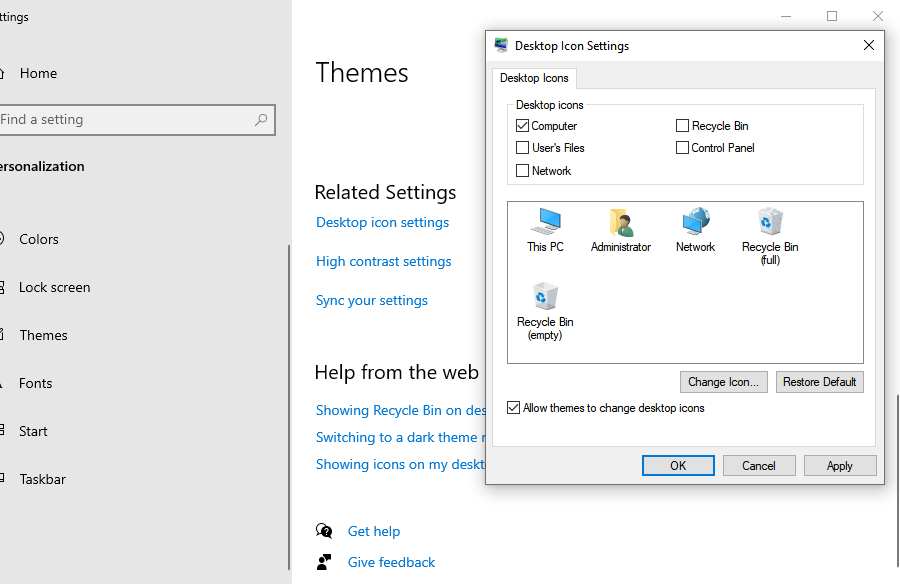
- 5.A small dialog box will appear. Under the “Desktop Icons” section, uncheck the box labeled Recycle Bin.
- 6.Click Apply and then OK.
By following these steps, the icon vanishes instantly. This is the primary method used by those searching for how to hide the recycle bin without touching any system files.
Method 2: How to Hide Recycle Bin Windows 11 via Modern Settings
Windows 11 introduced a slightly different UI layout compared to its predecessor. If you are specifically looking for hide recycle bin windows 11 instructions, the process is integrated more deeply into the “Personalization” sub-menus.
- Open Settings by pressing
Windows + I. - Navigate to Personalization > Themes.
- Scroll down to find Desktop icon settings.
- In the pop-up, simply deselect the Recycle Bin.
Pro Tip: If you cannot find the menu, simply tap the Windows key and type “Desktop icons” into the search bar. Windows will take you directly to the toggle screen. This is often the fastest way to hide recycle bin windows 11 icons if you find the new Settings app confusing.
Method 3: Using Group Policy Editor (Intermediate)
For users running Windows Pro, Enterprise, or Education editions, the Local Group Policy Editor (gpedit.msc) offers a more “permanent” way to manage desktop visibility. This is particularly useful for system administrators who want to apply this change across multiple user accounts.
- 1.Press
Windows + Rto open the Run dialog. - 2.Type
gpedit.mscand press Enter. - 3.Navigate to the following path:
User Configuration > Administrative Templates > Desktop - 4.In the right-hand pane, look for the policy named Remove Recycle Bin icon from desktop.
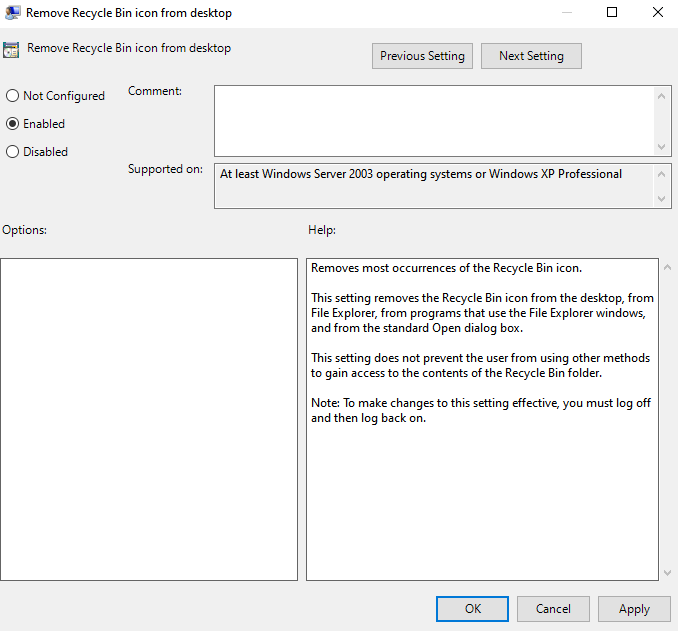
- 5.Double-click the policy, select Enabled, and click OK.
Once enabled, users will no longer be able to toggle the icon back on through the standard settings menu. This provides a layer of UI consistency in professional environments.
Method 4: Advanced Registry Modification (Expert)
If the standard UI fails or if you are building an automated deployment script, you can use the Registry Editor.
Warning: Please back up your registry before proceeding, as incorrect changes can cause system instability.
- 1.Press
Windows + R, typeregedit, and hit Enter. - 2.Navigate to:
HKEY_CURRENT_USER\Software\Microsoft\Windows\CurrentVersion\Explorer\HideDesktopIcons\NewStartPanel - 3.Look for the DWORD value named
{645FF040-5081-101B-9F08-00AA002F954E}. - 4.If it doesn’t exist, right-click, select New > DWORD (32-bit) Value, and name it exactly as shown above (including the brackets).
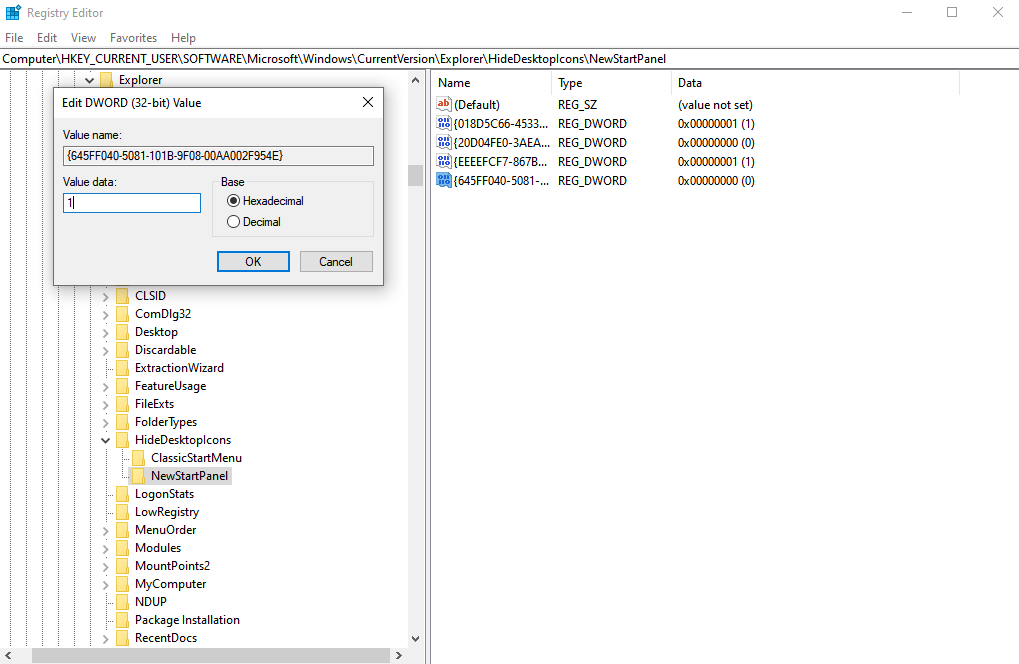
- 5.Set the Value Data to
1to hide the icon (set it to0to show it). - 6.Restart Windows Explorer via Task Manager to see the changes.
The Hidden Danger: Data Loss After Hiding the Icon
When you hide recycle bin desktop icons, you lose a visual cue. Normally, when the bin icon looks “full,” it reminds you to check for files you might have deleted accidentally. Without that icon, many users forget they have gigabytes of data sitting in a temporary state. Even worse, if you use Shift + Delete to bypass the bin entirely, or if you empty the bin without looking, your data is at risk.
If you have hidden your bin and realize you’ve permanently deleted a crucial document, don’t panic. This is where professional-grade tools like PandaOffice Drecov become essential.
Recovering Lost Data with PandaOffice Drecov
PandaOffice Drecov is a robust data recovery solution designed to handle scenarios where files have been emptied from the Recycle Bin or lost due to disk formatting. It uses advanced deep-scan algorithms to piece together fragmented data.
⚠ Warning: Install it on a drive different from the one where your data was lost to prevent overwriting.
Step-by-Step Recovery Guide:
- Step 1: Select the LocationLaunch the application. On the main interface, select the drive (usually C:) or the specific “Recycle Bin” location option to begin the scan.

- Step 2: Deep Scan ExecutionClick Start. The software will perform a Quick Scan followed by a Deep Scan. The Deep Scan is vital if the files were deleted a long time ago.

- Step 3: Filter and PreviewOnce the scan is complete, use the search bar or file-type filters to find your missing documents. PandaOffice Drecov allows you to preview photos and documents before committing to the recovery.

- Step 4: Recover to a Safe ZoneSelect the files you want back and click Recover.
Warning: Always save recovered files to an external drive or a different partition to ensure 100% data integrity.
For more detailed scenarios, you might find these resources helpful:
- Windows 10/11: How to Remove the Recycle Bin from Desktop
- How to Delete Recycle Bin on Desktop and Restore Data
- How to Recover Emptied Recycle Bin in 3 Easy Steps
- Customize the Desktop Icons in Windows
How to Access the Recycle Bin Once It’s Hidden
Learning how to hide the recycle bin is only half the battle. You still need to access it occasionally to restore files or clear space. Here are three quick ways to find it without the desktop icon:
- File Explorer Address Bar: Open any folder, click the first arrow in the address bar, and select Recycle Bin from the dropdown menu.
- Run Command: Press
Windows + Rand typeshell:RecycleBinFolder. - Pin to Start: Before you hide the icon, right-click it and select Pin to Start. This keeps your desktop clean but keeps the bin just one click away.
Summary of Methods
| Method | Technical Level | Best For |
| Desktop Settings | Beginner | Individual users on Win 10/11 |
| Group Policy | Intermediate | IT Admins / Pro Users |
| Registry Editor | Advanced | Scripting and Automation |
| PandaOffice Drecov | Essential | Recovering accidentally deleted files |
Advanced Troubleshooting: Resolving Common Issues
Sometimes, the standard methods for how to hide the recycle bin don’t go as planned. Whether it is a greyed-out setting or a corrupted folder, these technical hurdles require a deeper dive into system repair.
1. What to Do if “Recycle Bin” is Greyed Out in Settings?
Occasionally, you might navigate to the Desktop Icon Settings only to find that the checkbox for the Recycle Bin is disabled. This is usually caused by a “Group Policy” override or a registry restriction often set by a workplace administrator.
- The Fix: You must ensure that the “Prohibit User from changing desktop icons” policy is not enabled.
- Path: Open
gpedit.msc>User Configuration>Administrative Templates>Control Panel>Personalization. - Action: Ensure “Prevent changing desktop icons” is set to Not Configured.
2. Fixing a Corrupted Recycle Bin
If you successfully hide recycle bin windows 11 icons but notice that your storage space isn’t clearing up—or if you get an “Access Denied” error when deleting files—your hidden bin folder might be corrupted.
Because the Recycle Bin is a system-protected folder ($Recycle.Bin), you can reset it using the Command Prompt:
- Type
cmdin the Start search and Run as Administrator. - Type the following command and press Enter:
rd /s /q C:\$Recycle.bin - Warning: This command permanently deletes all files currently in the bin across all user profiles on that drive.
- Restart your computer. Windows will automatically recreate a fresh, healthy version of the hidden bin.
Hide Recycle Bin FAQs
How do I hide the Recycle Bin on a second monitor only?
Windows treats the desktop as a single workspace. If you choose to hide recycle bin desktop icons, they will disappear from all monitors. However, if you use “Extended Display” mode, icons typically only appear on the “Primary Monitor” anyway. If you want a completely clean secondary screen, right-click the second desktop, select View, and uncheck Show Desktop Icons.
Does hiding the icon affect my SSD’s lifespan?
No, hiding the icon is purely a visual change in the UI. However, if you are using an SSD, be aware of the TRIM command. When you empty a hidden bin, Windows sends a TRIM signal to the SSD, marking those data blocks as no longer in use. This makes data recovery harder, which is why having PandaOffice Drecov ready is so important for immediate recovery attempts.
While there is no default Windows hotkey, you can create one:
- Create a shortcut of the Recycle Bin on your desktop (before hiding it).
- Right-click the shortcut > Properties.
- Click in the Shortcut key box and press a letter (e.g.,
R). Windows will turn this intoCtrl + Alt + R. - Now, even after you hide the recycle bin, pressing that combo will launch the folder.
Why should I use PandaOffice Drecov instead of Windows “File History”?
Windows File History is a backup tool, meaning it only recovers files if you previously turned the feature on and connected an external drive. PandaOffice Drecov is a recovery tool—it can find files that were never backed up by scanning the raw sectors of your hard drive.
Conclusion
Mastering how to hide recycle bin from desktop views is a fantastic way to personalize your Windows experience. Whether you use the simple toggle in hide recycle bin windows 11 settings or the advanced Registry method, the result is a cleaner, more efficient workspace.
However, remember that a hidden bin is still a functional bin. Always keep a data recovery tool like PandaOffice Drecov in your digital toolkit to ensure that a “clean” desktop doesn’t lead to a permanent loss of important information.






