







Have you ever plugged in a USB drive, headset, mouse, or phone — and nothing happened? No light, no sound, no prompt, no device recognized? It’s frustrating, especially when you rely on USB ports for almost everything. Whether your usb ports stopped working after a spill, a system update, or simply out of nowhere, you’re not alone — and most of the time, this problem has a fix. In this complete guide, we’ll walk through why USB ports stop working and how to fix them — step by step — in a way anyone can follow.
What Are USB Ports & Why They Matter
Universal Serial Bus (USB) ports are the tiny rectangular connectors on your computer, laptop, or other devices that let you plug in keyboards, flash drives, phones, printers — basically everything. They act as both data highways and power outlets for connected peripherals. When they stop working, your productivity can grind to a halt because so many everyday devices depend on USB connectivity.
Today’s computers can have different types of USB, including USB-A (the classic wide rectangular port), USB-C (the small reversible connector), and older formats like USB-B. Regardless of shape, they serve similar purposes — and they’re essential.
Common Symptoms of USB Port Failure
USB problems don’t always look the same. Sometimes, it’s obvious. Other times, it’s subtle. Recognition of these signs early can save you from data loss or hardware burnout.
No Device Detection
This is the most common problem: you plug in a USB device and nothing shows up on your screen. The device may power on (like a flash drive light blinking), but Windows or macOS simply doesn’t register it.
Erratic Power Behavior
Some USB devices blink, disconnect repeatedly, or seem to lose power randomly. You might have noticed your phone charging slowly or stopping charging entirely when plugged into a USB port.
USB Device Disconnects Randomly
Your USB mouse, keyboard, or external drive may connect for a moment — then instantly disconnect. This can be confusing and disruptive, especially during work or gaming.
Why USB Ports Stop Working
Understanding the root cause helps you fix the problem faster. Many users find that their usb port not functioning is due to one of the following reasons:
Hardware Damage
Physical damage is the #1 cause of USB failure. Ports can bend, break, or develop loose internal connections if something is plugged in roughly or if the device is dropped.
Driver Issues
Your computer needs software drivers to communicate with USB hardware. If a driver becomes corrupted or outdated, your PC may fail to recognize USB devices.
Power Management Problems
Modern operating systems try to save power by turning off unused ports. Sometimes, this power-saving feature goes too far and leaves ports unresponsive.
BIOS/UEFI Configuration
Some systems let you disable USB ports in BIOS settings. If this happens accidentally (or after a BIOS reset), your ports may be disabled at the hardware level.
Operating System Bugs
Sometimes, updates or bugs in Windows or macOS cause USB functionality to break temporarily, until a patch is released.
First Step — Basic Checks
Before diving into complex fixes, start with the simple things. Many times, a simple physical oversight is the culprit.
Try a Different USB Device
The issue might not be the port. Try a different USB device (flash drive, mouse, headphone adapter) to confirm whether the problem is the port or the original device. If the second device works, the first device is likely faulty.
Try a Different USB Port
If another port works normally, the original port may be faulty. This helps isolate the problem. Often, front-panel ports on desktop PCs fail more frequently than those directly on the motherboard.
Clean the Port Carefully
Dust, lint, or debris inside the USB port can block connections. Use a small toothpick or compressed air to gently clean the inside — but be careful not to damage the delicate pins.
Quick Software Fixes
Most USB issues are software-related and can be fixed without hardware repairs.
Restart Your PC
Yes — it sounds simple, but restarting resets the USB controllers and clears temporary glitches in the operating system’s memory.
Run Windows Troubleshooter
Windows has a built-in hardware troubleshooter that can detect and fix common USB problems automatically.
- Step 1: Open Settings > System > Troubleshoot.
- Step 2: Select Other troubleshooters and run the one for Hardware and Devices.
Install Updates
Check for pending Windows or macOS updates. Sometimes Microsoft or Apple releases patches that solve known USB issues. Ensure your system is running the latest build via Windows Update.
Driver-Related Solutions to Fix a USB Port Not Functioning
Since USB relies on drivers, fixing or updating them often resolves problems. When a usb port not functioning occurs, it is usually because the communication bridge between the OS and the hardware has collapsed.
Uninstall & Reinstall USB Drivers
In Windows, Device Manager shows all connected hardware. If a USB port’s driver is corrupted, you can force a refresh.
- Step 1: Right-click the Start button and select Device Manager.
- Step 2: Expand the Universal Serial Bus controllers section.
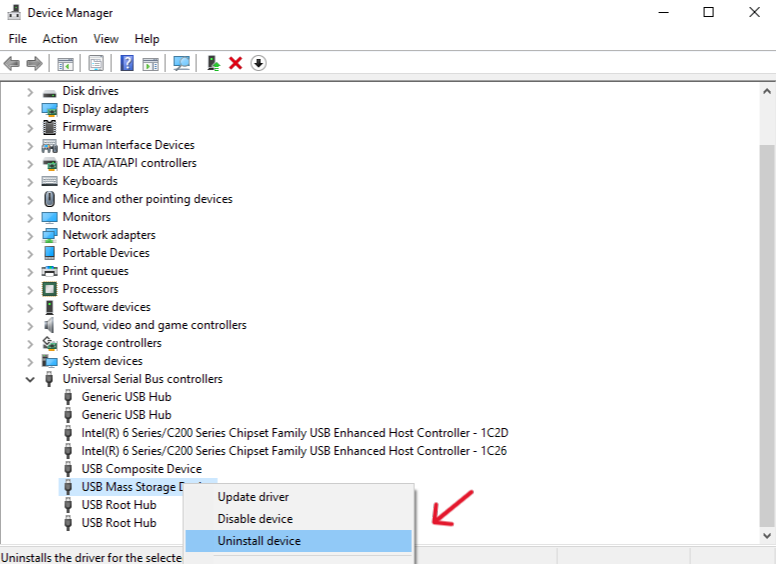
- Step 3: Right-click each USB Root Hub and select Uninstall device.
- Step 4: Restart your computer. Windows will automatically reinstall the correct drivers upon reboot.
Update Drivers via Device Manager
If uninstalling doesn’t work, try a manual update.
- Step 1: Open Device Manager.
- Step 2: Right-click the USB device and choose Update driver.
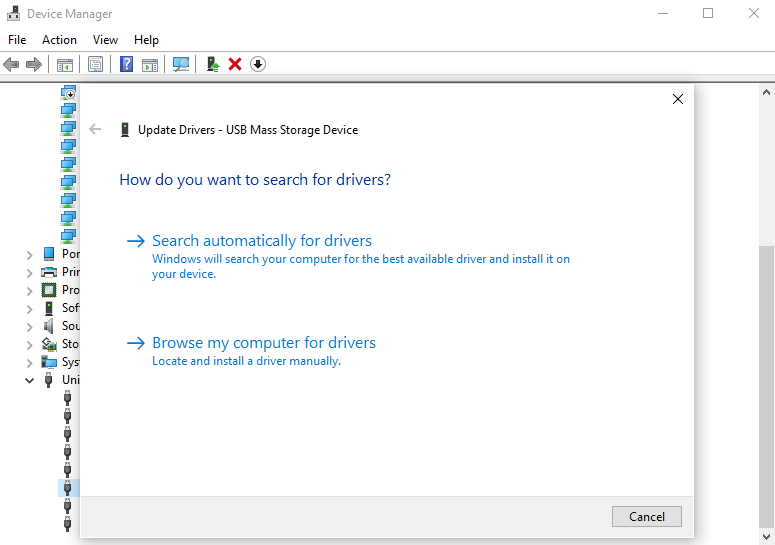
- Step 3: Choose Search automatically for drivers. If Windows finds nothing, visit the manufacturer’s official website (like Intel or AMD) to download the latest chipset drivers.
Addressing a Power Surge on USB Port
Sometimes, Windows will trigger a notification stating there was a power surge on usb port. This usually happens when a device tries to draw more current than the port can provide, or if there is a short circuit.
Disable USB Power Savings
Windows often turns off USB ports to save power — but you can change that to prevent random disconnects.
- Step 1: Open Device Manager.
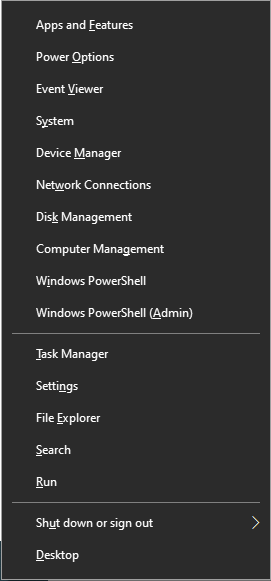
- Step 2: Expand Universal Serial Bus controllers.
- Step 3: Right-click USB Root Hub and select Properties.
- Step 4: Go to the Power Management tab.
- Step 5: Uncheck Allow the computer to turn off this device to save power.
- Step 6: Click OK and repeat for all Root Hub entries.
Check Advanced Power Settings
In Windows Power Options, disabling “selective suspend” can help keep ports active and stable.
- Step 1: Search for “Edit Power Plan” in the Start menu.
- Step 2: Click Change advanced power settings.
- Step 3: Find USB settings > USB selective suspend setting.
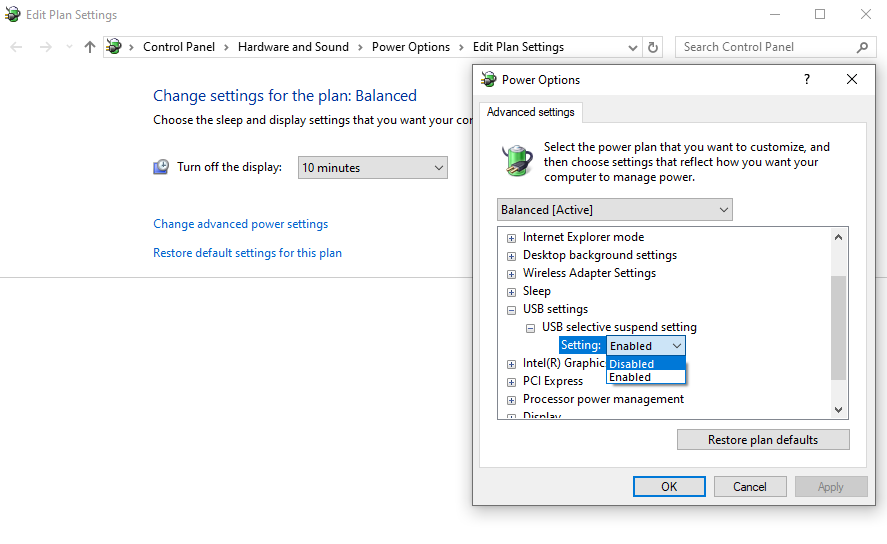
- Step 4: Set it to Disabled for both “On battery” and “Plugged in”.
BIOS/UEFI Fixes
Sometimes the problem isn’t Windows — it’s the system firmware. If your usb ports stopped working even before the operating system loads (like your keyboard not working in the boot menu), the issue is in the BIOS.
Enable USB Ports in BIOS
- Step 1: Restart your PC and enter BIOS/UEFI settings (usually by pressing F2, Del, or Esc at startup).
- Step 2: Navigate to Advanced or Peripherals.
- Step 3: Look for USB Configuration and ensure all ports and the USB Controller are set to Enabled.
Reset BIOS Settings
If configuration is confusing or unclear, you can reset BIOS to default — this often restores USB functionality if incorrect settings were the cause. Look for an option like Load Setup Defaults or Optimized Defaults.
Hardware & Physical Fixes
If software fixes fail, the problem may be physical. Internal components can degrade over time or suffer from environmental factors.
Inspect for Damage
Look closely at the USB port — bent or broken pins, corrosion, or debris can mean the port is damaged. If you see pins touching each other, this could cause the power surge on usb port error mentioned earlier.
Re-Seat Internal Connectors (Laptop)
On laptops, the USB ports connect to the motherboard via internal ribbon cables or small daughterboards. If you’re comfortable opening the device:
- Step 1: Power off the laptop and remove the battery (if possible).
- Step 2: Carefully open the casing.
- Step 3: Locate the USB module and ensure the ribbon cable is firmly seated in its connector.
- Warning: Only do this if you are experienced. Opening your device may void your warranty.
When to Seek Professional Repair
If the port is physically broken or loose, a professional soldering repair or motherboard service may be necessary. Attempting DIY fixes without experience can make the problem worse, leading to a complete motherboard failure.
Data Recovery: Using PandaOffice Drecov
When USB ports fail, they often take your data access with them. If your port was failing while you were writing data to a flash drive, the file system might have become corrupted. In such cases, even after you fix the port, your data might be missing or the drive might appear as “Raw.”
This is where PandaOffice Drecov comes in. It is a professional-grade data recovery tool designed to retrieve lost files from USB drives, external hard drives, and SD cards that have suffered from connection interruptions.
⚠ Warning: Install it on a drive different from the one where your data was lost to prevent overwriting.
How to Recover Data with PandaOffice Drecov
- Step 1: Connect the USB Drive Plug your USB device into a working USB port. If you just fixed your ports using the steps above, ensure the connection is stable. Launch PandaOffice Drecov.

- Step 2: Select the Target Drive On the main interface, you will see a list of available drives. Select the USB drive that was affected by the port failure. Click the Scan button to begin the analysis.

- Step 3: Preview Found Files PandaOffice Drecov will perform a Deep Scan. Once finished, you can browse through the folders. The software allows you to Preview photos, documents, and videos before committing to the recovery, ensuring the files are not corrupted.

- Step 4: Recover and Save Select the files you wish to keep and click Recover.
Key Operation Point: Always save the recovered files to your local hard drive or cloud storage, NOT back onto the original USB drive. This prevents data overlapping.
Advanced Data Recovery & Maintenance
Once you have successfully recovered your data, you might want to perform further maintenance on your USB devices to ensure they don’t fail again. Proper formatting and driver management are key to long-term hardware health.
If your USB drive was corrupted during the port failure, you may need to reformat it to make it usable again. You can learn the best practices for this process here:How to Reformat a USB Drive and Recover Data
Furthermore, if you are using specific hardware like video adapters that rely on USB 3.0, driver conflicts are common. For Windows 11 users, ensuring your specialized drivers are up to date is crucial:How to Install Drivers for USB 3.0 to HDMI Adapter on Windows 11
In extreme cases where USB port failures were caused by deep system corruption or malware, a fresh start might be necessary. Reinstalling your operating system can clear out stubborn driver conflicts that standard troubleshooting cannot touch:Reinstall Windows 10 from USB to Fix Errors and Speed Up Your PC
USB Ports Working on Mac vs Windows
While most of this guide focuses on Windows, Mac users can also experience USB issues. The underlying hardware is similar, but the software management differs.
On a Mac, first compare a known-good accessory, cable, and direct port, then check the device in System Information. An SMC reset is an Intel-Mac procedure; Apple says it is not needed on Macs with Apple silicon. Follow Apple’s instructions for the exact model instead of applying Intel key combinations to every Mac.
Mac users should also check the System Report (Apple Menu > About This Mac > System Report > USB) to see if the hardware is detected at the system level. If the device appears there but not in Finder, it is a mounting issue, not a port issue.
Prevention Tips to Avoid Future USB Issues
Prevention is always better than a cure. To ensure you never have to deal with a usb port not functioning again, follow these best practices:
- Eject Properly: Always use the “Safely Remove Hardware” option in your taskbar. Pulling a drive out while it’s writing can cause a power surge on usb port or data corruption.
- Use a Hub for Power-Hungry Devices: If you connect multiple external hard drives, use a powered USB hub that plugs into a wall outlet. This takes the power load off your computer’s motherboard.
- Physical Care: Plug and unplug devices straight and gently. Avoid forcing connectors at weird angles, which can loosen the solder joints on the motherboard.
- Keep it Clean: Use a can of compressed air once a month to blow out dust from your ports.
- Update Regularly: Don’t ignore those BIOS and Chipset updates from your manufacturer. They often contain critical stability fixes for USB controllers.
USB Ports not working FAQs
1. Why are my USB ports not detecting devices suddenly? Most sudden failures are due to driver corruption after a Windows update or a glitch in the USB Controller. Try the “Uninstall & Reinstall” method in Device Manager to refresh the connection.
2. Can a USB port fail permanently? Yes. Physical damage to the internal pins or a “fried” controller on the motherboard due to a power surge can cause permanent failure. In these cases, the port must be replaced by a technician.
3. Why do some USB devices work in a port while others don’t? This often indicates a power delivery issue. Some devices (like a mouse) require very little power, while others (like a portable hard drive) require more. If the port is weakened, it may only support low-power devices.
4. Will Windows Update fix USB problems? Yes, frequently. Microsoft works with hardware manufacturers to release “Optional Updates” that include specific driver fixes for USB 3.0 and USB-C controllers.
A BIOS/UEFI setting can affect USB, but resetting all firmware settings can also change boot, storage, security, or encryption-related settings. Record the current configuration, keep recovery keys available, and follow the PC maker’s model-specific procedure. Check the USB setting itself before a full firmware reset.
Conclusion
USB ports not working can be a frustrating experience, but in most cases, it’s fixable without spending money on repairs. By systematically checking your hardware, updating your drivers, and managing your power settings, you can resolve the majority of “device not recognized” errors.
If you do encounter data loss during a USB failure, tools like PandaOffice Drecov provide a reliable safety net to get your important files back. Remember to start with the simplest fixes—like a restart or a different cable—before moving toward more technical solutions like BIOS resets or hardware repairs. With the knowledge from this guide, you are now equipped to handle USB troubleshooting like a seasoned IT professional.
Charging successfully does not prove USB data is working
A USB-C connector can provide charging while the cable or port lacks the data rate or display mode required by the device. Test with a known data-capable cable and connect directly to the computer rather than through a dock. For a monitor, verify that the PC port, cable, and display all support the required video mode.
Use a simple device such as a known-good mouse to test the suspected port, then test the original peripheral on another computer. If only a high-power external drive fails, investigate its power supply or powered enclosure. If every port fails after an update, record Device Manager error codes and use the PC maker’s chipset/firmware guidance rather than installing arbitrary USB drivers.
Stop using a port with bent contacts, liquid residue, burning smell, or a power-surge warning. Power the machine down before inspecting it; do not scrape powered contacts with a tool. Back up readable storage on a stable connection before any controller or driver changes that could interrupt access.
Further guidance: Microsoft USB-C problems






