







ZIP files are an essential part of the digital world, especially for users who want to save space, share multiple files at once, or transfer large data easily. If you’re new to Windows or just need a refresher, learning how to open a zip file on windows is a fundamental skill. This comprehensive guide will walk you through everything you need to know about ZIP files, including what they are, why they are useful, and the best methods to open and extract them on a Windows PC.
Furthermore, we will look at advanced scenarios. Sometimes, when you attempt to implement a method regarding how to open a zip file on windows, you might realize the file is corrupted, or it gets accidentally deleted during the extraction process. In those circumstances, data recovery becomes your highest priority. This article covers both standard file management and data recovery solutions to give you absolute control over your archives.
What Is a ZIP File?
A ZIP file is a type of compressed file that can contain one or multiple files or folders. The main purpose of compressing files into a ZIP format is to reduce file size, making them easier to store and share. ZIP files are widely used across different operating systems, including Windows, macOS, and Linux. On Windows, ZIP files typically have the extension .zip.
Key features of ZIP files include:
- Compression: Reduces the file size without losing data, known as lossless compression.
- Archiving: Combines multiple scattered files into a single, organized container.
- Encryption: Some ZIP files can be password-protected for enhanced security.
Why You Might Receive a ZIP File
You might encounter ZIP files in various daily scenarios:
- Downloading Software: Many applications or drivers are distributed as ZIP files to bundle installers together.
- Email Attachments: Large documents are often zipped to facilitate rapid email delivery and bypass file size restrictions.
- File Sharing: When sharing multiple photos or project assets with friends, colleagues, or clients.
- Backup Storage: Users frequently compress older directories into ZIP archives for easier long-term backup storage.
Understanding why a file is zipped can help you determine the best way to open it and ensure that no structural data goes missing.
How to Open a ZIP File on Windows: Step-by-Step Methods
Windows makes it surprisingly easy to handle compressed data, as modern operating systems come with built-in support. Below are the most effective ways to execute the process. We have arranged these solutions according to their technical complexity, starting from the basic built-in tools and moving toward advanced third-party management and file restoration systems.
Method 1: Using Windows File Explorer
Windows File Explorer possesses a built-in compression engine that allows you to open and extract files without any additional software. This is the simplest path for most daily workflows.
- Step 1: Navigate to the specific folder where your target ZIP archive is stored on your storage drive.
- Step 2: Double-click the ZIP archive. This immediate action launches the container inside File Explorer, displaying the internal files exactly like a standard folder.
- Step 3: To extract the items completely, go to the Compressed Folder Tools section on the top ribbon interface.
- Step 4: Click the Extract All option button. A configuration window pops up immediately.
- Step 5: Choose an ideal destination path where you want the uncompressed files saved. You can use the Browse… button to pick a precise location.
- Step 6: Click the final Extract button at the base of the interface.
Once processing finishes, Windows launches the target directory instantly, allowing you to access all unzipped contents without restriction.
Quick Tip: If you only require a single item from the archive, you do not need to run a complete extraction. Open the ZIP folder, click the required file, and manually drag and drop it into an active folder or onto your desktop surface.
Method 2: Using Right-Click Context Menu
If you want a slightly shorter path that sidesteps opening the archive view beforehand, the standard contextual menu provides an alternative route.
- Step 1: Select the archive by locating it within your system directory structure.
- Step 2: Right-click the file icon to summon the Windows contextual menu drop-list.
- Step 3: Choose the Extract All… option directly from the list menu.
- Step 4: Within the newly opened wizard box, specify the target directory path for saving your output data.
- Step 5: Ensure the box labeled “Show extracted files when complete” is checked if you desire immediate access, then click the Extract option.
This operation effectively accomplishes the exact same goal as the first method, but cuts down on overall clicks, making it highly efficient for rapid processing.
Method 3: Using Third-Party Software
While the built-in operating system options work perfectly fine for vanilla archives, power users often rely on specialized third-party tools. These programs provide deep optimization, faster unpacking cycles, compatibility with alternative formats like .rar or .7z, and advanced split-archive assembly. For this walk-through, we will highlight the open-source program 7-Zip, which remains an industry standard.
- Step 1: Open your web browser and download the appropriate architecture version installer from the Official 7-Zip Website. Run the installer wizard to integrate it into your system shell.
- Step 2: Locate your file, then right-click its icon to bring up the context interface layout.
- Step 3: Hover your mouse cursor over the newly added 7-Zip submenu entry line to expand its extended operation options.
- Step 4: Select Extract Here if you intend to deposit the files straight into the current active folder path. Alternatively, choose Extract to “[Folder Name]\” to auto-generate a brand-new subdirectory utilizing the archive’s exact name.
This technique helps resolve errors related to non-standard zip formats or massive archives that trigger performance issues inside default system tools.
Addressing File Loss: Recovering Lost or Deleted ZIP Files
When users learn how to open a zip file on windows, they frequently face unexpected storage mishaps. You might accidentally trigger a permanent delete hotkey shift via Shift + Delete, clear out your Recycle Bin prematurely, or experience an sudden file system crash right as an archive unzips. If your critical file disappears or breaks, standard system recovery commands will not suffice.
In these emergency situations, you need professional software to scrape your physical drive clusters for remnants of the missing data container.
How to Restore Deleted Compressed Files via PandaOffice Drecov data recovery software
The PandaOffice Drecov data recovery software is an advanced engineering tool designed explicitly for retrieving lost, formatted, or corrupted file partitions. It utilizes deep-sector scanning logic to reassemble fragmented compression file structures seamlessly. Whether your archive was lost on a traditional mechanical Hard Disk Drive (HDD) or a Solid-State Drive (SSD), this tool helps reverse unintended data destruction.
⚠ Warning: Install it on a drive different from the one where your data was lost to prevent overwriting.
Follow these exact operational steps to rescue your missing or inaccessible ZIP archives:
- Step 1: On the main home menu screen, select the exact drive letter partition or specific desktop folder zone where your missing archive was originally stored prior to deletion and click the prominent Scan function button.

- Step 2: Once scanning finishes, navigate the side category panel to sort results by file type. Expand the Archive dropdown node and check for
.zipextensions to pinpoint your lost folder rapidly.

- Step 3: Select the desired archive and check the integrated preview window block to confirm its metadata health indicator status.
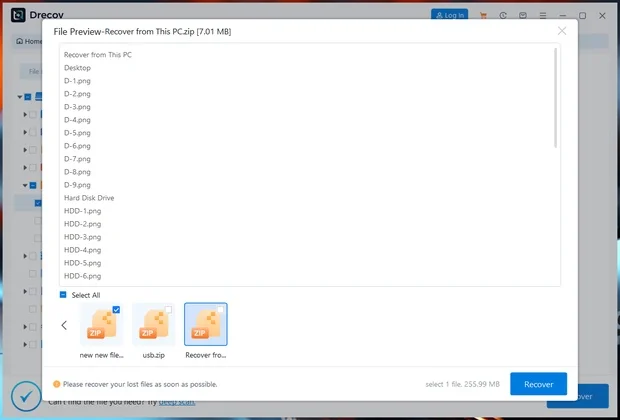
- Step 4: Click the Recover action command button. Always specify a completely independent destination drive path for preservation to avoid overwriting your underlying raw data blocks.
Critical Safety Warning: Never install recovery applications or save freshly recovered files onto the exact same drive partition where the data loss occurred. Doing so can overwrite the vacant space sectors, permanently ruining any remaining chances of a successful file reassembly.
Extended Windows Mastery Resources
To expand your technical knowledge of Windows systems, data storage maintenance, and multi-platform device recovery strategies, explore our detailed companion guides below:
- Learn how to manage cloud storage environments efficiently by reviewing our guide on how to disable OneDrive in Windows 11 with simple steps.
- Accidentally deleted critical utility apps on mobile storage ecosystems? Check out our walk-through covering how to find recently deleted apps on iPhone and Android devices.
- Keep your communication databases safe with our tutorial on Yahoo mail recovery methods to restore your email accounts safely.
How to Create ZIP Files on Windows
Understanding how to open a zip file on windows goes hand-in-hand with knowing how to create them. This can help you share multiple files efficiently and keep your local system well-organized.
- Step 1: Open File Explorer and select the group of individual items or massive file directories you intend to compress together.
- Step 2: Right-click anywhere within the highlighted selection area boundary to reveal the menu.
- Step 3: Move down to the Send to side-arrow option, then choose Compressed (zipped) folder from the sub-menu layout list. (For Windows 11 systems, you can also select the standalone Compress to ZIP file entry directly from the primary layout block).
- Step 4: A new compressed folder icon appears immediately. Type a clear, descriptive name label for your archive, and press the
Enterkey on your keyboard to finalize creation.
Your structural items are now wrapped tightly inside a singular, dense digital suitcase container, optimized for upload deployment or compact archival storage.
Common Issues When Opening ZIP Files
Even when you follow the instructions for how to open a zip file on windows perfectly, structural blockages can sometimes disrupt the extraction flow. Below are the most typical failure points and their manual workarounds:
| Issue Type | Root Cause | Practical Resolution Strategy |
| Corrupted ZIP File | Incomplete download packets or physical storage bad sectors. | Re-download the file via an alternative browser or deploy a specialized archive repair utility tool. |
| Password Protected | High-security industry encryption schemas active. | Input the exact decryption key password; standard native utilities will fail without proper validation parameters. |
| Unsupported Format | Extensions like .zipx or high-ratio advanced compression algorithms. | Bypass native explorer systems entirely and utilize dedicated third-party unpackers like 7-Zip. |
Tips for Handling ZIP Files Efficiently
To preserve maximum operating productivity and security health across your personal computer systems, practice these foundational compression maintenance behaviors regularly:
- Always Verify Source Origins: Malicious software developers often hide executable viruses inside deep multi-layer ZIP files to mask them from basic defensive system monitors. Never unpack archives received from questionable or unknown email addresses.
- Utilize Descriptive File Structures: Avoid generic folder labels like
New_Folder.zip. Use detailed tags containing dates, project versions, and context descriptors to ensure you don’t lose track of your records. - Keep Toolsets Updated: Frequently update your archive management tools. Developers patch security vulnerabilities and introduce optimization protocols that accelerate processing speeds on modern multi-core processors.
Conclusion
Learning how to open a zip file on windows is a fundamental aspect of digital literacy. Whether you stick with native File Explorer options, use context menus, or deploy third-party utilities, handling compressed archives helps keep your files organized and your workflow efficient.
Furthermore, if unexpected data loss happens during compression or extraction, tools like specialized recovery applications ensure you can retrieve your essential archives safely. By mastering both file management and basic data recovery principles, you can navigate your digital workflow with complete confidence.






