







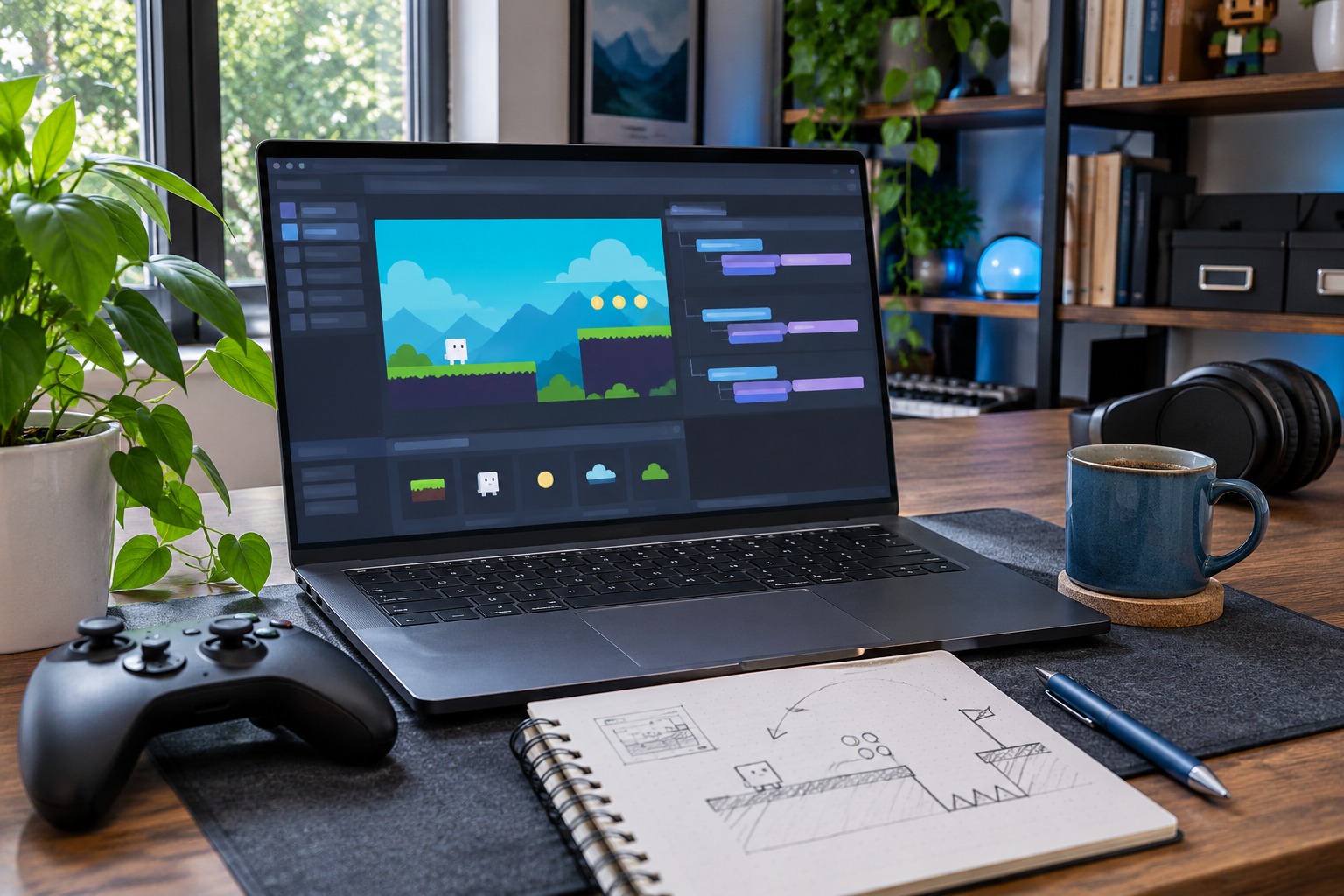
Separate the Project Definition from Its Resources
A GDevelop project includes scene and event information as well as references to images, sounds, and other resources. A missing JSON project file is different from a project that opens with blank sprites. A published game is also different from an editable project. Start by identifying which of these states you have, then preserve the accessible source before trying recovery or rebuilding resources.
For example, a crash can leave a usable offered autosave while a recent folder move can break resource paths without deleting any scene logic. Another incident may remove an event sheet from an otherwise readable project. Each situation needs a specific comparison. Record the application version, project location, and last known good action so you can choose a route based on evidence rather than repeatedly opening unrelated backups.
Preserve Useful Live Work before Closing
If the editor remains responsive with valuable scene or event changes, save a separate project copy through the supported workflow. Keep the original project unchanged while testing. Record whether you use a local desktop project or a cloud-based workflow, because their available recovery sources differ. Do not assume that a local JSON file automatically contains every resource needed to reproduce the game.
Copy the accessible source tree, including actual resources and relevant project files, to a healthy recovery location. Preserve any real autosave candidate before cleanup. If another device holds useful work, save it independently before synchronization or migration changes. A recovered project needs its own verified baseline; it should not rely on temporary browser state or a live editor window as its only storage.
Free Method 1: Inspect an Offered Autosave Recovery
GDevelop can offer recovery from retained autosave data under supported circumstances. The actual behavior depends on the version, project workflow, and what existed before the crash. If a recovery prompt appears when opening the project, inspect the candidate rather than dismissing it automatically. Preserve accessible evidence and save useful recovered content under a new project name immediately.
Compare the offered result with concrete scene and event checkpoints. Check a recently placed object, a changed condition, and the last completed feature. A retained autosave can be older than the final visible edit or can already include an unwanted change. Keep the candidate even if partial, then compare it with other actual versions rather than assuming the recovery prompt proves the whole project returned.
Understand Autosave Scope before Depending on It
Enabling an autosave preference after the incident does not create a past project state. Likewise, the presence of a setting does not prove that a useful candidate was written before the crash. Review the installed version’s documented behavior and actual files or recovery options. Keep native evidence separate from assumptions about how often an application ought to save your work.
If no useful prompt or candidate survives, move to existing project copies and resources. Repeated launches do not generate a missing historical scene. Avoid cleaning working data while recovery evidence may remain, but do not promise that every crash leaves a complete retrievable project. The useful question is whether a real compatible candidate contains the specific scene and event information you need. For the storage-level causes behind this step, use the Hard drive recovery.
Free Method 2: Open a Preserved Local Project Copy
Inspect existing saved JSON projects, deliberate exports, and complete source copies from before the loss. Open copies through the normal editor workflow and preserve each original candidate. Compare project identity and scene structure before accepting one. A file with the right title can still be an older prototype or another branch of the game, so inspect actual objects and events.
Save a useful candidate under a distinct recovery name and keep its resource tree together. A coherent older project can provide a stable baseline even when it lacks the latest feature. Compare it with surviving live content or other real candidates. Do not reset the active project or replace the only current JSON file merely because an older copy opens without an error.
- Preserve accessible project definitions, resources, and any useful live editor state.
- Inspect actual autosave or saved-project candidates from around the incident.
- Open a copied candidate and compare recognizable scenes and event logic.
- Save a separate accepted project and verify its referenced resources before continuing development.
Inspect JSON Structure without Treating Parsing as Recovery
If you examine a copied JSON candidate, keep its original bytes unchanged. A syntax error may reveal an interrupted save, but fixing one bracket does not recreate omitted scenes or events. Use the documented project workflow to verify the result in GDevelop. A file that parses is only structurally readable; its actual gameplay content can still be incomplete or inconsistent with the intended project.
Preserve useful fragments separately and identify what each represents. A surviving scene can be valuable even if another section is missing. Do not merge arbitrary JSON pieces from different projects without understanding their object names and relationships. If you reconstruct missing structure, record the new work clearly. This makes a partial result useful without overstating what the original native evidence actually contained.
Free Method 3: Reconnect Existing Resource Files
If the project opens but sprites, sound, or models are absent, inspect the resource manager and reported paths. Locate the actual original files in the source folder, earlier complete copies, or legitimate asset locations. Compare file content and dimensions before relinking. A similarly named image can belong to another animation state or an earlier art revision, so names alone are weak evidence.
Reconnect a representative resource first and inspect the object that uses it. Check animation frames, origin points, and relevant geometry according to the project. Then continue with the related set when the mapping is correct. A broad path change can resolve missing indicators while connecting the wrong art, which may make the scene look plausible but change gameplay or collision behavior.
Preserve Animation and Object Relationships
A sprite object can use several images across animations and directions. Restoring one visible frame does not validate the entire object. Inspect the important states and transitions, especially the state affected by the loss. Compare frame order, timing, and dimensions with a known reference. Keep the original resource set unchanged until the accepted object behaves correctly in a controlled preview. For the exact application behavior, consult the official recovery documentation.
Also inspect origins, points, and collision masks when resource replacements are necessary. A visually similar image can use a different canvas size and move a point or collision boundary relative to the character. If you adapt these settings, save that as a new repair in the trial project. Do not describe the relationship as an unchanged historical restoration when you intentionally reconstructed part of it.
Compare Scenes and Event Sheets Separately
A recovered scene layout can look complete while its event logic remains older or missing. Inspect relevant conditions, actions, variables, and external event relationships. Use a concrete gameplay goal as the comparison target. For example, confirm that a trigger changes the expected variable and moves to the intended scene. A visible object in the right position does not establish that the behavior attached to it survived.
Check shared logic too. A change to external events or a common function can affect several scenes. Recovering one scene from another version may therefore create a mixed project. Preserve the coherent candidate and compare its dependent logic before combining states. Keep any manual adaptation clear in the recovery note so you can explain which behavior came from a real historical source and which you rebuilt.
Verify Object and Variable Names
Events can depend on exact object names, groups, and variable structures. A recovered object from an older project can have a familiar appearance and different identifiers. Inspect those relationships before copying event blocks. A project may preview without a dramatic error while an action silently targets the wrong object group or a variable no longer used by the current logic.
Use representative tests that exercise the affected path. Check the values before and after the interaction rather than only watching the scene’s first frame. If you rename or reconnect objects during repair, preserve the original candidate and document the change. This turns recovery into a reviewable project update instead of an unexplained collection of copied blocks whose dependencies nobody has checked.
Distinguish Local and Cloud Project Evidence
A cloud project can provide useful actual versions or another saved state only when the account and service expose them. Inspect the supported options available under your legitimate access. Do not assume that every subscription or workflow keeps unlimited history. Download or copy a useful candidate separately before replacing a current project. Account access does not itself prove that the desired historical state survives remotely.
For local projects, check the real saved folder and source resources. A recent-project entry can point to a missing file without containing the full project. Treat it as a location clue. If a project moved, reconnect the actual source tree rather than creating an empty replacement with the same name. This keeps recovery focused on real content and avoids confusing interface history with a complete editable backup.
Keep Published Games as References
A published build can show the intended appearance and behavior, but it is not automatically a complete editable GDevelop source project. Preserve it as a reference and use legitimate existing source copies first. Rebuilding a scene from a playable output is reconstruction, even when the result is convincing. It may omit original organization, comments, and logic decisions that never appear in the final game’s visible behavior. A comparable recovery case with useful validation checks is Recover Unity Projects: Scenes, Meta Files, and Missing Asset References.
If you reconstruct from a published reference, define the needed feature and record new design choices. Keep recovered native scenes separate from newly rebuilt ones until review. A successful continuation can combine both, but its provenance should remain clear. This helps estimate remaining work honestly and prevents future developers from assuming that every historical event sheet and resource relationship returned intact.
Check Extensions and Environment Compatibility
A project can depend on installed or project-defined extensions whose versions affect behavior. Record the expected environment and use legitimate supported sources. An unavailable extension can make an intact project appear broken without proving source loss. Preserve its configuration evidence and inspect compatibility before replacing logic or deleting actions simply to make warnings disappear.
Open recovery trials in an appropriate version when possible, and preserve an unchanged baseline before migration. A newer editor can update project data or expose changed behavior. Save converted results separately until important scenes and events pass validation. Keep environment adaptation distinct from content recovery, because changing logic for a new extension version is new work rather than evidence that the original project survived unchanged.
Test Preview Behavior Deliberately
Use a controlled preview that exercises the specific lost feature. Check scene transitions, input, collision, score or state changes, and relevant sound. A project that launches successfully may still fail later because a resource or shared event is missing. Choose a short reproducible sequence so you can compare candidates and explain why the accepted result meets its recovery goal.
If the preview performs external actions, use an appropriate test configuration. An older project can point to a service or output location that no longer fits the current task. Recovering authentic logic does not establish that every historical destination remains appropriate today. Review those effects separately before execution, keeping the validation focused on the intended local behavior and safe project environment.
Preserve Paths When Building the Accepted Copy
After resources resolve, save the accepted project in a normal copied source tree and inspect its actual references. Do not assume that every Save As operation gathers files stored elsewhere. Use the supported project and resource workflow appropriate to your version, then test the copied project without relying silently on the original resource folder. A portable-looking JSON file can still depend on files outside its destination.
Keep source art, audio, and custom extension material organized according to the relationships you tested. Record genuine external dependencies that the environment must provide. This makes the accepted recovery reproducible and reduces the chance of another missing-resource incident after moving computers. A clear folder relationship is more useful than a large recovery directory filled with duplicates whose role is uncertain. When the missing project was stored on a portable device, also review the External hard drive recovery.
Verify Save and Reopen Durability
Save a fresh native project, close it when safe, and reopen the saved copy. Inspect the same scenes, resources, and event checkpoints used during comparison. This tests whether the useful state survives beyond the initial recovery session. Keep raw candidates unchanged until that cycle passes, especially if the incident involved interrupted saving or a destination that was running out of space.
Then create an appropriate test build or controlled preview using the normal project flow. Compare representative behavior and important visual states. Preserve the native source as the master and the output as validation evidence. If some event logic or art remains reconstructed, state that explicitly. A successful build is useful but does not prove that every original source decision or alternate scene survived.
Recognize Source-Storage Problems
If unrelated files also fail to read or the source volume disconnects, prioritize preservation of readable data before more editor experiments. Avoid repeated exports and new resource imports onto that volume. A project-opening error can reflect an underlying storage issue rather than a problem that a GDevelop preference can repair. Match the recovery approach to the condition of the device.
For a healthy source with a recent deletion, file recovery can offer additional candidates after native copies and resource paths have been checked. On storage that has overwritten or discarded deleted blocks, recovery may be limited. No native autosave setting can create missing historical data after the fact, and no scan can infer a complete event sheet from a scene screenshot alone.
A scene recovered from an older project can depend on shared events that changed later. Compare those dependencies before combining it with current logic. Identify a concrete interaction and trace the relevant objects, variables, conditions, and actions. A scene that previews successfully may still omit a later state transition or target a renamed object group. Preserve both candidates until the relationship is clear.
If you adapt the old scene to current shared logic, record that as new repair work. Keep the recovered native state unchanged for comparison. This avoids claiming exact historical restoration when you actually rebuilt a connection. A focused accepted change should explain which behavior returned and which newer valid work remained, rather than relying on a project thumbnail or an apparently clean event list as proof.
Check Sprite Resources Beyond Their First Frame
A character can display correctly in one state while another animation references missing or mismatched images. Inspect representative movement, idle, and transition states that matter to the feature. Compare frame order, timing, origin points, and collision behavior. A similarly named image can hide a different canvas size, so verify its actual content before broad resource replacement.
When a resource requires reconstruction, preserve the raw candidate and save the new art or geometry separately. Record the source used to guide it. A replacement can restore playability while differing from the original project. Keeping that distinction clear helps estimate remaining art review and prevents later developers from assuming that every frame and object relationship came from a complete recovered historical copy. The vendor also documents the relevant backup or restore workflow in its official recovery documentation.
Verify Local Source and Published Output Separately
A test build can demonstrate that the accepted project currently runs, but it does not prove that every alternate scene or editing detail survived. Inspect the native source and the specific affected feature before acceptance. Keep the build as validation evidence while protecting the editable tree, resources, and custom definitions independently. These deliverables preserve different needs and should not become substitutes for one another.
Finally, open the accepted project from another normal location and test an event that uses an external resource. Confirm that it does not silently depend on the old source folder. Save a clear recovery note identifying the native candidate, manual adaptations, and remaining gaps. This gives you a dependable development baseline and lets ordinary work resume without leaving uncertain recovery trials mixed into the current project.
When Deleted-File Recovery May Help
PandaOffice Drecov may help search for an actually deleted local JSON project, resource file, or existing source copy on readable storage. It does not retrieve arbitrary cloud-only history or guarantee repair of an incomplete project definition. Check actual autosaves, saved projects, and surviving resources first. Those sources can preserve meaningful relationships that isolated recovered files do not establish automatically.
Before scanning, identify the missing items and their original paths. Keep recovered outputs on another healthy destination and avoid new writes to the source. Check format support in your installed edition, retaining plausible project candidates even when no visual preview exists. The result needs editor and gameplay validation, because a recovered filename does not prove that every scene, event, and resource reference remains coherent.
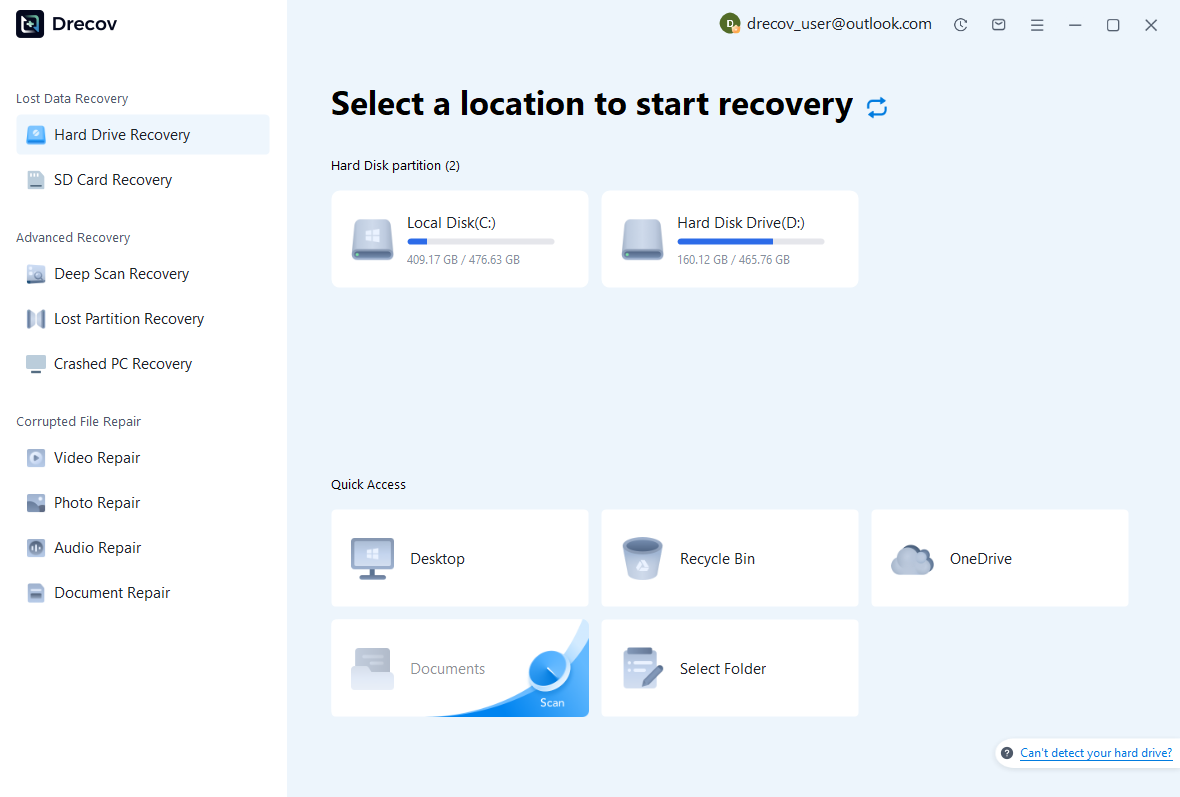
Step 1: Select the Volume with the Missing Local Project
Choose the storage that held the actual project or resource tree. If media lived elsewhere, record those locations as separate targets. Avoid installing recovery software or generating fresh game builds onto the affected source. Confirm device identity through the original path and capacity, then reserve another healthy destination for candidates and your notes about the project-resource relationships.
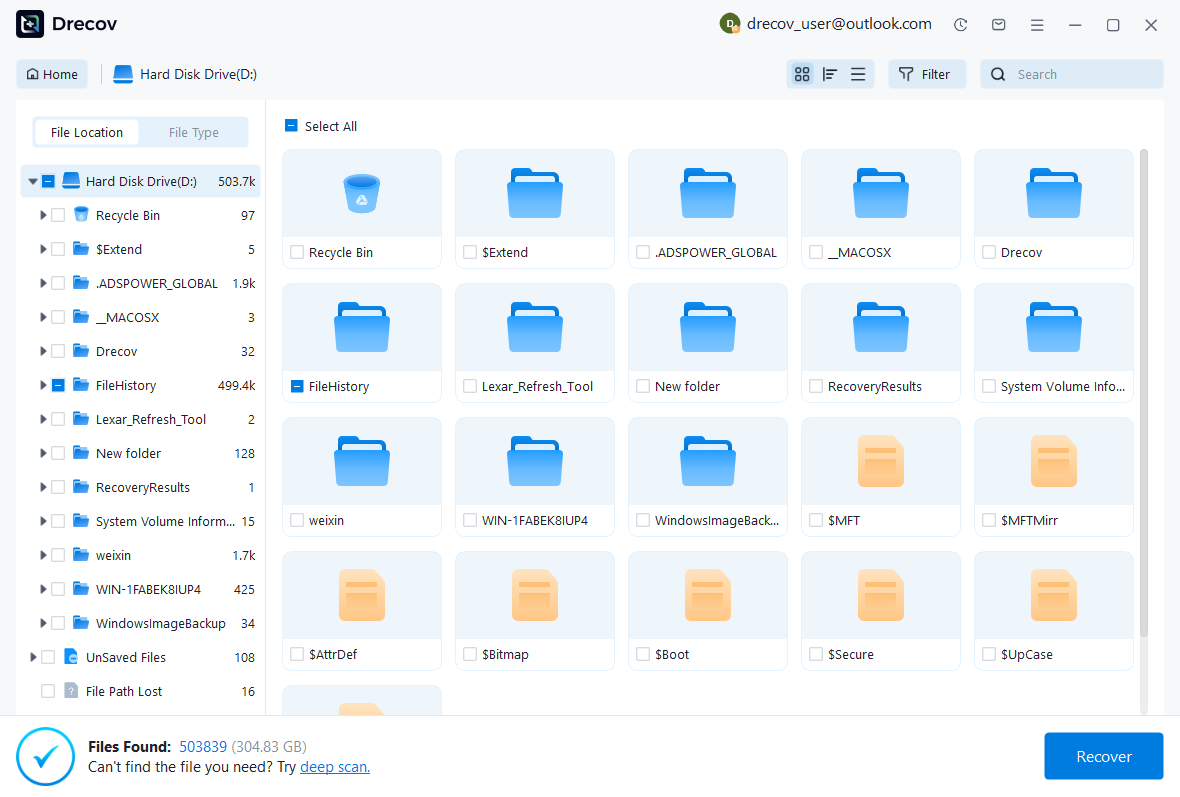
Step 2: Compare Project Definitions and Resources
Review available names, paths, dates, sizes, and supported previews. Keep competing native versions and associated resource sets separate. Compare recognizable scene data and actual media content after recovery. A recent JSON candidate may reflect an interrupted save, while an older complete tree may provide a coherent baseline. Do not choose art replacements solely by filename or accept a parsing result as proof of complete gameplay logic. Before changing the only candidate, compare the procedure with the official recovery documentation.
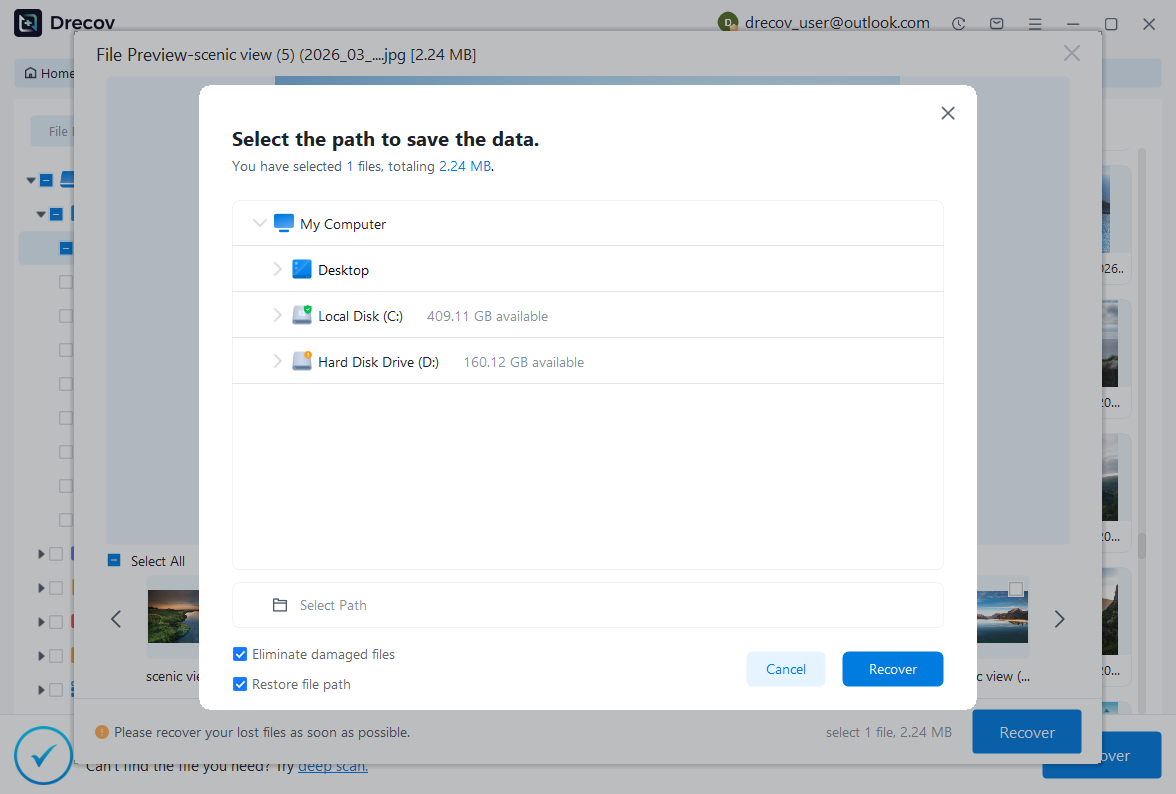
Step 3: Recover Elsewhere and Test a Copied Project
Save candidates to the separate destination and use copies for opening, relinking, and controlled previews. Verify important scene and event relationships, then save a fresh accepted project and reopen it. Test the feature that motivated the recovery. Keep raw candidates unchanged until the result is durable, and document any reconstructed events, art, or environment adaptations separately from recovered native content.
Record a Clear Accepted Project State
List the native source used, the resource sets that belong with it, and any logic you rebuilt. Note missing scenes or unavailable extension dependencies explicitly. Preserve the verified result independently before resuming design or cleaning recovery candidates. This provides a practical endpoint based on editable usable source, rather than a familiar project thumbnail or a successful first preview alone.
- Confirm the intended project, scenes, and important event relationships.
- Verify resources, object names, variables, animations, and extension dependencies.
- Reopen a fresh native copy and test representative gameplay in a controlled environment.
- Protect the coherent source tree and identify reconstructed or still-missing work.
Make Future Source Protection Practical
Save deliberate project milestones and verify the autosave behavior of the actual workflow you use. Protect local resources and project-defined extensions with the native source. Keep published outputs as references, while retaining editable projects when future development matters. A running build and a recoverable source tree preserve different kinds of value and should not be treated as interchangeable backups.
Finally, test one complete project copy from another normal location. Open a scene, inspect an event sheet, and run a representative interaction. This exposes external paths and unavailable dependencies before an incident. A tested source backup gives you evidence that the game remains editable, not merely that an exported output can still run while its original project logic is gone.





