







Losing a significant chunk of data due to a missing drive is a nightmare scenario for any computer user. Whether it is a collection of family photos, critical work documents, or years of archived projects, the sudden disappearance of a disk volume can trigger immediate panic. However, understanding how to restore lost partitions is a skill that can save your digital life. In the world of data recovery, a “lost” partition is often just a “hidden” one; the data remains on the platters or flash cells, but the operating system has lost the roadmap required to find it.
In this comprehensive guide, we will explore the architecture of disk volumes, identify the culprits behind partition loss, and provide a step-by-step technical roadmap to recover lost partition without losing data. By the end of this article, you will be equipped with the knowledge to handle disk errors like a seasoned professional.
Understanding Disk Partitions
What Is a Partition and How It Works
Imagine your hard drive as a large warehouse. Instead of throwing everything into one giant pile, you divide it into sections—one for electronics, one for furniture, one for fragile items. That’s exactly what a partition does. It splits your storage into organized segments so your operating system can manage files efficiently.
Each partition behaves like a separate drive, even though it physically exists on the same disk. That’s why you might see drives like C:, D:, or E: on your computer. These are logical divisions, not separate hardware. The system uses partition tables (such as MBR or GPT) to keep track of where each section begins and ends, acting as a blueprint for the warehouse.
When everything works smoothly, you never think about partitions. But the moment something goes wrong—say the blueprint gets damaged—your system suddenly “forgets” where your data lives. That’s when a partition appears lost, even though the data may still be physically present. To restore lost partitions, we essentially need to repair or replace that blueprint.
Common Partition Types (NTFS, FAT32, exFAT)
Different partitions use different file systems, and each one has its own strengths. NTFS (New Technology File System) is the standard for modern Windows systems, offering advanced security, permissions, and support for massive file sizes. FAT32 is an older format, widely compatible with almost every operating system and device, though it is limited by a 4GB maximum file size. Then there’s exFAT, which serves as a modern bridge, supporting large files while maintaining cross-platform compatibility between Windows and macOS.
Understanding these formats is vital because when you seek to recover lost partition without losing data, the recovery software must identify the signature of the specific file system. If a tool misidentifies the file system, it may fail to rebuild the directory structure properly. Think of it like trying to read a book in the wrong language—you might see the text, but you won’t understand the story.
What Causes Partition Loss?
Accidental Deletion or Formatting
One wrong click in Disk Management or a misplaced command in a terminal can wipe out an entire partition in seconds. Human error remains the leading cause of data loss. It’s surprisingly easy to delete or format the wrong drive, especially when multiple partitions look similar or are labeled generically. Once deleted, the partition entry is removed from the partition table, leaving behind what appears to be unallocated space.
Corrupted Partition Tables
The partition table is the master map of your hard drive. If this table becomes corrupted—due to sudden power failure, improper system shutdown, or disk read/write errors—the OS can no longer locate the boundaries of your volumes. This is a primary reason users search for how to restore lost partitions, as the data is still there, but the “gatekeeper” (the partition table) has fallen asleep on the job.
Malware and System Crashes
Modern malware, specifically bootkits and certain types of ransomware, can target the Master Boot Record (MBR) or GUID Partition Table (GPT). By overwriting these sectors, viruses can make your entire drive appear empty. Similarly, a severe system crash during a Windows Update or a partition resizing operation can leave the file system in an “inconsistent” state, leading to a missing volume.
Signs of a Lost or Missing Partition
Drive Letter Missing
The most obvious sign is a missing drive letter. You open File Explorer expecting to see your “Work” drive (D:), but it’s gone. If the physical hardware is still spinning and recognized by the BIOS, the disappearance of the drive letter usually indicates a logical partition issue rather than a hardware failure.
Unallocated Space in Disk Management
If you open the Windows Disk Management utility (diskmgmt.msc), you might see a large block of space marked with a black bar and labeled as “Unallocated.” This is a red flag. It means the space is not assigned to any file system. However, for those looking to restore lost partitions, this unallocated space is actually the “crime scene” where your data is waiting to be found.
Can You Restore a Lost Partition?
How Partition Recovery Works
Partition recovery works by scanning the raw sectors of your disk for remnants of the original structure. Even when a partition is deleted, the Boot Sector and the File Allocation Table often remain intact for a period. Advanced recovery tools look for specific hex signatures that indicate where a partition used to start. Once these markers are found, the software can re-insert the partition entry back into the table, making the drive visible again.
Factors That Affect Recovery Success
While it is often possible to recover lost partition without losing data, success is not guaranteed. Several factors play a role:
- Data Overwriting: If you continue to save new files to the disk, they may land on the sectors where the old partition lived, destroying the data forever.
- SSD TRIM Commands: Solid State Drives use a feature called TRIM that proactively clears deleted data to maintain speed. This makes recovery on SSDs significantly harder than on traditional HDDs.
- Physical Damage: If the drive is making clicking or grinding noises, software cannot help. You would need a professional laboratory.
Immediate Actions to Take After Partition Loss
Stop Using the Drive Immediately
This is the golden rule of data recovery. Every second the drive is active, the operating system might perform background tasks, such as creating temp files or updating logs, which could overwrite your lost data. If the lost partition is on your system drive (C:), it is often best to shut down the computer immediately and work from a bootable environment.
Avoid Formatting or Repartitioning
When Windows encounters a corrupted partition, it may pop up a message saying: “You need to format the disk in drive X: before you can use it.” Do not click format. Formatting creates a new file system, which adds another layer of complexity to the recovery process and can overwrite the original metadata you are trying to save.
Methods to Restore Lost Partitions
We have categorized these methods from the simplest (built-in Windows tools) to the most comprehensive (professional software).
Method 1: Using PandaOffice Drecov Data Recovery Software
When manual methods fail or feel too risky, professional software is the most reliable way to recover lost partition without losing data. PandaOffice Drecov data recovery software is designed specifically to handle complex logical failures, including deleted, formatted, or hidden partitions. It uses a deep-scan algorithm to identify lost volumes that Windows itself cannot see.
⚠ Warning: Install it on a drive different from the one where your data was lost to prevent overwriting.
Follow these steps to use PandaOffice Drecov for partition restoration:
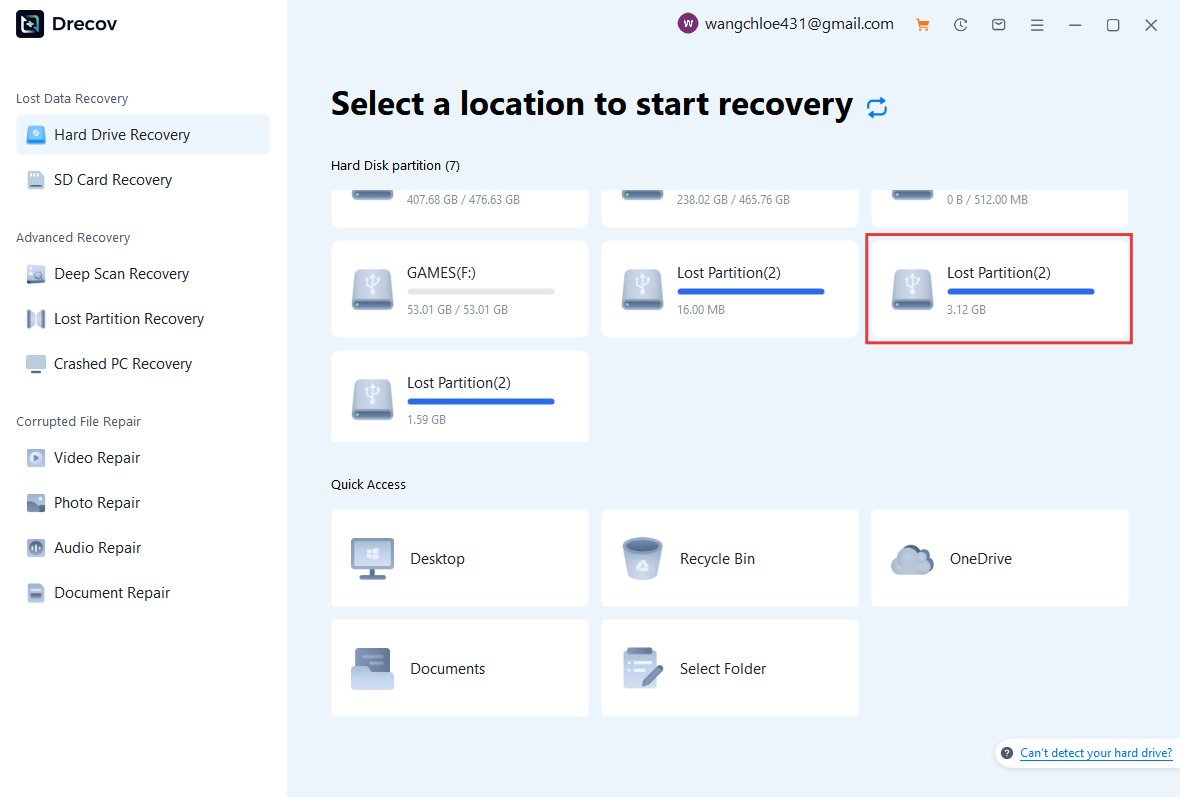
- Step 1: Launch the application. On the main interface, you will see a list of available drives. Select the physical disk (e.g., “Disk 0” or “External USB”) that contains the unallocated space.
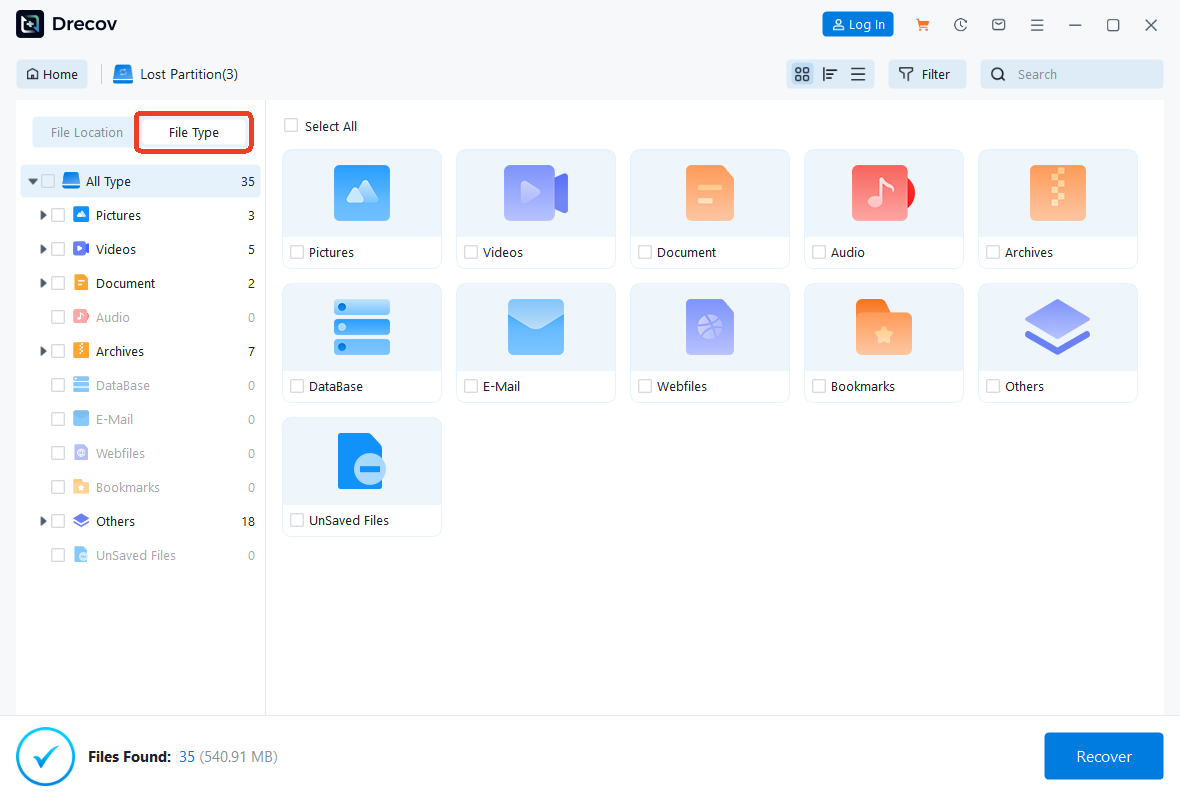
- Step 2: Click on the “Deep Scan” button. The software will begin analyzing the raw sectors of the drive. It will look for various file system signatures like NTFS or FAT32.
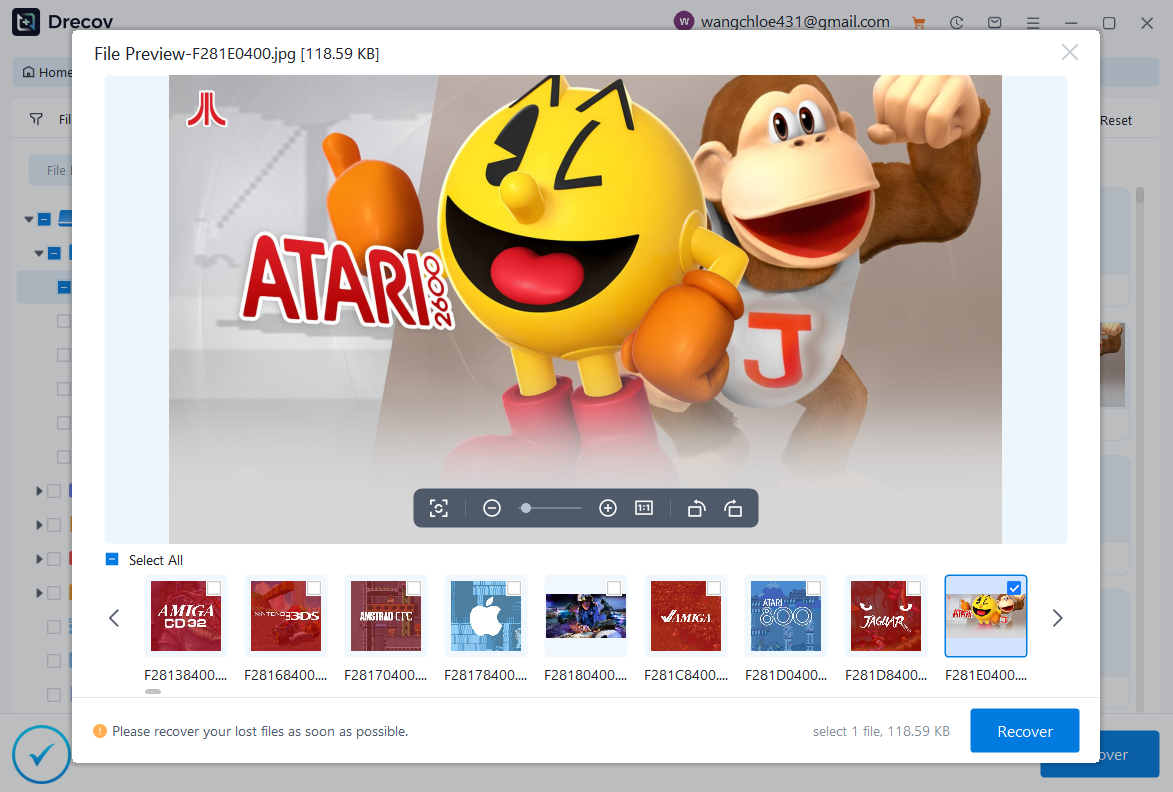
- Step 3: Once the scan is complete, look for the “Lost Partition” folder or the specific volume name in the results. You can use the Preview feature to check if your photos or documents are intact.
- Step 4: Select the files or the entire partition you wish to retrieve and click “Recover.” Always save the recovered data to a different physical disk or an external drive for safety.
Here are some helpful guides:
- If your partition loss was caused by a recent system update, learn how to restore computer to an earlier date on Windows to stabilize your environment.
- In cases where you’ve accidentally deleted media files from external synced devices, check out our guide on how to recover a blink video deleted accidentally.
- If your system is behaving strangely regarding file saves after a recovery, you may need to fix Windows save as default location stuck on OneDrive.
Method 2: Restoring via Disk Management
Sometimes a partition isn’t “lost,” it’s just “unnamed.” If the partition table is fine but the drive letter was removed, you can fix this in seconds.
- Step 1: Right-click the Start button and select Disk Management.
- Step 2: Look for a partition that shows a healthy status (e.g., “Primary Partition”) but has no letter assigned.
- Step 3: Right-click that partition and select “Change Drive Letter and Paths…”
- Step 4: Click “Add,” choose a letter (like D or E), and click OK. The drive should immediately reappear in File Explorer.
Method 3: Using Command Prompt
For those who prefer a hands-on approach, the diskpart utility is a powerful tool to restore lost partitions by manually manipulating partition attributes.
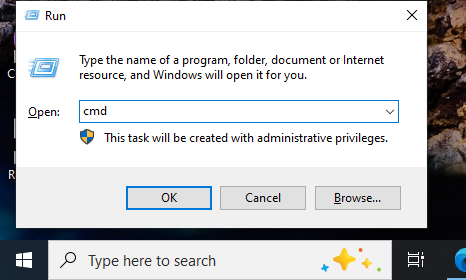
- Step 1: Type
cmdin the Windows search bar, right-click it, and select Run as Administrator.
- Step 2: Type
diskpartand press Enter. - Step 3: Type
list diskto identify your drive number, then typeselect disk X(replace X with your disk number). - Step 4: Type
list volumeto see if the partition is listed as “Hidden” or “Offline.” - Step 5: If the partition is hidden, type
select volume Yand thenassign letter=Z. - Step 6: Type
exitto finish.
Warning: Be extremely careful with DiskPart. Commands like
cleanwill wipe your entire drive instantly without a confirmation prompt.
Common Mistakes to Avoid
Overwriting Lost Data
The most frequent mistake is downloading recovery software onto the same partition that is missing. If you have a 2-partition setup (C: and D:) and D: is lost, do not save anything to C: if you can help it, as Windows might expand its paging file or logs onto the unallocated space of D:. Always use an external drive for recovery software and file storage.
Choosing the Wrong Recovery Method
Many users jump straight to “Formatting” thinking it will “reset” the drive so they can use recovery software. This is a fallacy. Formatting creates a new file system metadata structure (MFT for NTFS), which can overwrite the old metadata that told the software where the fragmented files were located. Always try to restore lost partitions using non-destructive scanning first.
Preventing Partition Loss in the Future
Regular Backups
The only 100% effective way to survive a lost partition is a backup. Utilize the 3-2-1 rule: 3 copies of your data, on 2 different media types, with 1 copy kept offsite (Cloud). Services like Microsoft OneDrive or Google Drive are excellent for document folders, but for full partition safety, use an external HDD for system imaging.
Disk Health Monitoring
Hard drives rarely fail without warning. Use tools that monitor S.M.A.R.T. (Self-Monitoring, Analysis, and Reporting Technology) data. If you see an increase in “Reallocated Sectors Count,” it is a sign that your partition table may soon become corrupt due to physical degradation. Replacing a failing drive before the partition disappears is always easier than recovering it afterward.
Conclusion
Mastering how to restore lost partitions is about combining the right tools with a calm, methodical approach. Whether the cause was a simple accidental deletion or a complex system crash, the data is usually still there, waiting for the right “map” to be drawn. By using built-in Windows utilities like Disk Management or professional solutions like PandaOffice Drecov data recovery software, you can bridge the gap between “unallocated space” and a fully functional drive.
Remember: stop using the drive immediately, avoid formatting, and always verify your files through a preview before finishing the recovery. With these best practices, you can recover lost partition without losing data and turn a potential digital disaster into a minor inconvenience.






