







Losing track of your digital trash can is more common than you might think. Whether you accidentally toggled a setting or a system update shifted your icons, asking “where is my recycle bin on my computer” is the first step toward regaining control over your deleted files. In the world of data management, the Recycle Bin serves as your first line of defense against permanent data loss.
This guide provides an exhaustive look at locating, restoring, and troubleshooting the Recycle Bin. Furthermore, we will explore advanced data recovery techniques using professional tools like PandaOffice Drecov for those moments when the Bin simply isn’t enough.
Locating the Basics: Finding the Missing Icon
By default, Windows places the Recycle Bin icon on your desktop. It is a system folder that temporarily stores deleted items. However, modern Windows layouts sometimes hide these icons to maintain a “clean” aesthetic. If you find yourself wondering where is my recycle bin on my computer, you should first check your Desktop Icon Settings.
Restoring the Desktop Icon
If the icon has vanished, it hasn’t been uninstalled—it is simply hidden. Follow these steps to bring it back:
- Step 1: Right-click on an empty space on your Desktop and select Personalize.
- Step 2: In the sidebar, click on Themes.
- Step 3: Scroll down or look at the right-hand pane for Desktop icon settings.
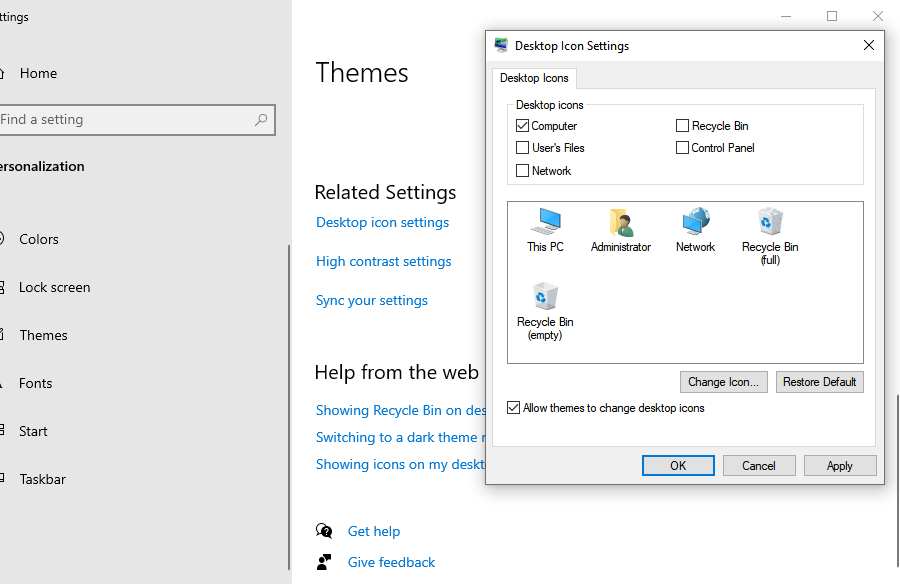
- Step 4: In the pop-up window, ensure the checkbox for Recycle Bin is checked.
- Step 5: Click Apply and then OK.
Recycle Bin Not Showing on Desktop But Still Exists
Sometimes, even after checking the settings above, the icon remains elusive. This scenario, where the Recycle bin not showing on desktop but still exists, usually points to a conflict in Tablet Mode settings or a File Explorer glitch.
Checking Tablet Mode (Windows 10/11)
Windows often hides desktop icons when the device is in Tablet Mode to simplify the touch interface.
- Step 1: Open your Settings by pressing
Win + I. - Step 2: Go to System and then select Tablet.
- Step 3: Click on Change additional tablet settings.
- Step 4: Look for the toggle that says Hide app icons on the taskbar or Hide desktop icons and ensure it is turned Off.
Restarting Windows Explorer
If the system is lagging, the desktop layer might fail to render the icon.
- Step 1: Press
Ctrl + Shift + Escto open the Task Manager. - Step 2: Find Windows Explorer in the list of processes.
- Step 3: Right-click it and select Restart. Your screen will flicker briefly, and the icon should reappear.
Shortcut to Open Recycle Bin if Icon is Missing
If you are in a rush and don’t want to mess with settings, you can use a shortcut to open recycle bin if icon is missing. You can access your deleted files through the address bar or a specific command execution.
The File Explorer Method
You can use the breadcrumb navigation in any folder window to find your trash.
- Step 1: Open any folder or press
Win + E. - Step 2: Click the first “greater than” arrow (
>) in the address bar. - Step 3: Select Recycle Bin from the dropdown menu. This bypasses the desktop icon entirely.
The “Run” Command Method
For those who prefer keyboard efficiency, the Shell command is the fastest way.
- Step 1: Press
Win + Rto open the Run dialog box. - Step 2: Type exactly:
shell:RecycleBinFolder. - Step 3: Press Enter. This will immediately launch the Recycle Bin window.
Fixing a Corrupted Recycle Bin via Command Prompt
Occasionally, the reason you are asking where is my recycle bin on my computer is that the underlying database file is corrupted. This prevents the icon from updating or opening.
To fix this, you must reset the Bin using the Command Prompt (Admin):
- Step 1: Type
cmdin the Windows Search bar. - Step 2: Right-click Command Prompt and select Run as Administrator.
- Step 3: Type the following command:
rd /s /q C:\$Recycle.binand hit Enter. - Step 4: Close the prompt and restart your computer. Windows will automatically recreate a fresh, healthy Recycle Bin folder.
Warning: This process will permanently empty the Recycle Bin for the C: drive. Only do this if you are sure there are no files currently in the bin that you need to save.
For more information on how Windows handles system folders, you can visit the Official Microsoft Support Page.
Advanced Data Recovery: When the Recycle Bin is Empty
Finding the Bin is only half the battle. What happens if you find it, but the files you need aren’t there? Perhaps you used Shift + Delete, or the Bin was emptied automatically to save space. This is where standard Windows tools reach their limit.
When files are deleted from the Bin, they aren’t immediately erased from the hard drive. Instead, the space they occupy is marked as “available.” Until new data overwrites that space, the files are recoverable.
Introducing PandaOffice Drecov Data Recovery Software
PandaOffice Drecov data recovery software is a professional-grade utility designed for users who need a reliable way to retrieve lost documents, photos, and videos. It excels in scenarios where the Windows Recycle Bin fails, such as partition loss, formatted drives, or system crashes.
⚠ Warning:Always install data recovery software on a different drive than the one you are recovering from (e.g., if you lost files on C:, install Drecov on D: or a USB drive) to avoid overwriting your lost data.
Steps to Recover Data Using PandaOffice Drecov
If you have realized your files are gone for good from the system folder, follow these steps to use PandaOffice Drecov:
- Step 1: Select the Location. Launch the program. You will see a list of drives and common locations. Select Recycle Bin or the specific hard drive where the files were originally stored.

- Step 2: Scan for Lost Files. Click the Scan button. PandaOffice Drecov will perform a “Quick Scan” followed by a “Deep Scan.” The Deep Scan looks into the raw sectors of your disk to find fragments of files that the operating system no longer recognizes.

- Step 3: Preview and Filter. Once the scan completes, use the filter sidebar to sort by file type (JPG, DOCX, MP4, etc.). Drecov allows you to preview files before recovery, ensuring you aren’t wasting time on corrupted fragments.

- Step 4: Recover to a Safe Path. Select the files you wish to keep and click Recover. Choose a destination folder on an external drive or a different partition to finalize the process.
Why Do Files Disappear from the Recycle Bin?
Even if you know where is my recycle bin on my computer, you might notice it behaves inconsistently. Understanding these settings can prevent future data loss panics.
1. Storage Limits
Each drive on your computer allocates a specific percentage of space to the Recycle Bin. If you delete a file that is larger than the allocated “Maximum Size,” Windows will ask if you want to delete it permanently.
2. Storage Sense
Windows 10 and 11 feature a tool called Storage Sense. This feature automatically deletes files in your Recycle Bin if they have been there for more than 30 days. You can disable this in Settings > System > Storage.
3. Shift + Delete Command
Using the Shift key while deleting bypasses the Recycle Bin entirely. This is a common culprit for users who cannot find their files despite knowing exactly where the Bin is.
Best Practices for Data Safety
To avoid the stress of searching for where is my recycle bin on my computer or resorting to deep scans, consider these habits:
- Regular Backups: Use the built-in Windows File History or cloud services like OneDrive.
- External Storage: Keep a copy of vital documents on a physical USB drive.
- Think Before You Empty: Always double-check the contents of your Bin before clicking “Empty Recycle Bin.”
If you find yourself needing to recover data from other sources, check out these helpful guides:
- Recover deleted files from USB flash drive
- Restore deleted files from Recycle Bin
- How to recover files deleted from the Recycle Bin
Summary Table: Quick Access Methods
| Method | Best For | Requirement |
| Desktop Settings | Permanent access | Admin Rights |
| Run Command | Instant access | shell:RecycleBinFolder |
| File Explorer | Casual browsing | Address bar navigation |
| PandaOffice Drecov | Files already emptied | Software installation |
Recycle Bin on my Computer FAQs
1. Does every drive have its own Recycle Bin?
Yes, Windows creates a hidden system folder called $RECYCLE.BIN on every internal and external hard drive connected to your system. When you delete a file from your D: drive, it actually stays in the hidden bin of that specific drive, even though the desktop icon shows you a combined view of all deleted items. If you are using PandaOffice Drecov, you can scan these specific drives individually to find lost data.
2. Why can’t I find deleted files from my USB flash drive in the Recycle Bin?
By default, Windows does not send files deleted from removable media (like USB sticks or SD cards) to the Recycle Bin; they are deleted permanently. This is a common reason why users panic when they can’t find their files. In this situation, the only way to retrieve them is to use PandaOffice Drecov data recovery software to scan the external device directly.
3. Can I change how much space the Recycle Bin uses?
Absolutely. If you find that your files are being deleted too quickly, you can right-click the icon and select Properties. Here, you can set a custom maximum size for each drive. Increasing this limit ensures that larger files remain recoverable for a longer period before they are pushed out by newer deletions.
4. What is the difference between “Emptying” and “Deleting”?
“Deleting” a file simply moves it to the Recycle Bin, which acts as a safety net. “Emptying” the bin (or using Shift + Delete) tells Windows that the space is now vacant and ready to be overwritten. Even after emptying, the data often remains on the physical disk for a short time, which is why a shortcut to open recycle bin if icon is missing won’t help, but professional recovery tools will.
5. Why does the Recycle Bin icon look “full” even when it appears empty?
This is usually a synchronization error or a sign of a corrupted folder. It happens when the system fails to update the icon’s visual state after a deletion or a manual empty. Refreshing the desktop or resetting the bin via the command line usually fixes the visual glitch so you aren’t constantly wondering where is my recycle bin on my computer or why it isn’t behaving correctly.
Conclusion
Finding where is my recycle bin on my computer is usually a simple matter of toggling a display setting. However, when the icon is missing because of deeper system errors or the data inside has been purged, tools like PandaOffice Drecov data recovery software provide the necessary bridge between digital loss and successful restoration. By following the steps outlined above, you can ensure that your files stay safe and your desktop remains organized.
Whether you are dealing with a minor interface glitch or a major data catastrophe, remember that as long as you act quickly and avoid writing new data to your drive, your chances of recovery remain high. Keep this guide bookmarked for the next time your computer decides to play hide-and-seek with your files!






