







Losing an important document can feel like a digital nightmare, especially when you are working against a tight deadline. Whether it is a crucial business report, a thesis, or a cherished personal project, the sudden realization that a file is missing can cause immediate panic. However, before you lose hope, it is important to understand that Windows provides several safety nets designed specifically for these situations. This comprehensive guide will walk you through exactly how to retrieve deleted documents from the recycle bin and what to do if those files seem to have vanished permanently.
Understanding the Recycle Bin
Let’s start with the basics. The Recycle Bin in Microsoft Windows works like a temporary holding area for deleted files. Think of it as a safety net—when you delete something, it doesn’t vanish instantly. Instead, it gets moved to the Recycle Bin, giving you a second chance to recover it if needed. This architectural choice by Microsoft is one of the most effective ways to prevent permanent data loss from simple human error.
What Happens When You Delete a File
When you delete a document by pressing the “Delete” key or right-clicking and selecting delete, Windows doesn’t immediately erase the data from your physical hard drive or SSD. Instead, the operating system performs a logical move. It removes the file’s reference pointer from its original folder and updates the file system to show that the document now resides in the Recycle Bin.
The actual bits and bytes of the document remain intact on the storage medium. This is why the process of how to retrieve deleted documents from the recycle bin is usually instantaneous; the system is simply moving the pointer back to the original directory.
Where Deleted Files Are Stored
All deleted files go into a hidden system folder that powers the Recycle Bin. On modern versions of Windows, such as Windows 10 and Windows 11, this folder is typically named $Recycle.Bin. Interestingly, each partition or drive on your computer has its own dedicated Recycle Bin storage area. This means if you delete a file from your C: drive and another from an external D: drive, they are technically stored in different hidden folders, though they appear together when you open the Recycle Bin icon on your desktop.
Common Reasons Documents Get Deleted
File deletion happens more often than you might think. While we often blame “the computer,” the reality is that various factors contribute to the disappearance of our digital assets.
Accidental Deletion
We’ve all been there—clicking “Delete” instead of “Save,” or clearing out files too quickly during a frantic desktop cleanup. Accidental deletion is the number one reason people look for recovery solutions. Sometimes, a slip of the mouse or an accidental drag-and-drop into the wrong folder makes a file appear “lost” when it was simply moved or binned by mistake.
System or Software Errors
Crashes, bugs, or even failed Windows updates can result in files being removed unexpectedly. In some cases, antivirus programs may also quarantine or delete files they mistakenly identify as threats. Furthermore, if a program crashes while saving a document, it might delete the temporary file it was working on, leaving you with a missing original.
Can Deleted Files Always Be Recovered
Here’s the honest answer: not always. But your chances are pretty good if you act fast. The success of data recovery depends heavily on the state of your hard drive and how much time has passed since the deletion occurred.
Conditions for Successful Recovery
Files can be recovered easily if:
- They are still sitting in the Recycle Bin.
- They haven’t been permanently deleted via the “Empty Recycle Bin” command.
- Their storage space hasn’t been overwritten by new data.
- The drive is not a “Trim-enabled” SSD that has already performed a background wipe.
When Recovery Is Not Possible
Recovery becomes difficult or impossible if:
- The Recycle Bin has been emptied.
- The file was deleted using the Shift + Delete permanent shortcut.
- The disk has been heavily used after deletion, causing the “free space” where the document lived to be occupied by new files.
Timing plays a critical role here. The sooner you try to retrieve deleted documents, the better your chances. For more technical details on file systems, you can refer to the official Microsoft documentation on NTFS.
Step-by-Step Guide to Retrieve Deleted Documents from Recycle Bin
Recovering documents from the Recycle Bin is one of the easiest tasks you can perform on your computer. If you have not emptied your bin, your files are likely just a few clicks away.
Opening the Recycle Bin
- Step 1: Locate the Recycle Bin icon on your desktop. It usually looks like a wastepaper basket.

- Step 2: Double-click the icon to open it. If you cannot find the icon, press the Windows Key + S and type “Recycle Bin” into the search bar.
Locating Deleted Documents
- Step 1: Once inside, you’ll see a list of deleted files. To find your document quickly, use the “Search Recycle Bin” box in the top right corner.
- Step 2: You can also right-click in an empty space, select Sort by, and choose Date Deleted. This puts the most recently lost files at the very top.
Restoring Files to Original Location
- Step 1: Right-click the specific file you want to recover.
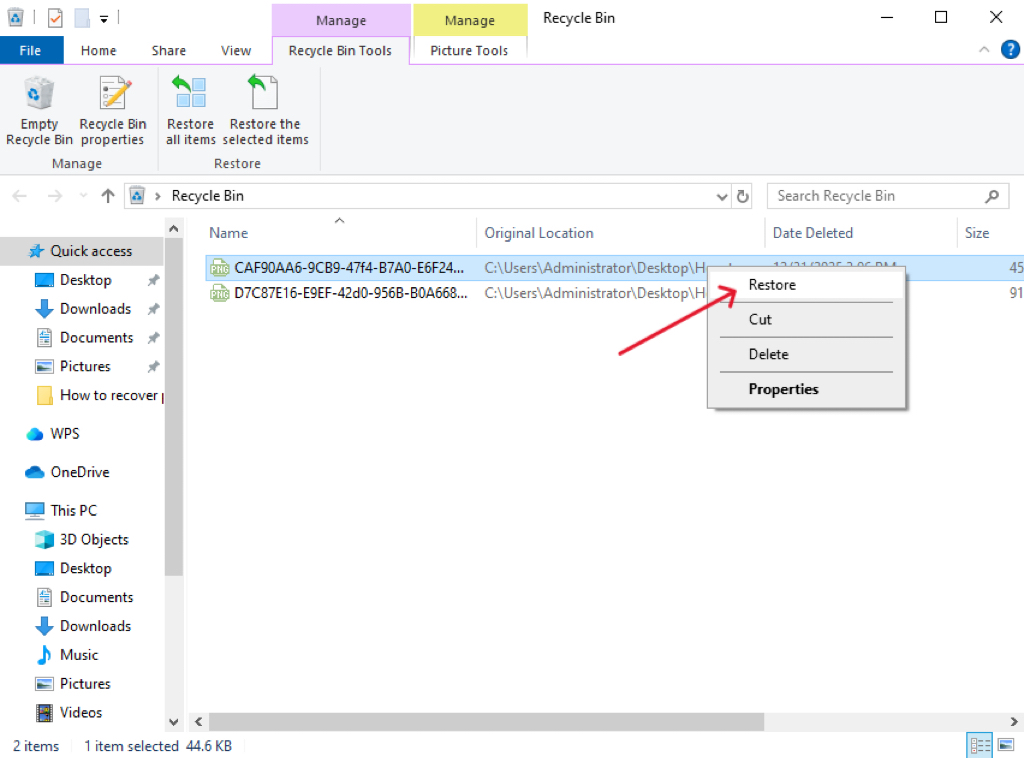
- Step 2: Select Restore from the context menu. The file will immediately disappear from the bin and return to its original folder location.
Warning: If you don’t remember where the file was originally saved, right-click it and select Properties to see the “Origin” path before you hit restore.
Alternative Methods to Retrieve Deleted Documents
Sometimes the Recycle Bin isn’t enough. Maybe the file isn’t there because it was too large for the bin, or perhaps you have a habit of emptying the trash frequently. Don’t panic—there are other built-in Windows options.
Using Backup and Restore
If you’ve enabled backups in Windows, you can restore previous versions of files. This feature is incredibly useful for recovering documents that are no longer in the Recycle Bin.
- Step 1: Open the Control Panel.
- Step 2: Navigate to System and Security > Backup and Restore (Windows 7).
- Step 3: Click on Restore my files and follow the wizard to find your missing document.
Using File History
File History automatically saves copies of your files over time. You can browse through older versions and restore the one you need.
- Step 1: Type “Restore your files with File History” in the Windows search box.
- Step 2: Browse the folders for your deleted document.

- Step 3: Use the green Restore button to bring it back.
What to Do If Recycle Bin Is Empty: PandaOffice Drecov Data Recovery Software
If you have emptied your trash or used the permanent delete shortcut, the built-in Windows tools might fail you. This is when you need a professional-grade solution. To retrieve deleted documents that have been purged from the system, we recommend using PandaOffice Drecov data recovery software.
PandaOffice Drecov is a powerful, user-friendly tool designed to scan the “raw” sectors of your hard drive to find files that the operating system can no longer see. It supports hundreds of file formats, including .docx, .pdf, .xlsx, and .pptx.
⚠ Warning: Install it on a drive different from the one where your data was lost to prevent overwriting.
Step-by-Step Recovery with PandaOffice Drecov
Step 1: Select the Location
Launch the software. You will see a list of drives. Select the drive (usually C:) where your document was stored before it was deleted and click Scan.

Step 2: Deep Scan and Filter
The software will perform a Quick Scan followed by a Deep Scan. Use the “Filter” or “File Type” sidebar to narrow down the results to “Documents.” You can search specifically for the file extension to save time.

Step 3: Preview and Recover
PandaOffice Drecov allows you to preview the document before committing to the recovery. This ensures the file is not corrupted. Select your document, click Recover, and choose a safe destination (like a USB drive) to save the file.
Warning Prompt: Always save recovered files to a different drive than the one they were lost from. Saving back to the same drive risks permanent data corruption.
For more specialized guides, check out these resources:
- How to recover an unsaved Excel file complete guide
- How to restore deleted files from recycle bin 5 fast fixes
- How to recover overwritten Excel files in Windows 11/10/8/7
Tips to Prevent Data Loss in the Future
While knowing how to retrieve deleted documents from the recycle bin is a vital skill, preventing the loss in the first place is much less stressful.
- Enable Cloud Sync: Services like OneDrive or Google Drive automatically version your documents. If you delete a file locally, you can usually find it in the cloud’s own “Trash” folder.
- Adjust Recycle Bin Size: Right-click the Recycle Bin, go to Properties, and ensure the “Maximum size” is large enough to hold your typical work files.
- Disable “Don’t move files to the Recycle Bin”: In the same Properties menu, make sure the option “Don’t move files to the Recycle Bin. Remove files immediately when deleted” is unchecked.
- Regular Backups: Use external SSDs to create monthly system images.
Best Practices for File Management
Good file management isn’t just about organization—it’s about protection. Create clear folder structures, name files properly with dates (e.g., Project_Report_2026_04_09), and regularly clean up unnecessary data.
Think of your computer like a library. If everything is organized, you’ll always know where to find what you need—and you’ll be less likely to lose it. Avoid saving everything to the desktop, as this is the most common place where accidental deletions occur during “cleanup” sessions.
Retrieve Deleted Documents From Recycle Bin FAQs
1. Can I recover files after emptying the Recycle Bin?
Yes, but you’ll need specialized data recovery software like PandaOffice Drecov or a system backup (like File History) to do so.
2. Where do restored files go?
They return to the exact folder where they were located before you deleted them. If that folder no longer exists, Windows will often recreate it or ask you where to put the file.
3. Can I recover files deleted with Shift + Delete?
These files bypass the Recycle Bin entirely. To recover them, you must use data recovery software or restore from a cloud/local backup.
4. How long do files stay in the Recycle Bin?
By default, Windows keeps files until the Recycle Bin reaches its allocated size limit. Once full, it deletes the oldest files to make room for new ones. You can also configure Windows Storage Sense to empty the bin every 30 days automatically.
5. Is data recovery software safe to use?
Reputable tools like PandaOffice Drecov are safe. However, always ensure you download from the official developer site to avoid bundled malware or “cracked” versions that could damage your operating system.
Conclusion
Mastering how to retrieve deleted documents from the recycle bin is a fundamental digital literacy skill. In most cases, a simple “Restore” click solves the problem. However, when things get complicated—like when the bin is emptied or a drive is formatted—tools like PandaOffice Drecov data recovery software provide a professional-grade fallback to ensure your hard work isn’t lost forever.
The key takeaway? Act quickly, don’t write new data to the drive, and always keep a secondary backup. With the right approach and the right tools, a deleted document is rarely a permanent loss.






