







In the digital ecosystem of 2026, bookmarks represent more than just saved links; they are the architectural blueprints of our professional and personal knowledge bases. When these files vanish due to sync conflicts, accidental deletion, or system corruption, the immediate reaction is often panic. However, understanding the underlying mechanics of how Chrome handles data allows users to retrieve lost Chrome bookmarks with a high success rate. This guide explores the transition from simple software undos to complex sector-level forensic recovery, ensuring that your digital library remains intact.
The Digital Resurrection: Why Data Persists
Before we explore the practical steps to retrieve lost Chrome bookmarks, we must address the fundamental science of data storage. Many users assume that clicking “delete” triggers a permanent wiping process. In reality, the 2026 Windows and macOS file systems operate on a logic of “efficiency over erasure.”
When you delete a bookmark, Chrome modifies the pointer in its JSON-based database. The actual bits and bytes remain on your Solid State Drive (SSD) or Hard Disk Drive (HDD). The operating system simply marks that specific storage cluster as “available for new data.” Until new information overwrites that specific sector, the original data remains “ghosted” on the drive. This biological-like persistence is the window of opportunity we exploit to retrieve lost data.
Furthermore, Chrome’s architecture includes redundant failsafes. Every time you launch the browser, it creates a snapshot of your current library. By understanding the timing of these snapshots, we can effectively perform a “digital time travel” to a state before the deletion occurred.
The Immediate Response: Phase 1
The first sixty minutes after a data loss event are critical. If you act quickly, you can retrieve lost Chrome bookmarks without any third-party intervention.
1. The Bookmark Manager Undo
If you are currently inside the Chrome Bookmark Manager (Ctrl+Shift+O) and realize you just deleted a folder, do not close the tab.
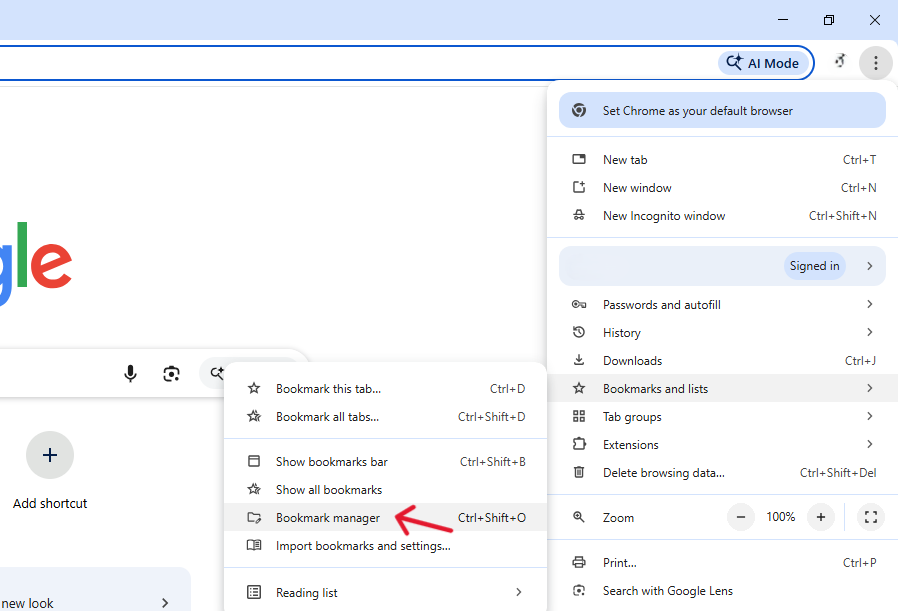
- The Action: Press
Ctrl + Zon Windows orCmd + Zon Mac. - The Logic: Chrome maintains a temporary command history in its active RAM. This is the fastest way to retrieve lost Chrome bookmarks, but it only works if the browser session remains active.
2. The Emergency “Kill Switch” (Sync Isolation)
In 2026, Chrome’s cloud synchronization is aggressive. If you delete a bookmark on your PC, the command reaches the cloud in seconds. To retrieve lost data via another device:
- Immediate Disconnect: Grab your smartphone or tablet that also has Chrome installed.
- Enable Airplane Mode: You must do this before the app opens or syncs.
- Manual Export: Open Chrome on the mobile device. If the bookmarks are still there, copy the essential URLs manually or take screenshots before re-enabling the internet.
Local File System Intervention: Phase 2
When the “Undo” window closes, we must look at the local storage files. Chrome stores its data in a hidden directory. Accessing this allows us to retrieve lost Chrome bookmarks by swapping the active database with an automatic backup.
1. Locating the Chrome Vault
The path varies by operating system. Navigate to the following directories:
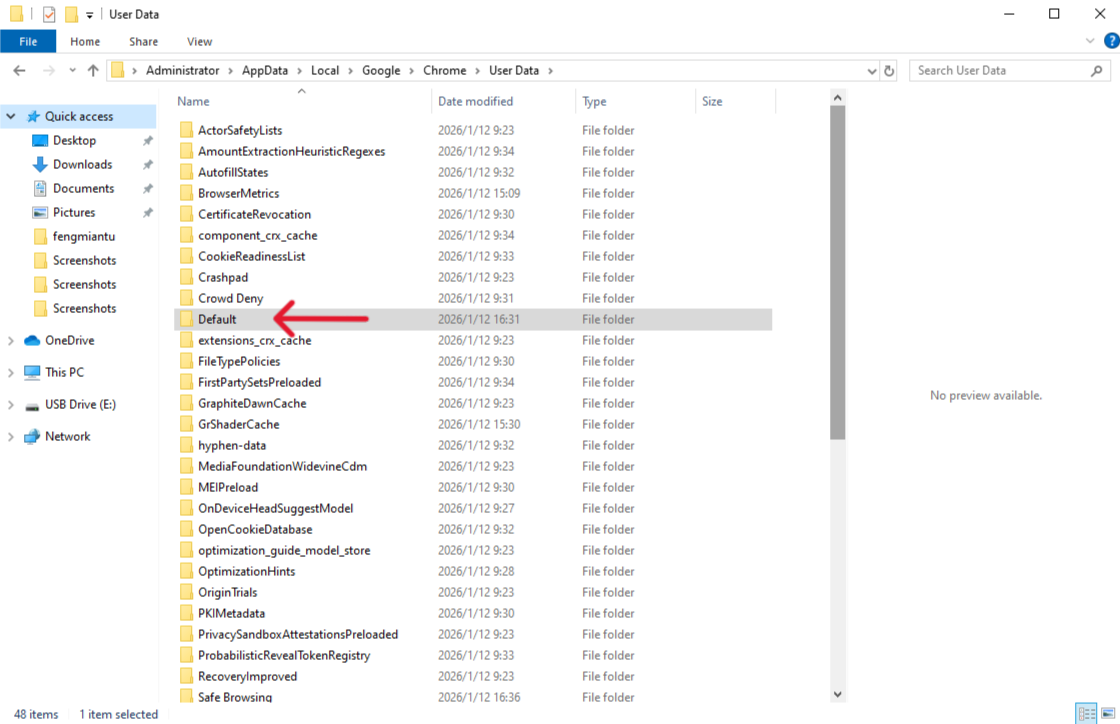
- Windows 11/12:
%LocalAppData%\Google\Chrome\User Data\Default - macOS Sequoia/Sonoma:
~/Library/Application Support/Google/Chrome/Default
Note: If you use multiple Chrome Profiles, replace “Default” with “Profile 1” or “Profile 2”.
2. The .bak Swap Procedure
Inside this folder, you will see two files: Bookmarks and Bookmarks.bak.
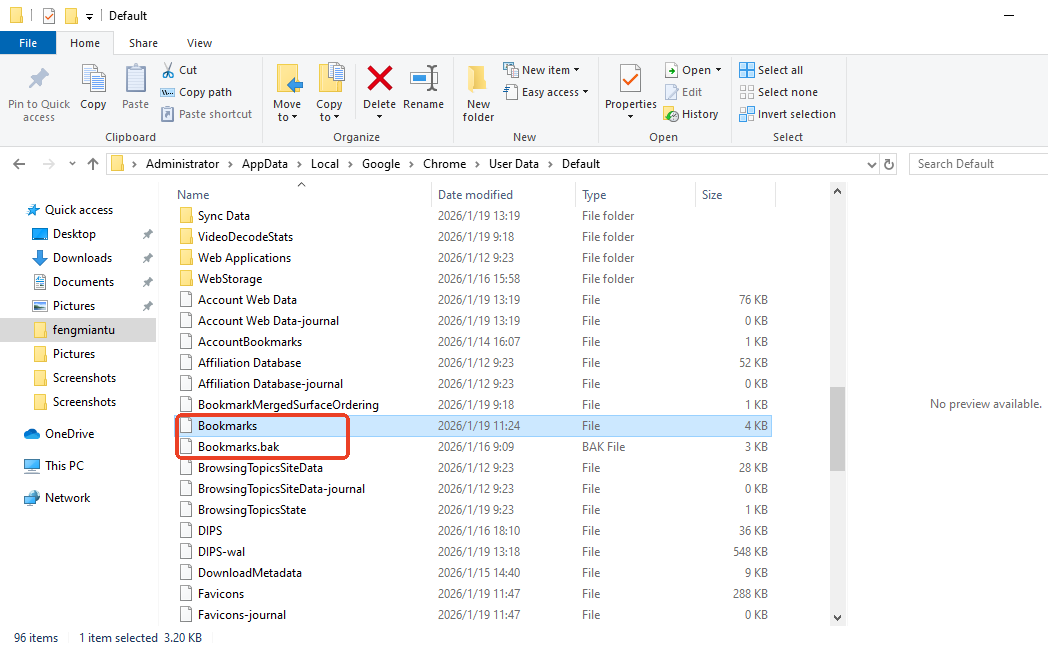
- Close Chrome Entirely: Use Task Manager (Windows) or Activity Monitor (Mac) to ensure no background processes are running.
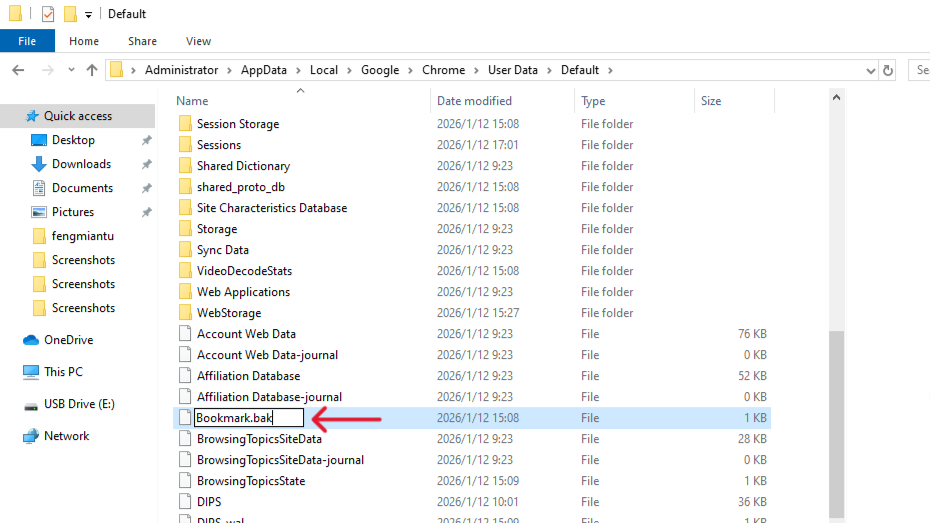
- Rename the Files: Change
BookmarkstoBookmarks.old. Then, renameBookmarks.baktoBookmarks. - Relaunch: When Chrome opens, it reads the backup file as the primary library, allowing you to retrieve lost Chrome bookmarks from the last time the browser successfully launched.
Advanced Sector Recovery: Phase 3
If the .bak file is already overwritten, we move to the hardware level. This is where specialized utilities like PandaOffice Drecov become essential. These tools do not look at the file directory; they scan the physical surface of the drive to retrieve lost Chrome bookmarks.
1. Why Use Professional Recovery Tools?
Standard file explorers cannot see “unallocated space.” However, recovery software can identify the unique file signatures of a Chrome JSON database. To effectively retrieve lost data, the tool scans for specific strings of code that define a bookmark entry.
Benefits of the Graphical Approach:
- Versatility: It recovers photos, videos, audio, compressed files (ZIP/RAR), and even system files like EXEs.
- Accidental deletion from your computer desktop.
- Files lost after emptying the Recycle Bin.
- Data loss from disk formatting.
- Accidental deletion or formatting of SD cards/U disks.
- Sync error occurring with deleted OneDrive files
- Privacy First: All recovery happens locally on your machine, so you don’t have to worry about your private data leaking to the web.
🚨 Important Warning: Do not install this on the same drive where the lost files were.
2. Step-by-Step Recovery with PandaOffice Drecov
- Deployment: Run the software from a USB drive to prevent overwriting the C: drive.
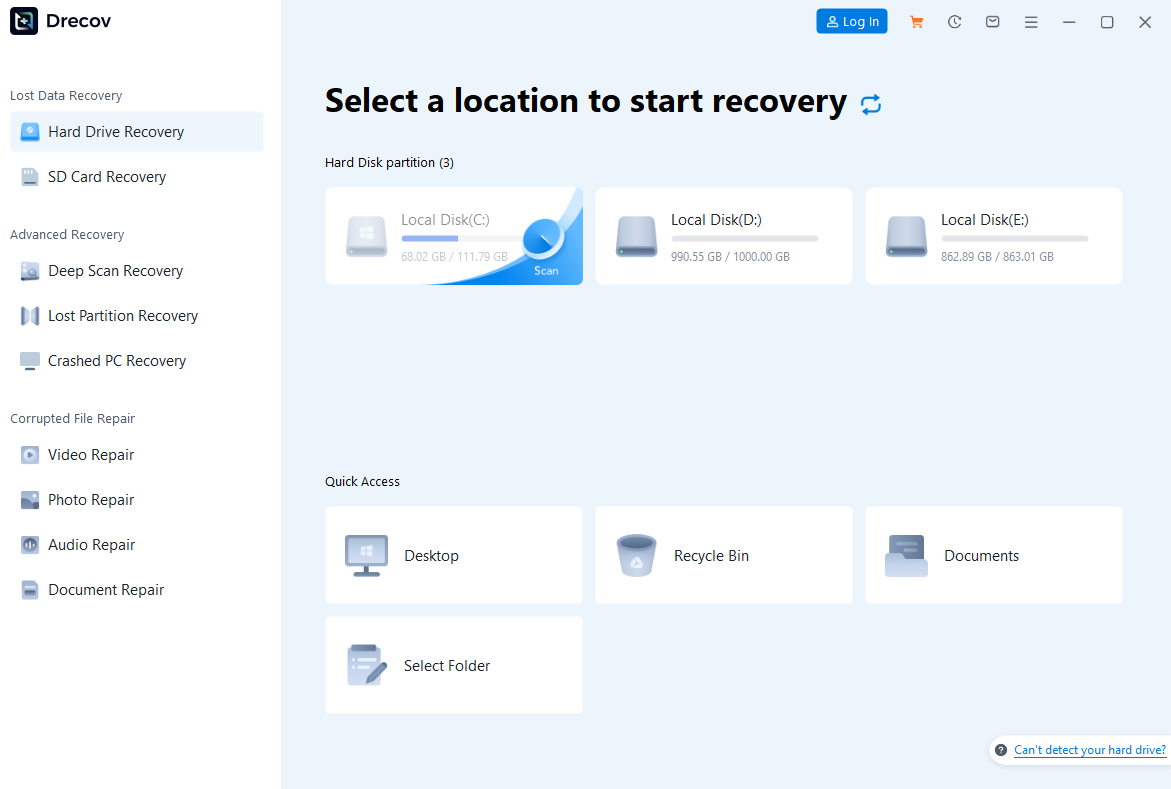
- Targeting: Select the system partition.
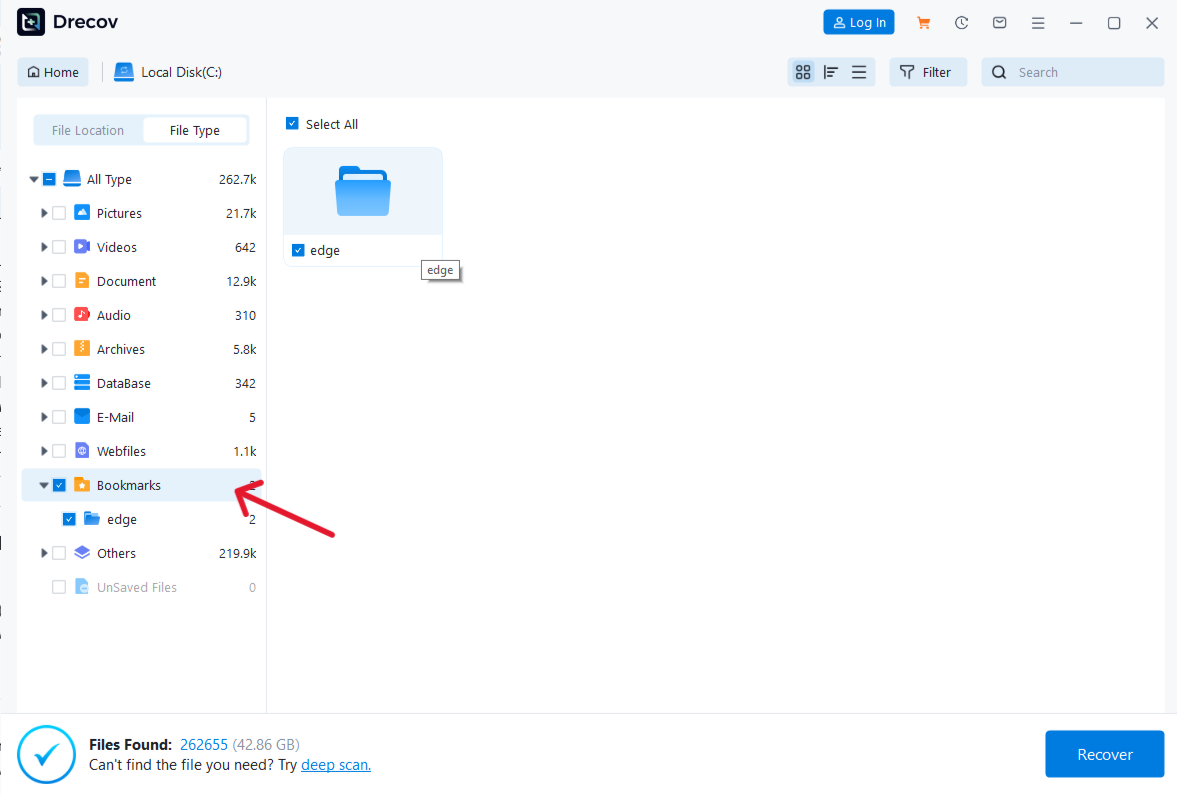
- Filtering: Use the search term “Bookmarks” to filter the results.
- Verification: Look for files with a size larger than 0KB.

- Restoration: Save the recovered file to an external drive.
Network Forensics: The Final Resort
If the physical files are destroyed, we can still retrieve lost Chrome bookmarks by looking at your network footprint.
1. DNS Cache Extraction
Every time you visit a bookmarked site, your OS stores the domain in its DNS cache.
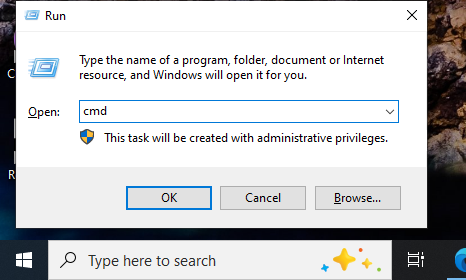
- Command: Open Command Prompt and type
ipconfig /displaydns.
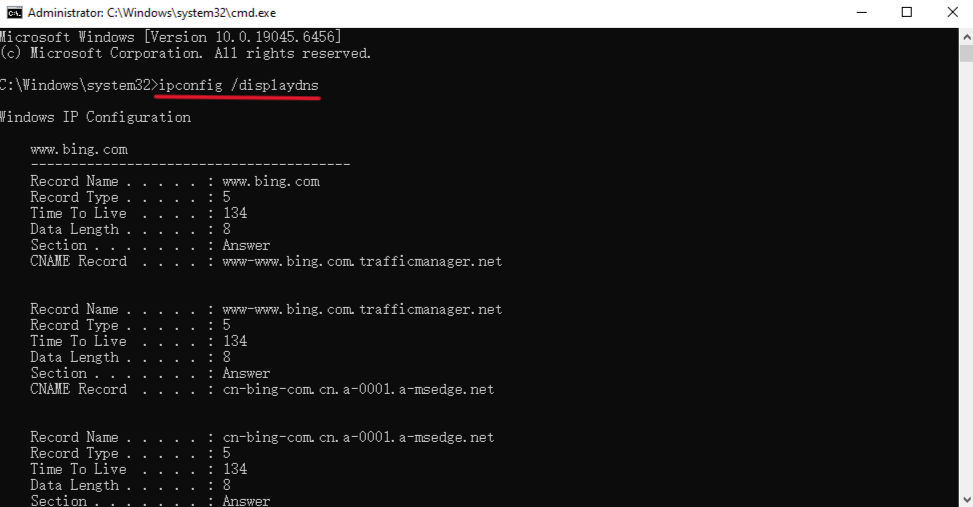
- Result: This generates a list of every website your computer has contacted recently. While it won’t restore the folder structure, it provides the raw URLs needed to retrieve manually.
2. Google Takeout (Cloud Archive)
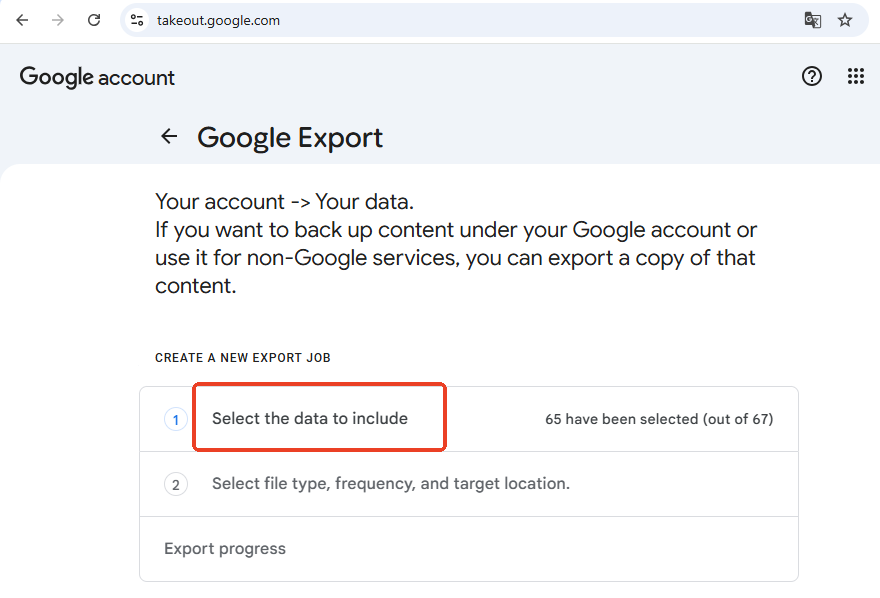
Google periodically archives user data. By visiting takeout.google.com, you can request a download of your Chrome data. If the deletion happened recently, the Google servers might still hold a version of your library in their archive, offering a cloud-based way to retrieve lost Chrome bookmarks.
Building a Future-Proof Strategy
Recovery is a reactive measure. To ensure you never need to retrieve lost Chrome bookmarks under duress again, implement these 2026-standard precautions:
- HTML Export Rituals: Every first day of the month, export your bookmarks to a dedicated “Vault” folder on a cloud drive.
- Dual-Sync Strategy: In addition to Google Sync, you can utilize cross-browser synchronization tools (such as Raindrop.io) to achieve redundant backups across browsers with different engines.
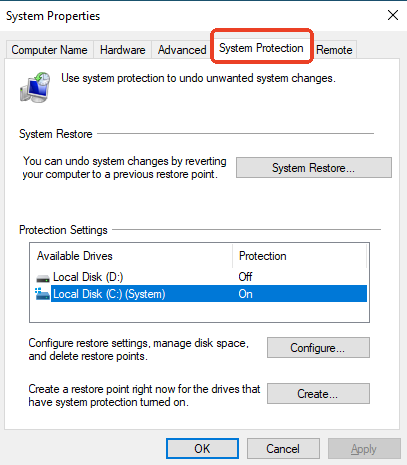
- Enable Volume Shadow Copy: Ensure Windows System Protection is on. This creates “Previous Versions” of folders, allowing you to retrieve lost Chrome bookmarks with a simple right-click.
Conclusion
In conclusion, the loss of digital data is rarely permanent in the modern era. Whether you use the simple Ctrl + Z shortcut, perform a .bak file swap, or utilize deep-sector scanning tools like PandaOffice DRecov, the ability to retrieve lost Chrome bookmarks is within your reach. By understanding the architecture of Chrome and the persistence of the file system, you can navigate data loss with confidence. Remember, the key to success is speed and the prevention of data overwriting. With these strategies, your digital library is safe, secure, and always recoverable.






