







Imagine this: You are finalizing a crucial presentation for a Monday morning meeting. You save the file to your desktop, confident it’s safe, but suddenly, a notification pops up: “Your OneDrive is full. Syncing has stopped.” You realize that without your permission, your computer has been offloading your local files to a cloud server you never intended to use, leading you to immediately wonder how to delete Microsoft OneDrive and stop the intrusive syncing.
For many users, Microsoft OneDrive feels less like a helpful assistant and more like an uninvited guest who reorganizes your furniture and locks the door. This frustration is why thousands of users search for how to delete Microsoft OneDrive every month. Whether it’s the constant nagging for a subscription upgrade or the confusing “Online-only” file status that prevents you from accessing data offline, wanting to remove this service is a common step toward reclaiming digital autonomy.
Part 1: What is Microsoft OneDrive and Why Remove It?
Understanding the Service
Microsoft OneDrive is a file hosting and synchronization service operated by Microsoft. As a seamless bridge between local storage and the cloud, OneDrive is deeply integrated into the Windows 10 and 11 ecosystems. It isn’t just a simple app; it is a system-level service that manages three distinct states of your data:
- Online-Only: Files that exist only on Microsoft servers (saving you disk space but requiring internet to open).
- Locally Available: Files you’ve opened recently that are cached on your drive.
- Always Keep on This Device: Files that are physically stored on your hardware and mirrored to the cloud.
When you decide to remove OneDrive, you are essentially asking Windows to untangle these three states. Without a proper roadmap, the system often defaults to “cleaning up” the local path, which is why so many users inadvertently delete OneDrive content they intended to keep. Understanding this architecture is the first step toward reclaiming your disk space without sacrificing your digital life.
Why You Might Search “How to Delete Microsoft OneDrive”
- Storage Limits: The free tier offers only 5GB. Once full, Windows may bombard you with “Storage Full” alerts.
- Privacy Concerns: Some users prefer keeping their sensitive documents strictly on local hardware rather than a remote server.
- System Performance: OneDrive runs as a background process (
OneDrive.exe), which can consume CPU and RAM, slowing down older laptops. - File Confusion: The “Files On-Demand” feature can be deceptive. You might think a file is on your hard drive, only to find it’s just a placeholder that requires internet access to open.
Part 2: The Aftermath of Removal and the Science of Deletion
Before you execute the steps on how to delete Microsoft OneDrive, you must understand what happens to your data. Many people fear that deleting the app will vaporize their documents.
What Happens When You Delete the App?
When you uninstall or disable OneDrive, the connection between your PC and the cloud breaks.
- Local Files: Files already fully downloaded to your PC stay there.
- Online-Only Files: Files with the “blue cloud” icon will disappear from your local File Explorer because they were never actually on your hard drive—they were just “ghost” links.
The “Invisible” Reality: How Data Deletion and Recovery Work
To understand recovery, think of your hard drive like a giant library.
- The File: This is the book.
- The File System (MFT/FAT): This is the library’s index card catalog.
When you delete a file (or when OneDrive removes a local copy), Windows doesn’t immediately shred the “book.” It simply goes to the index card catalog and scribbles out the entry. It marks that shelf space as “Empty,” even though the book is still sitting there.
As long as you don’t save new files that overwrite that specific shelf space, a professional tool can find the “book” and recreate the index card. This is the fundamental principle that makes data recovery possible, even after you’ve learned how to delete Microsoft OneDrive and realized you accidentally lost a folder.
Part 3: Step-by-Step Guide: How to Delete Microsoft OneDrive
There are three primary ways to handle OneDrive: Unlinking, Uninstalling, and Permanent Registry Removal.
Method 1: Unlinking (The Safest Route)
If you just want it to stop syncing, do this:
- 1.Click the OneDrive icon (blue or white cloud) in your system tray (bottom right).
- 2.Select Settings (the gear icon).
- 3.Go to the Account tab.
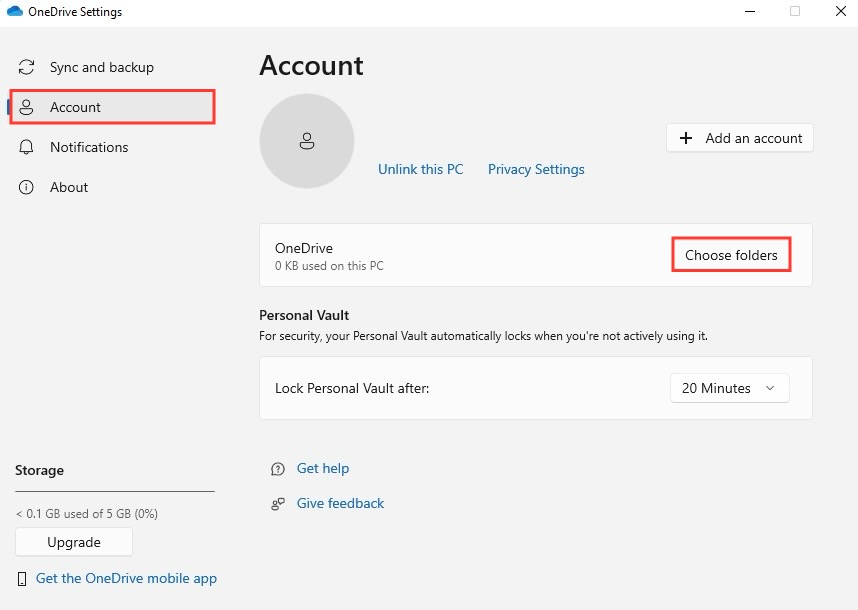
- 4.Click Unlink this PC. Confirm your choice.
Method 2: Standard Uninstall
To completely remove the software:
- 1.Press
Win + Ito open Settings. - 2.Navigate to Apps > Installed Apps.
- 3.Search for Microsoft OneDrive.
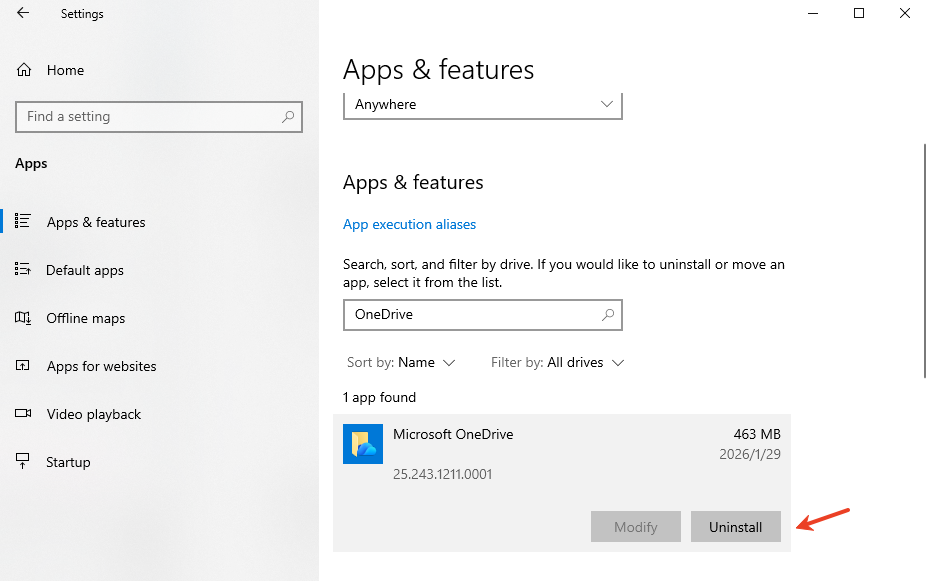
- 4.Click the three dots and select Uninstall.
Method 3: Removing via Registry (For Advanced Users)
If the icon persists in File Explorer, you may need to edit the registry.
Note: Be careful here. Always back up your registry first.
- 1.Press
Win + R, typeregedit, and hit Enter. - 2.Navigate to:
HKEY_CLASSES_ROOT\CLSID\{018D5C66-4533-4307-9B53-224DE2ED1FE6} - 3.Find the entry System.IsPinnedToNameSpaceTree.
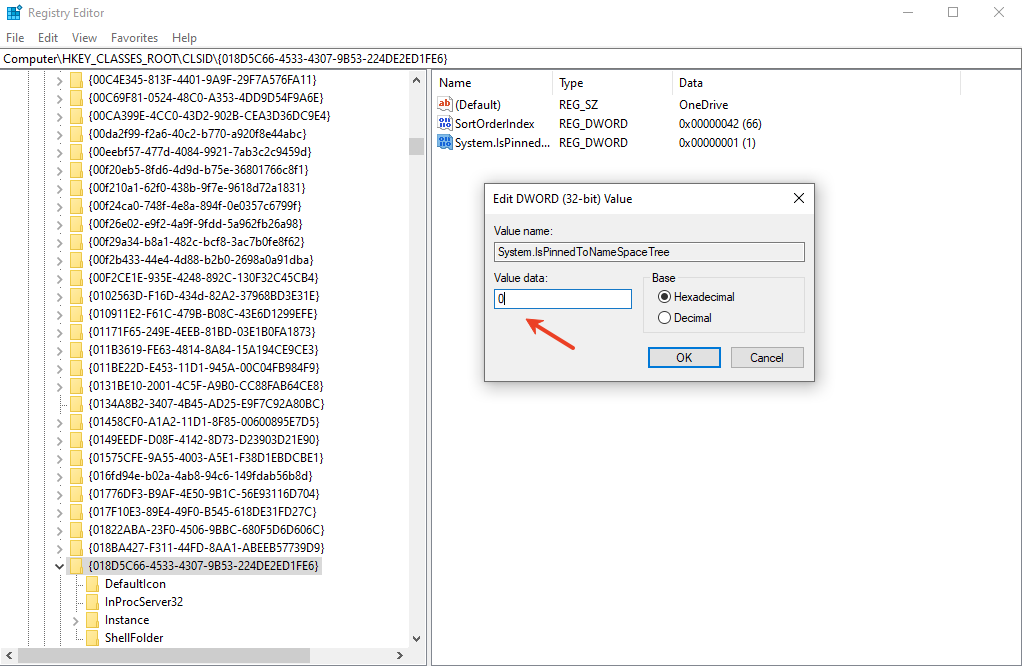
- 4.Double-click it and change the value from 1 to 0.
Part 4: Recovering Lost Data After Deleting OneDrive
Sometimes, knowing how to delete Microsoft OneDrive leads to an “Oops” moment where important files disappear because they were set to “Online-only.”
The Solution: PandaOffice Drecov
If you find yourself missing files after a cleanup, PandaOffice Drecov is the industry-standard solution. This tool bypasses the standard Windows file system to find those “index-less” files we discussed earlier.
Why Choose PandaOffice Drecov?
- Versatility: It supports recovery from emptied Trash/Recycle Bins, formatted disks, SD cards, and USB drives.
- High Success Rate: It utilizes deep-scan algorithms to find fragmented data that other tools miss.
- File Support: It recovers over 100 formats, including images (JPG, PNG), videos (MP4, MOV), documents (DOCX, PDF), and even executable (EXE) files.
- Safety: It performs a local-only recovery, ensuring your private data never leaves your computer.
- Global Trust: Partnered with major names like Microsoft Store, Trustpilot, TechBullion, and Sourceforge.
3 Steps to Recover Your Files
You don’t need to be a coder to use Drecov. Here is the process:
- Step 1: Select the Location
Launch PandaOffice Drecov and select the drive where your OneDrive folder was located.

- Step 2: Scan and Preview
Click “Scan.” The software will list all recoverable files. You can even repair corrupted or “unopenable” files during this phase.

- Step 3: One-Click Recovery
Select the files you need and click “Recover.” Save them to an external drive to prevent overwriting the original data.
Delete Microsoft OneDrive FAQs
Q1: Will I lose my files if I learn how to delete Microsoft OneDrive?
Not the ones stored locally. However, files marked with a blue cloud icon are stored only on Microsoft’s servers. You should download these before uninstallation.
Q2: Can I reinstall it later?
Yes. You can download the latest version of OneDrive from the official Microsoft website or the Microsoft Store at any time.
Q3: Why does OneDrive keep coming back after I delete it?
Windows Updates sometimes “repair” the system by reinstalling core apps. If this happens, use the Registry method mentioned above to hide it permanently.
Q4: Can PandaOffice Drecov recover files deleted from the OneDrive web bin?
Yes, Drecov can often find local cache fragments of files that were synced to the web, even if the web bin has been emptied.
Conclusion
Learning how to delete Microsoft OneDrive is a liberating experience for users who want a cleaner, faster, and more private computing environment. By following the steps to unlink and uninstall, you take back control of your file paths. However, always remember that digital cleaning carries risks.
Should you find that a vital document vanished during the process, don’t panic. Tools like PandaOffice Drecov act as your digital safety net, providing a simple, three-step bridge back to your lost data. Whether it’s a formatted SD card or a cleared Recycle Bin, your files are rarely ever truly gone.






