







Imagine the sheer confusion when you connect your thumb drive to your laptop, check the properties, and see that the storage bar is nearly full—yet, upon opening the folder, it appears completely empty. This paradoxical situation, where usb files missing but space still used, is a common digital headache that can trigger immediate panic. You know the data is there because the bytes are occupied, but the files themselves have vanished into thin air.
However, you can rest assured that this is a solvable problem. In almost every instance, your documents and photos are still physically residing on the memory chips; they are simply hidden or incorrectly indexed. This guide will provide a structured roadmap to resolve the issue of usb files missing but space still used, offering multiple recovery strategies ranging from simple system commands to professional-grade software solutions.
Why Is the Space Occupied but Files Are Missing?
Understanding the underlying mechanics of your flash drive is the first step toward a successful recovery. When you encounter the phenomenon of usb files missing but space still used, several technical culprits are usually at play.
1. The “Hidden Attribute” Virus
The most frequent cause is a specific type of malware that does not delete your files but rather alters their attributes. It marks them as “Hidden” and “System Protected” while simultaneously creating shortcuts that look like your folders. When your antivirus deletes the shortcuts, you are left with a drive that seems empty but remains full.
2. File System Corruption
Every USB drive uses a file system (like FAT32 or exFAT) to manage data. If the drive is unplugged during a write operation, the “Directory Table”—which acts like a table of contents for your files—can become corrupted. In this state, the operating system knows the clusters are occupied but cannot find the names or paths to display them.
3. Connection and Driver Errors
Occasionally, the communication bridge between the hardware and software glitch. While less common for this specific “missing file” symptom, outdated drivers can lead to improper rendering of the directory structure.
Strategic Solutions for Data Recovery
We have categorized these methods by their complexity. We recommend starting with the most basic Windows tools before moving to professional software.
Level 1: Revealing Hidden Files via Windows Explorer
Sometimes, the solution is as simple as changing a view setting. If the files were accidentally marked as hidden, Windows will respect that setting by default.
- Step 1: Open your USB drive in File Explorer.
- Step 2: Click on the View tab at the top ribbon.
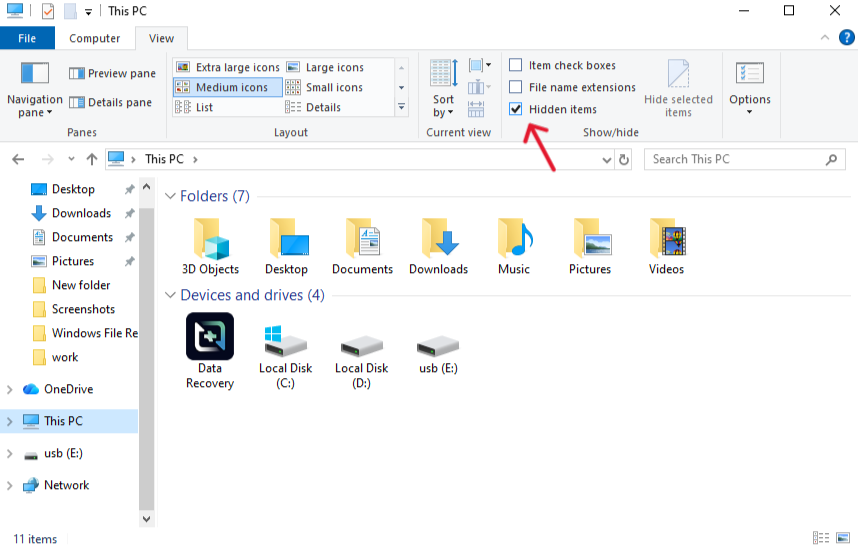
- Step 3: Check the box labeled “Hidden items.”
- Step 4: For more stubborn files, click Options > Change folder and search options. Under the View tab, uncheck “Hide protected operating system files.”
Level 2: Professional Recovery with PandaOffice Drecov
If manual settings do not work, it is highly likely that your file system’s index is damaged. This is where PandaOffice Drecov becomes indispensable. Unlike standard system tools, PandaOffice Drecov is specifically engineered to handle the usb files missing but space still used error by scanning the raw sectors of the drive to find data that the OS is ignoring.
Why PandaOffice Drecov is the Ideal Choice:
It supports a wide array of devices beyond flash drives, including SD card data recovery and restoring lost Chrome downloads or cache files. Its deep-scan technology bypasses the corrupted directory table to find the actual file headers.
Steps to Recover Files Using PandaOffice Drecov:
- Step 1: Connection and Selection. Plug your USB drive into your PC and launch PandaOffice Drecov. On the main interface, select your USB drive from the list of external devices.

- Step 2: Start the Scanning Process. Click the Scan button. The software will perform a Quick Scan followed by a Deep Scan. This process is crucial when usb files missing but space still used, as it looks for files that no longer have a “home” in the directory.

- Step 3: Filter and Preview. Once the scan is finished, browse the results. You can filter by file type (Images, Videos, Documents). Use the Preview feature to ensure the files are healthy.

- Step 4: Execute Recovery. Select the items you need and click Recover.
Warning: To prevent further corruption, save these files to your local hard drive or cloud storage—not back onto the problematic USB drive.
Level 3: Using the Attrib Command (The Malware Fix)
If a virus has hidden your files, the Command Prompt is the most direct way to “force” them back into visibility.
- Step 1: Press
Win + R, typecmd, and press Enter.

- Step 2: Identify your USB drive letter (e.g., G:).
- Step 3: Type the following command:
attrib -h -r -s /s /d G:\*.*(Replace G with your drive letter).
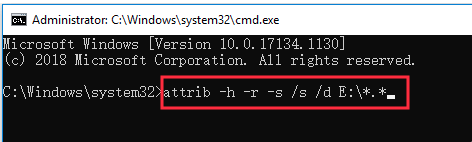
- Step 4: Press Enter and wait. This command strips away the Hidden, Read-only, and System attributes from every file on the drive.
Level 4: Running CHKDSK to Repair File Structures
When the space is occupied but files are gone due to a logical error, the “Check Disk” utility can often rebuild the index.
- Step 1: Open Command Prompt as Administrator.
- Step 3: Type
chkdsk G: /fand hit Enter.
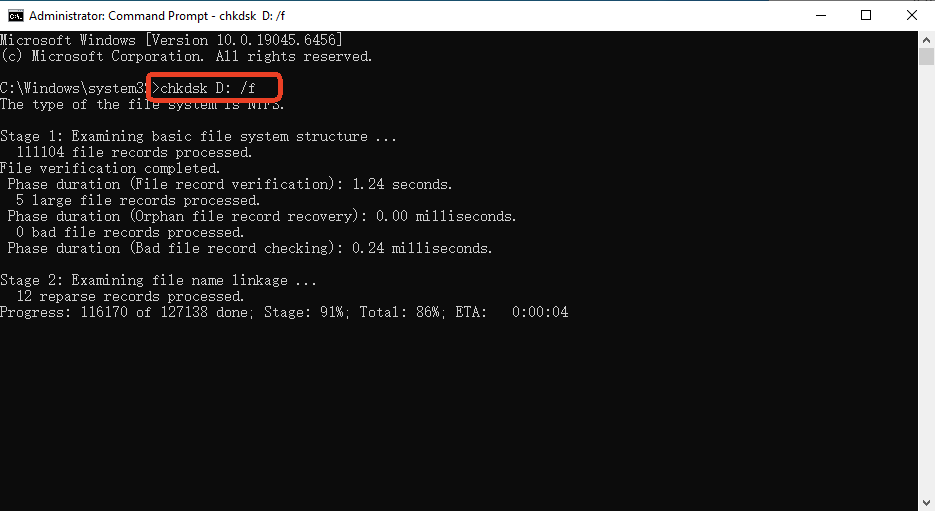
- Step 4: If Windows asks if you want to “convert lost chains to files,” type Y. This will save orphaned data as “.chk” files in a new folder, which you can then rename or recover.
Preventative Measures: Keeping Your Data Visible
To avoid the stress of usb files missing but space still used in the future, consider these professional habits:
- The Safe Removal Rule: Always use the “Safely Remove Hardware” icon. Most logical corruption happens because the drive was pulled out during a background cache flush.
- Regular Malware Scans: Since viruses are a primary cause of hidden files, scan your USB drive every time you plug it into a public or shared computer.
- Update Your Backup: No hardware is immortal. Use a 3-2-1 backup strategy (3 copies, 2 formats, 1 offsite).
- Format Occasionally: Every few months, move your files off the drive and perform a “Full Format” (not Quick Format) to refresh the file system structure.
FAQ: Resolving Specific USB Issues
Q: Can I use these methods if my USB shows as “RAW”?
A: Yes. A RAW drive is the ultimate version of usb files missing but space still used. PandaOffice Drecov is particularly effective at extracting data from RAW partitions where Windows commands like CHKDSK might fail.
Q: Why did my files turn into shortcuts?
A: This is a classic “Shortcut Virus.” The actual files are still there but are hidden. Use the Attrib command mentioned in Level 3 to restore them.
Q: Is it safe to use CHKDSK on a failing drive?
A: If you suspect the drive is physically dying (making clicking sounds), avoid CHKDSK. Instead, use PandaOffice Drecov to “clone” or recover the files immediately before the hardware fails entirely.
Conclusion
The frustration of seeing usb files missing but space still used can be overwhelming, but as we have explored, the data is rarely truly gone. By understanding the causes—ranging from malware to file system glitches—you can apply the right fix. While Windows commands offer a free starting point, PandaOffice Drecov provides the most reliable and user-friendly path to full recovery, especially for SD cards and browser-related data. Don’t let a logical error dictate the fate of your important files; take action today and restore your drive to its full functionality.






