







Yes, free unlimited data recovery software can help when the missing data was stored locally and the source is still readable. Do not start by installing the first free tool you find. Protect large recovery sets, GoPro files, hard disk data, freeware results, and mixed archives, check built-in restore paths, and scan only after you know where the last good copy may exist.
This guide gives a practical answer for unlimited recovery claim, GoPro file recovery, hard disk data loss, or freeware comparison. It explains what recovery software can do, what it cannot do, and how to use PandaOffice Drecov only when file recovery is the right path. The steps stay owner-authorized and avoid unsafe bypass claims.
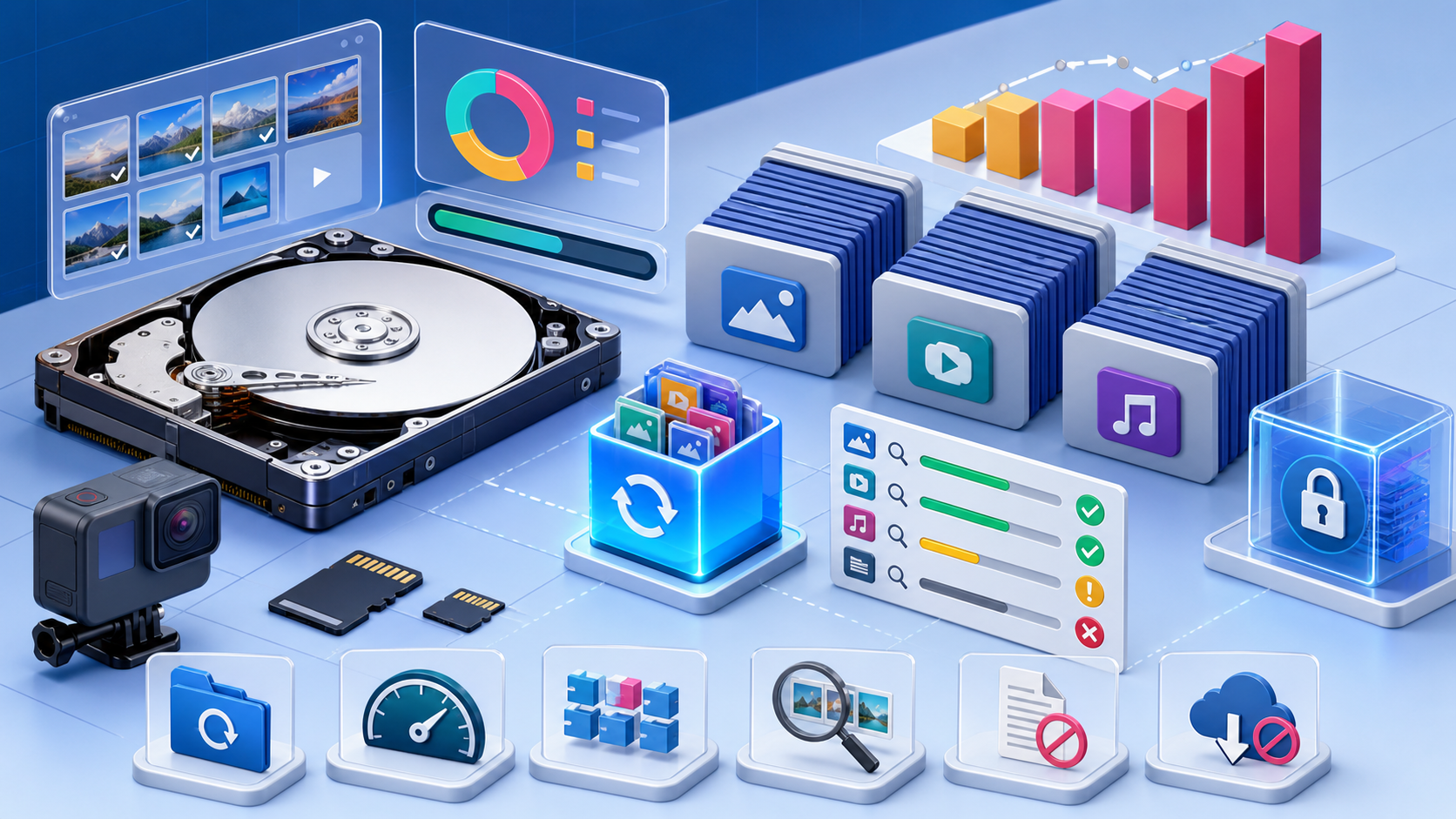
Free Unlimited Data Recovery Software: Immediate Answer
The safest first move is to stop writing to readable hard disk, camera card, external drive, or recovered storage image. New downloads, browser cache, application updates, sync changes, and repair commands can all replace data that still points to deleted files. A quiet source gives recovery software more useful records to inspect.
A tool is useful only when it matches the cause. Backup software restores known copies. Account recovery restores access. File recovery scans readable local storage. Repair tools fix a software environment. Mixing these paths wastes time and can make the original loss harder to understand.
| Situation | Best First Move | What To Avoid |
|---|---|---|
| Local deletion | Check Recycle Bin, app history, and backups | Do not save recovery results to the source |
| Cloud or synced file | Check trash, version history, and local sync folders | Do not expect disk software to scan a cloud server |
| Formatted or damaged file system | Scan the readable device or a disk image | Do not run repair commands first |
| Unstable hardware | Copy visible data and stop if errors increase | Do not repeat long scans |
Use the table as a decision point. If a built-in restore brings back a clean copy, stop and verify that file. If the file is still missing and the storage remains readable, then a focused scan makes sense. The right order protects both the source and your time.
Diagnose The Source Before Choosing Software
Confirm Where The File Last Existed
Write down the original folder, file extension, application, account, device, and time range. For free unlimited data recovery software, those details matter because a missing download, old disc file, Dropbox item, browser profile, and Excel workbook all leave different traces. Better notes produce better scans.
Separate local files from server-side data. Local files may remain in unused file-system records. Cloud-only files depend on the provider retention window. Synced files may exist both online and on the computer. Removable media may need a careful read before any scan.
Check Built-In Restore Paths
Before deep scanning, check File History, Previous Versions, OneDrive versions, external backups, exported archives, email attachments, and Microsoft backup and restore guidance. If the issue followed a Windows change, the guide to restore a computer to an earlier date on Windows can help you decide whether system restore belongs before file recovery.
Application history is also important. Browsers keep downloads and bookmarks in profile folders. Office apps keep AutoRecover and temporary files. Creative tools often store backup folders near the project. Recovery software should come after these cleaner sources, not before them.
Test Device Health
If readable hard disk, camera card, external drive, or recovered storage image disconnects, clicks, freezes, or reports I/O errors, reduce DIY work. Copy visible files first and avoid repeated scans. For external drives that do not appear correctly, compare the symptoms with the guide to fix a LaCie hard drive that is not showing up on Mac before treating the case as simple deletion.
A stable device still needs a safe destination. Use another drive with enough free space. Create a clear folder name for recovered files. Never restore back to the same location, because that can overwrite the next file you wanted to recover.
Choose The Right Recovery Path
When Free Software Helps
A free scan is useful when it shows whether recoverable files exist. The key feature is preview. If a tool cannot show a readable preview, file size, path, or recognizable file name, the final result may be weak. Avoid tools that ask for payment before showing evidence.
Freeware limits vary. Some tools recover only small files, some lack deep scan, and some show fragments without original names. That may be enough for low-risk files, but important photos, business records, disc archives, and spreadsheets need a workflow that minimizes new writes.
When Backups Are Better
Backups are usually cleaner than scans. Check external drives, NAS snapshots, cloud versions, old computers, ZIP exports, and project folders. A slightly older copy that opens correctly is often more valuable than a newer damaged file. For application-specific projects, the guide to recover Illustrator project files shows why file type behavior matters.
Do not overwrite the current file while testing a backup. Restore to a new folder, compare dates and content, and keep both copies until the owner confirms which one is correct. This habit prevents a good older copy from being replaced by a damaged newest copy.
When To Stop And Escalate
Stop DIY recovery if errors increase during scanning. Slow speed alone is not always failure, but new clicking sounds, repeated disconnects, sudden capacity changes, and unreadable folders are warning signs. Continued scanning may reduce the chance of a controlled recovery later.
Also stop when the data is unique, business-critical, legally sensitive, or the only copy of a major project. You can still document symptoms, protect the source, and save screenshots. Avoid formatting, repair commands, or random tools until a safer plan exists.
Use PandaOffice Drecov For Readable Local Storage
Use PandaOffice Drecov when large recovery sets, GoPro files, hard disk data, freeware results, and mixed archives were stored locally and readable hard disk, camera card, external drive, or recovered storage image can still be read. It can scan for deleted documents, images, videos, archives, downloaded files, spreadsheets, and files lost after formatting or file-system damage. It is not a password breaker, cloud bypass tool, or hardware repair service.
Risk level: medium for normal deletion, higher for formatted media, and high for unstable devices. Download and run the software from a healthy drive when possible. Save recovered files to another healthy destination, not to readable hard disk, camera card, external drive, or recovered storage image.
Steps
- Connect or mount the readable source and stop other writes.
- Open PandaOffice Drecov and choose the specific device, folder, card, or drive.

- Start the scan and wait for quick scan and deep scan results.
- Filter by file type, path, size, date, or name to reduce noise.

- Preview important files before recovery whenever preview is available.
- Recover selected files to a different healthy drive and verify samples.

Review Results And Avoid Common Mistakes
Judge Results By Quality
A scan may find thousands of items, but volume is not success. Results often include duplicates, thumbnails, cache files, fragments, and temporary versions. Start with original path, file type, size, and preview. The best result is the correct file with usable content.
For free unlimited data recovery software, verify samples before recovering everything. Open documents beyond the first page. Zoom into photos. Play the start, middle, and end of videos. Check spreadsheets for formulas, sheets, and linked data. File names alone do not prove that the content survived.
Avoid Source Writes
Installing tools, downloading updates, clearing browser data, emptying trash, rebuilding indexes, and running repair commands can all change the source. Some actions look harmless, yet they write logs or temporary files. Keep the affected storage as quiet as possible until recovery finishes.
If the source is the system drive, use another computer for research when possible. If that is not possible, keep activity minimal and recover to an external drive. Small choices like this can decide whether the scan finds complete files or only partial fragments.
Document The Recovery
Keep simple notes while you work. Record the source, scan mode, destination, recovered folder, and files checked. If you need help later, those notes show what changed and prevent another person from repeating risky steps. Good notes also make client or team recovery easier.
After recovery, separate confirmed files from uncertain files. Use folders such as verified, needs review, duplicates, and fragments. Keep the original source untouched until the recovered set is backed up and the owner confirms the important files are usable.
Scenario Guide And FAQ
Can One Tool Recover Everything?
No. One tool cannot solve every case. Recovery software helps when local storage is readable and deleted records remain. Backups help when clean copies exist. Account recovery helps when the issue is access. Cloud tools help when the file lived on a server. Choose the path by cause.
What If The File Was Overwritten?
Overwritten files are difficult because the original content may no longer exist in the same blocks. Search backups, versions, temporary folders, exports, and attachments. Recovery software may find older copies or related fragments, but it cannot rebuild data that the storage no longer contains.
Can I Use Several Tools In A Row?
You can compare tools carefully, but do not install them on the source or run repair actions between scans. If the first scan is poor, change the strategy: scan a narrower location, use better filters, make an image, or stop if the device is unstable. Random repetition rarely improves results.
How Should I Prevent A Repeat Loss?
Turn recovery into prevention. Keep automatic versioning for active folders, add an external backup for archives, and test restore before an emergency. Sync is helpful, but sync can copy deletion across devices. A separate backup gives you a real fallback.
Read The Scan Like Evidence
Scan results need careful reading. A recovery report can include active files, deleted files, thumbnails, database fragments, temporary files, and older copies from application caches. Do not assume the largest result set is the best result. Start with files that match the original path, extension, size range, and date range. Then use preview to confirm real content.
This matters for free unlimited data recovery software because the same search can mix several problems. A missing downloaded file, a deleted synced document, a disc backup, and a damaged workbook may all appear in one scan. Group results by source first, then by file type. That keeps the review manageable and avoids recovering thousands of irrelevant fragments.
If the file name is gone, use surrounding evidence. Folder names, camera dates, browser profile paths, Office temporary names, Dropbox sync folders, and archive structure can reveal the right version. Keep the newest usable file and one older fallback until the owner confirms that the work can continue safely.
Build A Small Test Recovery
Before recovering a full drive, make a small test. Choose a few files that are not the only critical copies, recover them to another drive, and open them. If previews looked good but recovered files fail to open, change the destination, scan mode, or file type filter before spending hours on a large recovery.
A test recovery also helps you check whether the tool preserves folder paths. For some cases, content matters more than names. For others, original paths are essential because the folder structure explains which project, account, or backup set the file belonged to. Decide this before the full recovery begins.
When a test succeeds, continue in batches. Recover the most important file types first, verify samples, and then expand to less important folders. This staged approach keeps the destination organized and lets you stop early if the device starts behaving poorly.
Compare Tool Claims Carefully
Marketing pages often use broad phrases such as free recovery, full version, unlimited recovery, or deep scan. Treat those phrases as starting points, not proof. The useful questions are simpler: does the tool scan without writing to the source, does it show previews, does it let you choose the destination, and does it separate deleted files from active files clearly?
A tool that promises to recover everything from every device is not being realistic. Secure erase, overwritten sectors, broken flash memory, cloud-only deletion, and password-protected accounts have limits. Good recovery writing and good recovery software both explain those limits before asking the user to act.
For high-value files, do not switch tools repeatedly on the same source. If you need a second opinion, make an image or keep the source unchanged. Randomly installing several utilities on the affected computer creates extra writes and makes later troubleshooting harder.
Handle Cloud And Sync Cases Separately
Cloud recovery follows retention rules. Dropbox, OneDrive, Google Drive, email services, and web applications decide how long deleted files or versions remain available. Start inside the account. Check trash, deleted files, version history, shared folders, exports, and administrator controls before scanning a local disk.
Local recovery helps cloud cases only when a synced copy, downloaded file, cache, export, or offline folder existed on the computer. If the data never touched local storage, disk software has nothing to scan. That distinction saves time and prevents false expectations.
When a sync folder is involved, pause syncing before recovery if possible. Otherwise the service may continue deleting, updating, or replacing files while you investigate. After recovery, restart sync only when you know which copy should become the active version.
Protect The Recovered Set
Recovery is not complete when files appear in a destination folder. It is complete when the important files open, the owner accepts them, and the recovered set has a backup. Until then, keep the original source untouched and keep scan results organized.
Create clear folders such as verified, needs review, duplicate candidates, and fragments. Put a short note in the root of the recovery destination that lists the source, tool, scan date, and file types recovered. This note saves time if someone reviews the case later.
Back up the verified files before deleting anything. Use two separate storage locations when the files matter. A single recovered folder on one external drive is still a single point of failure, and the next accident can erase the work you just completed.
Create A Prevention Plan
The best recovery case ends with a prevention habit. Turn on version history for active work folders. Keep important downloads and exports in named folders instead of leaving them only in temporary locations. Move old disc backups and project archives to modern storage before the original media fails.
Use a simple 3-2-1 rule when files matter: three copies, two storage types, and one copy away from the main computer. The rule does not need expensive hardware. A local external drive plus a trusted cloud backup can protect most personal and small business cases.
After solving unlimited recovery claim, GoPro file recovery, hard disk data loss, or freeware comparison, write down what worked. Include the source, backup location, recovery tool, scan mode, destination, and final storage plan. The next time a file disappears, that small note turns panic into a checklist.
Advanced Checklist Before A Final Save
Before the final save, review the recovery destination like a project handoff. Confirm that the destination drive has enough free space, that the folder names explain the source, and that the recovered files are not mixed with installers or scan logs. Clear structure reduces mistakes when the owner starts copying files back into daily use.
Check a representative sample from each source. If the case includes documents, open several formats. If it includes photos or videos, test both small and large files. If it includes archives, extract a copy into a temporary folder and confirm that the archive is not only visible but usable.
When the recovered set includes duplicates, avoid deleting them immediately. Duplicates can represent different versions, different edits, or copies from different devices. Mark likely duplicates, compare dates and content, and remove them only after the confirmed backup exists.
What To Record For Support Or Team Review
Good recovery notes do not need to be long. Record the source device, file types, approximate loss time, tool used, scan mode, destination, and examples that opened correctly. Add any warning signs such as slow reads, disconnects, or unusual file names. These notes help support staff or team members continue without guessing.
If the files belong to a business workflow, include owner approval and the reason for recovery. This keeps the process clear and prevents confusion between authorized file recovery and access bypass. A clean record also helps when deciding whether the source can return to normal use.
The final decision for free unlimited data recovery software should be based on verified files, not optimism. If the important files open and a backup exists, the case can move to prevention. If important files are missing, keep the source unchanged and reassess the next safest path.
One last review should look for missing edge cases. Check hidden folders, secondary user profiles, old external drives, exported ZIP files, and attachments that may contain the same content. These places often hold a clean copy when the obvious folder no longer does.
If the recovered files belong to a timeline, keep that timeline visible. Deletion time, last edit time, backup time, and recovery time each answer a different question. A clear timeline helps you choose the right version and avoid replacing a good copy with a less useful one.
Final Checklist And Conclusion
Before using free unlimited data recovery software, confirm the source, stop new writes, check built-in restore paths, choose a safe destination, and preview files. The real goal is not simply downloading software. The goal is restoring the correct files while preserving the remaining evidence.
- Protect the original source before scanning.
- Use account, backup, or version history when the data is cloud-based.
- Scan only readable local storage.
- Recover to another healthy drive.
- Verify important files before deleting old copies.
Free Unlimited Data Recovery Software: Limits Behind Unlimited Claims comes down to careful sequencing. Built-in restore is safest when it works. PandaOffice Drecov helps when local files are missing from readable storage. Slow down, protect the source, and recover verified files to a safe location.






