







BitLocker cracker software is not a safe or realistic way to recover an encrypted Windows drive. If BitLocker asks for a password or recovery key, the practical solution is to find the correct recovery key, use an authorized administrator recovery path, restore files from backups, or recover missing files only after the drive becomes accessible. This guide explains what you can safely do, what to avoid, and where PandaOffice Drecov fits after lawful access returns.
The phrase bitlocker cracker software often appears when someone is locked out and worried about files. The answer needs to be direct: do not download password breaker tools, do not format the drive first, and do not trust software that promises to break strong encryption. A safer path protects the remaining chance to restore data.

Quick Decision Table For BitLocker Cracker Software Searches
| Situation | Safe Action | Risk To Avoid |
|---|---|---|
| You see a BitLocker recovery screen | Find the matching 48-digit recovery key | Do not try random cracker tools |
| You own the computer but lost the key | Check Microsoft account, printed records, USB keys, and IT escrow | Do not format before backup checks |
| The device belongs to work or school | Contact the administrator with the recovery key ID | Do not bypass organization policy |
| Excel password remover or password breaker ads appear | Use official account or document owner recovery paths | Do not install unknown password tools |
| Files are missing after unlock | Scan accessible storage and save results elsewhere | Do not recover files back to the source drive |
Why BitLocker Cracker Software Is The Wrong Starting Point
BitLocker protects a drive with encryption. That means the data on the disk is not simply hidden behind a screen that ordinary software can remove. Without the correct password, recovery key, startup key, TPM state, or administrator-approved recovery path, the encrypted content should remain unreadable.
That protection can feel harsh when the computer belongs to you and the files are urgent. Still, the same design prevents theft when a laptop is lost or a drive is removed. A tool that claims to unlock BitLocker without the key is usually exaggerating, unsafe, or trying to collect money and credentials.
Some search results use phrases like free password breaker software, excel password remover online free, and BitLocker cracker software in the same page. These topics do not share one solution. Excel document protection, online account passwords, and BitLocker drive encryption all need different recovery paths.
Cracking Claims Create Data Risk
Unknown password tools often need administrator permission. Granting that access on a computer that contains sensitive files can create a second problem. Malware, browser hijackers, credential theft, and bundled installers may arrive before any data recovery work begins.
A risky tool can also write temporary files to the affected drive. New writes matter because the user may later need to recover deleted originals, saved recovery key files, or backup copies from accessible storage. Preserving the drive is more valuable than testing random utilities.
For a safe workflow, separate access recovery from file recovery. First regain authorized access. Then copy important files. Finally scan accessible storage if something still disappeared.
Safe Recovery Methods That Protect Your Data
Best For: personal Windows users who see a blue BitLocker recovery screen or an unlock prompt.
Tool Used: Microsoft account recovery key page, recovery key ID, printed key, USB key, saved file, and password manager secure note.
Steps
- Write down the recovery key ID shown on the BitLocker screen.
- Open the Microsoft recovery key page on another trusted device.
- Sign in with the Microsoft account used on the locked PC.
- Compare the key ID and device name before choosing a key.
- Enter the matching 48-digit recovery key carefully.
- After Windows starts, copy important files to another drive.
Risk Level: Low when you use your own account and match the recovery key ID before entering the key.
The recovery key ID is not the full recovery key. It works like a label that helps you choose the correct saved record. One account may contain keys for several computers, old installations, and external drives, so matching the ID matters.
Method 2: Use Work Or School Administrator Recovery
Best For: organization-owned laptops, managed desktops, or devices connected to work or school accounts.
Tool Used: IT help desk, Active Directory, Entra ID, Intune, asset records, and recovery key ID.
Steps
- Record the recovery key ID, device name, and asset tag if available.
- Contact the approved IT help desk instead of changing firmware or formatting.
- Confirm your identity and the device assignment.
- Ask the administrator to search the organization key escrow system.
- Enter the matching recovery key only after IT supplies it through an approved channel.
- Follow company instructions for backup and device repair after unlock.
Risk Level: Low when the device owner or administrator approves the recovery path.
Managed devices often store recovery keys outside personal Microsoft accounts. A user may see no key online because the organization holds it in Active Directory, Entra ID, Intune, or another management platform. That is normal and safer than trying to bypass policy.
Method 3: Search For Saved Key Files And Backups
Best For: users who cannot find the key online but may have printed, exported, or saved it during setup.
Tool Used: local search, cloud storage, USB drives, printed pages, password manager notes, OneDrive, File History, and external backups.
Steps
- Search paper folders, device boxes, and setup notes for a printed recovery key.
- Check USB drives that may have stored a startup key or text file.
- Search cloud storage for terms such as BitLocker, recovery key, and the device name.
- Review password manager secure notes on devices you own.
- Check old computers, backup drives, and email attachments for exported key files.
- Document which locations have already been checked.
Risk Level: Low when you protect any key records you find and avoid uploading them to public tools.
If a key file lived on a separate accessible drive and disappeared, ordinary file recovery may help find that saved text file. However, file recovery cannot generate a new valid BitLocker key for a locked encrypted volume.
Method 4: Restore Files From Clean Backups
Best For: cases where no authorized recovery key exists or the encrypted drive cannot be opened.
Tool Used: OneDrive, SharePoint, Google Drive, Dropbox, Windows Backup, File History, external drives, NAS snapshots, and email attachments.
Steps
- List the files that matter most before changing the locked computer.
- Search cloud folders and version history for recent copies.
- Check email attachments, shared folders, and project repositories.
- Review external backup drives and old computers.
- Restore clean copies to a new safe location.
- Create a new BitLocker key storage plan before encrypting again.
Risk Level: Low when backup restoration happens on a clean destination and the locked drive stays unchanged.
Backups are not a fallback of last resort. In a no-key BitLocker case, backups may be the main recovery path. That result can feel disappointing, but it respects encryption and protects the user from unsafe cracking claims.
Recover Lost Files After BitLocker Access Returns
When This Method Applies
Use this method only after you regain lawful access to the computer, encrypted drive, or storage device. PandaOffice Drecov does not unlock BitLocker, reveal a recovery key, or remove encryption. It helps when files disappeared from an accessible Windows drive, external disk, SD card, or decrypted storage after account recovery, BitLocker unlock, repair, or accidental deletion.
Best For: documents, photos, archives, downloads, and work folders from unlocked or decrypted storage.
Tool Used: PandaOffice Drecov.
Test Environment:
Operating System: Windows 11
Storage Type: unlocked BitLocker volume or accessible external storage
Problem Scenario: files missing after safe BitLocker recovery
Tool Used: PandaOffice Drecov
Steps
- Confirm that Windows can open the target drive after you enter the correct password or recovery key.
- Stop saving new files to the same drive so deleted or missing files are not overwritten.
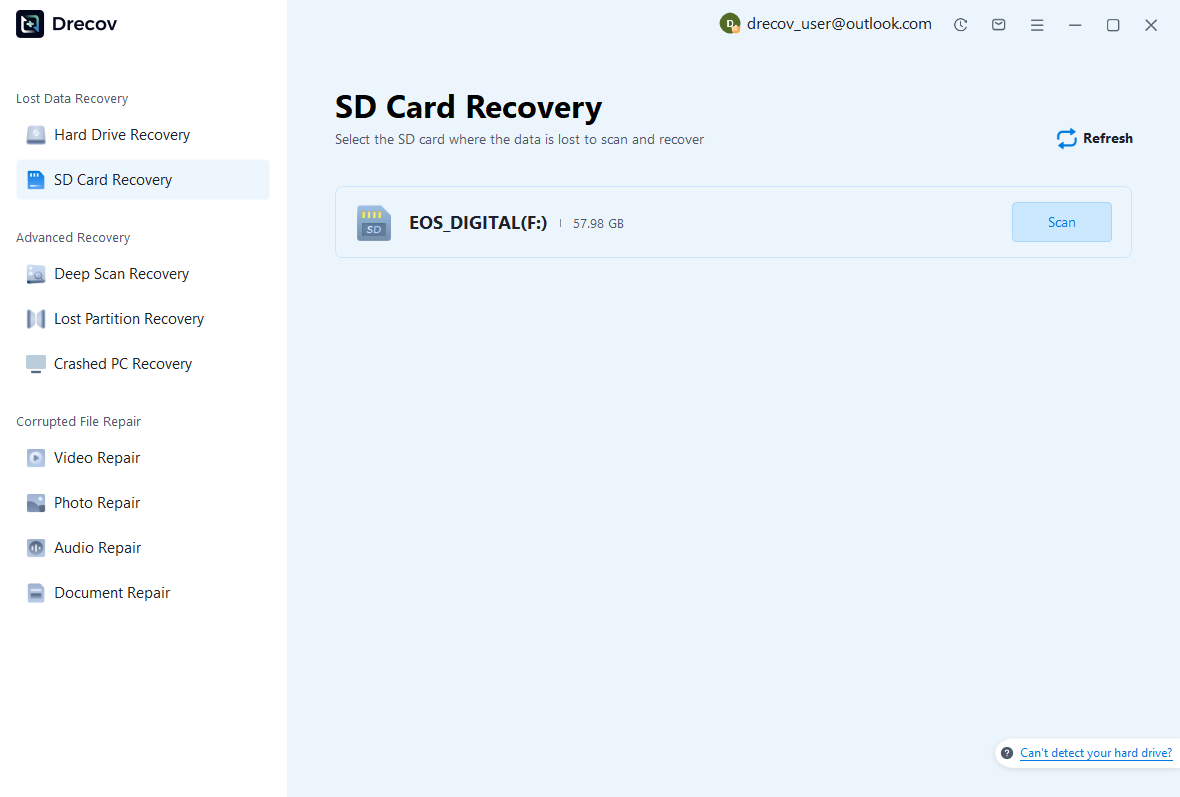
- Open PandaOffice Drecov and choose the unlocked drive, partition, SD card, or external storage device that lost files.
- Start the scan and wait for quick scan and deep scan results.

- Filter by documents, images, videos, archives, downloads, or original folders.
- Preview important files before recovery.

- Recover selected files to another healthy drive, not back to the source storage.
- Open recovered files before deleting scan results or changing the original device.
Risk Level: Low when you save recovered files away from the source storage and avoid new writes during recovery.
Related BitLocker And Password Recovery Scenarios
Excel Files Need A Different Workflow
Excel password remover online free searches often refer to workbook protection, sheet protection, or file-open encryption. Those features differ from BitLocker. A spreadsheet may open but restrict editing, or it may block access completely. Use owner password records, backups, version history, or the file creator’s help.
Do not upload confidential spreadsheets to unknown online password pages. A business workbook can contain customer data, payroll records, contracts, or formulas. A free remover site may keep the file or expose private information.
When the Excel file itself disappeared, recover the file from backups or accessible storage first. Then solve the password problem inside Excel or through the document owner.
Free Password Breaker Software Is Usually Unsafe
Free password breaker software is a broad phrase. Some legitimate tools help reset a local account on a computer you own. Other tools claim to reveal online passwords, defeat encrypted files, or ignore drive security. Treat those claims with caution.
A safe article should not direct readers to attack accounts or encrypted drives. It should explain official recovery, saved passwords on owned devices, recovery keys, backups, and post-access file recovery.
Online accounts belong on the provider recovery page. BitLocker needs the recovery key or an approved administrator path. Documents rely on owner records and backups. Missing files should be scanned only after storage becomes accessible.
How To Diagnose The BitLocker Prompt Before Acting
Write Down The Exact Message
A useful recovery plan starts with the exact prompt. BitLocker may show a recovery key screen during startup, a password prompt for a removable drive, a Manage BitLocker status message, or an error after a hardware change. Each prompt points to a different fix. Copy the wording into notes before changing BIOS settings, reinstalling Windows, or testing utilities.
The recovery key screen usually includes a recovery key ID. That ID helps match the correct 48-digit key, but it cannot unlock the drive by itself. Treat it as a lookup clue, not a secret that should be typed into random websites.
Also record the device name, drive letter, Windows account, and recent changes. Firmware updates, motherboard repair, TPM resets, Secure Boot changes, docking hardware, and boot order changes can all explain why recovery appeared.
Check Whether The Drive Is Locked Or Files Are Missing
A locked drive and missing files are different problems. When the drive remains locked, focus on passwords, recovery keys, startup keys, or administrator recovery. File recovery software cannot inspect meaningful files from encrypted content that has not been unlocked.
Once the drive opens, the problem changes. Missing documents, photos, archives, or downloads may come from deletion, repair, accidental formatting, profile changes, or sync issues. At that point, backups and accessible-storage recovery become relevant.
This distinction keeps the reader from expecting one tool to do everything. BitLocker recovery restores lawful access. Data recovery restores files that still have recoverable traces after the storage becomes readable.
Safe Places To Search Before You Give Up
Microsoft Account And Personal Records
Personal Windows devices often save recovery keys to the Microsoft account used during setup. Open the Microsoft recovery key page on another device and sign in with every legitimate account that may have touched the PC. A family member, technician, or old setup account may hold the key.
Printed records also matter. Many users saved a key as a PDF, printed page, screenshot, or text file and then forgot where it went. Search paper folders, device boxes, password manager notes, cloud folders, and USB drives before deciding no key exists.
When several keys appear, do not choose by date alone. Match the recovery key ID and device record. Old computers, test installations, and external drives can leave similar-looking key records behind.
Organization Storage And Help Desk Records
Work and school computers often use administrator escrow. The key may live in Active Directory, Entra ID, Intune, or another endpoint management system. In that case, the user may not see any key in a personal Microsoft account.
Contact the help desk with the recovery key ID, device name, asset tag, and user identity. Do not post the full screen in public chat because it may reveal sensitive device details.
Administrators should disclose only the matching key through a secure channel. This protects the user, the organization, and other devices managed in the same environment.
What To Do If No Recovery Key Exists
Use Backups As The Main Recovery Path
If no authorized key, password, startup key, or administrator path exists, the encrypted drive may remain unreadable. That answer is frustrating, but it is the point of strong encryption. The practical response is to restore data from clean copies.
Check OneDrive, SharePoint, Google Drive, Dropbox, iCloud Drive, File History, Windows Backup, external disks, old computers, email attachments, and project repositories. Many important files exist in more places than the locked drive.
Restore those copies to a clean destination. Avoid writing to the locked or recently unlocked drive until you understand the state of the data. A clean restore lets you continue work without damaging remaining evidence.
Avoid Destructive Shortcuts
Formatting, reinstalling Windows, deleting partitions, or initializing a disk can remove local recovery options. These actions may make sense only after key search and backup review are complete.
Some instructions online frame reset as a quick way around BitLocker. Reset may make the device usable again, but it does not preserve encrypted local files unless the data was backed up elsewhere.
When files have business, legal, or family value, document the search process before making destructive decisions. That record helps administrators, repair technicians, or data recovery specialists understand what has already happened.
Prevention After This Case Is Solved
Store Recovery Keys In More Than One Safe Place
After the drive opens or data is restored from backups, create a better recovery setup. Store the BitLocker key in a Microsoft account, organization escrow, printed record, and password manager secure note when policy allows. Do not keep the only copy on the encrypted drive itself.
Test key retrieval before trusting the computer again. A recovery plan that exists only in memory will fail during the next emergency.
For removable drives, label the drive and store the key record with a clear name. Include the drive purpose and date, not only the word BitLocker.
Build A Backup That Survives Lockouts
A good backup should remain reachable even when one computer locks, fails, or enters repair. Use cloud sync, external backup drives, version history, and offline copies for critical files.
Do not rely on one synchronized folder as the only backup. Sync can copy deletion or corruption quickly. Version history and offline backups give more recovery options.
The best result from a bitlocker cracker software search is not a cracking tool. It is a safer recovery setup that makes the next lockout boring, documented, and recoverable.
Keep the verified recovery record with your wider backup notes so the next support request starts with facts instead of guesses.
Related Recovery Guides
When a missing file is a TikTok draft or deleted social video, this TikTok video recovery guide explains app-specific checks that do not belong inside a BitLocker workflow.
For Adobe project files, this Illustrator file recovery guide covers autosave, project folders, and desktop recovery paths.
If Windows restore points are part of the recovery plan, read how to restore a computer to an earlier date on Windows before changing the PC that may still contain backups.
When recovered files need a Mac external drive and that drive does not appear, this LaCie hard drive not showing up on Mac guide can help prepare a safe destination.
FAQ
Can BitLocker Cracker Software Unlock My Drive?
You should not rely on BitLocker cracker software. A locked encrypted drive needs the correct password, recovery key, startup key, TPM state, or administrator-approved recovery method.
Can PandaOffice Drecov Recover Files From A Locked BitLocker Drive?
No. It can scan accessible storage after lawful access returns. It does not unlock BitLocker, find recovery keys, or remove encryption.
What Should I Do Before Formatting?
Search all recovery key locations, ask administrators when the device is managed, and check backups. Formatting should not be the first step when files matter.
Is An Excel Password Remover The Same As BitLocker Recovery?
No. Excel document protection and BitLocker drive encryption use different systems. Keep the workflows separate and work only on files you own or manage.
Final Checklist
- Record the BitLocker recovery key ID before searching.
- Check Microsoft account, printed records, USB keys, saved files, and secure notes.
- Contact IT for work or school devices.
- Avoid unknown password breaker or cracker tools.
- Back up files immediately after unlock.
- Use file recovery only on accessible storage.
- Store the next recovery key in more than one safe place.
Conclusion
BitLocker cracker software is not the right answer for a locked encrypted drive. Use the recovery key, administrator escrow, saved key records, backups, and accessible-storage file recovery after lawful access returns. This approach protects the data and avoids the extra risk created by unsafe password breaker tools.
Before you close the case, save screenshots of the BitLocker prompt, copy the recovery key record to a secure location, and document where restored files came from. That small record helps later if the same device asks for recovery again after firmware work, account changes, or another repair. It also prevents the next emergency from becoming another search for unsafe cracker software.






