







In the fast-paced digital era, there is nothing quite as heart-sinking as seeing your browser window vanish into thin air. Whether it was an accidental click, a sudden system update, or an unexpected power outage, losing a dozen carefully curated tabs feels like losing your train of thought mid-sentence. If you have ever stared at a blank Google homepage wondering where your research went, you are not alone. Learning how to restore google chrome tabs after restart is a fundamental skill for any modern web user, ensuring that a technical hiccup doesn’t turn into a productivity disaster.
The Anatomy of Chrome Tabs: Why Do They Disappear?
Before we dive into the “how-to,” let’s demystify what happens behind the scenes. Google Chrome tabs are more than just windows into the internet; they are active processes stored in your computer’s Random Access Memory (RAM). When you restart your computer or the browser crashes, these processes terminate.
So, where do they go? Chrome maintains a “Session” file in its local user data folder. This file acts like a continuous logbook, recording every URL you visit and every tab you keep open. Even when the browser shuts down, this log often remains intact. This is precisely why we can discuss how to restore google chrome tabs after restart—the data isn’t truly “deleted”; it is simply waiting for a command to be reloaded into the active memory.
Method 1: The “Quick Fix” Shortcuts and Built-in Commands
For most users, the simplest way to get back to work is through Chrome’s native features. These are built into the engine and require no external software.
The Magic Keyboard Shortcut
If you just closed a window by mistake, the fastest way to get it back is a simple three-finger salute on your keyboard.
- Step 1: Open a new, blank Google Chrome window.
- Step 2: Press
Ctrl + Shift + T(Windows/Linux) orCmd + Shift + T(Mac). - Step 3: Chrome will instantly reopen the last closed tab. If you closed an entire window with ten tabs, pressing this shortcut once will restore the whole window.
Utilizing the History Menu
If the shortcut doesn’t work because you’ve opened other tabs in the meantime, the History menu is your next best friend.
- Step 1: Click the three vertical dots in the top-right corner of Chrome.
- Step 2: Hover your mouse over History.
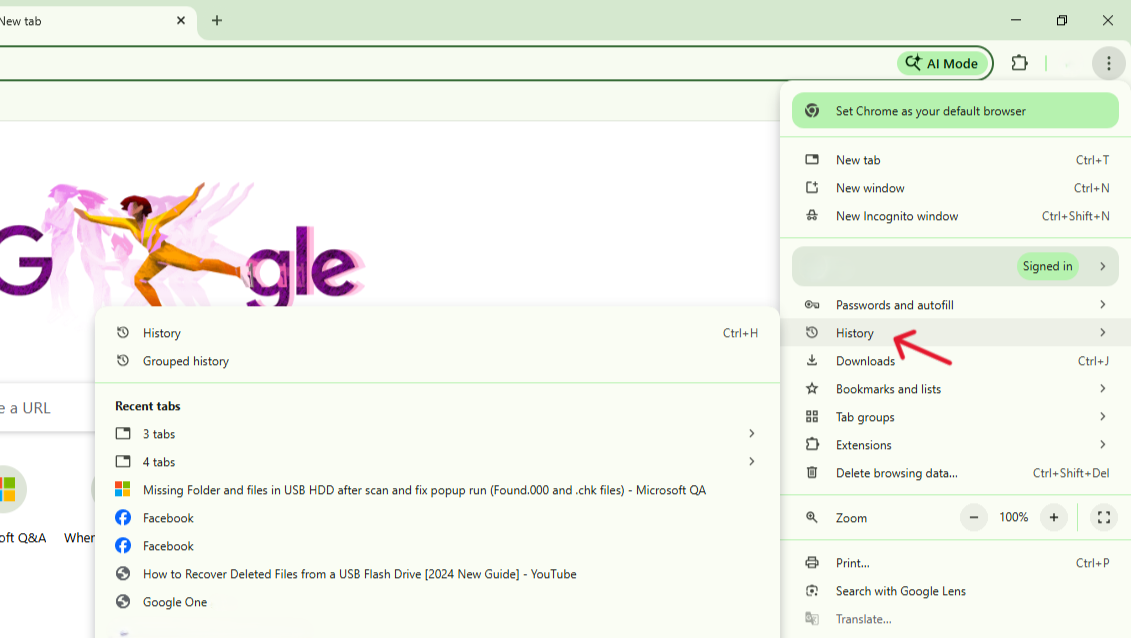
- Step 3: Look for the section labeled “Recently Closed.” Here, you will often see entries like “8 Tabs” or “Window.” Clicking these will restore the entire session group.
Method 2: Professional Restoration with PandaOffice Drecov
Sometimes, native methods fail. This usually happens if the session files themselves become corrupted or if you accidentally opened and closed Chrome several times after the crash, overwriting the “Recently Closed” cache. In these high-stakes scenarios, you need a specialized tool.
PandaOffice Drecov is a robust utility designed for deep data recovery, including browser metadata that standard commands might miss. It is particularly useful if your browser data was lost due to a hard drive error or a significant OS crash. For a broader look at managing your browser data, you can check out this 2026 guide to the best Chrome bookmarks recovery tool.
Steps to use PandaOffice Drecov for Chrome Data:
- Step 1: Download and install the PandaOffice Drecov application on your system.
- Step 2: Launch the software and select the drive where your Chrome user data is stored (usually the C: drive).

- Step 3: Use the “Deep Scan” feature to locate deleted or corrupted files. Focus on the
User Data\Default\Sessionspath.

- Step 4: Preview the found files to identify the session logs from the date of the crash.

- Step 5: Select the files and click “Recover” to restore them to a safe folder, allowing you to manually replace the corrupted Chrome session files.
Pro Tip: Always close Chrome before attempting to replace session files manually to prevent further data corruption.
Method 3: Modifying Chrome Settings for Future Safety
If you find yourself constantly searching for how to restore google chrome tabs after restart, it might be time to change your browser’s “Startup” behavior. You can set Chrome to automatically pick up exactly where you left off every time you open it.
- Step 1: Click the three dots (Menu) and go to Settings.
- Step 2: On the left-hand sidebar, click on On startup.
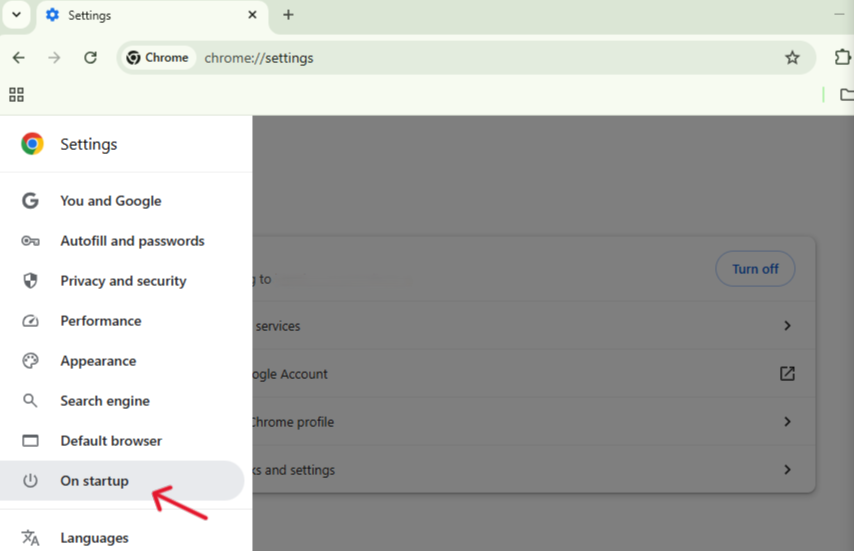
- Step 3: Select the radio button for “Continue where you left off.”
By enabling this, you essentially eliminate the need for manual restoration in the future. Whether it’s a planned restart or a sudden crash, Chrome will prioritize reloading your previous session. This is a highly recommended practice for researchers and students.
Method 4: Searching the “Search Tabs” Feature
Modern versions of Chrome include a “Search Tabs” arrow (a small downward arrow in the top-left or top-right of the title bar).
- Step 1: Click the downward arrow at the top of the Chrome window.
- Step 2: Switch to the “Recently Closed” tab within that dropdown menu.
- Step 3: Scroll through the list and click the specific pages you need to revive. This is more visual and often easier than digging through the full History page.
Troubleshooting: Why Tabs Won’t Restore
Sometimes, even when you know how to restore google chrome tabs after restart, the standard buttons simply don’t appear, or the “Recently Closed” list looks suspiciously empty. This is often where users panic, but understanding the underlying technical barriers can help you find a workaround.
1. The “Multiple Window” Trap
One of the most common reasons the Ctrl + Shift + T shortcut fails is the “Last Window” logic. Chrome’s restoration memory is hierarchical.
- The Scenario: You had a window with 20 tabs open. You opened a second, small window to check one thing, then closed the big window first, and finally closed the small one.
- The Result: When you restart, Chrome considers the last window closed (the one with one tab) as the primary session to restore.
- The Fix: Continue pressing
Ctrl + Shift + Trepeatedly. Chrome will cycle back through your closed windows in reverse chronological order. Don’t stop at the first window that pops up!
2. The Interference of “Cleaner” Software
Many users employ third-party optimization tools or “PC Cleaners” that run automatically upon system startup.
- The Risk: Some of these tools are configured to wipe “Browser Privacy Data” or “Temporary Files” every time the computer boots up.
- The Warning: If your cleaner deletes the
Current SessionorLast Tabsfiles in your Chrome User Data folder before you open the browser, the native “Restore” option will be gone forever. - The Fix: Add the Chrome User Data path (
%LOCALAPPDATA%\Google\Chrome\User Data\) to the exclusion list of your cleaning software.
3. Profile Mismatch
If you use multiple Google Profiles (e.g., one for Work and one for Personal), Chrome treats their histories as completely separate silos.
- Step 1: Check the circular icon in the top-right corner to ensure you are in the correct Profile.
- Step 2: If you are in the wrong profile, the “Recently Closed” list for your work tabs will not be visible. Switch profiles first, then attempt the restoration.
4. Extensions That “Highjack” the Tab Cycle
Certain “Tab Suspender” or “Memory Saver” extensions manage tabs by “killing” the process to save RAM. While useful, they sometimes interfere with Chrome’s ability to log the tab in the session file.
- Pro Tip: If you frequently lose tabs, try disabling all extensions temporarily to see if the native restoration feature returns to normal functionality.
Warning: If your browser history is synced across devices, sometimes a “Sync Conflict” can overwrite your local session with a blank session from a mobile device. If you suspect this is happening, disconnect your internet before opening Chrome to prevent the cloud from overwriting your local session files.
Best Practices for Managing Google Chrome Tabs
Recovering tabs is a reactive measure; managing them properly is a proactive one. To ensure you never lose critical work again, consider these “power user” habits:
- Use Tab Groups: Right-click a tab and select “Add tab to new group.” Groups are easier for Chrome to categorize and often survive crashes more reliably than individual, loose tabs.
- Bookmark Critical Pages: If a tab is so important that losing it would be a disaster, bookmark it immediately.
- Sync Your Google Account: Ensure you are signed in. This allows you to access “Tabs from other devices” via the History menu, which is a lifesaver if your primary computer fails.
- Regularly Clear Cache: A bloated browser is more likely to crash. Periodic maintenance keeps the “Session” logging feature running smoothly.
For more community-driven solutions and technical troubleshooting, you can visit the official Chrome Support thread on reopening tabs.
Restore Google Chrome Tabs FAQs
Why didn’t Ctrl + Shift + T work for me?
This shortcut works based on the current “session stack.” If you opened a new window and closed it, the shortcut will only remember that new, empty window. If you’ve restarted your computer, you may need to use the History menu instead.
Can I restore tabs from an Incognito window?
No. By design, Incognito mode does not save browsing history or session data. Once an Incognito window is closed, the data is wiped from the RAM for your privacy.
Does “Continue where you left off” slow down my computer?
It can. If you have 50+ tabs open, Chrome will attempt to load all of them at once upon startup, which consumes significant CPU and RAM. If you have a lower-end PC, consider using a “Tab Suspender” extension to keep the tabs open but inactive.
How to restore google chrome tabs after restart if the “Recently Closed” list is empty?
In this case, your best bet is using a tool like PandaOffice Drecov to scan for deleted session files or manually checking the “History” (Ctrl + H) to find the URLs and reopen them one by one.
Conclusion
Understanding how to restore google chrome tabs after restart is the difference between a minor inconvenience and a lost day of work. From the quick convenience of Ctrl + Shift + T to the deep-recovery power of PandaOffice Drecov, you now have a full toolkit to handle any browser mishap. Remember, the best defense is a good offense: enable the “Continue where you left off” setting today to save your future self from unnecessary stress.






