







Before starting file recovery, many users focus on the source drive: the formatted SD card, the deleted USB drive, or the external disk that lost data. But the recovery destination is just as important.
If the destination drive runs out of space, recovery may stop before all selected files are saved. If the destination is the same drive being recovered, the process can overwrite lost data.
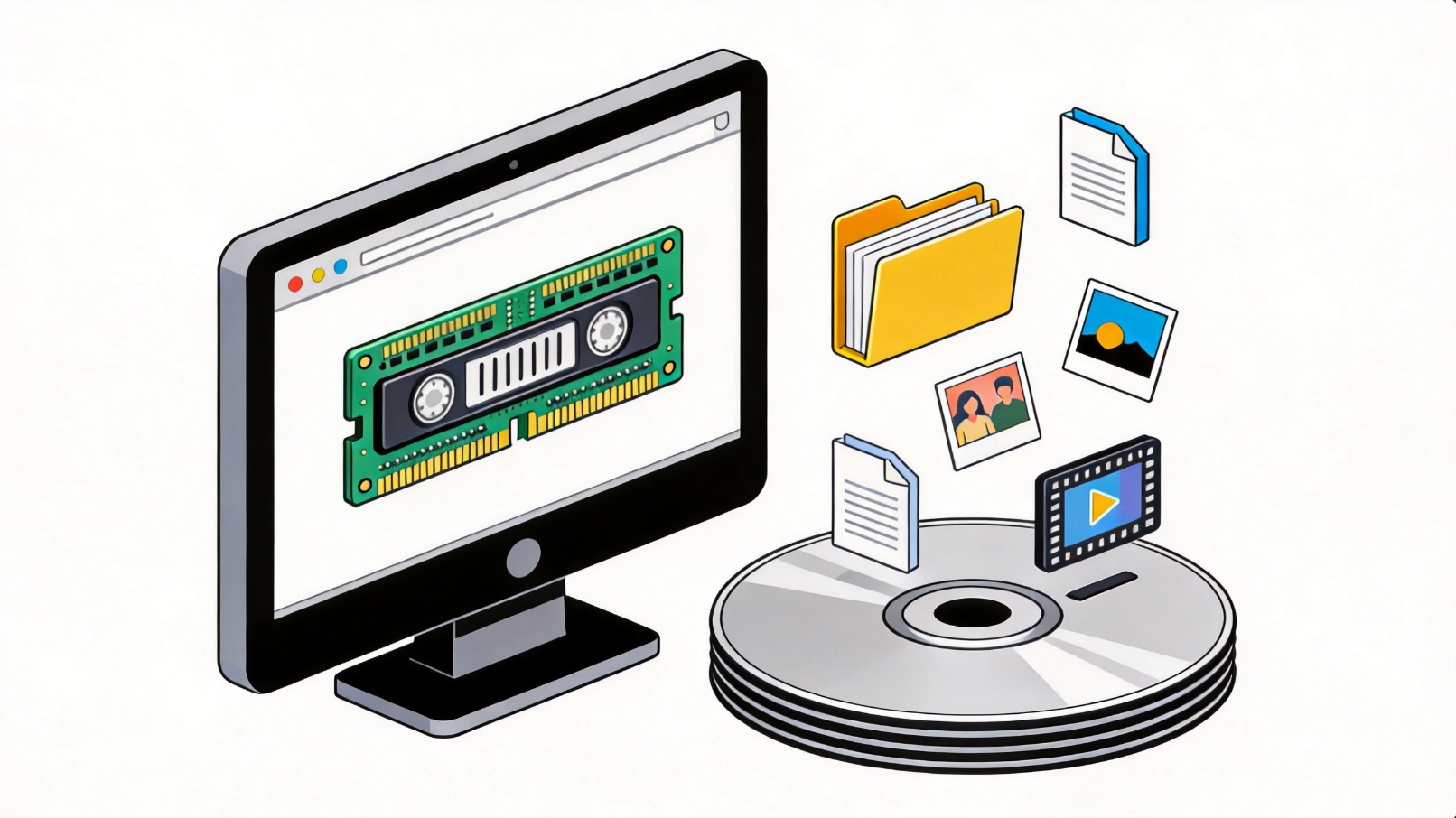
The basic rule
Use a separate destination drive with enough free space for the files you want to recover.
If you are recovering selected files, the destination should have at least the total size of those selected files, plus some extra room.
If you are recovering everything from a deep scan, prepare more free space than the scan result size because the output may include duplicates, reconstructed files, and older deleted files.
Why scan results can be larger than expected
A deep recovery scan may find more than the visible files you remember.
It may include:
– Files deleted before formatting.
– Old files from previous device use.
– Reconstructed files.
– Duplicate copies found by different scan methods.
– Thumbnails or previews.
– Cache and temporary files.
– Small fragments.
This is useful for advanced recovery, but it also means full recovery can consume more destination space.
What Drecov found in a FAT32 test
In a controlled FAT32 formatted-drive test, the test sample baseline included 1,980 files. Drecov recovered all 1,980 test samples with matching SHA256 hashes.
The recovery output contained 3,788 files in total. That included duplicate or extra copies, auxiliary files, and 1,153 additional files that were not part of the pre-format test baseline.
This result shows why users should not assume the recovery output will exactly match the folder they remember losing.
Estimate space for selected recovery
Selected recovery is usually best for ordinary users.
For example:
– If you need 20 GB of photos, prepare at least 25-30 GB free.
– If you need 100 GB of videos, prepare more than 100 GB free.
– If the scan results show many reconstructed files, recover priority files first.
Extra room helps avoid failures caused by file system overhead, duplicate output, or misestimated file sizes.
Estimate space for full recovery
Full recovery is useful when you want to preserve everything for later review. It is also useful when file names and folders are missing.
For full recovery:
1. Check the total selected size shown by the recovery software.
2. Use a destination drive larger than that number.
3. Leave extra free space for duplicates and reconstructed files.
4. Avoid saving to the source drive.
If the source drive is 64 GB, a 128 GB destination may be safer for full review than another 64 GB drive, especially if the scan finds old deleted files and reconstructed content.
What to do if you do not have enough space
If your destination drive is too small:
– Recover the most important file types first.
– Use filters for documents, photos, videos, or archives.
– Skip tiny fragments and obvious cache files.
– Recover large videos separately.
– Save reconstructed files later if needed.
You do not have to recover everything at once.
What Should We Do?
Before clicking Recover, prepare another drive with enough free space. With PandaOffice Drecov, recover priority files first if storage space is limited, and save reconstructed files separately for later review.
Recovery Steps:
Step 1: Connect the Drive / USB)
Connect your device (SD card, HDD/SSD, or USB drive) to your computer and launch PandaOffice Drecov. Select the target device and start the scan. The software will perform a quick scan and deep scan to detect lost or deleted data.

Step 2: Locate and Preview Lost Files
After scanning, browse the detected files and use the preview feature to check recoverable data. You can preview documents (Word, Excel, PDF), photos, and videos to ensure file integrity before recovery.

Step 3: Recover and Save to a New Location
Select the files you want to restore and click recover. Save all recovered data to a different drive or location (not the original device) to avoid overwriting lost data.

Why Choose PandaOffice Drecov Recovery Software?
PandaOffice Drecov offers a fast, secure, and user-friendly solution for recovering lost files across multiple scenarios. Whether you need email recovery, ZIP File Recovery, format data recovery, or help to recover deleted drafts Outlook, the software provides reliable recovery performance for both personal and business users.
PandaOffice Drecov supports recovery from formatted hard drives, SSDs, USB drives, SD cards, and external storage devices. Its advanced scanning engine can locate deleted archives, damaged ZIP files, lost Outlook drafts, and accidentally removed documents with high accuracy. For users searching for how to find deleted messages in Teams, PandaOffice Drecov can also help recover exported chat files, attachments, and related local cache data when available.
FAQ
Can recovered files be larger than expected?
Yes. Deep scans may include duplicate files, reconstructed files, old deleted content, and temporary files.
Is it safe to recover to the source drive if it has free space?
No. Free space on the source drive may include areas where lost data still exists. Saving there can overwrite recoverable files.
Should I buy another drive before recovery?
If the lost data is important and the scan result is large, a separate destination drive is strongly recommended.
Can I recover only selected files?
Yes. Selective recovery is often better for ordinary users because it saves time and space.
What happens if the destination drive becomes full?
Recovery may stop or some selected files may not be saved. Free enough space or choose a larger destination before recovery.
Evidence note
This article references a controlled FAT32 test where Drecov recovered all test samples and also produced additional scan output, showing why destination space planning matters.






