







Few things are more frustrating for a gamer than turning on their console only to see a black screen with a terrifying error message. If you are staring at a screen that says ps4 the database is corrupted, you are likely worried about losing your saved games, trophies, and digital downloads. Fortunately, this is a common issue that you can fix without losing everything. In addition, using dedicated tools like PandaOffice Drecov data recovery software can help ensure your critical game files remain safe during the troubleshooting process.
Understanding the Basics of ps4 the database is corrupted
When your console displays the ps4 database is corrupted error, it means the index of your files has become disorganized or damaged. Think of the database as a library card catalog. Consequently, if the catalog is torn up, the console cannot find where your game files are stored.
This issue usually happens due to sudden power outages, unsafe console shutdowns, or failing hardware inside the hard drive. Users frequently experience severe ps4 database corruption during system updates or when a game crashes mid-save. Meanwhile, the console will lag, throw random error codes, or refuse to load specific titles entirely.
To protect your files from permanent loss, you should use a trusted data rescue tool. PandaOffice Drecov data recovery software is a premium utility designed to scan storage drives, rebuild broken file structures, and extract lost game saves. Whether your drive suffered a sudden power failure or a bad system update, PandaOffice Drecov provides a safe way to clone your drive or rescue unreadable partitions. For more context on handling broader file storage issues, you can review this detailed data recovery strategy.
⚠ Warning: Install it on a drive different from the one where your data was lost to prevent overwriting.
Proven Ways to Fix a Database Corrupted PS4
Resolving a database corrupted ps4 error requires a clear, systematic approach to protect your gaming progress. Fortunately, you can fix the problem and safeguard your files by using the two highly effective methods outlined below.
Method 1: Rebuilding the PlayStation 4 Database via Safe Mode
The built-in solution to fix the database is corrupted ps4 message is to force the console to rewrite its index. This method rearranges your drive layout to fix errors.
- Turn off your console completely by holding down the power button.
- Wait for the blinking power light to stop entirely.
- Hold down the power button until you hear two distinct beeps.
- Connect your DualShock 4 controller using a USB cable.
- Press the PS button on your controller to open the Safe Mode menu.
- Scroll down and select option 5, which is Rebuild Database.
Method 2: Recovering Missing Files with PandaOffice Drecov Data Recovery Software
If rebuilding the database fails, or if your files disappeared after a ps4 corrupted event, you need to extract the data manually using a computer.
1.Connect the drive
Remove the hard drive from your console. Slide the drive into a compatible 2.5-inch SATA to USB enclosure, then plug it into your Windows or Mac computer.

2.Launch the software
Open the software on your desktop. Select the external drive corresponding to your console storage from the main device list.
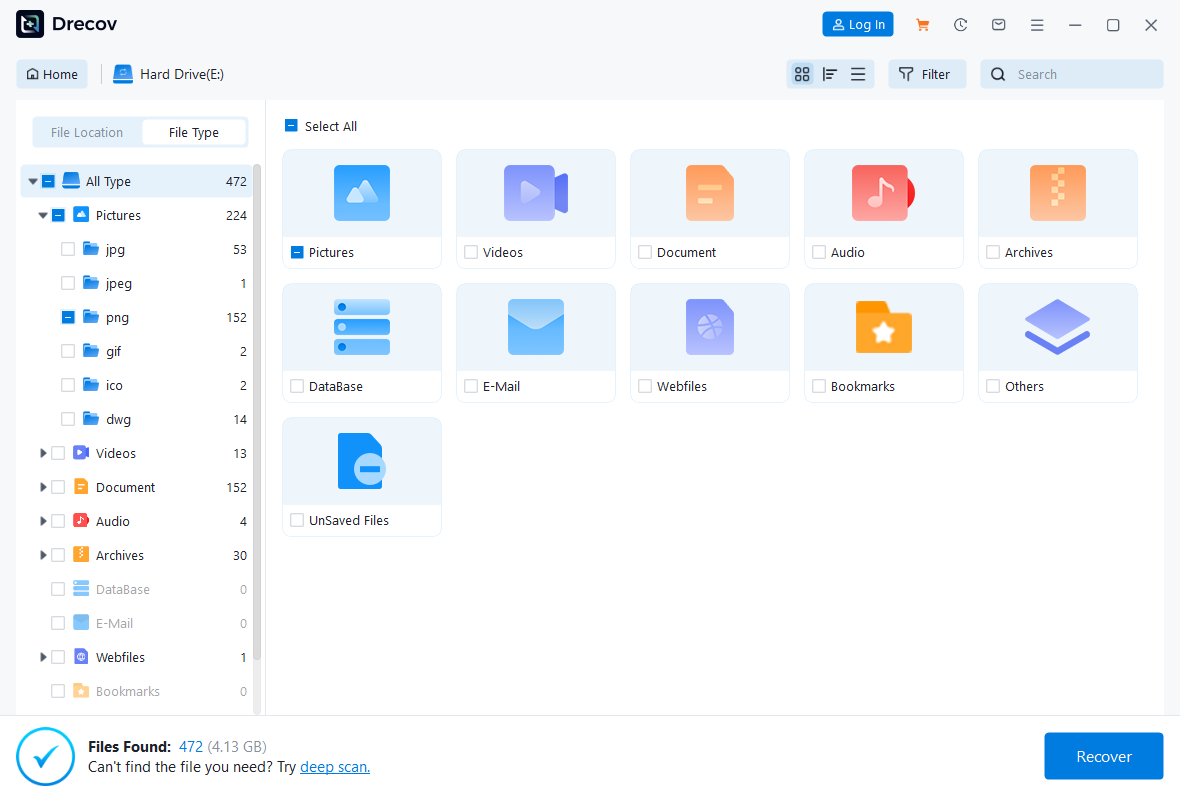
3.Scan for data
Click the Scan button to search for files affected by ps4 corrupted data. Allow the software to complete its deep sector-by-sector analysis.
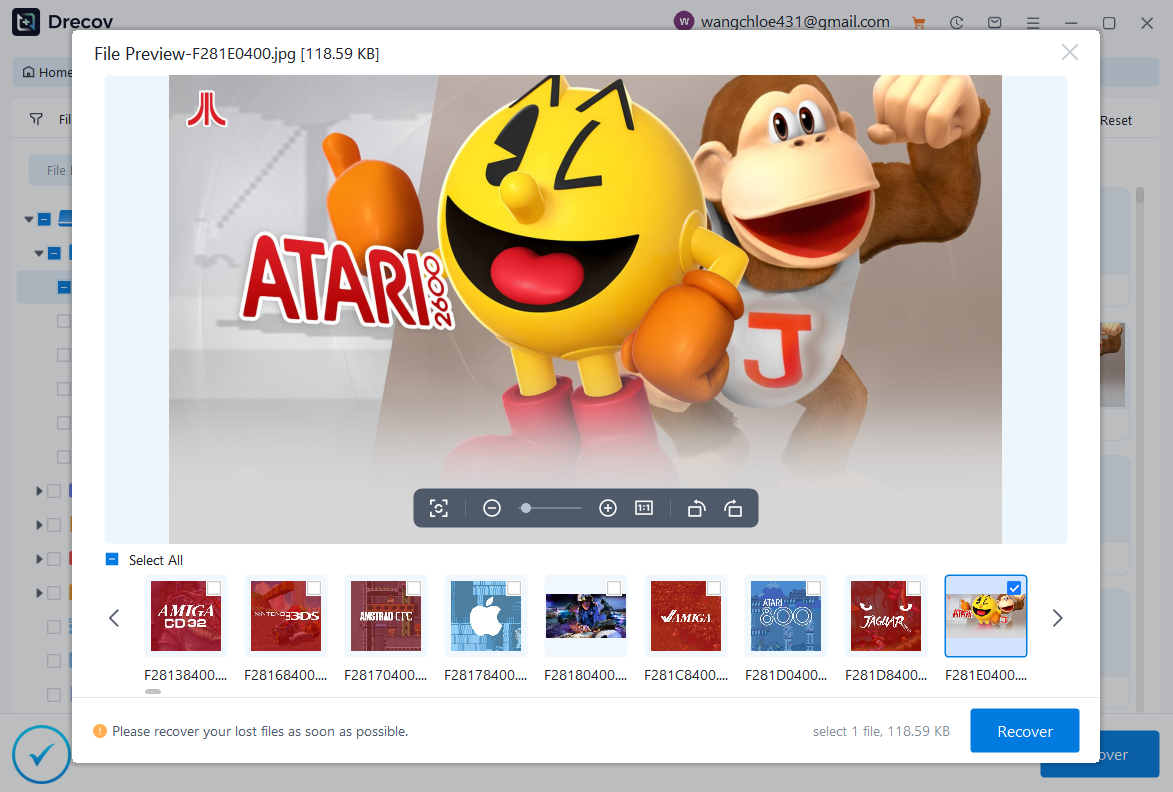
4.Preview and save
Browse the found folders for your saved data files. Select the files you need, click Recover, and save them to a secure local folder on your computer.
For additional tips on managing files through web platforms or browser backups during recovery setups, check out this guide on restoring digital bookmarks.
Alternative Methods to Fix PS4 Corrupted Data
If standard troubleshooting fails, you have alternative paths to explore. You can choose to completely reset your console file system or retrieve your missing files directly from cloud backups.
- PlayStation Plus Cloud Storage: Subscribers can navigate to the application saved data management menu and download older, uncorrupted saves directly over the internet.
- Full System Initialization: This manual solution wipes the entire drive clean and reinstalls the system software. However, it will delete every single game and save file on the machine.
Pros and Cons of Manual Methods vs. Software Recovery
| Method | Pros | Cons |
| Safe Mode Rebuild | Free, fast, requires no computer | Does not fix physical drive damage |
| Full Initialization | Clears deep system glitches | Wipes out all personal user data |
| PandaOffice Drecov | Rescues files before wiping the drive | Requires removing the hard drive |
Tips & Best Practices to Avoid ps4 Corrupted Data
Preventing ps4 corrupted files is much easier than trying to recover them after a crash.
- Always shutdown properly: Never pull the power plug while the console is turned on or in rest mode.
- Backup your saves: Regularly copy your gaming progress to a USB flash drive or upload it to cloud storage.
- Invest in a UPS: An uninterruptible power supply protects your console from sudden blackouts that destroy database indexes.
- Monitor drive health: If the error reappears frequently, your hard drive is likely dying and needs a physical replacement.
To learn more about downloading essential web tools or browser setup utilities safely during a system rebuild, see this article on managing browser files. You can also find authoritative support documentation regarding hardware safety on the Official PlayStation Support Site.
Frequently Asked Questions
Will rebuilding the database delete my games?
No, rebuilding the database organizes your files and cleans up errors. It does not delete your game saves or downloaded applications.
How long does it take to fix a ps4 database is corrupted error?
The rebuilding process can take anywhere from a few minutes to a couple of hours depending on how full your drive is.
What should I do if the database rebuild fails repeatedly?
Repeated failures mean your hard drive has physical bad sectors. You should use software to rescue your files and buy a replacement drive.
Can PandaOffice Drecov repair a broken hard drive?
The software rescues the files from an unreadable or unstable drive so you can safely transfer them to a new, healthy storage device.
How do I know if my files are permanently gone?
If a deep scan shows zero readable file headers, the data has been overwritten or the storage chips are completely dead.
Conclusion
Encountering the ps4 the database is corrupted alert is stressful, but it rarely means your gaming days are over. Rebuilding the database through Safe Mode solves the majority of software glitches. Furthermore, when deep drive errors threaten your hard work, PandaOffice Drecov data recovery software provides an excellent safety net to extract your saves before you initialize the system. Maintain regular backups, look after your hardware, and handle drive errors early to keep your console running perfectly.






