







Losing precious footage, family clips, or critical project files can feel devastating. If you are struggling with deleted videos, you are not alone. It happens to everyone at some point due to accidental clicks, formatting errors, or sudden system crashes. Fortunately, data is rarely gone for good immediately after deletion. When a file disappears, the operating system simply marks its storage space as available for new data, meaning your content remains intact beneath the surface until overwritten. To get these files back before they vanish forever, you need a reliable solution. PandaOffice Drecov data recovery software is designed specifically for this purpose, offering a powerful and straightforward way to scan your drive and extract files you thought were lost.
Understanding the Basics of a Deleted Video
When a deleted video event occurs on your computer or phone, understanding how storage works can save your files. Files are stored in clusters, and the file system uses a pointer to locate them. Consequently, deleting a file merely removes the pointer and hides the file from your view.
Common challenges with deleted video recovery include file fragmentation and drive overwriting. Large video formats like MP4, MOV, or AVI occupy vast amounts of contiguous space. If you continue using the device, new data will fragment or overwrite these sectors, making recover deleted videos attempts highly complex.
Introducing PandaOffice Drecov
To combat these challenges, PandaOffice Drecov data recovery software leverages advanced deep-scanning algorithms. It pieces together fragmented video headers and restores the original file structure. It supports file systems including NTFS, FAT32, exFAT, and APFS. You can use this software across diverse scenarios, such as recovering emptied Recycle Bin data, retrieving lost files from formatted SD cards, or restoring clips vanished during a sudden power outage.
⚠ Warning: Install it on a drive different from the one where your data was lost to prevent overwriting.
If you are dealing with other browser or file management issues, you might find these guides helpful:
- Learn tips regarding browser media via the PandaOffice Firefox Video Download Guide.
- Compare other tools by reading the Recuva File Recovery Guide.
- Fix browser data issues using the Google Chrome Bookmarks Recovery Guide.
Proven Solutions: How to Restore Deleted Videos Successfully
If you are dealing with missing media files, several reliable methods can help you recover lost videos quickly. Below are the most effective strategies to address how to get back deleted videos before they are permanently overwritten.
Method 1: Check Built-In System Repositories
Before downloading third-party applications, check your device’s native storage bins. Windows users can simply double-click the Recycle Bin icon on their desktop to search for any misplaced deleted video. If you locate your missing footage, right-click the file and select Restore to instantly send it back to its original directory. Mac users should follow the exact same logic by checking the Trash folder.
Method 2: Use PandaOffice Drecov Data Recovery Software
When files bypass the Recycle Bin completely, utilizing PandaOffice Drecov data recovery software stands as the absolute best approach for how to recover permanently deleted videos. This professional-grade utility scans deep storage sectors to restore deleted videos without altering your current drive setup.
⚠ Warning: Install it on a drive different from the one where your data was lost to prevent overwriting.
Follow these steps to learn how do I recover deleted videos safely:
- Step 1: Connect Your Storage Media and Select the Location. Launch the program. On the main dashboard, select the specific drive partition or external storage media where the deleted videos were originally saved.

- Step 2: Initiate the Scan Mode. Click the Scan button. The software automatically initiates a Quick Scan followed by a Deep Scan to address how to retrieve deleted videos from hidden sectors.

- Step 3: Filter and Preview Your Media Files. Navigate to the left panel and filter by Video. Click on individual files to preview the footage stream, confirming the file integrity before saving.
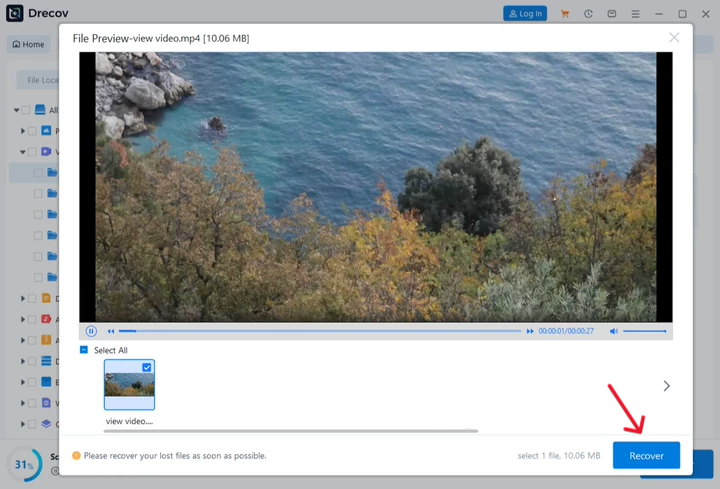
- Step 4: Export and Save Your Recovered Data. Check the boxes next to your target files. Click the Recover button and select a secure saving destination on an independent external drive.
Default Path Verification Note:
Windows Path: C:\Program Files\PandaOffice\Drecov\
Method 3: Restore via Windows Backup and File History
If you previously enabled File History, Windows provides an internal solution for how to restore deleted videos. Open the Control Panel, navigate to System and Security, and select File History. From there, you can browse through chronological backups and click the green Restore button to recover lost videos.
Alternative Methods: How to Restore Videos Without Third-Party Apps
While PandaOffice Drecov data recovery software serves as your primary solution for maximum data retrieval, alternative approaches exist for how to restore videos using built-in operating system features. These manual strategies offer excellent fallback options for users wondering how can i retrieve deleted videos without immediate software installations.
Command Line Solutions
Advanced users often deploy the Windows Command Prompt to fix file attributes. You can open CMD as an administrator using the hotkey combination Windows Key + X. Type the command chkdsk E: /f followed by attrib -h -r -s /s /d E:\*.* replacing E with your actual drive letter. This method can sometimes reveal a hidden deleted video that was marked as system protected.
Manual Shadow Copies
Windows creates shadow copies as part of a restore point. You can right-click the folder where your videos used to live, select Properties, and navigate to the Previous Versions tab. This manual approach helps users wondering how can i retrieve deleted videos without downloading extra tools.
Comparing Your Recovery Options
| Recovery Method | Success Rate | Processing Time | Technical Difficulty |
| PandaOffice Drecov | High | Fast | Low |
| Windows File History | Medium | Medium | Low |
| Command Prompt / CHKDSK | Low | Fast | High |
Tips & Best Practices for Deleted Video Recovery
Achieving success with deleted video recovery requires speed and proper digital hygiene. If you wonder how can i recover deleted videos without risking file corruption, keep these guidelines in mind.
- Stop Using the Device Immediately: As soon as you realize a file is missing, stop downloading files or running apps on that drive.
- Avoid Installing Software on the Target Drive: Always run your recovery tools from a portable flash drive or a separate system partition.
- Check Cloud Sync Status: Services like OneDrive or Google Drive often hold files in a cloud-specific trash bin for 30 days before permanent erasure.
- Maintain Regular Backups: Implement the 3-2-1 backup rule by keeping three copies of your data across two different media types with one copy stored offsite.
To cross-verify these recovery industry standards, you can review the technical insights provided on the Microsoft Support Portal.
Frequently Asked Questions
How do you recover deleted videos that were larger than 4GB?
Large files often get fragmented across storage sectors. PandaOffice Drecov data recovery software utilizes raw signature scraping to piece these fragments back together smoothly.
How to get back deleted videos if my SD card shows an unformatted error?
Do not click format. Open Drecov, choose the RAW partition option, and let the software scan the sector blocks directly to bypass the file system error.
Can I stop a scan midway if I already see my deleted video?
Yes, you can pause or stop the scanning progress bar at any time to preview and export files that have already been uncovered.
Why do some recovered videos show a black screen or fail to play?
This issue occurs if a portion of the video file was already overwritten by new data before recovery began. You can avoid this by scanning immediately after deletion.
Is it possible to retrieve videos from a physically broken hard drive?
Software solutions cannot fix physical hardware damage. If your drive makes clicking sounds, you must send it to a physical laboratory instead of using apps.
Conclusion
Addressing a deleted video emergency does not have to be an overwhelming experience. By acting quickly, avoiding drive usage, and using professional utilities like PandaOffice Drecov data recovery software, you maximize your chances of getting your files back. Take control of your digital workspace today by downloading reliable software and setting up a robust automated backup schedule to protect your media permanently.






