







Few things are as heart-sinking as plugging in your storage media only to realize your usb drive not showing up. Whether it is a collection of irreplaceable family photos or a critical business presentation, the sudden “invisibility” of a device can feel like a digital catastrophe. However, as an SEO expert and data recovery specialist, I can assure you that in over 90% of cases, the data is still there—your operating system simply cannot “see” the path to it.
This comprehensive guide will walk you through everything from basic hardware checks to professional-grade recovery using tools like PandaOffice Drecov. We will explore why a usb flash drive not showing up and how you can systematically restore your digital life.
What is USB Drive Technology and Why Does it Fail?
Before we dive into the fixes, we must answer a fundamental question: what is usb drive technology? At its core, a USB (Universal Serial Bus) flash drive is a solid-state storage device that uses flash memory with an integrated USB interface. Unlike traditional hard drives, they have no moving parts, which makes them durable but susceptible to electronic failure and file system corruption.
When you encounter a usb drive not working, it is usually due to one of three layers failing:
- The Physical Layer: The gold connectors, the controller chip, or the NAND flash memory itself.
- The Driver Layer: The software “handshake” between Windows/macOS and the hardware.
- The Logical Layer: The partition table or file system (FAT32, exFAT, NTFS) that organizes your data.
Initial Triage: Why Your USB Flash Drive Not Showing Up
When a usb flash drive not showing up occurs, the first step is to determine if the computer recognizes the presence of the hardware even if it can’t read the files.
The “Quick Fix” Checklist
- Try a different port: Avoid using front-panel USB hubs on desktop PCs; plug directly into the motherboard ports at the back.
- Check the physical switch: Some older drives have a physical “Read-Only” or “Lock” switch.
- Test on another device: If the drive works on a laptop but not your desktop, the issue is your computer’s configuration, not the drive.
- Inspect for physical damage: If the sandisk extreme fit usb-c or any other model feels excessively hot or has a bent connector, stop immediately to prevent further data loss.
Level 1: Basic Software Troubleshooting
If the hardware is physically sound but you still face a usb drive not working, the issue likely resides within Windows settings.
Updating and Reinstalling Drivers
Windows uses “Generic USB Hub” and “USB Mass Storage Device” drivers to communicate. If these become “stale” or corrupted, the drive won’t mount.
- 1. Press Windows Key + X and select Device Manager.
- 2. Expand the Disk drives section.
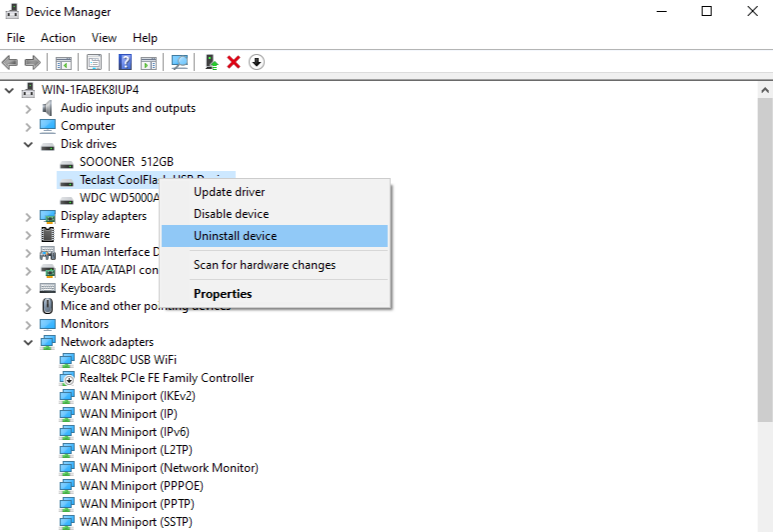
- 3. Right-click your USB drive (it might appear as “Unknown Device”) and select Uninstall device.
- 4. Unplug the USB, restart your computer, and plug it back in. Windows will automatically reinstall the driver.
Disabling USB Selective Suspend
Laptops often cut power to USB ports to save battery, which causes a usb drive not showing up after the computer wakes from sleep.
- Path: Control Panel > Hardware and Sound > Power Options > Change plan settings > Change advanced power settings.
- Locate USB settings > USB selective suspend setting and set it to Disabled.
Level 2: Logical Fixes via Disk Management
Often, the usb flash drive not showing up in File Explorer is simply because Windows forgot to give it a “name” (a drive letter).
Assigning a New Drive Letter
- 1. Right-click the Start button and choose Disk Management.
- 2. Look for a disk marked “Removable” with a black or blue bar.
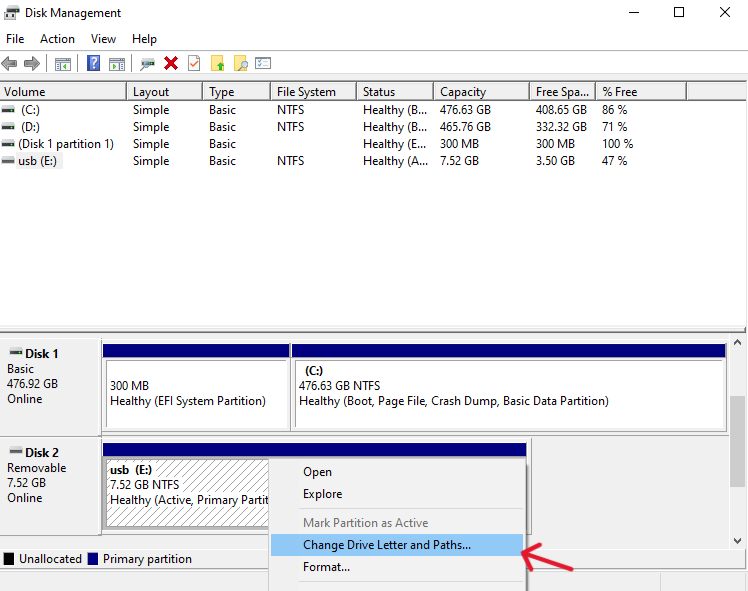
- 3. If it has no letter (like E: or G:), right-click the partition and select Change Drive Letter and Paths.
- 4. Click Add, choose a letter, and hit OK.
Creating a New Partition
If the space is labeled as “Unallocated,” it means the partition table is wiped.
Warning: Creating a new partition usually involves formatting, which erases data. If you need the files, skip to the PandaOffice Drecov section before doing this.
Level 3: Professional Data Recovery with PandaOffice Drecov
When the file system shows as “RAW” or the computer asks you to “Format the disk before you can use it,” you are dealing with logical corruption. This is where PandaOffice Drecov becomes essential. It is designed to bypass the OS’s inability to read the file system and scan the memory chips directly for file signatures.
How to Recover Data from a USB Drive Not Showing Up
If you are using a high-performance drive like the sandisk extreme fit usb-c, you want a tool that can handle high-density flash memory. Follow these steps carefully:
⚠ Warning: Install it on a drive different from the one where your data was lost to prevent overwriting.
Step 1: Connect and Select the Target
Launch the software and plug in your USB. In the main interface, PandaOffice Drecov will list all connected drives. Even if the drive has no letter in Explorer, it should appear here under “External Devices.” Select it and click Scan.

Step 2: Deep Scan Execution
The software will perform a “Quick Scan” followed by a “Deep Scan.” The Deep Scan is a sector-by-sector analysis.
- Pro Tip: Let the scan reach 100%. Interrupting the scan may result in fragmented or unrecoverable files.
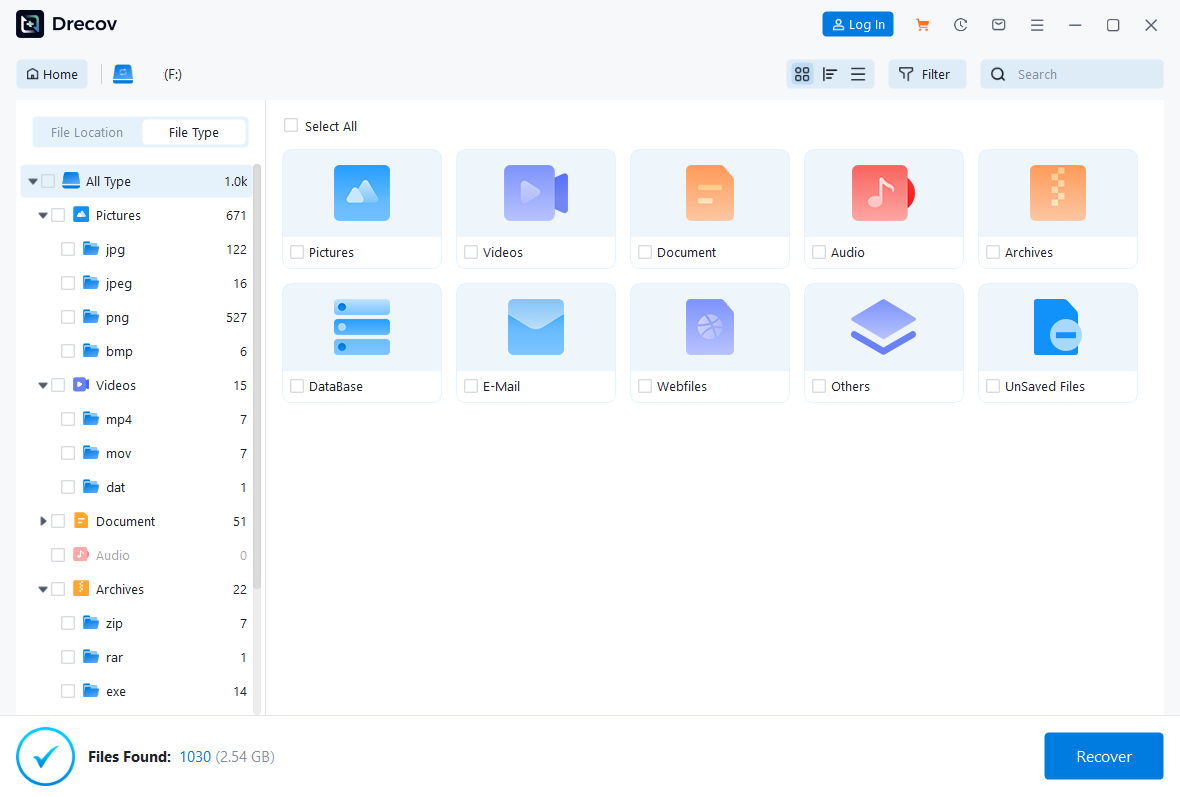
Step 3: Preview and Filter
Once the scan is complete, use the sidebar to filter by file type (e.g., .jpg, .docx, .mp4). PandaOffice Drecov allows you to preview images and documents before recovery to ensure they aren’t corrupted.

Step 4: Secure Recovery
Select the files you want to save and click Recover.
Crucial Warning: Never save the recovered files back onto the same USB drive that had the problem. Save them to your desktop or a cloud storage folder first.
Advanced Fixes: Using Command Prompt
If your usb drive not working is due to a “read-only” attribute or a minor partition error, the Command Line can sometimes force a reset.
The Diskpart Method
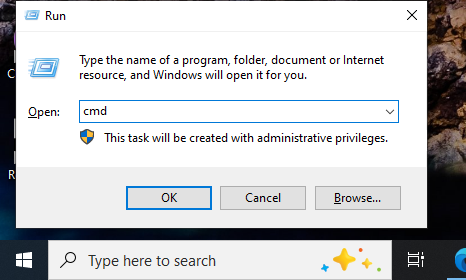
- 1. Type
cmdin the Windows search bar, right-click, and Run as Administrator.
- 2. Type
diskpartand press Enter. - 3. Type
list diskto identify your USB (look at the size to be sure). - 4. Type
select disk X(replace X with your USB’s number). - 5. Type
attributes disk clear readonlyto remove write protection.
Running CHKDSK
If the drive has a letter but won’t open, type:
chkdsk G: /f (Replace G with your actual drive letter).
This command attempts to fix the file system metadata. For more detailed instructions on this, check out this official Microsoft guide on disk health.
Why Specific Models Like Sandisk Extreme Fit USB-C Fail
Users often report the sandisk extreme fit usb-c specifically having detection issues. Because of its incredibly small form factor, it dissipates heat less efficiently than larger drives. High temperatures can cause the controller to temporarily “gate” itself off, leading to the usb drive not showing up. If you use a micro-sized USB-C drive, ensure it has breathing room and isn’t covered by cables or dust.
More Data Recovery Resources
Mastering data recovery is a journey. If you’ve successfully identified why your usb flash drive not showing up but still have specific hurdles, explore these deep-dive guides:
- Accidentally hit delete? Learn how to recover deleted files from usb drive with step-by-step logic.
- Need a comprehensive walkthrough? See recover deleted files from usb flash drive: a complete guide.
- Dealing with “Drive must be formatted”? Here is how to repair corrupted usb flash drive without losing data.
Summary Table: Quick Fix Finder
| Symptom | Probable Cause | Recommended Action |
| Drive not in Disk Management | Physical failure / Port issue | Try another PC; check for bent pins |
| “Unallocated Space” | Partition table loss | Use PandaOffice Drecov to recover |
| “No Drive Letter” | OS Assignment Error | Right-click in Disk Management > Change Letter |
| “Device Not Recognized” | Driver corruption | Uninstall from Device Manager & Restart |
| USB-C Drive gets very hot | Thermal throttling | Unplug for 10 minutes and retry |
Proactive Maintenance: Specific Methods to Protect Your USB Drive
Preventing a usb drive not showing up error is significantly more efficient than recovering data after a crash. To extend the lifespan of your hardware, implement these expert-level maintenance habits:
- Strict Adherence to “Safely Remove Hardware”: Windows uses “write caching,” meaning it might tell you a file is saved while it is still moving data in the background. Pulling the drive out prematurely causes file system corruption.
- Electrical Surge Protection: Avoid cheap, unpowered USB hubs. A sudden power spike through a low-quality hub can fry the controller chip of your sandisk extreme fit usb-c instantly.
- Static Discharge Prevention: In dry environments, touch a grounded metal object before handling your USB drive. Static electricity can bridge the gaps on the connector and damage the internal circuitry.
- Thermal Management: High-performance drives like the sandisk extreme fit usb-c generate significant heat. If you are transferring tens of gigabytes of data, allow the drive to “rest” between transfers to prevent thermal throttling and component degradation.
- Periodic Reformatting: Every 6–12 months, back up your files and perform a “Full Format” (not a Quick Format) to refresh the logical structure of the drive and identify bad sectors early.
USB Flash Drive not showing up FAQs
Q1: Why is my sandisk extreme fit usb-c getting extremely hot and then disconnecting?
- Expert Interpretation: This model uses a ultra-compact design where the metal casing acts as a heatsink. When it reaches a thermal threshold, the controller triggers a safety disconnect. To fix this, ensure you are using a port with good airflow and avoid long, continuous write operations.
Q2: What is usb drive “RAW” status in Disk Management?
- Expert Interpretation: A “RAW” status indicates that the operating system can see the hardware but cannot recognize the file system (FAT32/NTFS). This is a classic symptom of a usb drive not working due to a corrupted partition table. Do not format the drive yet; use PandaOffice Drecov first to extract the data.
Q3: Can a “usb drive not working” be caused by a Windows Update?
- Expert Interpretation: Yes. Occasionally, Windows updates can replace stable USB mass storage drivers with generic ones that fail to “handshake” with specific hardware. In such cases, rolling back the driver in Device Manager usually restores visibility.
Q4: My usb flash drive not showing up on my laptop but works on my TV. Why?
- Expert Interpretation: This suggests a “Drive Letter Conflict” or a “Power Management” issue on the laptop. The TV provides a steady 5V stream and doesn’t care about drive letters, whereas Windows might be trying to assign the USB a letter that is already taken by a network drive.
Q5: Is it safe to use CHKDSK on a usb drive not showing up correctly?
- Expert Interpretation: CHKDSK is effective for fixing directory errors but can be “destructive” to actual data if the drive has physical bad sectors. If your data is highly sensitive, perform a recovery scan with PandaOffice Drecov before attempting any command-line repairs.
Conclusion
Fixing a usb drive not showing up is often a matter of patience and using the right tools in the right order. Always start with the hardware, move to the OS settings, and use professional recovery software like PandaOffice Drecov before you even consider “Formatting” the drive.
To prevent future issues, always use the “Safely Remove Hardware” icon in the system tray. This ensures that all “write” operations are finished before power is cut, preventing the very corruption that leads to a usb drive not working.






